DaVinci Resolve vs Studio: Is the Free Version Enough?
DaVinci Resolve free vs Studio: the short answer · Specs at a glance: free vs Studio · What the free version of DaVinci Resolve includes · Resolution, bit depth and frame rate limits · GPU use and performance: one GPU or several · Noise reduction, motion blur and Resolve FX · AI tools and the Neural Engine in Studio · Audio, HDR and delivery extras · Price and licence: what Studio costs · What the published sources say, and what they leave out · Seven creator setups checked against the limits · Pros and cons of each edition · Migration guide: moving to Studio, or into Resolve · Verdict: free first, Studio when a trigger hits · Common questions
DaVinci Resolve costs nothing to download, and the paid Studio edition adds a specific list of tools on top of it. The gap is narrower than most comparisons suggest. If you edit YouTube videos at Ultra HD or lower and 60 frames per second or lower, the free app covers editing, color, Fusion effects and Fairlight audio in one program.
Blackmagic’s 21.2 release notes, documented November 4, 2026, draw the line in three places. The free edition limits project mastering and output to Ultra HD (3840 x 2160), handles virtually all 8-bit formats up to 60 fps, and uses one processing GPU on Windows and Linux. Studio lifts each of those limits and adds noise reduction, motion blur, more AI tools, HDR tools and remote rendering. Blackmagic distributes its installers through the support center, including this Windows download page, and every spec below was checked against the vendor’s pages on November 21, 2026.
If your real question is which free editor to pick for a channel, the CapCut vs DaVinci Resolve comparison covers that. This DaVinci Resolve free vs Studio comparison asks something narrower. Is DaVinci Resolve free enough for your footage, or does Studio earn its price? The answer depends on five numbers: resolution, bit depth, frame rate, GPU count and the tools you use every week.
DaVinci Resolve free vs Studio: the short answer
Start with the free version. It is the same application as Studio, with the same core processing, and it stops where Blackmagic draws its commercial line. Most creators who publish to YouTube, Instagram or TikTok never reach that line.
Studio becomes the right choice when one of five triggers applies to your work. Check them in order, because a single yes is enough to justify the upgrade:
- You master or deliver above Ultra HD. The free edition limits output to 3840 x 2160 or lower.
- You work with 10-bit footage at high frame rates. Studio supports 10-bit video up to 120 fps, while the free edition is described around 8-bit formats up to 60 fps.
- You own two or more GPUs and want Resolve to use them. Free uses one processing GPU on Windows and Linux.
- You rely on temporal or spatial noise reduction, motion blur, voice isolation or the extra AI tools on a weekly basis.
- You need HDR tools, surround or immersive audio, stereoscopic 3D or remote rendering in your delivery chain.
If none of those apply, you give up very little by staying on the free edition. If two or three apply, Studio pays for itself in saved time rather than in saved dollars. The sections below explain each trigger, what Blackmagic’s own pages say about it, and where the sources go quiet.
One current-state note before the details. The newest release is DaVinci Resolve 21.2, documented by Blackmagic on November 4, 2026, and Blackmagic’s download list shows a matching Studio 21.2 update. Version 21 itself was announced on April 13, 2026, replacing the Resolve 20 generation. Anything you read that describes Resolve 19 or 20 limits is describing a retired generation, not the app you will install today.
Specs at a glance: free vs Studio
The table below lists every difference in the DaVinci Resolve vs DaVinci Resolve Studio lineup that Blackmagic’s 21.2 notes and product pages state, checked November 21, 2026. A “No” means the notes list the feature as unavailable in the free edition. “Not listed” means the pages checked do not say either way, so test before you depend on it.
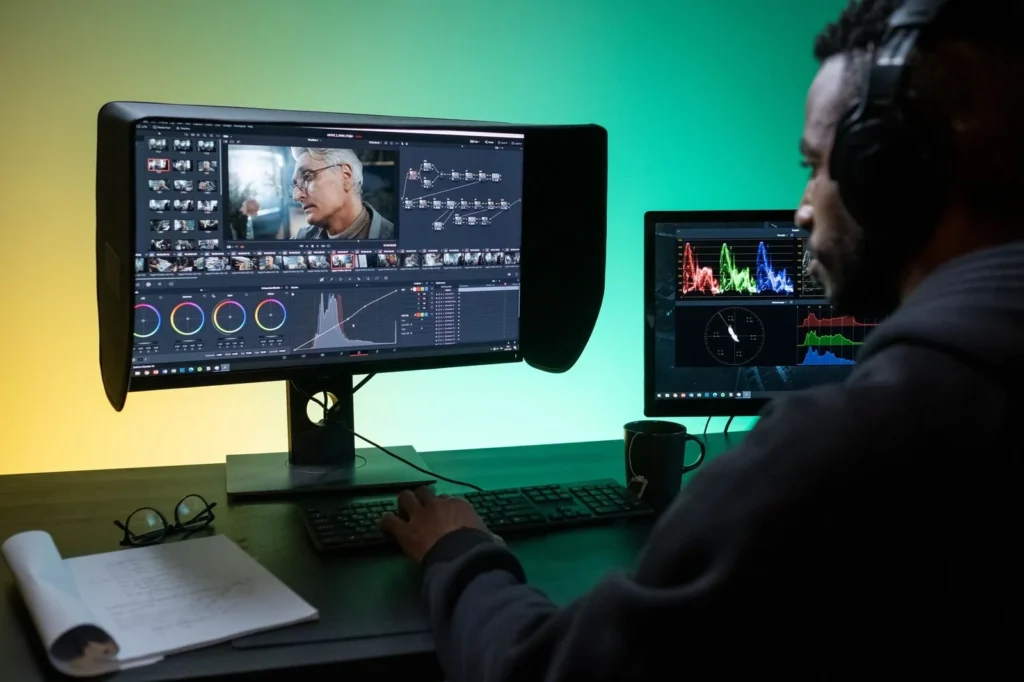
| Spec | DaVinci Resolve (free) | DaVinci Resolve Studio |
|---|---|---|
| Current version | 21.2 (documented Nov 4, 2026) | 21.2 (Studio update on the download list) |
| Licence cost | Free | Paid, with a limited 20% offer seen on Blackmagic’s homepage |
| Source media resolution | Unlimited-resolution media files | Unlimited-resolution media files |
| Mastering and output resolution | Ultra HD (3840 x 2160) or lower | Above Ultra HD |
| Frame rate and bit depth | Virtually all 8-bit formats up to 60 fps | 10-bit video up to 120 fps |
| Processing GPUs (Windows, Linux) | One | Multiple |
| Edit, Color, Fusion, Fairlight pages | Yes | Yes |
| Temporal and spatial noise reduction | No | Yes |
| Motion blur | No | Yes |
| Additional AI tools | No | Yes |
| HDR tools | No (see note below) | Yes |
| Camera tracking | No | Yes |
| Voice isolation | No | Yes |
| Surround and immersive audio | No | Yes |
| Additional Resolve FX | No | Yes |
| Stereoscopic 3D | No | Yes |
| Remote rendering | No | Yes |
Two cells need a caveat. Blackmagic’s feature summaries mention HDR grading in a general description of the free edition, yet the 21.2 notes list HDR tools among the features free lacks. The notes are the more specific statement, so treat HDR delivery as a Studio job and test your own project before committing. The second caveat is the GPU row. The notes state the one-GPU limit for Windows and Linux only, so this article makes no claim about how Mac systems handle it.
Read the table by rows, not by column totals. Studio shows more “Yes” cells, but a creator who needs one specific row, such as noise reduction, gets full value from that row alone. A creator who needs none of them gets nothing from the other fifteen.
What the free version of DaVinci Resolve includes
The free edition is a full editor, not a trial. Blackmagic’s notes describe it as covering editing, color, Fusion visual effects, Fairlight audio and collaboration, with the same high-quality processing as Studio. The cut page, the edit page, the color page, the Fusion compositing page, the Fairlight mixing page and the deliver page all ship in the free download.
That matters because many free editors cut features by page. Some give you a timeline and hide color. Others give you effects and lock the export. Resolve takes the opposite approach, and the restrictions sit in capability ceilings and a defined list of Studio-only tools. For a full YouTube workflow in the free app, the DaVinci Resolve 21.2 YouTube tutorial walks through import, cut, color, audio and export without touching a paid feature.
The shared processing deserves a second look. Blackmagic states that the free edition includes the same high-quality processing as Studio. In plain terms, a clip graded and rendered in free Resolve is not run through a weaker image pipeline. The free edition limits what you can feed in and push out, not how carefully it handles the pixels in between. That is unusual among free video editors, and it is the strongest argument for starting on the free edition.
Unlimited-resolution media, capped output
The free edition accepts unlimited-resolution media files but limits project mastering and output to Ultra HD or lower. Read that twice, because it changes who needs Studio. A creator shooting 6K or 8K footage can still import it, cut it, and deliver a 3840 x 2160 master from the free app. Oversampled source footage is useful. It gives you room to crop, reframe a vertical Short from a wide shot, or stabilize without losing sharpness.
The cap bites only when the finished file itself must exceed Ultra HD. That is rare on YouTube, where 4K Ultra HD is the top tier most channels upload. It is common in cinema mastering, large-format screens and some stock-footage libraries.
What free does not hide behind a paywall
Per the 21.2 notes, the Studio-only list is finite: multiple-GPU support, output above Ultra HD, motion blur, temporal and spatial noise reduction, additional AI tools, HDR tools, camera tracking, voice isolation, surround and immersive audio, additional Resolve FX, stereoscopic 3D and remote rendering. Everything outside that list, including keyframing, speed ramps, transitions, titles, the standard Fusion toolset and the Fairlight mixer, belongs to the free edition by exclusion. The sources checked list no watermark, no project-length cap and no subscription gate on the free app. They also do not announce that none exists, so confirm on the download page.
Resolution, bit depth and frame rate limits
Three numbers define the free ceiling: 3840 x 2160, 8-bit and 60 fps. Studio raises the frame rate and bit depth ceiling to 10-bit at 120 fps and removes the output resolution cap. Those figures come from Blackmagic’s notes and product page, checked November 21, 2026.
Render settings
| Setting | Free | Studio |
|---|---|---|
| Resolution of the finished master | 3840 x 2160 or lower | Above 3840 x 2160 |
| Frame rate (stated ceiling) | 60 fps | 120 fps |
| Bit depth (stated ceiling) | 8-bit formats | 10-bit video |
| Source media resolution | No cap stated | No cap stated |
| Typical YouTube export | 3840 x 2160 at 24 to 60 fps fits | Fits, same result |
| Typical Shorts or Reels export | 1080 x 1920 at 30 or 60 fps fits | Fits, same result |
| Export format list | Read the Deliver page presets | Read the Deliver page presets |
| Project length cap | None listed in the notes checked | None listed in the notes checked |
The middle of that table carries the practical message. A 1080 x 1920 vertical export at 60 fps sits well inside the free ceiling, and so does a 3840 x 2160 YouTube upload at 60 fps. Platform specs are the reason. Short-form apps top out at 1080 x 1920, and YouTube’s common upload tiers stop at Ultra HD, so neither platform asks for anything the free edition refuses to render. For title and logo clips that you render once and reuse, Vipid’s intro themes publish resolution, length and frame rate on each theme, which makes the render settings easy to match to your timeline.
Check your footage before you decide
Blackmagic describes the free edition around 8-bit formats. Phones and mirrorless cameras increasingly record 10-bit clips, often with HDR profiles, and the notes checked do not spell out how free handles each one. The fastest check is to read the clip’s properties with ffprobe, a free command-line tool, then import a sample into the free app and see whether it plays and renders.
ffprobe -v error -select_streams v:0 -show_entries stream=codec_name,width,height,r_frame_rate,pix_fmt -of default=nw=1 clip.mp4Read the output in three parts. The pix_fmt value tells you the bit depth, so a value ending in 10le means 10-bit. The r_frame_rate value shows the frame rate as a fraction, such as 60/1 for 60 fps. The width and height values show the source resolution. If a clip reads 3840 x 2160, 60/1 and an 8-bit pix_fmt, it fits the free ceiling exactly. If it reads 10-bit or 120/1, run a ten-second import test first and decide from the result, not from a spec sheet.
GPU use and performance: one GPU or several
The free edition uses one processing GPU on Windows and Linux. Studio supports multiple GPUs. That is the full extent of what Blackmagic’s notes say about this difference, and it limits what an honest article can claim about speed.
Here is what follows logically. A second GPU helps only when the first one is the bottleneck. Heavy color grades, large noise reduction passes, Fusion compositions and AI effects push the GPU hard, so editors who stack those tools can hit a ceiling that another card would raise. A simple timeline of cuts, titles and a basic grade rarely saturates one modern GPU. A creator with a single graphics card gains nothing from the multi-GPU row, because the feature needs hardware you do not own.
Studio also changes which effects you can run. Noise reduction and the AI tools are GPU-heavy by nature, so the question is rarely whether free or Studio runs faster on the same hardware. It is whether you need those effects at all. If you do, the GPU count matters. If you do not, it does not.
Recent performance changes in the release notes
Blackmagic’s Studio 21.1.2 notes list faster IntelliSearch on M6 Macs running macOS 27, improved AI-tool performance on Intel platforms, scripting API improvements, and general stability work. Those notes belong to the Studio build, and the sources checked do not say which items also reach the free app. Treat them as a signal that Blackmagic is tuning Studio’s AI features on the newest Apple and Intel hardware, and read the free edition’s own notes before assuming parity.
Why there are no render-time benchmarks here
None of the Blackmagic pages checked for this article publish a free-vs-Studio render time chart, and no verified figure for Resolve 21.2 turned up elsewhere, so this article reproduces none. A test you run yourself is more useful anyway. Build a five-minute timeline with your usual footage, grade and titles. Render it once in the free app and once in a Studio trial or install, with the same project, the same export preset and nothing else running. Record the wall-clock time for each. A small gap rarely changes a workflow. A large one does, and only your own hardware can show which you have.
Noise reduction, motion blur and Resolve FX
Noise reduction is the Studio feature creators most often name when asked why they paid. The 21.2 notes list both temporal and spatial noise reduction as unavailable in the free edition. Temporal noise reduction compares frames over time. Spatial noise reduction works within a single frame. Studio offers both, and Blackmagic’s Studio page reportedly describes the spatial option as AI-assisted.
Why it matters in practice: low-light footage. A creator who films in a dim room, shoots a concert at high ISO, or rescues a night clip will see grain that no amount of color correction hides. The free edition still offers basic blur and sharpening tools, but it does not include the dedicated noise reduction passes. If you shoot in controlled light with a decent sensor, you may never miss them.
Motion blur follows the same pattern. Studio adds a motion blur effect, which helps when you speed up footage, build animated titles or composite elements that need natural movement. It is a polish tool. Skipping it changes the look of fast motion graphics but never blocks a delivery.
The Resolve FX gap
Blackmagic lists additional Resolve FX as a Studio feature. According to the Studio product page as reported, the extras include film grain and optical blur, and the exact count of effects is not stated in the sources checked. The free edition keeps a working set of effects and transitions, so a typical YouTube edit with fades, zooms, titles and basic color finds what it needs. The gap shows up in finishing-level looks, such as a filmic grain pass or a lens-style blur on a background clip.
The Fusion page, which stays in the free edition, also handles most motion graphics a channel needs, including lower thirds, animated titles and logo reveals. From the Vipid archive: if you would rather drop in a finished animated logo than build one node by node, Vipid’s animated logo intro theme is one place to start. Either route works inside a free Resolve project, because the exported clip is just another file on your timeline.
AI tools and the Neural Engine in Studio
Blackmagic’s 21.2 notes list additional AI tools among the features the free edition lacks. The exact roster is where sources thin out. According to the Studio product page as summarized in the research for this article, Studio includes the DaVinci Neural Engine, Magic Mask and text-based editing. Each of those items rests on a single source, so verify it on Blackmagic’s page before you buy for one of them.
Here is what each tool does in plain terms:
- Magic Mask isolates a person or object so you can grade or blur it separately, without drawing a mask frame by frame. It replaces a slow manual job on talking-head and product shots.
- Text-based editing lets you cut a video by editing its transcript. For interviews, podcasts and tutorials, it can shorten the gap between raw footage and a rough cut.
- Voice isolation, which the 21.2 notes confirm as Studio-only, strips background noise from dialogue. It rescues clips recorded near traffic, fans or room echo.
- Camera tracking, also confirmed Studio-only, lets you pin a graphic or title to a moving shot.
The time savings from transcript-driven cutting are a general pattern, not a Blackmagic figure, so treat them as a reason to test rather than a promise.
The 21.1 AI assistant and what stays unclear
Blackmagic’s own page promotes the 21.1 release with a line about “AI assistant integration, expanded still photography support plus over 100 new tools and controls for editors and colorists.” The page does not separate which of those additions are free and which are Studio-only. That is a real gap for a buyer. Before you pay for Studio to get the AI assistant, check the release notes for the exact edition that carries it.
The honest summary for a creator: if AI cutting and cleanup tools are the reason you are weighing Studio, trial them on one real project. The free app lets you see everything else first, so the comparison is fair. If the assistant turns a four-hour edit into a two-hour edit, the price is easy to justify. If you edit short clips with few spoken minutes, the AI tools matter less than the specs table suggests.
Audio, HDR and delivery extras
Fairlight, Resolve’s audio page, comes with the free edition. Studio adds voice isolation and surround and immersive audio. Blackmagic’s product page describes the immersive side as fully integrated support for ground-up creation of 3D audio production, with 3D channels and buses from 5.1.2 to 9.1.6, remote RMU and DAMS, and a local Dolby Atmos Production Suite with AudioBridge. The notes confirm surround and immersive audio as a Studio-only capability. A YouTuber mixing stereo narration will never touch any of it.
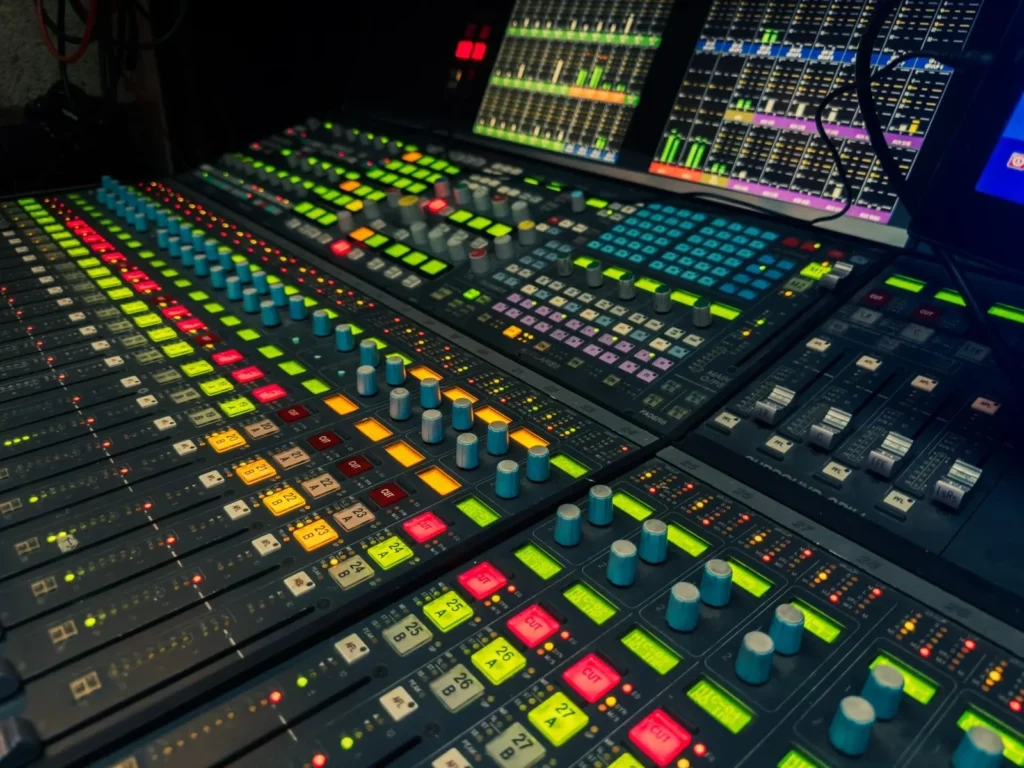
Who does need it? Editors delivering to cinemas, streaming services or immersive formats. Those jobs come with specs from a distributor, and the distributor’s spec decides the software. For a creator posting to YouTube, stereo or simple surround is the whole story.
HDR and professional delivery
The notes list HDR tools as a Studio feature, along with remote rendering and stereoscopic 3D. Blackmagic’s page also describes creating IMF files that comply with SMPTE ST.2067 for tapeless delivery to networks and distributors, with presets for generic, 20th Century Fox and Netflix deliveries. The sources checked do not mark that IMF feature as free or Studio-only, so confirm the edition before you plan a studio-style delivery around it.
For most creators, HDR is optional. You can grade and deliver a standard dynamic range video that looks right on every phone. If you want to publish HDR on YouTube, test a sample project in the free app first, because the notes and the general description disagree on how much HDR work the free edition handles. If the test fails, that single feature may justify Studio.
Price and licence: what Studio costs
On price, DaVinci Resolve free vs Studio is a $0 edition against a paid one. Studio is the paid edition, and Blackmagic’s pages identify it as a one-time purchase rather than a subscription, though that structure rests on a single source and the plan names should be confirmed on the product page. Blackmagic’s U.S. page reportedly listed Studio at $236, marked down from $295 under a limited-time 20% offer. One report says the discount was due to end November 20, 2026, so your page may already show the regular price. Treat $295 as the list price and $236 as a promotion you may have missed.
| Item | Cost | Notes |
|---|---|---|
| DaVinci Resolve (free) | Free | Version 21.2, same app as Studio |
| DaVinci Resolve Studio | Paid, one-time purchase | Blackmagic’s homepage ran a 20% limited-time offer around November 18, 2026 |
| DaVinci Resolve Speed Editor | $349 | Optional hardware, listed on Blackmagic’s site |
| DaVinci Resolve Replay Editor | $445 | Optional hardware, listed on Blackmagic’s site |
| DaVinci Resolve Editor Keyboard | $535 | Optional hardware, listed on Blackmagic’s site |
| Subscription fees | None found | No recurring plan appears in the pages checked |
The hardware rows exist to correct a common assumption. You do not need a control panel to run Resolve, free or Studio. A keyboard and mouse work fine, and the Speed Editor, Replay Editor and Editor Keyboard are optional speed tools. Skip them until you notice that your cutting speed, not your software, is the limit.
Now the cost picture, using the reported figures. Studio lists at $295, and the promotional price on Blackmagic’s US page is $236, both as a one-time purchase rather than a monthly fee. Compare that with a subscription editor and the one-time model looks cheap if you plan to stay for three years or more. The DaVinci Resolve vs Premiere Pro comparison sets the two cost models side by side.
Cheap is not the same as necessary. Money spent on Studio buys back time only if you use the features. A creator who never reaches a Studio-only row has paid for a license that sits idle. The free edition is the right place to learn which rows you actually use, and the price will still be there after a month of real work.
Costs outside the licence
The licence is the smallest cost in most editing setups. Fast storage, enough memory and a capable GPU decide how the app feels, and Blackmagic’s requirements for each platform are published in the readme that ships with every release. Check them before you install, because a laptop that edits 1080p comfortably may struggle with Fusion or AI tools on 4K clips.
Time is the other hidden cost. Resolve is organized into pages, each with its own layout and shortcuts, and editors arriving from timeline-only apps often need a couple of weeks to feel fast. That learning cost is identical in the free and Studio editions, which is another reason to start free. You pay the learning cost once, and the upgrade decision comes later with real data from your own projects.
What the published sources say, and what they leave out
Comparison articles often mix vendor claims with test results and leave the reader unable to tell them apart. The table below separates them. It lists each source behind this article, its date, what it states and what it leaves out. Every row comes from Blackmagic itself.
| Blackmagic source | Date | What it states | What it leaves out |
|---|---|---|---|
| Resolve 21.2 release notes | Nov 4, 2026 | Free caps: Ultra HD output, 8-bit up to 60 fps, one GPU on Windows and Linux. Studio-only feature list | Render times, codec-by-codec limits |
| Studio 21.1.2 release notes | Not listed | Editing and trimming changes, OGraf and Lottie support improvements, faster IntelliSearch on M6 with macOS 27, better AI-tool performance on Intel | Which items also reach the free edition |
| Resolve 21 announcement | Apr 13, 2026 | Version 21 as the new major generation, with the same free-edition limits | Per-feature edition split for later point releases |
| Resolve and Studio product pages | Checked Nov 21, 2026 | Studio feature list, 10-bit up to 120 fps, resolutions above 4K | A full price history |
| Blackmagic homepage | Around Nov 18, 2026 | 21.1 feature summary, 20% Studio offer | Which 21.1 items are free or Studio-only |
Three observations come out of this table. First, the specs are consistent across the sources, which gives high confidence in the free ceiling of Ultra HD, 8-bit and 60 fps. Second, no source gives render-time numbers, so any speed claim in a blog post needs its own evidence. Third, Blackmagic is clear about hardware limits and vague about the per-edition split of new features, so the AI assistant and similar additions are the items to verify before you pay.
That is the real answer to the request for benchmarks. Blackmagic publishes capability ceilings, not speed charts. Where a number is missing, this article says so rather than borrowing a figure from an older version. Resolve 20 numbers do not describe Resolve 21.2, and a benchmark from a different GPU generation tells you little about yours.
Seven creator setups checked against the limits
These setups are worked scenarios built from the limits above, not test renders. Each one starts from numbers a creator would recognize and ends with an edition.
Free is enough
Setup 1, weekly YouTuber. The channel films 3840 x 2160 at 30 fps in 8-bit H.264 on a mirrorless camera, and uploads one 12-minute video a week. Every number sits inside the free ceiling. Free wins, and the savings are the full Studio price.
Setup 2, gameplay clip editor. The editor cuts 1080p clips recorded at 60 fps and exports 1080 x 1920 verticals for Shorts. Sixty frames per second is exactly the free ceiling, so nothing is lost. Free wins.
Setup 3, Mac editor choosing an app. This editor weighs Resolve against Apple’s paid editor. The free ceiling covers 4K at 30 fps without restriction, so the decision turns on workflow rather than specs. The Final Cut Pro vs DaVinci Resolve comparison covers that choice in detail.
Setup 4, small studio with a 6K camera. The studio shoots 6K and delivers 3840 x 2160. The free edition accepts unlimited-resolution source files and outputs up to Ultra HD, so the free app covers the job. If a client ever requests a master above Ultra HD, that single order is the trigger to buy. Until then, the studio keeps its money.
Studio earns its price
Setup 5, event videographer. The shooter records 10-bit footage at 120 fps for slow-motion highlights. The free edition is described around 8-bit formats up to 60 fps, and Studio supports 10-bit up to 120 fps. Studio is the safe call, because the footage sits beyond the free ceiling on both axes.
Setup 6, low-light documentary editor. The footage comes from a dim interior at high ISO and carries visible grain. Temporal and spatial noise reduction are Studio-only, and no free tool in the app replaces them. Studio is worth the purchase for this one effect.
Setup 7, interview and podcast channel. The recordings happen in untreated rooms with fans and traffic in the background. Voice isolation is confirmed Studio-only, and text-based editing reportedly sits there too. A channel with hours of dialogue gets the most from these tools, so Studio is worth a trial.
Count the results. Four of seven setups stay on free, and three need Studio. The split suggests a useful rule: if your footage is ordinary and your audio is clean, expect to stay on free. If your footage is demanding, Studio solves a problem you already have.
Pros and cons of each edition
DaVinci Resolve free: pros
- Costs nothing, with no subscription found in the sources checked.
- Includes editing, color, Fusion effects, Fairlight audio and collaboration.
- Accepts unlimited-resolution source media, so high-resolution cameras still work.
- Delivers up to 3840 x 2160, which covers YouTube, Reels, Shorts and TikTok.
- Uses the same core processing quality as Studio, per Blackmagic’s notes.
DaVinci Resolve free: cons
- Caps mastering and output at Ultra HD.
- Describes support around 8-bit formats up to 60 fps, so 10-bit and high-frame-rate footage needs testing.
- Uses one processing GPU on Windows and Linux.
- Lacks noise reduction, motion blur, voice isolation, camera tracking and the extra AI tools.
- Leaves HDR tools, immersive audio and remote rendering to Studio.
DaVinci Resolve Studio: pros
- Supports 10-bit video up to 120 fps and output above Ultra HD.
- Adds multiple-GPU support, so heavy effects have headroom.
- Includes temporal and spatial noise reduction and motion blur.
- Adds extra AI tools, voice isolation and camera tracking.
- Pays once instead of monthly, according to the product pages checked.
DaVinci Resolve Studio: cons
- Costs money up front, with a reported $295 list price.
- Benefits depend on whether your work reaches the Studio-only rows.
- Leaves the per-edition split of new 21.1 additions unclear on Blackmagic’s own pages.
- Offers no published render-time benchmarks against the free edition.
Migration guide: moving to Studio, or into Resolve
Two moves are common. Some creators upgrade from free to Studio after a few months. Others arrive from another editor and start on free. Both work best with a little preparation.
From free to Studio
- Name the trigger. Write down the specific row that pushed you to upgrade, such as noise reduction or 10-bit at 120 fps. If you cannot name one, stay on free.
- Check the version. Confirm that the Studio build you plan to install matches the current 21.2 line, because mixing versions across machines or collaborators causes avoidable project problems.
- Back up your project library. Export your key projects before you install anything, so an upgrade problem cannot cost you work.
- Follow Blackmagic’s own installation and activation steps for Studio. The sources checked do not detail them, so use the vendor’s page rather than a forum post.
- Re-open one finished project and render a 60-second section with the Studio-only feature switched on. Compare the result with the free version of the same clip.
- Keep the free edition’s project files. They remain usable, and a second copy is cheap insurance.
From another editor into free Resolve
- Import media first, not projects. Cross-editor project transfers often drop effects and titles, so rebuild a few key edits by hand and keep the old project as a reference.
- Match your frame rate and resolution before importing. Set the timeline to your delivery spec, such as 3840 x 2160 at 30 fps or 1080 x 1920 at 60 fps, so nothing gets rescaled by accident.
- Rebuild title and lower-third presets inside Fusion or the edit page and save them as templates.
- Set your keyboard shortcuts early, because muscle memory from a previous editor causes most early frustration.
- Render a short test to your target platform and compare file size and sharpness.
If you are still choosing between tools, the editing software guides compare the main options by price, limits and platform. A first week with free Resolve is the cheapest way to learn whether its page-based layout suits you.
Verdict: free first, Studio when a trigger hits
In the DaVinci Resolve free vs Studio decision, the free edition is enough for most creators. It handles 3840 x 2160 output and 60 fps in 8-bit formats, and it includes the pages that make up a complete editing workflow. The Blackmagic notes checked on November 21, 2026 support that conclusion, and nothing in the sources contradicts it.
| If your work involves | The number that matters | Pick |
|---|---|---|
| YouTube uploads at Ultra HD | 3840 x 2160, up to 60 fps | Free |
| Shorts, Reels and TikTok | 1080 x 1920 | Free |
| High-resolution camera, UHD delivery | Source above UHD, master at UHD | Free |
| Slow motion at 10-bit | 120 fps | Studio |
| Masters above Ultra HD | Output above 3840 x 2160 | Studio |
| Grainy low-light footage | Noise reduction needed weekly | Studio |
| Dialogue-heavy channel in noisy rooms | Voice isolation | Studio |
| Two or more GPUs installed | Multiple-GPU support | Studio |
Our recommendation: install the free version of 21.2 today and edit your next three videos in it. Note every moment you wish for a Studio feature. If the list stays empty, you have saved the full price. If the list names one or two items, buy Studio for those items, and do it when an offer is live. Blackmagic reportedly discounted Studio by 20% in the weeks before this article, so check the price before you pay.
One last point on scope. Blackmagic reportedly also documented a Fusion Studio 21.2 release on the same schedule. It is a separate compositing product and not a replacement for Resolve, so do not confuse it with DaVinci Resolve Studio. If you only want better effects, check which product actually carries the effect before you buy.
Common questions
Is DaVinci Resolve really free? Yes. The current free edition, version 21.2, is free to download and use, and Blackmagic’s pages describe it as covering editing, color, Fusion effects, Fairlight audio and collaboration. Its limits are capability ceilings, not a time limit.
What is the difference between DaVinci Resolve and DaVinci Resolve Studio? In the DaVinci Resolve vs DaVinci Resolve Studio split, Studio is the paid edition of the same application. It adds multiple-GPU support, output above Ultra HD, 10-bit video up to 120 fps, motion blur, temporal and spatial noise reduction, additional AI tools, HDR tools, camera tracking, voice isolation, surround and immersive audio, extra Resolve FX, stereoscopic 3D and remote rendering.
Can the free version export 4K video? Yes, up to Ultra HD, which is 3840 x 2160. Blackmagic’s notes limit free mastering and output to Ultra HD or lower, and describe support for virtually all 8-bit formats up to 60 fps. Output above Ultra HD needs Studio.
How much does DaVinci Resolve Studio cost? Studio is a paid, one-time purchase according to Blackmagic’s product pages. The U.S. page reportedly listed it at $236, reduced from $295 under a limited 20% offer, and one report says the offer was due to end November 20, 2026. Check Blackmagic’s page for the price in your region.
Does DaVinci Resolve Studio need a subscription? The pages checked on November 21, 2026 show a one-time Studio purchase and no recurring plan, though that structure appears in a single source. Confirm the licence terms on Blackmagic’s page before you buy.
Is Studio faster than the free version? The sources checked give no render-time comparison. Studio supports multiple GPUs while free uses one on Windows and Linux, so Studio can help when the GPU is the bottleneck. Run your own timed export of the same project in both editions to find out.
Which version of DaVinci Resolve is current? DaVinci Resolve 21.2, documented November 4, 2026, is the newest release found. Version 21 was announced April 13, 2026, and 21.1.2 was the preceding Studio maintenance release. Resolve 20 is an older generation.
Do I need Studio for YouTube? Usually not. YouTube uploads at 3840 x 2160 and up to 60 fps sit inside the free ceiling. Studio helps only if you need noise reduction, voice isolation, 10-bit footage at high frame rates or another Studio-only tool.
More from the Vipid blog
- Free Video Editor No Watermark [2026]: 1080p vs 4K Caps
- YouTube Intro Template [2026]: 5 Tools, 3 Routes, $0 Start
- Is After Effects Free for Logo Animation? The Real Cost
- Adobe Premiere Pro to Resolve [2026]: CornerCut, $0 Beta
- Vipid intro themes resolution, length and frame rate per theme
- Promo themes product and channel promos
- Sample videos finished Vipid intros
- Vipid intro maker make a custom intro in the browser
Jonah Reyes
Jonah Reyes is the Editing & Export Editor at Vipid. He covers editing software, export settings and codecs, and the video specs of YouTube, Shorts, TikTok and Reels, plus OBS and screen recording. He builds Vipid’s spec tables from the platforms’ own documentation and re-checks them every 60 to 90 days, so the numbers in a guide match what the upload dialog actually accepts.