CapCut vs DaVinci Resolve: Which Free Editor for YouTube?
CapCut vs DaVinci Resolve at a Glance · What Each Editor Is in November 2026 · Pricing: What $0 Gets You and What the Paid Tiers Cost · Free-Tier Limits That Affect YouTube Uploads · Editing Workflow, Speed and Shorts · Color Grading and Audio · AI Features: Seedance 2.5, EditPilot and Resolve’s AI Assistant · Performance, Hardware and What the Evidence Covers · Intros, Outros and Titles in Each Editor · Six Worked Scenarios · Which Editor for Which Use Case · Migration Guide: Moving a Channel Between CapCut and Resolve · Pros and Cons · Verdict: Which Free Editor Wins for YouTube · Common questions
DaVinci Resolve 21.2 and CapCut both cost $0 to start, but they stop being free in very different places. Blackmagic’s readme for the 21.1 line says the free Resolve keeps the same processing as Studio and handles media of any resolution, yet it limits project mastering and output to Ultra HD or lower and uses one processing GPU on Windows and Linux. CapCut draws its lines by feature, account, region and credits instead of one hard ceiling.
For YouTube, the short answer is simple. Pick Resolve for long videos you plan to grade, mix and keep for years. Pick CapCut for Shorts, fast captioned cuts and anything you want out the door in an afternoon. Plenty of channels end up running both, and the free tiers make that cost nothing.
This comparison covers specs, pricing, free-tier limits, AI tools, intros and outros, migration and a verdict. Specs and prices come from the vendors’ own pages and release notes, checked on November 20, 2026, and where a figure comes from a single report the text says so. If you want to see Resolve in action first, our walkthrough on editing a YouTube video in DaVinci Resolve 21.2 follows a full timeline from import to export.
CapCut vs DaVinci Resolve at a Glance
| Spec | CapCut | DaVinci Resolve (free) |
|---|---|---|
| Current release | Desktop, Web, mobile and tablet apps, all listed as active (checked Nov 20, 2026) | DaVinci Resolve 21.2 (Nov 2026) |
| Price to start | $0 (displayed currency varies by region) | $0 |
| Paid tiers | Subscriptions: Standard, Pro, Ultra, Teams | DaVinci Resolve Studio, $295 one-time (regular US price) |
| Platforms | Desktop, Web, iOS, Android, tablet | Windows, macOS, Linux, plus an iPad app |
| Timeline | Multi-track timeline with AI assist for cutting, captions, cleanup and export | Multi-track editor with separate Cut, Edit, Fusion, Color and Fairlight pages |
| Free output ceiling | Varies by account, region and feature | Ultra HD or lower (project mastering and output) |
| Watermark risk | Depends on feature and app version. Some templates add an ending logo clip, and premium assets on the free tier can watermark | No watermark limit listed in the free-version notes |
| GPU use | Not itemised on the pages checked | One processing GPU on Windows and Linux |
| AI video generation | Seedance 2.5, credit-based, billed per second for Pro and Ultra | No generative video model listed. AI assistant integration since 21.1 |
| Prompt-based editing | EditPilot, announced Oct 27, 2026 | AI assistant integration (21.1 and later) |
| Noise reduction | Not itemised on the pages checked | Temporal and spatial noise reduction are Studio only |
| HDR tools | Not itemised on the pages checked | Studio only |
| Voice isolation | Audio tools listed under Pro | Studio only |
| Cloud storage | Pro: up to 1 TB | Local projects, optional DaVinci Resolve Project Server |
| Team pricing | Teams: $12.49 per seat per month (US, checked Nov 5, 2026) | Studio licence per seat, no monthly fee |
| Audience size | CapCut says it serves more than 700 million users every month | Not published on the pages checked |
Read the table by the two rows that matter most for a YouTube channel: the free output ceiling and the watermark rule. Resolve’s free ceiling is a single published line. CapCut’s ceiling and watermark behavior shift with the feature you use, so you check them per project instead of once.
The second pattern is where each company puts its paywall. Blackmagic keeps the core editor, color and Fusion engine free and reserves the heavy finishing tools for Studio: noise reduction, HDR, camera tracking, voice isolation, surround audio and extra effects. CapCut keeps basic editing and free templates open and reserves premium assets, cloud storage, advanced AI and higher-end generation for paid plans and credits.
That difference shapes who gets stuck. A creator who outgrows free Resolve hits one wall, and it costs a one-time $295 only if they need those finishing tools. A creator who outgrows free CapCut tends to hit several small walls (a template with a logo clip, a premium font, an empty credit balance), each with its own fix. Neither is wrong, but you should know which wall you will meet first.
Rows marked as not itemised mean the vendor pages checked for this article did not list the feature either way. That is a gap in the documentation we read, not a statement that the feature is missing. Check the in-app feature list before you plan a project around any of those rows.
What Each Editor Is in November 2026
DaVinci Resolve is on version 21.2, and Blackmagic’s own readmes identify it as the current release for both the free edition and Studio. Reports differ on the exact November day it shipped, so treat it as an early-to-mid November 2026 release. Resolve 20 is no longer the newest version and should only appear in your workflow as a legacy install.
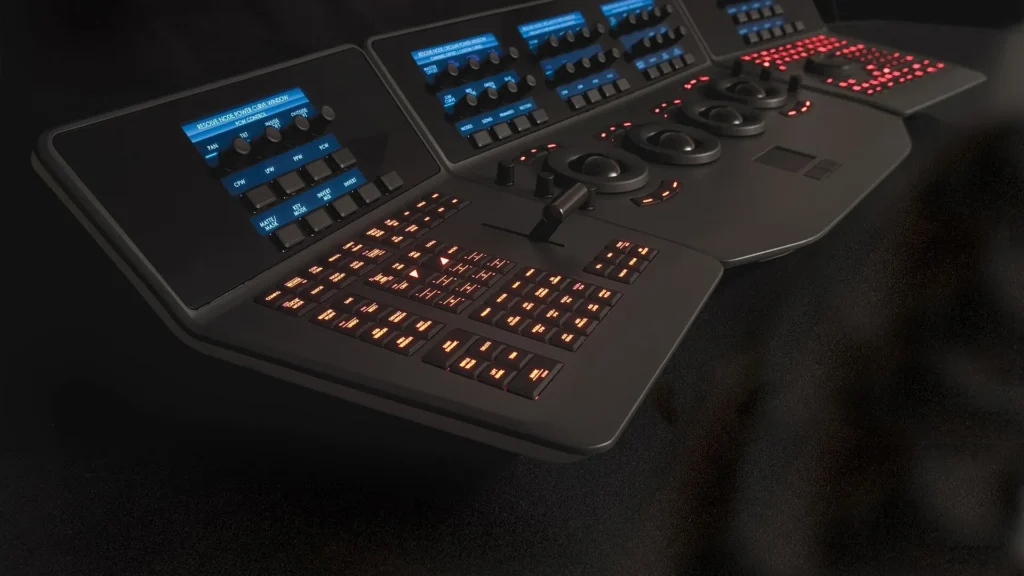
The 21.1 release introduced AI assistant integration, expanded still-photography support and more than 100 new tools and controls, according to Blackmagic’s own product pages. Release notes for 21.2 reportedly add Blackmagic Gen 6 LUT support, support for Apple MacBook Pro displays and improvements to the AI assistant, scripting and metadata handling. Blackmagic also lists Fusion Studio 21.2 as a separately versioned product, so do not assume Fusion’s version tracks the editor’s.
The free edition is called DaVinci Resolve and the paid one DaVinci Resolve Studio. An iPad version also exists. A report dated November 19, 2026 puts it at free with a separate $94.99 Studio upgrade, though that single-source figure is worth confirming in the App Store before you rely on it.
CapCut is a family of apps rather than one program. Its own tools listing covers Desktop, Web, mobile and tablet editors, plus AI image and video generators. On October 27, 2026, at the CapCut World event in Los Angeles, the company announced four AI-powered editing updates across those surfaces. One was EditPilot, which handles prompt-based editing. The company also announced a ChatGPT plugin that lets you shape an idea in ChatGPT and have CapCut assemble a first cut.
CapCut‘s video generation runs on Seedance 2.5. A CapCut resource article describes an AI video editor built on a multi-track timeline, where generated drafts land as editable projects you can refine with captions, music and pacing. Seedance 2.5 is the current generation, so older Seedance versions only matter if a template still names them.
Plans changed this year. CapCut’s help pages say the former Pro structure was replaced for new subscribers on March 25, 2026, with an upgraded Pro and a new Standard plan. The upgraded Pro allowance is 1,200 AI points and 1 TB of storage, up from 550 points and 100 GB. The official pricing material also names Free, Pro, Ultra and Teams, so some guides describe two paid tiers and others describe four. Both descriptions trace back to CapCut’s own materials, and the plan you see depends on region, device and billing channel.
No successor to either product is announced but unreleased. Blackmagic’s pages show no unreleased Resolve version. CapCut’s forward-looking items on the pages checked are feature announcements such as EditPilot and the ChatGPT plugin, not a new editor.
Pricing: What $0 Gets You and What the Paid Tiers Cost
| Plan | Price | What changes | Basis |
|---|---|---|---|
| CapCut Free | $0 | Basic editing, free templates, limits by account and feature | CapCut pricing page, Nov 2026 |
| CapCut Standard | Shown in the app by region and device | Introduced Mar 25, 2026 for new subscribers | CapCut help page |
| CapCut Pro | Shown in the app by region and device | 1,200 AI points, up to 1 TB storage, premium assets, advanced AI | CapCut help page |
| CapCut Ultra | Not published on the pages checked | Listed as a plan, with per-second Seedance 2.5 usage | CapCut pricing material, Nov 2026 |
| CapCut Teams | $12.49 per seat per month (US) or EUR 14.99 per seat per month (Germany) | Collaboration for teams | US price checked Nov 5, German price Nov 11, 2026 |
| DaVinci Resolve (free) | $0 | Core editing, color, Fusion and audio, output up to Ultra HD | Blackmagic readme, 21.x |
| DaVinci Resolve Studio | $295 one-time (regular US price) | Studio-only tools listed in the next section | Reported Nov 2026 |
| Studio promotion | $236 (20% off) | Same product, limited-time price | Blackmagic site banner and reports, Nov 20, 2026 |
| Resolve for iPad | Free, with a $94.99 Studio upgrade | Separate purchase from desktop | Reported Nov 19, 2026 |
CapCut prices vary by region, device, taxes, promotions and billing channel, so the US and German figures above should not be read as universal. CapCut’s own help page tells you to open the upgrade screen in your account to see the price that applies to you. Treat any blog that quotes one global CapCut Pro price with suspicion.
One report for a specific US context, checked in early November 2026, put Pro at $19.99 a month or $179.99 a year. That is a single-source figure and it may not match your account. If it does hold for you, Studio’s regular $295 equals roughly 20 months of the annual Pro price, or about 15 months of the monthly one. The math favors Resolve for anyone who plans to edit for two years or more, and it favors CapCut for anyone who edits for a season and stops.
The Studio promotion deserves a caution. Blackmagic ran a special pricing announcement in late October 2026, and its site currently advertises 20% off Studio, which matches the $236 figure reported on November 20. That is a limited-time offer, not the standard price, so budget with $295. If you are weighing Studio against a monthly Adobe subscription, our DaVinci Resolve vs Premiere Pro price breakdown runs that break-even in detail.
For a team of three, CapCut Teams is billed per seat, at a checked US price of $12.49 per seat per month, if that figure holds for your region. Each Studio licence is a one-time US$295 purchase. The two models answer different questions: Teams buys shared workspace and asset handling by the month, while Studio buys a finishing toolset you own. Pick based on whether your bottleneck is collaboration or finishing quality.
One more cost sits outside both price lists: your time. Resolve’s learning curve is a real expense for the first month, and CapCut’s template shortcuts save hours on short projects. If you value an hour at any rate at all, the cheaper tool is the one that matches the work you publish most often.
Free-Tier Limits That Affect YouTube Uploads
DaVinci Resolve: one hard ceiling
The free edition limits project mastering and output to Ultra HD resolutions or lower. Ultra HD means 3840×2160, which is what YouTube serves as 4K, so a standard 4K upload fits under the ceiling. What you give up is output above Ultra HD and, by Blackmagic’s own comparison, a second processing GPU on Windows and Linux. For a typical channel uploading 1080p or 4K, the free ceiling rarely binds.
Studio-only features are the real boundary. Blackmagic’s documentation lists them, and the table below shows what you would be buying.
| Feature | Free Resolve | Resolve Studio | Matters for YouTube when |
|---|---|---|---|
| Output above Ultra HD | No | Yes | You deliver to clients above 4K |
| Multiple GPUs | No (one on Windows and Linux) | Yes | You render long projects on multi-GPU rigs |
| Temporal and spatial noise reduction | No | Yes | You shoot in low light |
| HDR tools | No | Yes | You grade for HDR delivery |
| Camera tracking | No | Yes | You pin graphics to moving shots |
| Voice isolation | No | Yes | You rescue noisy dialogue |
| Surround and immersive audio | No | Yes | You mix beyond stereo |
| Additional Resolve FX | No | Yes | You want the extra effect library |
| Motion blur | No | Yes | You add synthetic blur in post |
| Remote rendering | No | Yes | You offload renders to another machine |
Most solo YouTubers never need a single row in that table. The two that tend to tip the decision are noise reduction for dim footage and voice isolation for noisy rooms. If neither describes your footage, free Resolve already covers your uploads.
CapCut: soft limits that move
CapCut’s free tier is documented as free-to-start but not as unlimited. Its own help page, dated March 18, 2026, says watermark-free export depends on the features you use and the app version, that templates may add an ending logo clip, and that premium assets on the free tier can watermark. Paying for Pro unlocks premium assets without that path. A CapCut resource article from November 12, 2026 adds that AI credits, premium assets, watermark rules and export limits vary by feature, account, region and current offer.
For a creator, that means reading the export screen every time. Use only free assets, skip templates that attach an ending clip, and check the preview before exporting. Our guide to free video editors that export without a watermark compares how clean each editor’s free export is across more tools than these two.
Render settings
| Setting | Resolve free | CapCut free | Practical choice for YouTube |
|---|---|---|---|
| Resolution | Up to Ultra HD | Depends on account and feature | Match the resolution of your footage |
| Frame rate | Set per project | Set per project | Keep the frame rate you shot at |
| Length | No cap listed in the free notes | Depends on the feature and plan | Cut to the story, not to a limit |
| Export format | Choose on the Deliver page | Choose on the export screen | MP4 with H.264 uploads everywhere |
| Watermark check | Not listed as a limit | Preview every export | Confirm before publishing |
The practical column is the one to copy into your export preset. Shoot at one frame rate, edit at that rate, and export at that rate. Resampling frame rates on export is a common source of stutter that no editor can fully hide, and it has nothing to do with which program you picked.
Editing Workflow, Speed and Shorts
CapCut is built for speed on short projects. Its AI video editor is described as a multi-track timeline with AI assistance for cutting, captions, cleanup and export. You drop in clips, pick a template or let the AI assemble a first cut, correct the captions and export. For a 30-second vertical clip, you can often go from import to upload in a short sitting.
Resolve is built for depth. The free edition includes the same core processing as Studio, so the Cut page, Edit page, Fusion compositor, Color page and Fairlight audio page are all there. The Cut page handles fast assembly and trimming, while the Edit page gives you the full timeline when a project grows. The cost is a longer ramp. Expect hours to reach basic competence and weeks to feel at home across all the pages.
The vertical format is where CapCut earns its place. Shorts and Reels projects rely on large captions, quick punch-ins and templates, and CapCut is organized around those. Resolve handles vertical timelines too, but you set the project resolution and build caption styling yourself, which pays off only if you will reuse the setup across many videos.
Long-form is the reverse. A 20-minute talking-head video with b-roll, a music bed and chapter markers benefits from Resolve’s finer control over audio and color, plus a project database that scales. CapCut can cut the same video, but you will lean on its project and cloud features, and your storage plan decides how comfortable that is. Pro’s up to 1 TB and Standard’s reported 100 GB are not interchangeable for a channel with 4K source files.
Platform reach also differs. CapCut runs in a browser, on phones and tablets and on desktop, so you can rough-cut a clip on a phone and finish it on a laptop. Resolve is primarily a desktop application, with the iPad version as a separate purchase path and a different feature set from the desktop edition. If your editing happens in short bursts away from a desk, that portability counts.
A practical hybrid is common. Cut the long video in Resolve, then pull a few vertical highlights into CapCut for Shorts with big captions. You export once from each program and avoid rebuilding a caption style you have already settled in CapCut. Both free tiers support that workflow without a subscription.
Keyboard habits matter more than most comparison tables admit. Resolve rewards a creator who learns its trim and ripple shortcuts, because every hour of editing gets slightly faster. CapCut rewards a creator who builds a small kit of saved text styles and sound effects, because every short video starts further along. Both are forms of the same investment, and the right one is the one you will actually make.
Color Grading and Audio
Color is the clearest dividing line. Resolve’s color tools sit at the center of the product, and the free edition runs the same core processing as Studio. You get the node-based grading workflow, scopes and LUT support without paying. Studio adds HDR tools and noise reduction on top, which matter for HDR delivery and low-light footage.
CapCut’s approach is preset-led. Filters, adjustments and template looks get a clip to a consistent style fast, which suits social content with a house look. The pages checked do not itemise scopes or node-based grading for CapCut, so if you need to match two cameras precisely, Resolve is the safer bet. If you want a bright, punchy look in five clicks, CapCut gets there faster.
Resolve’s 21.2 notes reportedly add Gen 6 LUT support for Blackmagic cameras. If you shoot on Blackmagic bodies, that is a direct workflow gain. If you shoot on a phone or a mirrorless camera, it is irrelevant and you can ignore it.
Audio shows the same split. Resolve’s Fairlight page gives a full mixing environment in the free edition. Studio adds voice isolation and surround or immersive audio, which matter if you rescue noisy dialogue or deliver beyond stereo. CapCut lists audio tools under Pro and handles typical creator jobs such as music beds, voiceovers and quick cleanup, with less depth for multi-track mixing.
A realistic test for your own channel is dialogue quality. If you record in a treated room with a decent microphone, either editor delivers clean audio. If you record in a kitchen with a fridge humming behind you, you will want Studio’s voice isolation or a separate cleanup tool, and CapCut’s Pro audio tools are the other route. Decide based on your room, not on feature lists.
AI Features: Seedance 2.5, EditPilot and Resolve’s AI Assistant
CapCut is far ahead on generative AI. Seedance 2.5 is its AI video generator, and it turns a script or a reference image into an editable draft you refine on the timeline. According to CapCut’s own announcement, Seedance 2.5 workflows (AI Video, AI Edit and AI Extend) reached the PC app on August 7, 2026. Usage is credit-based and billed per second for Pro and Ultra members.
Free users are not shut out. CapCut advertises a 7-day free trial of its AI video tools and free daily credits for some Seedance features, though the entitlement is not universal and you confirm it in your own account. Credits also reportedly sit apart from the subscription: they can pay for advanced AI functions but cannot buy Pro itself.
EditPilot, announced on October 27, 2026, adds prompt-based editing, and the ChatGPT plugin aims to hand you a first cut from a conversation. Both were announced rather than shipped to everyone, so confirm they appear in your app before you build a workflow on them. For comparison with standalone generators, our free AI video generator tiers article lays out what the credit models cost elsewhere.
Resolve’s AI story is about finishing, not generating footage. Version 21.1 introduced AI assistant integration, and 21.2 reportedly improves it for color and Fusion tasks, timeline actions and metadata. Studio adds further AI-based tools. None of this creates new video from a prompt, so it will not replace a generator, but it speeds the work of a person who already has footage.
For a YouTuber, the AI choice reduces to one question. Do you want a tool that makes b-roll and clips from text, or a tool that polishes what you shot? The first is CapCut. The second is Resolve. If your channel depends on generated footage, budget for credits, because per-second billing on long clips adds up faster than a flat plan suggests.
Performance, Hardware and What the Evidence Covers
No independent render-time benchmark for CapCut Desktop against DaVinci Resolve 21.2 appeared in the sources checked for this article, so none is quoted here. A made-up number would be worse than none. What the vendor pages do document is hardware behavior and the free-tier GPU rule.
| Evidence | Source type | What it supports |
|---|---|---|
| Free Resolve: one processing GPU on Windows and Linux | Blackmagic readme (21.x) | Hardware ceiling for the free edition |
| Free Resolve: Ultra HD or lower output | Blackmagic readme (21.x) | Resolution ceiling |
| Studio-only multi-GPU and remote rendering | Blackmagic product pages | Where heavy rendering moves |
| CapCut credits vary by workflow, tier and region | CapCut tool FAQ | AI cost is not fixed |
| Seedance 2.5 billed per second for Pro and Ultra | CapCut PC explainer | Generation cost scales with clip length |
| No render-time benchmark in sources checked | Gap | Run your own export test |
Hardware matters more for Resolve than for CapCut. Resolve leans on the GPU for color, effects and playback, and Blackmagic’s own promotional banner for the Studio discount references the new Apple M6 and NVIDIA RTX Spark processors. Resolve runs on modest machines, but timelines with heavy effects slow down quickly without a capable GPU, and the free edition cannot add a second one on Windows or Linux.
CapCut’s heaviest work, such as AI generation, runs through credits on remote services rather than your own hardware, which is why it feels light on an average laptop. Local editing still uses your CPU and GPU, but the AI features do not demand a high-end card. That lowers the entry bar for creators on older machines.
Mac users face a separate question, since Final Cut Pro is also in play. Our Final Cut Pro vs DaVinci Resolve comparison covers that matchup, including the $299.99 Final Cut price against free Resolve.
To make your own benchmark, take one real project, such as a five-minute 1080p timeline with a few effects, and export it from both editors with matching settings. Note the export time, the file size and any watermark. Repeat on the footage you shoot at a higher resolution. Ten minutes of that beats any generic chart, because your hardware and footage are the variables that matter.
Intros, Outros and Titles in Each Editor
Branded openers and end cards are where the free tiers differ most in practice. In CapCut, templates are the quick route, but the help page warns that templates may add an ending logo clip, which is the last thing you want on a branded outro. Check the final seconds of every template-based export, or build your outro from plain clips and text instead.
In Resolve, titles and outros come from the Edit page’s title tools and the Fusion page, which give you keyframed text and shapes without an extra licence. The effort is higher, so most creators build one intro and one end card, save them as reusable assets and drop them into each project. That upfront work pays back after a handful of videos.
A third route avoids both editors’ title tools. You can generate an intro elsewhere, export it as a video file and import it as a clip in either program. A set of intro themes with listed resolution, length and frame rate gives you a ready file to place at the start of a timeline. Match the intro’s frame rate and resolution to your project settings so the editor does not resample it.
From the Vipid archive: the animated logo intro theme is one example of a short brand opener you can export once and reuse in either editor.
Lower thirds follow the same logic. CapCut gives you text styles and templates for quick name straps. Resolve lets you build a lower third once with Fusion or the title tools, then save it as a preset. For a weekly interview show, the Resolve preset saves time. For a one-off clip, CapCut’s template is faster.
Whatever you choose, keep the opener short. A brand sting that runs a few seconds respects the viewer, while a long animated intro costs retention. That advice holds in both editors and does not depend on which one you open.
Six Worked Scenarios
These scenarios are illustrative setups, not case studies of named channels. Each ties a common situation to the facts above.
1. Weekly talking-head channel, 15-minute videos. You shoot 1080p, add b-roll and a music bed, and publish every Friday. Free Resolve covers the whole job, costs nothing and leaves headroom for color and audio as your setup improves. CapCut works, but its soft limits and storage tiers add friction on repeated long projects.
2. Daily Shorts creator. You cut vertical clips with large captions, usually from a phone. CapCut wins on speed, templates and mobile reach. Watch for the template ending logo clip and premium-asset watermarks, and stick to free assets until you are sure the export is clean.
3. Course creator with 40-minute lessons. Audio quality decides retention. Free Resolve’s Fairlight page handles multi-track mixing, and Studio’s voice isolation helps if your room is noisy. CapCut’s Pro audio tools can clean a voiceover, but a long lesson gets heavy for its cloud-oriented project handling.
4. Travel vlogger shooting 4K. The Ultra HD ceiling in free Resolve covers standard 4K delivery, and the Color page does the heavy lifting on mixed-light footage. If your clips are noisy at dusk, Studio’s temporal and spatial noise reduction is the upgrade to price out.
5. Small business making product clips on an older laptop. CapCut’s lighter local load and template-based flow suit this person. Brand consistency comes from one saved text style and a plain end card built without a template, which sidesteps the logo-clip issue.
6. Three-person team sharing assets. CapCut Teams at the checked US price of $12.49 per seat per month gives shared workspace features, billed for each of the three seats. Each Studio licence is a one-time US$295 and brings finishing tools. Choose Teams if collaboration is the bottleneck and Studio if finishing quality is.
Which Editor for Which Use Case
| Use case | Pick | Why | Watch for |
|---|---|---|---|
| Shorts and Reels with big captions | CapCut | Templates, AI captions, mobile reach | Ending logo clips, premium-asset watermarks |
| Long-form talking head | DaVinci Resolve | Full audio and color tools at $0 | Learning curve |
| 4K travel or cinematic work | DaVinci Resolve | Ultra HD output free, strong color | Noise reduction needs Studio |
| AI-generated b-roll | CapCut | Seedance 2.5 inside the editor | Per-second credit costs |
| Older laptop, fast turnaround | CapCut | Light local load, templates | Cloud storage tier |
| Client work with delivery specs | DaVinci Resolve | Controlled export and color pipeline | Output above Ultra HD needs Studio |
If your situation sits between two rows, default to the editor whose paywall you are least likely to hit. For most channels that is free Resolve, since its single ceiling sits above typical delivery needs. For channels built around vertical clips and generated footage, CapCut’s soft limits are the cost of its speed.
Many creators will not stop at two editors. Other free options such as Clipchamp, Shotcut, Kdenlive and OpenShot fill different gaps, and iMovie covers Apple devices. The editing software category collects the comparisons for each.
One more factor is how long you plan to stay. Resolve rewards investment, because skills carry from free to Studio without relearning anything. CapCut rewards immediacy, because you produce a polished short video on day one. Pick the curve that matches your patience and your publishing schedule.
Migration Guide: Moving a Channel Between CapCut and Resolve
None of the vendor pages checked document a project-file bridge between CapCut and Resolve. Plan to move media and assets, then rebuild the edit. That is less painful than it sounds, because the footage and music are the hard part and those move cleanly.
From CapCut to DaVinci Resolve
- Export a clean copy of any finished video from CapCut for your archive, after checking the final seconds for a logo clip.
- Copy your source footage, music and fonts into one project folder outside CapCut’s cache.
- Install the current free DaVinci Resolve and create a new project that matches your footage’s resolution and frame rate.
- Import the folder, and use the Cut page to assemble a rough edit quickly.
- Rebuild captions with Resolve’s subtitle tools or import a caption file you exported earlier.
- Save your title, lower third and outro as reusable presets so the next project starts faster.
- Export from the Deliver page to MP4 with H.264, then compare file size and watermark behavior against your old CapCut exports.
channel-project/
  01_footage/
  02_audio/
  03_graphics/    (intro, outro, lower thirds)
  04_captions/
  05_exports/
That folder layout works in either editor and keeps a future migration trivial. The point is to keep every asset in one place you control, so that no project depends on an app’s internal cache.
From DaVinci Resolve to CapCut
Going the other way is rarer but happens when a creator shifts to vertical content. Render the finished long video from Resolve, then bring the master file into CapCut and cut highlights from it. You lose the original timeline’s layers, but for Shorts you only need the finished picture and sound. Keep your Resolve project untouched so you can re-export if a highlight needs different color.
Before either move, write down your export settings: resolution, frame rate, container and codec. Matching them avoids a visible quality shift between old and new uploads, and it makes any comparison fair.
Pros and Cons
CapCut, pros:
- Fast path from idea to captioned short video, with templates and AI assist.
- Runs on desktop, web, phone and tablet, so editing moves with you.
- Seedance 2.5 generation sits inside the editor, with free daily credits for some features.
- Light on older hardware, since AI work runs on remote services.
CapCut, cons:
- Free-tier limits move with account, region, feature and credits, so nothing is fixed.
- Templates may add an ending logo clip, and premium free-tier assets can watermark.
- Prices vary by region and billing channel, and plan names have shifted during 2026.
- Per-second AI billing makes generated footage costly on long clips.
DaVinci Resolve, pros:
- Free edition carries the same core processing as Studio, with Ultra HD output.
- Deep color and audio tools without a subscription.
- One-time $295 Studio price if you ever need the finishing tools.
- Active development, with 21.1 and 21.2 landing in recent months.
DaVinci Resolve, cons:
- Steeper learning curve, and heavier on GPU and memory.
- Free edition caps output at Ultra HD and uses one GPU on Windows and Linux.
- Noise reduction, voice isolation and HDR tools sit behind Studio.
- No generative video model listed, so no text-to-footage inside the editor.
Verdict: Which Free Editor Wins for YouTube
For long-form YouTube, DaVinci Resolve 21.2 wins on the data. Its free edition costs $0, outputs up to Ultra HD, keeps the same core processing as Studio and lists no watermark among its limits. The only price you might ever pay is a one-time $295 for Studio, and only if you need noise reduction, voice isolation, HDR or output above Ultra HD.
For Shorts, captioned clips and generated b-roll, CapCut wins on speed and reach. It runs on desktop, web, phone and tablet, it has Seedance 2.5 and EditPilot built in, and its free tier is generous enough to publish real work. The price of that speed is uncertainty: limits vary by account and region, templates can add a logo clip, and AI credits bill per second.
The sensible default for most channels is to install both. Cut the long video in Resolve, pull vertical highlights into CapCut, and keep all assets in a folder both programs can read. If you must choose one, choose Resolve if you publish videos longer than a few minutes and CapCut if your channel lives on Shorts.
Re-check the numbers before you commit money. CapCut’s prices and plan names have changed in 2026 and differ by region, and Blackmagic’s Studio promotion is temporary. Everything in this article reflects vendor pages and release notes read on November 20, 2026.
Common questions
Is DaVinci Resolve really free for YouTube videos? Yes. The free edition includes the same core processing as Studio, handles media of any resolution and limits output to Ultra HD or lower. That covers standard 1080p and 4K uploads. The free version also uses one processing GPU on Windows and Linux.
Does CapCut add a watermark on the free tier? It depends. CapCut’s help page says watermark-free export depends on the features you use and the app version. Templates may add an ending logo clip, and premium assets on the free tier can watermark. Pro unlocks premium assets without that path, so preview every export.
What is the newest version of each editor? DaVinci Resolve 21.2 is the current release, for both the free edition and Studio. CapCut ships as several apps (Desktop, Web, mobile and tablet), and its newest video model is Seedance 2.5.
How much does DaVinci Resolve Studio cost? The regular US price reported on November 20, 2026 is $295, paid once. Blackmagic is running a limited-time promotion of about 20% off, which matches the reported $236 figure. Budget with $295 and treat the discount as a bonus.
How much does CapCut Pro cost? It depends on your region, device and billing channel, and CapCut tells you to check the upgrade screen in your account. Pro includes 1,200 AI points and up to 1 TB of storage. One US report put it at $19.99 a month or $179.99 a year, but treat that single-source figure as a rough guide only.
Which is better for beginners? CapCut gets a beginner to a finished short video faster, thanks to templates and AI assist. Resolve takes longer to learn, but the skills transfer to professional work and nothing about the free edition blocks you from growing into it.
Can I use both editors on one channel? Yes, and many creators do. Cut long videos in Resolve and make vertical highlights in CapCut. Keep footage, audio and graphics in one shared project folder so you can move between them without rebuilding assets.
More from the Vipid blog
- Best Green Screen Software for Chroma Keying, Ranked
- CapCut Templates vs Canva vs Adobe [2026]: 4 Licence Layers
- Adobe Premiere Pro to Resolve [2026]: CornerCut, $0 Beta
- Auto Captions in 5 Editors [2026]: $0 vs $22.99/mo
- Lower Thirds Examples [2026]: 6 Styles, 5 Editors
- Vipid intro themes resolution, length and frame rate per theme
- Promo themes product and channel promos
- Sample videos finished Vipid intros
- Vipid intro maker make a custom intro in the browser
Jonah Reyes
Jonah Reyes is the Editing & Export Editor at Vipid. He covers editing software, export settings and codecs, and the video specs of YouTube, Shorts, TikTok and Reels, plus OBS and screen recording. He builds Vipid’s spec tables from the platforms’ own documentation and re-checks them every 60 to 90 days, so the numbers in a guide match what the upload dialog actually accepts.