Adobe Premiere AI Color Match [2026]: 30 Credits a Pass
What ProVideo Coalition Reported on November 17 · The Reported Test Results at a Glance · How the Shot-Match Prompt Worked · Applying a Pexels Still Across an Entire Sequence · What 30 Credits a Pass Means for Your Budget · What Adobe’s Own Pages Document · The Clip Match Removal and Why It Matters · Where This Sits in the Premiere 27.0 Release · Competitive Comparison: Prompted Matching Versus Built-In Tools · Market Impact for Creators and Small Studios · Historical Context: From Lumetri to Color Mode to an Agent · A Practical Workflow for Matching Shots With the Assistant · Five Predictions for Premiere’s Color Tools · Common questions
Adobe Premiere editors can now ask the AI Assistant (Beta) to match one shot to the next, and Jeff Greenberg’s Tool Tip Tuesday column on ProVideo Coalition, published November 17, 2026, puts a price tag on the experiment. Each assistant pass cost roughly 30 credits, and his two tests burned about 60. Adobe’s own Premiere AI Assistant overview describes the feature as a panel that accepts natural-language prompts and can apply color grading.
That makes color matching a metered, prompt-driven job instead of a button. This analysis sorts what the column reported from what Adobe documents, walks through the credit math, and looks at what it means for creators who cut interviews, vlogs and stream highlights. It also builds on our earlier look at Premiere 27.0’s Color Mode and the AI beta.
What ProVideo Coalition Reported on November 17
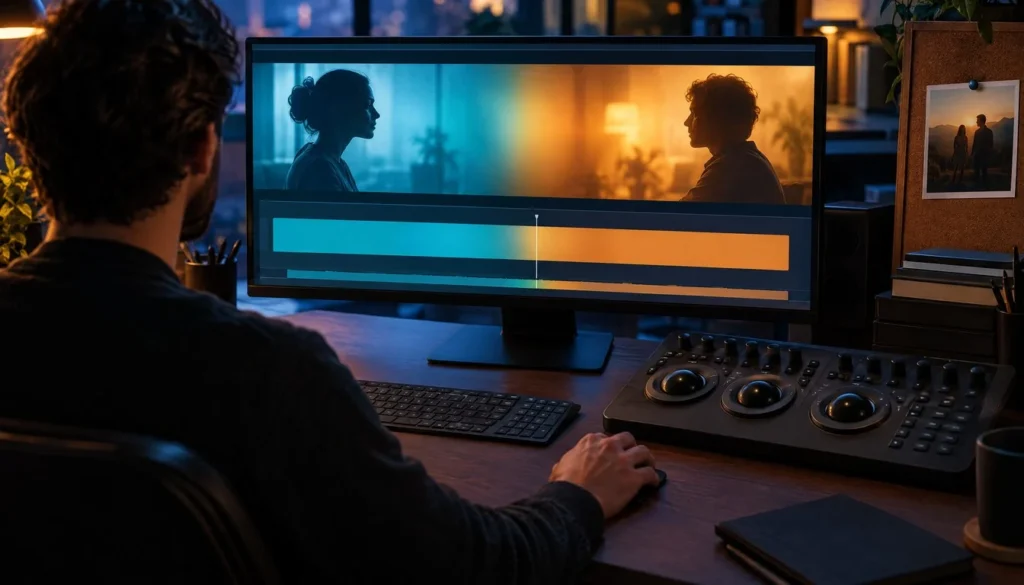
Greenberg’s column is part of ProVideo Coalition’s Tool Tip Tuesday series for Adobe Premiere. This week’s installment is titled “Tool Tip Tuesday for Adobe Premiere: Color Matching with the AI Assistant (Beta),” and it tests one specific job: making two shots from different setups look like they belong in the same scene.
He ran two tests. In the first, he asked the assistant to match a shot to its neighbor on the timeline. In the second, he pasted a still image from Pexels into the panel and asked the assistant to apply that look across an entire sequence. Both runs returned visible changes, and both drew credits.
The column’s summary also says the initial Premiere release shipped without a dedicated, conventional shot-matching tool. Adobe’s pages that we reviewed do not use that wording, so treat it as the column’s framing and not a vendor statement. We return to the Adobe side of the record below.
The takeaway for a working editor: this is a hands-on report from one named columnist, not a lab benchmark. It tells you the workflow exists and roughly what it burns in credits. It does not tell you how well the match holds across mixed lighting, skin tones or log footage.
The Reported Test Results at a Glance
The table below lists everything the column establishes, with nothing added from outside it. Where an item is a number, it is Greenberg’s approximation, not an Adobe-published rate.
| Item | What was reported |
|---|---|
| Outlet and author | ProVideo Coalition, Jeff Greenberg |
| Publication date | November 17, 2026 |
| Product | Adobe Premiere |
| Feature and status | Premiere AI Assistant, labeled Beta in the headline |
| Shot-match prompt | “match this shot to the next shot.” |
| What the assistant analyzed | The shots, including color management |
| Internal work | Rendered frames internally |
| Adjustments reported back | Exposure and temperature, among others |
| Sequence-wide test | Apply the look of a pasted still across the whole sequence |
| Source of the still | Pexels |
| Style module named | Contrast Kit |
| Cost per pass | Approximately 30 credits |
| Cost of two passes | Approximately 60 credits |
Two gaps stand out. The column gives no currency price for a credit, and neither do the Adobe pages we checked, so any dollar figure for a pass would be a guess. It also names no model behind the assistant, and Adobe’s reviewed pages do not identify one either.
How the Shot-Match Prompt Worked
The prompt is plain English, and that is the headline change. Instead of opening a color panel, picking a reference frame and nudging sliders, you describe the job. Greenberg’s wording was “match this shot to the next shot.” Short, imperative, no technical vocabulary.
What the assistant analyzed
According to the column, the assistant did not just eyeball two thumbnails. It analyzed both shots, took the project’s color management into account, and rendered frames internally before it answered. That order matters. A match made without knowing the working color space can look right on one monitor and fall apart on export.
The assistant then reported the changes it made, including exposure and temperature. Reading that list is useful on its own. It tells you whether the tool fixed the problem you saw (a warm window shot beside a cool interior) or a different one.
Where the result lands
Adobe’s pages do not spell out a clip-to-clip prompt as a guaranteed capability. An Adobe Community announcement thread does offer a sample prompt, “Match the color and exposure of clip x to clip y,” but that is community guidance, not a formal specification. A reply in the same community reportedly adds that the assistant works through Color Mode controls and does not regenerate the media, which would leave you free to adjust the result by hand. That detail comes from a single community post, so check it in your own project before you rely on it.
Adobe’s help page on adding references to prompts reportedly says files, Project panel items and timeline clips can be attached to a prompt as references. That is how a source-and-target request would be framed. We could not confirm it with a second source, so we flag it as reported.
Applying a Pexels Still Across an Entire Sequence
The second test is the more ambitious one. Greenberg pasted a still image from Pexels into the assistant and asked it to apply that look across the whole sequence. He reports that the work drew on Premiere’s Color and Contrast controls and on the new Contrast Kit sequence Style Module.
This is a different job from shot matching. Shot matching makes clip B resemble clip A. A reference-still look asks the tool to infer a grade (contrast shape, color balance, mood) from a single frame and spread it across many clips that were never shot to match. It is closer to what a colorist does when a client hands over a reference image and asks for the same mood.
Style Modules are part of Color Mode. One report says Adobe added modules such as Vignette and Midtones, plus an Auto Color tool for exposure and color temperature, on September 8, 2026. Contrast Kit, as named by Greenberg, fits that family. Because the module is a native Premiere control, you can open it afterward and tune it, which is the safety net that makes an AI-applied look usable in a real edit.
The same November 10 release also brought HSL Masking, which isolates colors by hue, saturation and luminance. If the assistant’s sequence-wide look pushes skin too orange, an HSL mask is the likely manual fix. Our rundown of the other Premiere 27.0 changes, including the new effects and native ARM support, covers what else shipped alongside it.
What 30 Credits a Pass Means for Your Budget
Greenberg’s figure is the most practical number in the column. About 30 credits per assistant pass, and about 60 for his two tests. The table multiplies that approximation so you can see how a real project adds up. It is arithmetic on a reported figure, not an Adobe rate card, and a pass on longer or more complex material may cost more or less.
| Passes | Approximate credits at 30 per pass | Illustrative job |
|---|---|---|
| 1 | 30 | One shot matched to its neighbor |
| 2 | 60 | Greenberg’s two reported tests |
| 5 | 150 | A five-cut scene, one pass per cut |
| 10 | 300 | A short interview with two camera angles and retries |
| 20 | 600 | A vlog with many locations, a few re-runs |
| 40 | 1,200 | A longer edit with several looks tried and rejected |
Credit policy is the least settled part. Adobe’s beta documentation has described complimentary daily credits dedicated to the Premiere AI Assistant, separate from paid-plan credits and refreshing at midnight GMT. We could not confirm that policy is unchanged as of November 17, so check your account before you plan a project around it. A separate report says Adobe tied assistant usage to a customer’s Firefly credit allocation, though that rests on a community post and not an official pricing page.
For context on the subscription, Adobe’s plans page reportedly lists Premiere at US$22.99 per month on the annual plan billed monthly, and no separate price for the AI Assistant was found. If a metered, per-pass fee does not suit you, a free editor with manual color tools avoids the question entirely, and our ranking of free video editing software lists six of them with their export limits.
What Adobe’s Own Pages Document
Vendor documentation is the safer record for names and status, so here is the state of the Premiere color toolset as of November 17, 2026, taken from Adobe’s release notes, announcement and help pages.
| Feature | Status on Adobe’s pages | Detail |
|---|---|---|
| Premiere desktop release | Version 27.0, November 10, 2026 | Adds the AI Assistant panel, Color Mode and HSL Masking |
| AI Assistant (Beta) | Beta | Project-aware panel driven by plain-language requests |
| Color Mode | Generally available per the November 10 announcement | Release notes still label parts of it beta |
| HSL Masking | Shipping in 27.0 | Isolates by hue, saturation and luminance |
| Generative Media Tool | Expanded in 27.0 | Images, music and soundscapes added |
| Clip Match in Lumetri | Removed | Listed in Adobe’s Color Mode documentation |
| AI Assistant on Premiere mobile | Private beta | Announced separately from the desktop release |
| Separate AI Assistant price | Not stated | No price found on the reviewed Adobe pages |
| Model behind the assistant | Not named | No model or version identified in reviewed material |
Notice the tension in the Color Mode row. Adobe’s November 10 announcement calls Color Mode generally available, while the release notes mark parts of the experience as beta. Both can be true. The workspace can be stable while individual tools inside it keep a beta label. For a client project, read the label on the specific control you use.
Adobe also says generative features and AI models can vary by account type, plan, region, language and hardware, and that cloud-based generative features need an internet connection. If a colleague reports different behavior on the same build, start there.
The Clip Match Removal and Why It Matters
Adobe’s Color Mode documentation lists Clip Match as removed from Lumetri, along with the clip Comparison Mode that sat in the Edit-mode Monitor. One report goes further and says the earlier automatic color-match control is gone from 27.0. Adobe’s reviewed pages do not lay out the full list of what moved, so we limit the claim to the removal the documentation states.
Adobe’s description of Color Match, the older idea behind this whole job, promised to match colors between clips and adjust saturation, white balance and brightness. It also says Face Detection can give special attention to skin tones and expressions. Whether the AI Assistant uses Face Detection when it matches shots is not documented in anything we reviewed. Greenberg’s column does not address it either.
That gap is worth watching. Skin is where an automatic match fails first, and a face-aware pass is the difference between a match that looks natural and one that turns a guest’s face gray. Until Adobe says how the assistant treats faces, check skin tones on a vectorscope after every pass.
The practical effect is a change in where the work happens. Before, matching was a deterministic panel you could repeat for free. Now the equivalent lives in a conversational beta that bills credits, with manual Color Mode tools underneath as the fallback.
Where This Sits in the Premiere 27.0 Release
Adobe’s release notes and its Community announcement, titled “Welcome to Adobe Premiere 27.0!”, date the release to November 10, 2026. PRONEWS ran a Premiere 27.0 release story on November 12. The column frames the release as shipping without a shot-match feature, and that detail is not independently confirmed by the Adobe sources we have, so we leave it as the column’s characterization.
The assistant is also not unique to Premiere. Adobe announced AI Assistant (beta) for its flagship desktop products on November 10, naming Premiere, Illustrator, InDesign, After Effects and Frame.io. Trusted Reviews’ coverage of Adobe’s creative agent describes the assistant as an active beta and not a finished, generally available feature, and that matches Adobe’s own labeling.
Two items remain forward-looking. Adobe’s planned MCP support for 2027 is not a released capability today, so third-party agents cannot yet drive this workflow through it. And Premiere mobile’s AI Assistant is a private beta, separate from the desktop build, so do not assume the shot-match prompt works on a phone.
Competitive Comparison: Prompted Matching Versus Built-In Tools
There are three ways to match shots in Premiere today. You can prompt the AI Assistant, which costs credits and needs a beta panel. You can match by hand with Color Mode’s controls, Style Modules and HSL Masking, which cost only time. Or you can take the job to another editor with its own matching tools.
Rival editors have long offered color-matching features inside their grading tools, and they do not meter them per pass. Our head-to-head of DaVinci Resolve against Premiere Pro covers how the two apps differ on price and workflow. If you are weighing a move to Apple’s editor instead, Final Cut Pro versus DaVinci Resolve lays out that pair.
What the assistant offers that a slider cannot is intent. You say what you want and it chooses which controls to touch. What it gives up is predictability. A manual match gives the same result tomorrow, while a prompted match depends on how the assistant reads your wording and the frames it renders. For a one-off social cut that tradeoff is fine. For a series with a locked look, a saved Style Module is the repeatable route.
Market Impact for Creators and Small Studios
The immediate impact is on pricing psychology. A tool that used to be free inside the app is now a prompt with a visible meter. At about 30 credits a pass, a creator cutting a ten-clip video may think twice before re-running a match three times to get the warmth right. That nudges people toward manual Color Mode work for small fixes and toward the assistant for the large, tedious ones.
For small studios, the bigger shift is consistency across a team. A sequence-wide look from a reference still gives a junior editor a way to land near a client’s reference without a colorist’s hours. The cost is that the look is only as good as the still and the footage. A Pexels still shot in golden hour will not convert a flat webcam interview into the same mood without clipping something.
Adobe’s wider strategy is visible in the rollout. Putting one assistant across five desktop apps turns credits into the shared currency of Creative Cloud, and color matching is a clean, countable example of that. Our editing software coverage tracks how rivals respond on price and on built-in tools.
Beyond that, watch the creators who mix sources. Stream highlights, phone b-roll and pre-rendered intros and logo stings all arrive with their own color. Matching them used to be a manual chore at the end of an edit, and a prompt that handles the first pass could save real minutes per video. Whether it saves money depends on a credit price nobody has published yet.
Historical Context: From Lumetri to Color Mode to an Agent
Premiere’s color story has moved quickly in 2026. Adobe reportedly launched Color Mode as a public beta for Premiere subscribers on April 15, 2026, and said it would reach general availability later in the year. That promise was met on November 10, when Adobe announced Color Mode as generally available.
In between, Premiere 26.5 arrived in September 2026 with generation of video and sound effects through the Generative Media Tool in the timeline. A report also dates Style Modules and Auto Color to September 8. Then 27.0 landed on November 10 with the AI Assistant panel, an expanded Generative Media Tool (images, music and soundscapes) and HSL Masking.
Lumetri’s Clip Match sat at the start of that arc as the old, button-based way to match. Its removal, per Adobe’s documentation, closes the first chapter. Seen in sequence, the pattern is clear: Adobe moved color from panel to workspace to agent in about seven months, and each step added a new place for the next one to plug in.
A Practical Workflow for Matching Shots With the Assistant
You can test this on a low-stakes project today. The steps below are drawn from what the column and Adobe’s documentation describe, plus ordinary editing practice. They are suggestions, not a tested recipe.
Before you send the prompt
- Set the project’s color management correctly first. The column notes the assistant analyzed it, so a wrong setting poisons the result.
- Pick the hero shot, the one you consider correct, and make sure it is the one the prompt points toward.
- Work one shot pair at a time. At roughly 30 credits a pass, batching a whole timeline into one vague request is the costliest way to find out it misread you.
- Duplicate the sequence so you can compare before and after.
After the pass
- Read the adjustment report. Exposure and temperature changes tell you what the assistant decided mattered.
- Check faces on a vectorscope and in the viewer. Face handling is the undocumented part.
- Open the Color Mode controls and tune what is off by hand, using an HSL mask for stray hues.
- Save a good result as a look you can reuse, so the next episode costs zero credits.
If you are matching a pre-rendered title or intro clip to live footage, the same rule applies. Treat the footage as the hero shot, and match the graphic to it, not the other way round.
Five Predictions for Premiere’s Color Tools
These are our own forecasts, based on the pattern above. They are opinion, not reported plans, and none comes with an Adobe date.
- A one-click shot match returns in some form. The column’s framing, and the Clip Match removal, leave a visible hole. Editors will ask for a free, repeatable control, and Adobe has strong reasons to fill it.
- The credit cost per pass becomes visible before you run it. A beta that bills silently invites complaints. A pre-run estimate is the cheapest fix.
- Style Modules turn into shareable looks. Contrast Kit is a first example. Creators who sell or trade grades will want to package the assistant’s output.
- Face-aware matching gets documented. Adobe already describes Face Detection for Color Match. Users will press for a clear statement on whether the assistant respects it.
- Agent-driven color moves beyond Adobe’s own panel. With MCP support planned for 2027, outside agents may eventually request the same matching job, though nothing of that kind is released today.
Common questions
Is Adobe Premiere’s AI Assistant color matching a finished feature?
No. The column’s headline labels it Beta, and Adobe’s documentation describes the AI Assistant as a beta panel. Color Mode, the workspace it works with, is described as generally available in Adobe’s November 10 announcement.
What prompt did Jeff Greenberg use to match shots?
He used “match this shot to the next shot.” The assistant analyzed the shots, including color management, rendered frames internally and reported adjustments such as exposure and temperature.
How many credits does one assistant pass cost?
ProVideo Coalition reports approximately 30 credits per pass, with two passes using approximately 60. No monetary value for a credit is stated in the column or on the Adobe pages we reviewed, so a dollar cost per pass is unconfirmed.
Can the assistant apply a look from a reference photo?
The column reports a test in which a still from Pexels was pasted in and its look applied across an entire sequence, using Color and Contrast controls and the Contrast Kit Style Module. Results will vary with the still and your footage.
What happened to Clip Match in Lumetri?
Adobe’s Color Mode documentation lists Clip Match as removed from Lumetri, along with the clip Comparison Mode in the Edit-mode Monitor.
Which Premiere version has the AI Assistant?
Adobe’s release notes identify the November 2026 desktop release as Premiere 27.0, dated November 10, 2026. The mobile AI Assistant is a separate private beta.
Does the assistant use Face Detection for skin tones?
Adobe says Face Detection can give special attention to skin tones and expressions in its Color Match description. Whether the AI Assistant uses it is not documented in the sources we reviewed, so verify faces on a vectorscope after each pass.
More from the Vipid blog
- Vipid intro themes resolution, length and frame rate per theme
- Promo themes product and channel promos
- Sample videos finished Vipid intros
- Vipid intro maker make a custom intro in the browser
Jonah Reyes
Jonah Reyes is the Editing & Export Editor at Vipid. He covers editing software, export settings and codecs, and the video specs of YouTube, Shorts, TikTok and Reels, plus OBS and screen recording. He builds Vipid’s spec tables from the platforms’ own documentation and re-checks them every 60 to 90 days, so the numbers in a guide match what the upload dialog actually accepts.