Adobe Premiere 27.0 [2026]: 8 New Effects, Native ARM
Adobe Premiere 27.0 at a glance: what shipped on November 10 · Color Mode replaces the Lumetri panel · The color match removal and Adobe’s workaround · AI Assistant: a project-aware panel that is still in beta · Generative Media tool adds images, music and soundscapes · Separate Crosstalk, Enhance Audio and Auto Ducking · Effects panel, eight new effects and Properties cards · HSL Masking and Object Mask improvements · Windows on ARM and NVIDIA acceleration · Price, plans and credits: what is confirmed · Should you upgrade now? A decision guide for live projects · Historical context: Premiere’s 2026 release cadence · Market impact: how Premiere 27.0 stacks up against Resolve and Final Cut · Five predictions for Premiere after 27.0 · Common questions
Adobe Premiere 27.0 shipped on November 10, 2026, and it changes where you grade color, how you ask the app for edits, and which Windows hardware runs it natively. Adobe’s release notes list it as the November 2026 version, with the Color Mode workspace and the AI Assistant panel as the headline additions.
This report skips the launch-day rundown from our earlier Premiere 27.0 coverage and answers the questions editors are asking six days later. What did Adobe remove? What costs credits? What runs faster, and on which chips? Should a live project move off version 26?
The facts below come from Adobe’s release notes, its November 10 announcements, Adobe Community posts and trade coverage such as CineD. Where Adobe has not confirmed something, like a 27.0-specific price or the full list of new effects, the article says so instead of guessing.
Adobe Premiere 27.0 at a glance: what shipped on November 10
Version 27.0 touches color, AI help, audio, effects, masking and platform support in one release. That is a wide spread for a single point release, and it explains why the feature list reads like three updates stitched together.
The table below sorts every confirmed change by what Adobe has actually said about it. Anything marked unconfirmed stays out of the analysis that follows.
| Feature | What Adobe describes | Status |
|---|---|---|
| Color Mode | New color-grading workspace with Clip Grid, Adjust, Style and LUT operations | Shipped in 27.0 |
| AI Assistant | New panel that helps with complex or repetitive project tasks | Beta |
| Generative Media tool | Adds image, music and soundscape generation, with results placed on the timeline | Shipped in 27.0 |
| Separate Crosstalk | Splits two overlapping speakers on one mixed track into routable stems | Powered by the Adobe Firefly audio service |
| Auto Ducking | Keyframes update when clips are added, trimmed or muted | Shipped in 27.0 |
| Effects panel | Thumbnails, preview videos, better search and Preview from source | Shipped in 27.0 |
| New effects | Eight added, including Bevel Alpha, Bevel & Emboss, Posterize, Radial Blur and Zoom Blur | Other three names unconfirmed |
| HSL Masking | Isolates areas by hue, saturation and luminance | Shipped in 27.0 |
| Windows on ARM | Native support for ARM64 PCs with the NVIDIA RTX Spark (N1X) chip | Shipped in 27.0 |
Color Mode replaces the Lumetri panel
The biggest structural change is simple to state. Adobe retired the Lumetri panel as the main place to grade and moved that work into Color Mode, a separate workspace you open from the Color tab next to Edit in the top-left corner of the app.
Adobe’s help pages say the Color Management panel now sits alongside it. For editors who spent years opening one panel and dragging sliders, that is a muscle-memory reset. For editors who grade only a little, the change may feel like extra navigation. Adobe recommends Color Mode for new projects, according to its announcement material.
The four operations inside Color Mode
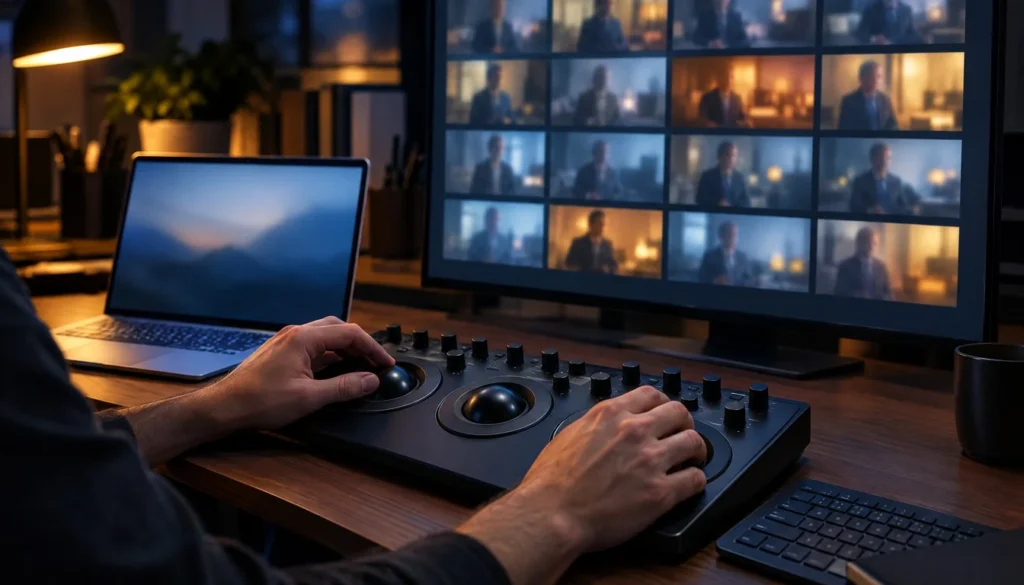
Color Mode groups its tools into Clip Grid, Adjust, Style and LUT. Adobe’s Color Mode basics page names Auto Color, Midtones, Variable Vibrance, Film Color and Vignette among the modules. Reporting on the release also credits the workspace with clip comparison, grouping and sequence-wide grading, and Adobe’s materials mention updated scopes.
The grid matters most for talking-head and multi-camera work. You see every clip in the sequence at once, so a shot that drifted warm after a lunch break stands out immediately. Dedicated grading suites have offered that view for years, and our DaVinci Resolve vs Premiere Pro comparison covers how the two apps split the work.
What happens to your existing Lumetri grades
Nothing breaks. The Lumetri Color effect remains in the Effects panel, existing projects keep their adjustments, and you can still edit those grades through the Properties panel. Adobe also warns that mixing Lumetri effects with Color Mode can limit the grading options available, so pick one route per project.
The color match removal and Adobe’s workaround
The least visible change may hurt the most. Adobe removed the earlier color-match capability from the 27.0 workflow. According to Adobe Community staff posting on November 12, the removal followed changes to image processing and performance work.
Adobe says a replacement shot-match feature is in development. It gave no release date, so plan as if it will not arrive this month. In the meantime, Adobe’s announcement points editors to the AI Assistant for requests such as matching the color and exposure of one clip to another.
That workaround has a cost. Assistant requests draw on Firefly credits, which the AI Assistant section below covers. A task that used to be a single button now spends a metered resource, and that trade deserves a place in any upgrade decision.
Adobe Community guidance dated November 12 also advised editors with ongoing work that relies on the old color workflow to finish those projects in version 26 before moving to 27. Treat that as the safest reading of the situation. Open a duplicate of the project in 27.0, check your grades, and keep the original untouched.
AI Assistant: a project-aware panel that is still in beta
The AI Assistant is a new panel that understands the open Premiere project and takes natural-language instructions for complex or repetitive work. Adobe’s November 10 announcement labels it beta, and it is separate from Color Mode. Older AI tools in Premiere, such as Enhance Speech, are not the Assistant.
Adobe describes tasks like applying an effect across many clips, tracking masked subjects and adjusting color or exposure through a sequence. Adobe’s materials also mention custom skills, which let you save a repeated workflow and call it again. No underlying model name or number appears in the official material, so this article does not name one.
Credits, regions and the Firefly meter
Adobe announced on November 6 that Assistant responses use the Firefly credits included with your plan, replacing the earlier free daily limit, according to Adobe Community information. Adobe’s generative credits FAQ lists 25 monthly credits for Creative Cloud Standard. A Premiere single-app plan lists 25 for subscriptions begun on or after June 17, 2025, and 500 for earlier subscribers.
Reports say the credit cost of a request cannot be estimated before it runs, because it depends on the sequence and the tools involved. Adobe’s credit table also does not spell out how every Assistant function is charged. If you run long timelines, test a few small requests first and watch your balance.
Availability also varies by plan, region, language and hardware, and cloud AI functions need an internet connection. Adobe’s related documentation says the Assistant may not appear in regions where Adobe’s creative AI services are unsupported. Adobe expanded the Assistant beta to Illustrator, InDesign, After Effects and Frame.io on the same day, and reportedly announced a private beta for Premiere mobile. MCP integrations for Creative Cloud customers are planned for early 2027 and are not part of 27.0.
Generative Media tool adds images, music and soundscapes
The Generative Media tool grows from video and sound effects into image generation, music generation and soundscape generation. Adobe says the generated media can be added straight to the timeline, which removes the round trip through a browser and a download folder.
For small channels, music and soundscapes are the practical gains. A music bed under a title card or a room-tone bed under B-roll no longer needs a separate library search. Image generation covers placeholder art, thumbnails-in-progress and background plates. Check the licence terms Adobe attaches to generated output before you ship anything commercial, since the release notes do not settle that question for you.
One limit to keep in mind: generated clips are one-off assets, while a channel intro needs to match every upload. For a repeatable opener with fixed resolution, length and frame rate, the specs on the Vipid intro themes page show what a fixed-format template looks like next to a prompt-based result.
Separate Crosstalk, Enhance Audio and Auto Ducking
Audio gets three real upgrades, and one of them fixes a problem that podcasters and interview editors have fought for years. Separate Crosstalk takes a single mixed track with two overlapping speakers and splits them into individually routable timeline stems.
Adobe says the feature runs on the Adobe Firefly audio service, so it processes in the cloud rather than on your machine. That matters for privacy-sensitive interviews and for editors working offline. Adobe’s materials do not state per-minute limits or credit costs for the feature, and the article stays silent on both for the same reason.
Enhance Audio gets updated controls and a refreshed interface aimed at dialogue clarity and quality. Auto Ducking now updates its keyframes on its own when clips are added, trimmed or muted. Before 27.0, editors had to rerun Generate Keyframes after each change, so a late trim to a music cue could leave stale ducking behind. Adobe’s release notes also record an earlier Essential Sound issue where the ducking Sensitivity setting gave different results in 26.5 than in older versions, which makes the new automatic behavior worth a quick check on any template you reuse.
The Speed/Duration dialog also got a redesign. It adds audio-stretching modes, high-quality processing and pitch controls, so a slowed clip no longer has to sound like a tape machine losing power.
Effects panel, eight new effects and Properties cards
The Effects panel now shows thumbnail images and preview videos, offers improved search, and adds Preview from source for video effects. That last option lets you see an effect on your own footage before you apply it. Anyone who has scrubbed through a long list of Blur and Distort entries by name alone will notice the difference on day one.
Adobe says eight effects are new. Five are named in the available material: Bevel Alpha, Bevel & Emboss, Posterize, Radial Blur and Zoom Blur. The other three are not identified in the excerpts we could check, so any list that names them comes from somewhere other than Adobe’s published notes.
Bevel Alpha and Bevel & Emboss suit title cards and lower thirds, where a flat logo needs depth. Zoom Blur and Radial Blur cover the quick punch-in transitions common in short-form edits. If you currently buy template packs mostly for those looks, our rundown of CapCut, Canva and Adobe template licences shows where built-in effects stop and paid packs start.
The Properties panel also changes. Video effects, audio effects and masks now appear there as cards, which puts everything attached to a selected clip in one scrollable column. It is also where edits to older Lumetri grades now happen.
HSL Masking and Object Mask improvements
HSL Masking isolates part of an image by hue, saturation and luminance, and it can combine with other masks. In practice, you can pull a skin tone, a sky or a brand-color logo out of a shot without drawing a shape around it. Adobe’s materials say Color Mode also includes HSL-based masking workflows.
Object Mask gets four improvements: better tracking, better mask quality, smaller file sizes, and tools for managing and recovering mask files. The file-size item deserves attention from anyone who edits on a laptop with a small SSD. Recovery tools matter when a project moves between machines.
Adobe has not published before-and-after numbers for mask size or tracking accuracy in the material we checked. Test on your own footage before you promise a client a faster turnaround.
Windows on ARM and NVIDIA acceleration
Premiere 27.0 adds native support for ARM64 Windows PCs powered by the NVIDIA RTX Spark (N1X) chip. Adobe and Microsoft said on November 10 that optimized versions of Photoshop, Premiere, After Effects and a Substance 3D Painter beta are coming to high-performance Arm-based Windows PCs, including the Surface Laptop Ultra with NVIDIA RTX Spark.
NVIDIA TensorRT accelerates supported on-device AI features on that platform. Separately, Adobe states that several features run faster on Windows computers with NVIDIA RTX GPUs. The two lists overlap but are not identical, as the table shows.
| Feature | Faster on Windows with NVIDIA RTX GPUs | TensorRT-accelerated on ARM64 with RTX Spark |
|---|---|---|
| Enhance Audio | Named by Adobe | Not named |
| Enhance Speech | Named by Adobe | Named by Adobe |
| Scene Edit Detection | Named by Adobe | Named by Adobe |
| Auto Reframe | Named by Adobe | Not named |
| Object Mask | Not named in this list | Named by Adobe |
Read the table carefully. A Not named entry means Adobe’s material did not list the feature, not that it fails on that hardware. Adobe published no speed multipliers in the material we checked, so any specific percentage you see elsewhere needs its own source.
One requirement change to plan around: one report says Premiere 27.0 needs Windows 11 version 24H2 or later on Windows and Apple silicon with macOS 15 or later on Mac. A secondary report says Intel Macs lose support. Confirm both on Adobe’s system requirements page before you update a studio machine.
Price, plans and credits: what is confirmed
Adobe has not announced a separate price for Premiere 27.0. The update arrives through your existing subscription, and Color Mode is a feature of Premiere rather than a priced add-on. The only new money question is the credit meter behind the AI Assistant and Generative Media.
Adobe’s U.S. plans page reportedly lists Adobe Premiere as a single app at $22.99 per month on an annual plan billed monthly. The same page reportedly shows Creative Cloud Pro at a regular $69.99 per month, with a limited-time $15.99 per month first-year offer that ends November 27, 2026. Prices change by region and plan, so confirm them on Adobe’s own page before you buy.
If you are weighing cost against capability, the answer depends on how much of the new work you will use. Audio cleanup and the Effects panel help every editor. The AI Assistant and Generative Media tool draw down credits. Our guide to the best free video editing software covers the zero-cost alternatives for channels that do not need any of it.
Should you upgrade now? A decision guide for live projects
The short answer: update on a spare day, not in the middle of a deadline. Version 27.0 changes the color workflow, removes a feature and adds beta software, and Adobe’s own community guidance tells editors with ongoing color-dependent work to finish in version 26.
Here is a practical order of operations based on what Adobe has confirmed:
- Finish any project that depends on the old color-match tool in the version you started it in.
- Copy a finished project to a test folder and open the copy in 27.0.
- Check that existing Lumetri grades still look right through the Properties panel.
- Try Auto Ducking on a template you reuse and confirm the keyframes update as expected.
- Run one small AI Assistant request and note how many credits it uses.
- Confirm your operating system meets the 27.0 requirements before touching a studio machine.
Editors who start fresh projects have an easier call. Color Mode is Adobe’s recommended path for new work, the Effects panel pays off immediately, and the audio changes save repeat steps on every episode.
Historical context: Premiere’s 2026 release cadence
Adobe shipped several Premiere builds this year before 27.0 arrived. The release notes list a February 2026 update, a June long-term-support build, three builds across September and November, and now a new major number.
| Version | Month (Adobe release notes) | Note |
|---|---|---|
| 26.0.1 | February 2026 | Version 26.0 set macOS Sonoma (14) as the minimum |
| 25.6.6 LTS | June 2026 | Long-term-support branch |
| 26.5.1 | September 2026 | Maintenance build |
| 26.5.2 | September 2026 | Maintenance build |
| 26.5.3 | November 2026 | Latest 26.x entry in the notes we checked |
| 27.0 | November 2026 (announced November 10) | Color Mode, AI Assistant beta, Generative Media additions |
The jump from 26.5.3 to 27.0 landed in the same month, which left little time between the last 26.x build and the major release. Adobe’s materials also describe Color Mode as an upcoming 27.0 feature in documentation published before launch, then as shipping once the release went live.
Swapping a panel is a one-time learning cost. The removed match tool is different because it leaves a visible gap. Adobe has promised a replacement without a date, so the gap stays open for now.
Market impact: how Premiere 27.0 stacks up against Resolve and Final Cut
Premiere 27.0 narrows a long-standing gap in dedicated color tooling. DaVinci Resolve built its reputation on a separate grading environment, and Premiere now has its own workspace with a clip grid, scopes and sequence-wide grading. Adobe does not claim parity, and reviewers will test that claim over the coming weeks.
Apple’s side of the market looks different. Our Final Cut Pro vs DaVinci Resolve comparison shows how the other two apps position price, platform and workflow, and Premiere’s cross-platform pitch now adds Windows on ARM to the list.
The larger shift is in AI help. Adobe is putting an assistant into Premiere, Illustrator, InDesign, After Effects and Frame.io at once, and tying its use to Firefly credits across plans. That turns editing help into a metered feature and makes credit allowances a real comparison point between editors.
For solo creators, the effect is practical. Audio fixes and effect previews cost nothing extra, and the paid-by-use features sit behind a meter. Studios will watch the credit math. YouTubers who batch-cut weekly episodes will care most about Auto Ducking, Separate Crosstalk and the faster Effects panel. The full set of editing tools sits in our editing software hub for readers comparing options.
Five predictions for Premiere after 27.0
These are my reads of where the product goes next, based on what Adobe has said. None of them is a confirmed Adobe plan.
- A color-match replacement lands inside Color Mode. Adobe says a shot-match feature is in development. It will likely live in the new workspace rather than return as a standalone panel.
- The AI Assistant stays in beta until the MCP integrations arrive. Adobe pegs those for early 2027, and a wider launch makes more sense once they ship.
- Credit cost becomes a buying factor. Editors will compare how many credits an Assistant task burns, and Adobe will face pressure to show estimates before a request runs.
- Template and effect-pack sellers repackage their work. With effect previews built in, packs will need to sell finished looks rather than single effects.
- Arm-based Windows editing laptops become a real option. That depends on RTX Spark hardware reaching stores and on plugin makers updating for ARM64.
Common questions
When was Adobe Premiere 27.0 released?
Adobe announced and released Premiere 27.0 on November 10, 2026. Adobe’s release notes label it the November 2026 version.
What is Color Mode in Adobe Premiere?
Color Mode is a new color-grading workspace that sits next to Edit. It offers Clip Grid, Adjust, Style and LUT operations, and it replaces the Lumetri panel as the main grading space. The Lumetri Color effect still exists.
Does Premiere 27.0 cost extra?
Adobe has not announced a separate price for 27.0. The update arrives with an existing subscription. AI Assistant and generative features draw on Firefly credits included with your plan.
Is the AI Assistant finished?
No. Adobe labels the AI Assistant as beta. Availability varies by plan, region, language and hardware, and the cloud features need an internet connection.
Did Adobe remove anything in Premiere 27.0?
Yes. The earlier color-match capability was removed, and the Lumetri panel was retired. Adobe says a replacement for color matching is in development with no release date.
Which new effects came with 27.0?
Adobe added eight effects. The confirmed names are Bevel Alpha, Bevel & Emboss, Posterize, Radial Blur and Zoom Blur. The other three are not named in the material we checked.
Does Premiere 27.0 run on Windows on ARM?
Yes, with native support for ARM64 PCs powered by the NVIDIA RTX Spark (N1X) chip. NVIDIA TensorRT accelerates Object Mask, Enhance Speech and Scene Edit Detection on that platform.
More from the Vipid blog
- Vipid intro themes resolution, length and frame rate per theme
- Promo themes product and channel promos
- Sample videos finished Vipid intros
- Vipid intro maker make a custom intro in the browser
Jonah Reyes
Jonah Reyes is the Editing & Export Editor at Vipid. He covers editing software, export settings and codecs, and the video specs of YouTube, Shorts, TikTok and Reels, plus OBS and screen recording. He builds Vipid’s spec tables from the platforms’ own documentation and re-checks them every 60 to 90 days, so the numbers in a guide match what the upload dialog actually accepts.