Stream Together on Twitch: Guests, OBS and Shared Chat
How to Stream Together on Twitch: What the Feature Does Now · What You Need Before You Start · Plan the Layout and Give Each Person a Job · Steps 1 to 3: Update OBS, Open Your Twitch Tools, Build Your Scenes · Steps 4 to 6: Start the Session, Invite Guests, Bring the Feed Into OBS · Steps 7 to 9: Layouts, Nameplates and Audio · Steps 10 to 12: Shared Chat, a Private Test and Going Live · The Working Project: A Guest Strip Overlay You Can Reuse · Common Pitfalls When You Stream Together on Twitch · Troubleshooting: 10 Problems and Fixes · Advanced Tips for Longer Collabs · Stream Together, Co-Streaming and Raids Are Not the Same Thing · Questions Creators Ask
To stream together on Twitch, you start a Stream Together session in your Twitch tools, invite guests, and drop the shared video into OBS as a browser source. Twitch built the feature into the platform, and its blog framed the idea around communities: Twitch wrote in September 2024 that it built Shared Chat, “a new feature that lets you bring your communities together for a combined chat experience.”
This tutorial walks through the setup in 12 steps, from the OBS version you need to the last raid-out. You also get a small working project: a rotating guest strip overlay that reads a JSON roster, so nobody types names into text boxes live. If your scenes also need chat on screen, the Twitch chat overlay for OBS guide covers that half.
One honest note before we start. Twitch’s help pages are the authority on who can host and how many guests fit, and those pages change. Where a detail sat on a Twitch or OBS page checked on November 23, 2026, I say so. Where I could not confirm it, I say that too and point you to the screen in your own dashboard.
How to Stream Together on Twitch: What the Feature Does Now
Stream Together is the current name for Twitch’s built-in collaboration feature. Twitch Help describes it as “a native feature of the Twitch streaming experience available to anyone with a Twitch account, regardless of monetization status.” That sentence matters because older collaboration modes were limited to a small group of partnered channels, and plenty of tutorials online still repeat that limit.
Squad Stream is the older name you will still see in search results and old forum threads. I found no current Twitch help page that documents Squad Stream, so treat it as history and follow the Stream Together steps below. If a video tutorial tells you to open a Squad Stream panel, it predates the current tools, and its screenshots will not match what you see.
Shared Chat is a separate piece that sits on top. Twitch’s blog said Shared Chat “is a new feature of Stream Together that enables up to 6 creators to combine their chats when they are streaming together.” The same post added that “once you’re collaborating in Stream Together, starting a Shared Chat is as easy as clicking one button.” Twitch’s current help pages do not document Shared Chat limits or steps, so check your dashboard for the current behavior.
Here is the split of jobs, because mixing them up causes most of the confusion in support threads.
| Piece | Who controls it | What it does |
|---|---|---|
| Stream Together session | The host, inside Twitch’s tools | Connects the host and invited guests, and creates the shared video feed |
| Group browser source | The host, inside OBS | Shows the shared feed on your canvas so viewers see it |
| Shared Chat | The host starts it | Merges the chats of the channels taking part into one conversation |
| OBS scenes | Each broadcaster | Decides layout, overlays, audio mix and transitions |
| Overlays and nameplates | You | Tells viewers who is on screen and where to follow them |
| Raids and hosting | The channel owner | Sends viewers to another channel after a show ends |
Keep that table in mind. Stream Together creates the feed, OBS decides how it looks, and overlays explain it to the audience. Each piece fails in its own way, and the troubleshooting section later follows those failure points. When something breaks mid-show, ask which of the six rows owns the problem before you touch any settings.
What You Need Before You Start
The hardware bar is low. The software bar is where people trip, so check versions first. OBS Studio is free and open source, and its official site lists the 33.0 series as the current line. According to OBS’s download page, the newest stable builds are 33.0.3 for Windows and 33.0.2 for macOS and Linux.
| Requirement | Minimum or current | Why it matters |
|---|---|---|
| OBS Studio | 33.0 series is current (Twitch names 30.2 as the floor for Enhanced Broadcasting) | The group source is a browser source, and OBS 33.0 updated the browser engine |
| Windows | Windows 10 or 11 | Official OBS support range |
| macOS | macOS 13.0 or newer | Official OBS support range |
| Python (for the project) | Not listed | Runs the roster script in the project section |
| Browser for Twitch tools | Current Google Chrome | Twitch’s setup guidance points to Chrome for managing the session |
| A second person | One guest with their own Twitch account | You cannot test a group source in an empty room |
On Linux, the OBS site lists a Flatpak build on Flathub and a PPA for Ubuntu 26.04 and newer. If you run the Flatpak, this command shows which version you have installed.
flatpak info com.obsproject.Studio | grep -i versionOn Windows and macOS, open OBS and read the version under Help, then About. Write it down. If your guests run different OBS versions, that rarely breaks Stream Together, since the session lives on Twitch. It does break overlays that depend on a plugin one person has and the other lacks. OBS’s 33.0 release notes also say existing third-party plugins keep loading from their legacy locations until OBS Studio 34.0, so an old plugin folder is no emergency, but plan the move.
Beyond software, Twitch’s getting-started guidance reportedly asks for a desktop host, a phone-verified account and a connected broadcasting app. Confirm the exact list on the Stream Together getting-started page, because account requirements are the part Twitch edits most. The same goes for eligibility. A Twitch help page I checked says a streamer with a streaming suspension cannot take part in sessions, and another notes that availability of some collaboration tools varies by account.
Two last prerequisites are social, not technical. Agree who is host, because the host owns the session, starts Shared Chat and ends the call. And agree a plan for music, since a guest who plays copyrighted tracks can trigger claims on your saved broadcasts too.
Plan the Layout and Give Each Person a Job
Spend ten minutes on paper before you open any software. Collabs go wrong when two people each assume the other will handle the intro, the raid or the chat commands. A shared doc or a pinned Discord message with five lines is enough.
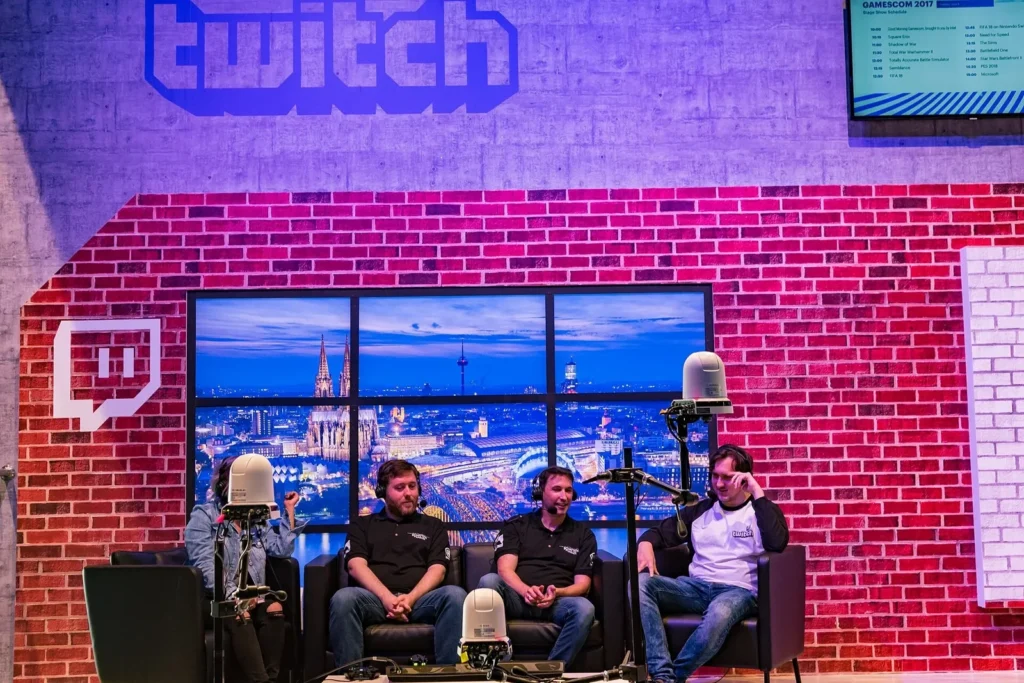
Pick four scenes, and name your OBS scenes after them so a tired host never hunts for the right one live.
- Solo. Only your camera and gameplay. Use it for the pre-show chat and for the minutes before guests arrive.
- Together. The group feed plus your own capture. This is your main scene for the collab.
- Guests Only. The group feed at full frame, for a guest demo or a moment when you want to step out of shot.
- Outro. A short closing card that names everyone and points viewers at the next channel.
Then decide who handles what. Write the roles into the same planning doc, because a role nobody owns is a role nobody does.
| Role | Default owner | Duty |
|---|---|---|
| Host | The channel starting the session | Starts Stream Together, sends invites, starts Shared Chat, ends the session |
| Scene driver | Host (or a mod with a hotkey setup) | Switches between Solo, Together, Guests Only and Outro |
| Chat lead | One guest | Reads questions from the combined chat so the host can focus on the game |
| Clip lead | Any guest | Makes clips on their own channel for post-show social posts |
| Raid captain | Host | Picks the raid target and tells chat before the show ends |
Render settings
Agree canvas settings so the group source and your overlays line up. These are my recommended working values for a standard collab, not Twitch requirements.
| Setting | Recommended value | Reason |
|---|---|---|
| Base (canvas) resolution | 1920×1080 | Matches the overlay project below |
| Output resolution | 1920×1080 | Avoids rescaling blur on guest tiles |
| Frame rate | 30 fps for a first collab, 60 fps if your PC handles it | Lower fps leaves CPU headroom for the browser source |
| Guest strip display time | 6 seconds on, 9 seconds off | Readable without nagging |
| Outro card length | 8 to 12 seconds | Long enough to read three handles |
| Export format for clips | MP4 (H.264) | Plays everywhere for post-show social posts |
Print or pin one more thing: a 24-hour checklist. Send it to guests the day before and you will lose far fewer minutes to preventable problems on the night.
- Guest signs in to Twitch in Chrome and confirms they can open the Stream Together panel.
- Guest tests camera and microphone, and wears headphones.
- Guest closes apps that play sound, including music players and notification-heavy chat apps.
- Host sends the stream title, the show length and the raid plan.
- Everyone agrees on a music rule and on what happens if a connection drops.
Steps 1 to 3: Update OBS, Open Your Twitch Tools, Build Your Scenes
Step 1: update OBS and note the version. Open OBS, check for updates under the Help menu, and install the current 33.0 build. OBS’s 33.0 release notes on the official site describe an updated Chromium Embedded Framework for browser sources. Your Stream Together feed arrives through a browser source, so this update is directly relevant. After the update, restart OBS and open a scene collection you trust. If a plugin fails to load, disable it and carry on. You can fix it after the show.
Step 2: sign in to Twitch in Chrome and find the Stream Together panel. Open your Creator Dashboard in Chrome, since Twitch’s setup guidance points to that browser. Look for the Stream Together panel among your stream manager tools. If it is missing, add it from the panel menu. If it is still missing, the account may not be eligible yet, and Twitch’s help pages are the source of truth. One of them says the list of supported broadcasting apps lives in the Creator Dashboard, so look there first.
While you are in the dashboard, set your stream title and category. Do it before guests arrive. A good title names the people and the game, for example the show name plus the guest names. The project later writes that title to a text file so you can paste it in one go.
Step 3: build the four scenes in OBS. Create scenes named Solo, Together, Guests Only and Outro. In Solo, add your webcam, game capture and microphone. Do not add the group feed yet, because it does not exist until the session starts. Add your usual overlays to Solo and Together, such as alerts and any frame art. If you want a refresher on sizes and safe areas for those overlays, the stream intros and overlays category collects the formats and the common mistakes.
Two small habits pay off here. First, give every scene a hotkey (for instance Ctrl+Alt+1 to Ctrl+Alt+4) in OBS Settings, then Hotkeys. Second, add a short fade transition and use it everywhere. Hard cuts between a solo shot and a multi-person layout feel jumpy, and a short fade hides the one-frame flash while a browser source reloads.
| Scene | Sources inside | Hotkey (suggested) |
|---|---|---|
| Solo | Webcam, game capture, mic, alerts | Ctrl+Alt+1 |
| Together | Group browser source, game capture, guest strip, mic | Ctrl+Alt+2 |
| Guests Only | Group browser source (existing), guest strip (existing) | Ctrl+Alt+3 |
| Outro | Closing card, handles list, music bed | Ctrl+Alt+4 |
Steps 4 to 6: Start the Session, Invite Guests, Bring the Feed Into OBS
Step 4: start the session and invite your guests. In the Stream Together panel, start a new session and invite each guest by their Twitch name. Send the invite from the panel, then also message your guest in Discord with one plain line: invite sent, accept it and keep that tab open. Guests often miss the notification, and a direct message saves five minutes. Guests join from their own browser and set up their camera and microphone there, so ask them to test both before the show.
Remember the headcount. Twitch’s September 2024 blog post named up to 6 creators for Shared Chat in a Stream Together session. If you plan a bigger crew, confirm the current limit in your own panel, and consider splitting a large event into two sessions.
Step 5: copy the browser source URL. According to Twitch’s Stream Together troubleshooting guide, updated on November 23, 2026, you take the group feed into OBS with a Group Browser Source. The guide points to a Copy Browser Source URL control, or to Settings, then Browser Sources, then a Group Automatic Layout link. Use whichever your panel shows. The URL is personal to your session, so never paste it into public chat or a screenshot.
In OBS, open your Together scene, click the plus under Sources and choose Browser. Name it Stream Together group, paste the URL, and set width and height to match your canvas, which is 1920 by 1080 in this tutorial. Leave Control audio via OBS ticked so the guest audio shows on the mixer. Then click OK.
The transparent background matters if you stack overlays around the feed. This is the OBS default Custom CSS, and it is a safe starting point for the group source.
body {
  background-color: rgba(0, 0, 0, 0);
  margin: 0px auto;
  overflow: hidden;
}
Step 6: tune the browser source so it does not eat your CPU. The troubleshooting guide recommends one group browser source, not one per guest, and lists performance options: Shutdown source when not visible, Always Hide Video Preview, and a lower maximum video quality. Turn on the first two. Shutdown source when not visible stops the feed running while you sit on the Solo scene. Keep the lower-quality option in reserve. Use it only when your PC struggles, because it also softens what your viewers see.
After you save, flip to the Together scene and look at the preview. You should see the participants who have joined. An empty or black frame at this stage usually means nobody has accepted yet. Ask a guest to join and watch the tile appear, then ask them to wave so you can confirm the feed is live and not frozen.
Here is a short invite you can paste into Discord. Swap the placeholders for your own details.
Hey [name], we go live on [day] at [time].
1. Open Chrome and sign in to Twitch.
2. Accept my Stream Together invite when it arrives.
3. Wear headphones and close music apps.
4. Do not share the browser source link anywhere.
Test slot: [time], 10 minutes. Raid plan: [channel].
Steps 7 to 9: Layouts, Nameplates and Audio
Step 7: build the Together layout around the group source. The Group Automatic Layout name in Twitch’s guide suggests the group source arranges tiles itself as people join and leave. That is handy, but you do not control tile positions. So design around it. Put the group feed on the left two thirds of the canvas and your gameplay in the rest, or reverse that for a talk show. Keep the bottom 150 pixels clear for the nameplate strip you add next.
If you want the guests to fill the frame, reuse the group source in the Guests Only scene. OBS lets you reference the same source in several scenes (choose Add Existing), and that matters. Creating a second browser source with the same URL doubles the load and can confuse the session.
Step 8: add the guest strip overlay. Because tile positions can shift, a nameplate pinned under each face is unreliable. A single strip that rotates through the host and every guest works with any layout. The next section builds it, so for now note where it will sit: lower left, 48 pixels from the edge. Add it as a second browser source above the group source in both the Together and Guests Only scenes. Use Add Existing again so you maintain one copy.
If you want a branded sting at the start of the show, a short animated logo intro fits this slot. The logo design intro theme page shows what a ready-made version looks like before you decide whether to build your own in OBS.
Step 9: set up audio so nobody hears an echo. This step decides whether the show sounds professional. The guests’ voices come through the browser source, so the mixer shows them as one extra channel. Your own microphone stays on its own track. A few rules cover nearly every case.
- Everyone wears headphones. Speakers bleed into microphones and create echo that no filter fully cleans.
- Do not also capture a Discord call in OBS. If you use Discord for talking, keep it off the stream and mute its output in OBS so voices do not double.
- In Advanced Audio Properties, set the group source to Monitor Only if you need to hear guests locally. Choose Monitor and Output only if you know you need the audio to reach the stream through that path.
- Ask each guest to keep game audio below their voice. Agree this in the test run, not live.
- Watch the mixer meters. Voices should peak in the yellow zone, never red.
If guest audio drifts behind their lips, add a small sync offset to the group source in Advanced Audio Properties and adjust until the clap test lines up. Ask a guest to clap on camera, record 30 seconds locally, then compare the sound spike with the frame where the hands meet. Shift the offset in small steps and repeat.
Steps 10 to 12: Shared Chat, a Private Test and Going Live
Step 10: start Shared Chat as the host. Twitch’s blog said in 2024 that once you collaborate in Stream Together, starting a Shared Chat takes one button. Only the host should press it. Warn your chat first, since two communities merging in one feed can surprise regulars. A single line telling chat that merged chat starts now, and to be kind to the new folks, does a lot of work.
Moderation needs a quick agreement too. Decide whether each channel’s mods act in the shared feed or only in their own, then read Twitch’s help pages on Shared Chat together for the current moderation rules. Do that before the show, not during a spam wave.
Step 11: run a private test. Before you go live, run the session with your guest for ten minutes. Switch through all four scenes with the hotkeys, speak from each participant, and make a short local recording in OBS. Play the recording back and check three things: guest audio level, lip sync and nameplate timing. Then run the log check from the project section, which flags dropped frames.
Twitch’s current documentation also recommends the Twitch Inspector for monitoring broadcasts and tracking down network trouble, according to a Twitch help page updated in November 2026. Use it on a test stream if you suspect your upload connection.
Step 12: go live, run the show and end cleanly. Start streaming from OBS on the Solo scene, welcome chat, then switch to Together once guests are in place. Start Shared Chat when the first guest is on screen. At the end, switch to Outro and read out every handle. Then end Shared Chat and the Stream Together session before you press Stop Streaming. That order keeps the merged chat from running on after your own broadcast has gone offline.
Raid last. Pick a target channel, announce it in chat 60 seconds ahead, and send the raid as the Outro card finishes. Guests can raid their own picks or follow the host’s.
After the show, spend five minutes on cleanup. Save the scene collection so the working layout survives. Note any audio or layout problem in the planning doc while it is fresh. Ask the clip lead to share the best moments within 24 hours, since clips lose momentum quickly. And keep the roster file, because the same guests will likely return.
The Working Project: A Guest Strip Overlay You Can Reuse
This small build ties the steps together. You edit one JSON file, run one Python script, and get a transparent browser-source overlay plus text files for the stream title and chat message. It uses plain HTML, CSS and JavaScript, so it runs in OBS’s browser source with no plugins. The names in the files are placeholders. Swap in your own.
Folder layout
collab-pack/
  guests.json        (you edit this)
  guests.py          (run this before each show)
  nameplate.html     (the overlay, loaded in OBS)
  guests.js          (generated by guests.py)
  out/
    slot0.txt        (host name and handle)
    slot1.txt        (guest 1)
    title.txt        (stream title to paste)
    chat_message.txt (message for chat)
Start with the roster. List the host first, then each guest. The role field shows beside the name, so keep it short. The two timing values are in milliseconds.
{
  "show": "Friday Co-op Night",
  "showMs": 6000,
  "gapMs": 9000,
  "host": { "name": "Mira", "handle": "mira_plays", "role": "Host" },
  "guests": [
    { "name": "Dev", "handle": "devdraws", "role": "Level designer" },
    { "name": "Sam", "handle": "samspeedruns", "role": "Speedrunner" }
  ]
}
Now the generator script. It validates the roster, writes the JavaScript file the overlay reads, creates one text file per person for any OBS Text source set to read from a file, and prepares the title and chat message.
#!/usr/bin/env python3
import json
import pathlib
import sys

root = pathlib.Path(__file__).parent
cfg = json.loads((root / "guests.json").read_text(encoding="utf-8"))
out = root / "out"
out.mkdir(exist_ok=True)

people = [cfg["host"]] + cfg["guests"]

for p in people:
    if not p.get("name") or not p.get("handle"):
        sys.exit("Every person needs a name and a handle: " + str(p))

payload = {
    "show": cfg["show"],
    "host": cfg["host"],
    "guests": cfg["guests"],
    "showMs": cfg.get("showMs", 6000),
    "gapMs": cfg.get("gapMs", 9000),
}
(root / "guests.js").write_text(
    "const COLLAB = " + json.dumps(payload, indent=2) + ";\n", encoding="utf-8"
)

for n, p in enumerate(people):
    (out / f"slot{n}.txt").write_text(f"{p['name']}\n@{p['handle']}", encoding="utf-8")

guest_names = ", ".join(g["name"] for g in cfg["guests"])
title = f"{cfg['show']} with {guest_names}"
links = " ".join(f"twitch.tv/{g['handle']}" for g in cfg["guests"])
(out / "title.txt").write_text(title, encoding="utf-8")
(out / "chat_message.txt").write_text(
    f"We stream together today! Follow everyone: {links}", encoding="utf-8"
)

print(f"People in the show: {len(people)}")
print(f"Title: {title}")
print(f"Wrote guests.js and {len(people) + 2} files in out/")
Run it with python3 guests.py. With the sample roster you should see output like this.
People in the show: 3
Title: Friday Co-op Night with Dev, Sam
Wrote guests.js and 5 files in out/
Next the overlay itself. It has a transparent background, slides a strip in for the display time, hides it for the gap, and moves to the next person. It reads the generated guests.js, which avoids the file-access trouble that fetching a JSON file can cause inside a local browser source.
<!DOCTYPE html>
<html>
<head>
<meta charset="utf-8">
<style>
  html, body {
    margin: 0;
    background: transparent;
    overflow: hidden;
    font-family: "Segoe UI", Arial, sans-serif;
  }
  #strip {
    position: absolute;
    left: 48px;
    bottom: 36px;
    display: flex;
    align-items: baseline;
    gap: 16px;
    padding: 12px 28px 12px 20px;
    background: rgba(15, 15, 20, 0.85);
    color: #ffffff;
    border-left: 8px solid #9146ff;
    opacity: 0;
    transform: translateX(-40px);
    transition: opacity 0.5s ease, transform 0.5s ease;
  }
  #strip.on { opacity: 1; transform: translateX(0); }
  #name { font-size: 36px; font-weight: 700; }
  #handle { font-size: 24px; color: #c9b3ff; }
  #role { font-size: 22px; color: #dddddd; }
</style>
</head>
<body>
<div id="strip">
  <span id="name"></span>
  <span id="handle"></span>
  <span id="role"></span>
</div>
<script src="guests.js"></script>
<script>
  const people = [COLLAB.host].concat(COLLAB.guests);
  const strip = document.getElementById("strip");
  let i = 0;

  function showNext() {
    const p = people[i % people.length];
    document.getElementById("name").textContent = p.name;
    document.getElementById("handle").textContent = "@" + p.handle;
    document.getElementById("role").textContent = p.role || "";
    strip.classList.add("on");
    setTimeout(function () { strip.classList.remove("on"); }, COLLAB.showMs);
    i += 1;
  }

  showNext();
  setInterval(showNext, COLLAB.showMs + COLLAB.gapMs);
</script>
</body>
</html>
To load it, add a Browser source in OBS, tick Local file, pick nameplate.html, and set the size to 1920 by 1080. Leave Custom CSS at its default. Untick any option that shuts the source down while hidden, or the timer restarts each time you change scene. When the roster changes, re-run guests.py, then right-click the source in OBS and press Refresh cache of current page.
A second script helps with the private test. It finds the newest OBS log and prints lines that mention skipped or dropped frames, so you spot a struggling PC before viewers do. On a Linux Flatpak install, point the Linux path at ~/.var/app/com.obsproject.Studio/config/obs-studio/logs.
import os
import pathlib
import platform
import re


def log_dir():
    system = platform.system()
    if system == "Windows":
        return pathlib.Path(os.environ["APPDATA"]) / "obs-studio" / "logs"
    if system == "Darwin":
        return pathlib.Path.home() / "Library/Application Support/obs-studio/logs"
    return pathlib.Path.home() / ".config/obs-studio/logs"


latest = max(log_dir().glob("*.txt"), key=lambda p: p.stat().st_mtime)
print("Reading", latest.name)

pattern = re.compile(r"(skipped|dropped|lagged|overload)", re.I)
hits = 0
for line in latest.read_text(errors="ignore").splitlines():
    if pattern.search(line):
        print(line)
        hits += 1

print("Matching lines:", hits)
A clean test prints the file name and a count of zero, like this. Anything else needs a closer look. The exact wording in OBS logs varies, so treat the output as a hint, not a verdict.
Reading 2026-11-23 20-14-02.txt
Matching lines: 0
From the Vipid archive: if you want a ready-made animated opener to play before the strip appears, Vipid’s intro themes page lists each theme with its resolution, length and frame rate.
Common Pitfalls When You Stream Together on Twitch
Most failed collabs trace back to a short list of repeatable errors. Read these before your first show, not after.
- Adding one browser source per guest. Twitch’s own troubleshooting guide recommends a single group browser source. Several sources multiply CPU load and can show stale tiles.
- Leaving the session URL in a screenshot. The browser source URL points at your live session. Treat it like a stream key and blur it in any support post.
- Capturing a guest’s window instead of using the group source. Window capture of a Chrome tab breaks the moment someone resizes it. The group source stays put.
- Doubling audio with Discord. If you hear a guest twice, one path is a Discord capture. Remove it.
- Overlays that cover faces. Auto layouts shift as people join. Keep the strip low and narrow, and never park a logo in the middle band.
- Skipping the host handover plan. If the host’s connection fails, the session may end for everyone. Agree beforehand whether the show stops or restarts with a new host.
- Ending the stream before the session. Close Shared Chat and Stream Together first, then stop streaming, so chats do not linger.
- Ignoring music rights. A guest’s copyrighted playlist becomes your problem on saved broadcasts. Agree on royalty-free tracks or silence.
- Testing only with yourself. A one-person test proves nothing about the group feed. Borrow a friend for ten minutes.
The second and ninth items hurt most because the failure shows up live. A leaked URL can let a stranger see or interfere with a session. An untested guest setup burns the first ten minutes of the show on audio checks while viewers watch.
The third item deserves a closer look, since it tempts people who already know OBS well. Window capture feels familiar, so hosts reach for it when the group source looks blank. It fails in three ways: the tab can minimise, the layout can change size, and the capture ignores the browser’s audio unless you add a separate audio source. The group source solves all three, so fix the blank source instead of working around it.
Troubleshooting: 10 Problems and Fixes
Work down this table from the top. The first three rows cause the most support questions, and each takes under two minutes to fix.
| Symptom | Likely cause | Fix |
|---|---|---|
| Black or empty group source in OBS | No guest has joined yet, or the URL is stale | Copy the browser source URL again from the panel, paste it in the source, and ask a guest to join |
| Guests visible in Twitch’s tools but not in OBS | The source URL belongs to an old session | Start a fresh session, copy the new URL, and replace the old one |
| You hear yourself with a delay | Source monitoring or a Discord capture is on | Set the group source to Monitor Only, remove duplicate captures, and use headphones |
| Guest audio missing on the saved broadcast | The source’s audio is not routed to the stream | Tick Control audio via OBS on the browser source and check the mixer track settings |
| CPU or GPU load spikes | Browser source running while hidden, preview rendering | Enable Shutdown source when not visible and Always Hide Video Preview, then try lower video quality if needed |
| Shared Chat button missing | You are not the host, or the session is not active | Only the host controls it, so confirm the session is running and read Twitch’s Shared Chat help |
| Overlay has a white or black box | Custom CSS removed or the page sets a background | Restore the default transparent CSS and confirm the HTML sets a transparent background |
| Nameplate shows old names | guests.js was not regenerated, or the page is cached | Run guests.py, then use Refresh cache of current page on the source |
| A guest cannot join | Account not eligible or a suspension is active | Check the guest’s account status in Twitch’s help pages and send a new invite |
| Lips and voice out of sync | Network delay on the guest’s connection | Add a sync offset in Advanced Audio Properties after a clap test |
If none of those fit, work backwards. Does the problem exist in Twitch’s panel, in OBS, or only on the stream output? A fault in the panel is a Twitch or account issue. A fault only in OBS is a source or settings issue. A fault only on the stream is an encoder or upload issue, and the Twitch Inspector and your OBS log are the tools for that.
A few fixes need a longer explanation than a table cell allows. Take the stale URL problem. Each new session creates a new browser source URL, so the source you saved for last week’s show points at a session that no longer exists. Hosts who run weekly collabs forget this and spend the first ten minutes chasing a black square. Make replacing the URL the first line of your pre-show checklist.
The overlay box problem has a similar cause. OBS browser sources are transparent by default, but a page can paint its own background and override that. If the strip sits on a solid box, open the Custom CSS field, paste the default block from step 5, and check that the HTML file sets its page background to transparent, as the project file does.
Advanced Tips for Longer Collabs
Once the basic show works, a few upgrades make multi-hour collabs smoother.
Use a scene for each segment. A tournament night with a pre-game talk, three matches and a wrap-up benefits from five or six scenes. Name them in order, number the hotkeys to match, and print the list for the scene driver.
Consider Enhanced Broadcasting. Twitch’s documentation says trying Enhanced Broadcasting requires OBS Studio v30.2 or newer. You are already past that if you installed 33.0. Whether it helps your collab depends on your PC and your connection, so test it before a big show.
Keep a backup app in mind. XSplit Broadcaster is another broadcasting program Twitch lists for Enhanced Broadcasting. XSplit’s pages confirm continued Twitch integration, but I found no XSplit guide written for Stream Together, so I would not switch apps mid-series. XSplit advertised a Broadcaster Lifetime license at US$79.99 for its Black Friday and Cyber Monday 2026 promotion, according to its own site.
Watch the browser-streaming beta, but do not rely on it. Twitch’s help centre lists Streaming From Your Browser as a beta feature, with a page updated on November 22, 2026. It is not documented as a Stream Together route, so for collabs OBS stays the safe choice for now.
Script the intro and outro. A 5 to 8 second intro on every collab gives viewers a reason to stay and names the show. If you make your own, a short animated clip or a plain image in an OBS media source works well. Keep the file at the canvas size so nothing rescales.
Rehearse the failure. Once, on a quiet stream, kill the guest’s connection on purpose and practise the recovery: switch to Solo, tell chat, reinvite, wait. After one rehearsal, the real thing feels like a small hiccup rather than a crisis.
Archive your pack. Keep the collab-pack folder in a shared drive, one subfolder per show. Past rosters, titles and chat messages become a log you can mine for recurring guests and clip ideas.
Give every guest a backup channel. Keep a voice-only fallback ready, such as a Discord call that stays off the stream. If a guest’s camera fails, you can keep the conversation going in audio while they fix it, then bring them back into the group feed when the tile returns.
Stream Together, Co-Streaming and Raids Are Not the Same Thing
People search for how to stream together on Twitch when they mean three different things. Naming them keeps your plan clear.
Stream Together puts several people’s video into one broadcast, which each participating channel can show. That is what this tutorial covers.
Co-streaming means two or more channels broadcasting the same event, each with its own commentary, chat and branding, without sharing a video feed. A watch party for a game launch is the classic case. You need no special Twitch feature for it, only an agreement on who covers what.
Raids move your audience to another channel when you finish. They pair well with a collab, since the guests’ communities already know each other, but a raid is an ending, not a way to stream together.
Twitch made announcements at TwitchCon San Diego on November 18, 2026. From the Twitch pages I checked on November 23, I could not confirm any change to Stream Together or Shared Chat from those announcements, so build your plan on what your dashboard shows today. If new hosting or raid tools arrive, they will most likely slot into the Outro step of this workflow.
One more distinction helps with sponsors and rules. When several channels appear on one screen, each broadcaster stays responsible for what airs on their own channel. Agree guidelines for language, game content and sponsored segments in advance, and write them in the same planning doc as the roles table from earlier.
Questions Creators Ask
How do I stream together on Twitch?
Start a Stream Together session from Twitch’s streaming tools, invite your guests, copy the group browser source URL into OBS and build a scene around it. Then start Shared Chat if you want merged chat. The 12 steps above cover each part in order.
Is Squad Stream still on Twitch?
I found no current Twitch help page that documents Squad Stream, and Twitch’s pages now describe Stream Together as the collaboration feature. Treat Squad Stream as the older name.
Do I need to be a Partner or Affiliate to use Stream Together?
Twitch Help describes Stream Together as available to anyone with a Twitch account, regardless of monetization status. Some account conditions still apply, such as not being suspended, so check your own dashboard.
How many people can join a Stream Together session?
Twitch’s September 2024 blog post spoke of up to 6 creators combining chats in a Stream Together session. Limits can change, so confirm in the panel before you plan a large show.
Can I use OBS with Stream Together?
Yes. Twitch’s troubleshooting guide describes taking the feed into OBS through a group browser source, and OBS remains a supported broadcasting application on Twitch. It is the route this tutorial uses.
Does Shared Chat cost anything?
I found no separate price for Stream Together or Shared Chat on the Twitch pages I checked. OBS itself is free.
Why does my guest look black in OBS?
The most common reasons are a stale browser source URL or a guest who has not joined yet. Copy the URL again from the panel, replace it in the source, and ask the guest to rejoin.
Can I add my own overlay on top of the guests?
Yes. Place a transparent browser source above the group source in the same scene. The guest strip project in this tutorial does exactly that, and it works with any auto layout because it does not depend on tile positions.
More from the Vipid blog
- OBS Alternative: Is Any Paid App Worth Switching To?
- Starting Soon Screen OBS [2026]: 11 Steps in 25 Min
- Which File Type Fits a Twitch Starting Soon Screen?
- OBS vs ShadowPlay vs Medal [2026]: 3 Free Recorders
- OBS vs Streamlabs [2026]: $0 vs $27/mo for Ultra
- Your Video a channel-style intro theme
- Intro themes stream and channel intros
- Sample videos finished Vipid intros
- Vipid intro maker make a custom intro in the browser
Theo Vance
Theo Vance is the Intros & Templates Editor at Vipid, where he covers intro and outro makers, template libraries for CapCut, Canva and the major editors, slideshow and video-card tools, and stream starting screens. He compares makers on what matters before you hit render: watermark, export resolution, length limits, licence and price, and dates every check. He also looks after the Vipid theme archive, the 2011–2016 intros the site was built on.