OBS Countdown Timer: Text Script, Browser Source or Bot?
Quick answer: which OBS countdown timer to pick · What a starting soon countdown has to do · OBS countdown timer methods compared · Method 1: text source plus a Lua script · Method 2: Browser Source with your own HTML · Method 3: StreamElements overlays and the chatbot countdown command · Method 4: Streamlabs widgets and Ultra · Method 5: a pre-rendered countdown video · Twitch, YouTube Live and Kick: what changes by platform · What each OBS countdown timer costs · What the sources show about timing and load · Six real-world countdown setups · Migration guide: moving to a local countdown timer · Pros, cons and the verdict · Questions creators ask
A starting soon screen with a live countdown does two jobs. It tells viewers exactly when the show begins, and it buys you a few minutes to check audio before the first word. The timer runs inside OBS, so the same scene feeds Twitch, YouTube Live and Kick without changes. What differs is how you build the OBS countdown timer: a text source driven by a script, a Browser Source loading your own HTML, a hosted overlay from StreamElements or Streamlabs, or a pre-rendered video loop. OBS Studio is free, supports Browser Source, and runs Lua and Python scripts, including Lua scripts shared on the OBS Forums.
This comparison sets those routes side by side on cost, setup effort, timing accuracy and the ways each one breaks mid-stream. If you still need artwork behind the numbers, our rundown of starting soon screen makers covers Canva, Placeit, OWN3D and plain OBS. Here the focus is the timer itself.
The facts below come from the vendors’ own documentation and release notes as of November 22, 2026. One note on versions: OBS Studio 33.0 is the current line, and release trackers list point releases up to 33.0.3 with disagreeing dates. Check the OBS download page before you update a live setup.
Quick answer: which OBS countdown timer to pick
Use a Browser Source with a small HTML file you host on your own machine. It counts to a real clock time, needs no account, costs $0 and survives a Twitch, YouTube or Kick outage because nothing in it depends on those sites. If you do not want to touch HTML, a text source plus a Lua script gets you a plain mm:ss timer with the same $0 price tag.
Hosted timers from StreamElements and Streamlabs make sense when you already live in their dashboards. StreamElements documents a chatbot countdown command and an overlay URL you drop into a Browser Source. A looped video is the fallback when you want pure design and no logic.
| Your situation | Pick | Why |
|---|---|---|
| Fixed schedule, want one reliable timer | Browser Source with your own HTML | Counts to a clock time, no account, no hosted dependency |
| You dislike code, want a quick mm:ss | Text source plus Lua script | Lives fully inside OBS, runs offline |
| You already run StreamElements overlays and alerts | StreamElements overlay or chatbot command | Same dashboard, overlay URL goes into a Browser Source |
| You pay for Streamlabs Ultra already | Streamlabs hosted widget | Uses the bundle you have |
| You want animation only, no logic | Pre-rendered MP4 or WebM loop | Plays anywhere, but not tied to the real clock |
| You multistream to several sites | Any OBS-side method | The scene is identical on every destination |
The rest of this guide explains each pick, shows the settings, and ends with a migration path if you are moving off a looped video or a hosted widget.
What a starting soon countdown has to do
A countdown looks simple, yet four requirements decide whether it works on a live night. Missing one is the usual cause of the awkward “00:00 and nothing happens” minute.
- Count to a clock time, not for a duration. A timer that says “10:00” after every OBS restart drifts from your announced start. A timer pointed at 7:00 pm stays right no matter when you open the scene.
- Stay readable at small sizes. Viewers on phones see a shrunken 1920 by 1080 canvas. Big digits, strong contrast and a text shadow beat thin fonts.
- Survive a restart. If OBS crashes at 6:55 pm, the timer should show the time left to your announced start once you reopen the scene, not restart from a full duration.
- Hand off cleanly. At zero the screen should either switch to your live scene or show a short “Live now” state, never a negative number.
Two supporting details matter too. First, the canvas. Most streamers build the screen at 1920 by 1080, and StreamElements’ own overlay instructions for OBS also use 1920 by 1080 with 30 or 60 frames per second. Match your Base (Canvas) Resolution so the timer is not scaled. Second, the scene. Keep the countdown in its own scene, with music or a looped background as separate sources, so you can swap the timer method later without rebuilding the whole screen. Our walkthrough on building a starting soon screen in OBS step by step covers that scene layout.
A final practical rule: decide who owns the clock. Either OBS owns it (script or local HTML) or a hosted service owns it (StreamElements, Streamlabs). Local ownership removes a failure point. Hosted ownership gives you remote editing. Few streamers need the second benefit at 6:55 pm on a show night.
OBS countdown timer methods compared
The table below puts all five routes against the same twelve attributes. Cost and requirement lines come from OBS, StreamElements and Streamlabs documentation. Where a line reflects the structure of the method rather than a published number, it describes behaviour, not a measurement.
| Attribute | Text source plus Lua script | Browser Source, your own HTML | StreamElements overlay or chatbot | Streamlabs hosted widget | Pre-rendered video loop |
|---|---|---|---|---|---|
| Software cost | $0 inside OBS | $0 inside OBS | Core overlays, alerts and chatbot reported free | Free Starter plan, paid Ultra bundle | $0 plus your editor |
| Where the timer runs | OBS process | OBS embedded Chromium | StreamElements servers, shown in OBS Chromium | Streamlabs servers, shown in OBS Chromium | Media file in OBS |
| Internet needed while live | No | No (local file) | Yes | Yes | No |
| Counts to a real clock time | Yes, if the script reads the system clock | Yes | Yes (chatbot command accepts dates) | Depends on the widget | No |
| Survives OBS restart at the right time | Yes with a clock-based script | Yes | Yes | Yes | Restarts from the loop start |
| Styling control | Font, colour, outline in text source | Full HTML and CSS | Overlay editor | Widget editor | Anything your editor can render |
| Chat control | None built in | None built in | Chatbot countdown command (see text) | Streamlabs Cloudbot | None |
| Platform dependence | None | None | Chatbot support varies by platform | Multi-platform | None |
| Auto-switch to live scene | Needs extra script code or a scene-switcher plugin | Needs a plugin or the OBS WebSocket route | Needs a plugin | Needs a plugin | Needs a plugin |
| Typical failure mode | Script not reloaded, wrong source name | Wrong file path, wrong canvas size | Overlay URL stops loading, account issue | Widget retired or moved | Loop ends visibly |
| Setup effort | Low to medium | Medium | Low | Low | Low |
| Best fit | Plain mm:ss, offline | Branded timer, fixed schedule | Chat-driven shows | Existing Streamlabs users | Design-first screens |
Read the table by failure mode first. A hosted timer fails when the host fails. A video loop fails when real time and the loop disagree. Local script and local HTML fail only when you break them, and you can test those at 5 pm on a quiet afternoon.
Method 1: text source plus a Lua script
OBS supports scripts written in Lua or Python through Tools, then Scripts. A countdown script finds a text source by name and rewrites its text every second. On Windows the source is Text (GDI+), on macOS and Linux it is Text (FreeType 2). Both accept a font, a colour and an outline, which is enough for a clean timer.
What you get on the free plan: everything. OBS Studio charges nothing, carries no watermark and does not cap recording or streaming length, according to the figures listed on OBS download pages.
The script below counts to a fixed number of minutes from the moment you press the button. It reads the system clock each second, so a slow frame never makes it drift. Save it as countdown.lua, add it under Tools, Scripts, pick your text source and press Start.
obs = obslua
source_name = ""
minutes = 5
end_time = 0

function set_text(text)
  local source = obs.obs_get_source_by_name(source_name)
  if source ~= nil then
    local settings = obs.obs_data_create()
    obs.obs_data_set_string(settings, "text", text)
    obs.obs_source_update(source, settings)
    obs.obs_data_release(settings)
    obs.obs_source_release(source)
  end
end

function tick()
  local left = end_time - os.time()
  if left <= 0 then
    obs.timer_remove(tick)
    set_text("Live now")
    return
  end
  set_text(string.format("%02d:%02d", math.floor(left / 60), left % 60))
end

function start_countdown(props, prop)
  obs.timer_remove(tick)
  end_time = os.time() + minutes * 60
  tick()
  obs.timer_add(tick, 1000)
  return true
end

function script_properties()
  local props = obs.obs_properties_create()
  local list = obs.obs_properties_add_list(props, "source", "Text source",
    obs.OBS_COMBO_TYPE_EDITABLE, obs.OBS_COMBO_FORMAT_STRING)
  local sources = obs.obs_enum_sources()
  if sources ~= nil then
    for _, s in ipairs(sources) do
      local id = obs.obs_source_get_unversioned_id(s)
      if id == "text_gdiplus" or id == "text_ft2_source" then
        local name = obs.obs_source_get_name(s)
        obs.obs_property_list_add_string(list, name, name)
      end
    end
  end
  obs.source_list_release(sources)
  obs.obs_properties_add_int(props, "minutes", "Minutes", 1, 600, 1)
  obs.obs_properties_add_button(props, "start", "Start countdown", start_countdown)
  return props
end

function script_update(settings)
  source_name = obs.obs_data_get_string(settings, "source")
  minutes = obs.obs_data_get_int(settings, "minutes")
end

function script_description()
  return "Counts down in a text source."
end
Script settings that matter
- Source name. The script matches the text source by its exact name. Rename the source and the countdown silently stops updating.
- Scene visibility. The text source keeps updating even when its scene is hidden, which is handy because the timer is already mid-count when you switch in.
- Reload after edits. OBS keeps the old script in memory until you press the reload button in the Scripts window.
- Fixed end time. If you want a target like 7:00 pm, replace the minutes line with a calculation from os.time and os.date for your local zone.
The weak spot of this route is control. The script has no idea what scene should come next. OBS does not switch scenes when a text source reaches zero, so you either press the hotkey yourself or add a scene-switcher plugin. That is a one-time setup, though, and the countdown still keeps counting through it.
Method 2: Browser Source with your own HTML
Browser Source renders a web page as a layer in an OBS scene. It is a built-in OBS feature, not a separate product, so it carries no plan, subscription or licence price. For a countdown, it is the most flexible local route because you control every pixel with HTML and CSS and you can point the timer at an absolute clock time.
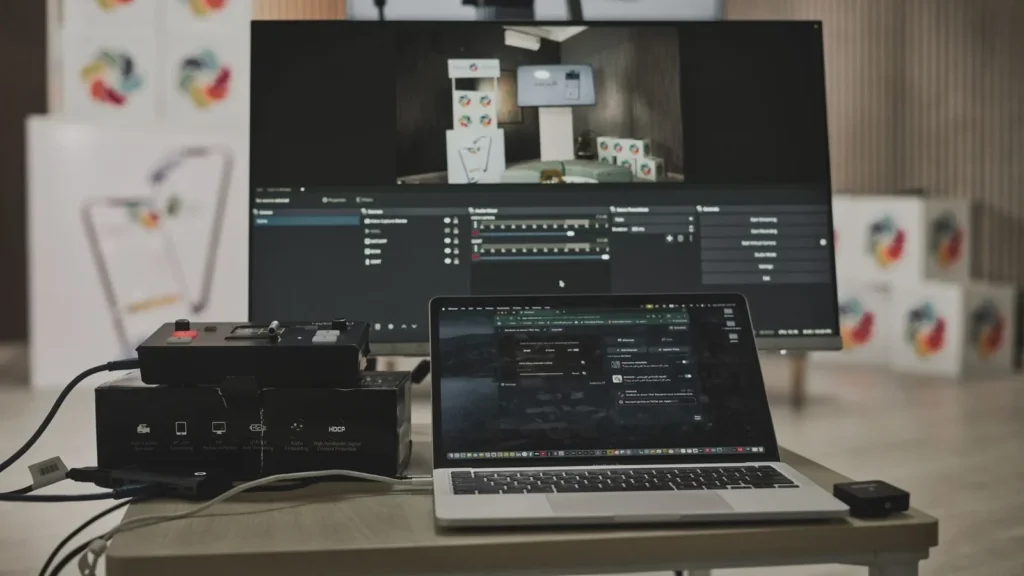
What you get on the free plan: all of it. A local HTML file loaded through the Local file checkbox needs no internet, no account and no hosting.
Save the file below as countdown.html. Change the target line to your own start time in UTC (the trailing Z matters), then add a Browser Source in OBS, tick Local file, pick the file, and set width and height to your canvas size.
<!doctype html>
<html>
<head>
<meta charset="utf-8">
<style>
  html, body { margin: 0; background: transparent; overflow: hidden; }
  #t {
    font: 700 160px/1 "Segoe UI", Arial, sans-serif;
    color: #ffffff;
    text-align: center;
    text-shadow: 0 4px 18px rgba(0, 0, 0, 0.6);
    padding-top: 380px;
  }
</style>
</head>
<body>
<div id="t">--:--</div>
<script>
  const target = new Date("2026-11-23T19:00:00Z").getTime();
  const pad = (n) => String(n).padStart(2, "0");
  function tick() {
    const left = Math.max(0, Math.floor((target - Date.now()) / 1000));
    const h = Math.floor(left / 3600);
    const m = Math.floor((left % 3600) / 60);
    const s = left % 60;
    const el = document.getElementById("t");
    if (left === 0) { el.textContent = "Live now"; return; }
    el.textContent = h > 0 ? h + ":" + pad(m) + ":" + pad(s) : pad(m) + ":" + pad(s);
  }
  tick();
  setInterval(tick, 250);
</script>
</body>
</html>
The page reads the viewer machine’s clock, which in this case is your own PC, so a wrong Windows time zone or a clock that drifted shows up on stream. Turn on automatic time sync in your operating system before a big show.
Render settings
| Setting | Value | Note |
|---|---|---|
| Browser Source width and height | Match canvas, for example 1920 by 1080 | Same size as your OBS canvas, no scaling |
| Frame rate | 30 or 60 fps | Match your stream frame rate |
| Local file | On | No internet dependency |
| Shutdown source when not visible | Off for a timer you want mid-count | A hidden source stops rendering when this is on |
| Refresh browser when scene becomes active | Off | Avoids a one-frame flicker on scene switch |
| Background | Transparent | Place the timer over your artwork or video |
OBS Studio 33.0 updated the embedded Chromium Embedded Framework from version 127 to 150, according to Elgato’s coverage dated October 29, 2026. A page built on plain HTML, CSS and JavaScript like the one above should render the same, but test any old overlay after you update, because a framework jump of that size can change how fonts and animations behave.
Fixing a blank or wrong Browser Source timer
Most Browser Source problems come from five causes, and each takes under a minute to check.
- Blank box. The file path moved, or Local file is unticked. Reopen the source properties and pick the file again.
- Wrong digits. The target line is in the wrong time zone. Keep the trailing Z for UTC, or write the offset explicitly, such as -05:00.
- Tiny or cropped text. The source box is smaller than the canvas. Set width and height to your canvas size instead of dragging the corner.
- Stuck at the old time. The scene stayed cached after you edited the file. Use the Refresh cache button in the source properties.
- Missing font. The CSS names a font that is not on the machine, so the browser falls back to a default. Stick to a system font or embed the font file next to the HTML.
Fix the problem at 5 pm, not at 6:58 pm. A two-minute dry run each show night catches all five.
Method 3: StreamElements overlays and the chatbot countdown command
StreamElements gives you two different countdown tools, and people often mix them up. The overlay route puts a countdown or goal widget on screen. The chatbot route gives viewers a text answer when they type a command. For a starting soon screen you want the first, and you can add the second as a bonus.
What you get on the free plan: StreamElements reports core overlays, alerts and chatbot tools as free, and SE.Live, its OBS-focused product with multistreaming, is documented as free as well.
The overlay route follows the documented pattern. You build or pick an overlay in the dashboard, copy its URL, add a Browser Source in OBS, paste the URL, and set 1920 by 1080 with 30 or 60 FPS. The overlay is a web page, so the timer lives on StreamElements’ side and OBS only displays it. That is convenient for remote edits. It also means your countdown needs internet at the moment you go to the scene.
The chatbot route is handy for text. StreamElements documents a countdown command that accepts recurring daily times and one-time RFC 3339 dates. A command built from the documented variable looks like this:
The community tournament starts in $(time.until 2027-09-20T19:00:00-03:00)The documentation describes the Chatbot for Twitch and YouTube Live, with custom commands, timers and spam filters. Kick is not on that list in the pages checked, so a Kick-only streamer should treat the chatbot countdown as unavailable until StreamElements says otherwise. A separate StreamElements changelog entry dated November 3, 2026 describes a unified chat WebSocket topic that merges Twitch, YouTube, Kick and X chat into one format, so Kick support at the data layer is growing.
Two more facts help with planning. SE.Live requires OBS Studio 31.x or newer, runs on Windows and is in beta on macOS, per the StreamElements documentation. And the StreamElements site now states that the company is part of Razer, with updated Terms of Use effective August 1, 2026. Neither changes how a countdown overlay works, but both explain why the dashboard layout and terms pages differ from older tutorials.
Method 4: Streamlabs widgets and Ultra
Streamlabs remains an active suite covering streaming, recording, alerts, donations and creator tools. Its Starter plan is listed as free, and its paid Ultra subscription bundles premium apps. A third-party comparison from November 2026 reports Ultra at $27 a month, while reported yearly figures differ between trackers, so confirm the price on Streamlabs’ own pricing page before you budget for it.
What you get on the free plan: Starter covers basic streaming and accepting donations. A countdown widget in the same family loads into OBS the same way as other hosted overlays, through a Browser Source URL.
Streamlabs also publishes broad platform guides in its content hub, such as its walkthrough for streaming and recording Nintendo Switch gameplay, which show how it positions the product across devices.
The honest limit for a starting soon screen: a hosted widget catalogue changes. Hosted providers can retire widgets, and an old tutorial may point at something that no longer exists. That is the strongest argument for keeping the timer itself local and using hosted tools only for alerts, goals and chat.
Streamlabs also lists support for Twitch, YouTube, Facebook, Kick, Patreon, Instagram, X and custom RTMP destinations, reportedly as of November 2026, which makes it a workable pick if you stream to several sites. It costs more to start, though, and for a pure timer it adds a login and a subscription where OBS already does the job.
Method 5: a pre-rendered countdown video
A looped video countdown ignores the clock completely. You render a clip, for instance a five minute sequence that ends on a “Live now” card, add it as a Media Source, and press play when you open the scene. It is the simplest route and the one with the best looks, because you can animate anything: particles, a progress ring, a glowing logo.
What you get on the free plan: any free editor can render the clip. Resolve’s free edition, CapCut or Shotcut all export the 1080p MP4 you need. The cost is time, not money.
The trade-off is accuracy. A video does not know it is 6:57 pm. If you press play at the wrong moment, the “00:00” lands at the wrong moment too. A clean workaround is to make the clip a looping ambient background with no numbers on it, and layer a real countdown from Method 1 or 2 on top. You get the design of a video and the honesty of a clock. If you pick that hybrid, our file type comparison for starting soon screens explains when a looped MP4, a GIF or a browser overlay is the right container.
For a quick motion background, an animated logo clip works well under a timer. The animated logo theme in Vipid’s library is one such starting point, and you can loop its render in OBS.
Render settings
| Item | Recommended value | Why |
|---|---|---|
| Resolution | 1920 by 1080 | Matches the common canvas, no scaling in OBS |
| Frame rate | 30 or 60 fps | Matches your stream frame rate |
| Length | Any loop that hides the seam | A long clip hides repeats, a short one needs a clean join |
| Container | MP4 for the broadest support | WebM is an option if you need alpha, check your OBS build |
| Audio | Off, or a separate music source | Lets you fade or swap music live |
If you want a reference for sensible clip lengths and frame rates, the intro theme pages list resolution, length and frame rate for each theme. Tick Loop on the Media Source, and untick “Close file when inactive” if you see a delay when you switch to the scene. A restart of the file each time the scene appears is useful for a countdown clip, and the “Restart playback when source becomes active” option does exactly that.
Twitch, YouTube Live and Kick: what changes by platform
Short answer: very little, because OBS sends the active scene as your video feed. A countdown built in OBS looks identical on every destination, and a multistream carries it to all of them at once. Three things do change, and they sit outside the timer.
Chat and bots. StreamElements documents its Chatbot for Twitch and YouTube Live. Streamlabs reportedly supports Twitch, YouTube, Facebook, Kick and more. If you want viewers to type a command and see the time left, check the bot’s platform list before you promise it on a Kick channel.
Scheduling. A countdown on screen is only part of how people find a stream. Platforms offer their own schedule or event features, which put a start time on your channel page. Keep the screen’s end time identical to the time you published, down to the minute.
Viewer features. At TwitchCon San Diego on November 13, 2026, Twitch announced the return of Hosting with a feature called Host Trains, plus clips of up to five minutes and a return of Moments, according to a recap on streamer.guide. The recap names Dan Clancy as Twitch CEO at the event. Hosting matters here because a host can send viewers to your channel while it sits on the countdown, so the screen doubles as your front door for a few minutes. These are viewer-side changes. None alters how a timer runs in OBS.
What changed in OBS this month
OBS Studio 33.0 is the headline change for anyone with a browser-based timer. It updates the embedded browser engine, brings better snapping and audio monitoring hotkeys, and introduces a new plugin folder setup on Windows. Release notes mirrored on OBS-Studio.net say existing third-party plugins keep loading from their legacy locations until OBS Studio 34.0, which protects scene-switcher plugins you installed earlier. The same notes record a startup crash in 33.0.2 on certain older processors, and 33.0.3 lists a fix for it. Trackers disagree on dates, so treat the point-release numbers as a reason to read the official download page, not as settled history.
OBS lists macOS 13.0 or newer as the minimum for the current line. If you stream from an older Mac, check that requirement before you update on show day.
For a wider view of overlays, scenes and screens, the stream intros and overlays archive collects our other guides.
What each OBS countdown timer costs
Four of the five routes cost $0 in software. The only recurring charge on this list is a Streamlabs Ultra subscription, and you do not need it for a timer. Prices below are as listed by each vendor’s own pages on November 22, 2026, and none of them is a quote you should lock in without a second look at the official page.
| Component | What it gives a countdown | Price |
|---|---|---|
| OBS Studio 33.0 | Text sources, Browser Source, Lua and Python scripting | $0, open source |
| Browser Source | Shows a local or hosted web page in a scene | Included, no separate licence |
| Lua or Python script | Rewrites a text source each second | $0 for the feature, third-party scripts vary by author |
| StreamElements overlays and chatbot | Hosted overlay URL, chat countdown command | Core tools reported free |
| Streamlabs Starter | Basic streaming and donations | Free |
| Streamlabs Ultra | Bundle of premium apps | Paid subscription, price note in the Streamlabs section |
| Pre-rendered loop | Animated clip played as Media Source | Cost of your editor, $0 with a free one |
One more cost sits outside money: your own time. A Browser Source file is the longest to write the first time and the cheapest to keep, because it never changes under you. A hosted widget is the quickest to start and the most likely to change without warning. Pick based on how often you are willing to retest.
What the sources show about timing and load
No vendor in this comparison publishes CPU or accuracy benchmarks for a countdown, so there is no neutral frame-time chart to quote. What the documentation does show is where each timer runs and what each depends on. The table lists the sources used and what each one confirms.
| Source | What it confirms | Date or status |
|---|---|---|
| OBS official site and documentation | OBS Studio 33.0 is the newest stable line, docs labelled 33.0.3, Browser Source and scripting documented | Checked November 22, 2026 |
| OBS Browser Source documentation | A web page renders as a layer in a scene, no separate product | Checked November 22, 2026 |
| StreamElements documentation | Overlays are web pages meant to be added to OBS as a Browser Source | Checked November 22, 2026 |
| Streamlabs pricing pages | Free Starter plan, Ultra bundle, Cross Clip pricing separate | Checked November 22, 2026 |
| Elgato coverage of OBS 33.0 | Chromium Embedded Framework moved from 127 to 150 | October 29, 2026 |
| OBS-Studio.net release notes | A reported 33.0.2 startup crash on certain older CPUs, with a fix listed in a later build | November 20 to 22, 2026 |
Since no benchmark exists, measure your own setup, which takes ten minutes. Open View, then Docks, then Stats in OBS and watch CPU usage, dropped frames and average frame time on your countdown scene. Run the scene for five minutes with each method in turn. A text source with a script is the lightest, a Browser Source costs a little more because it runs a Chromium page, and a hosted overlay adds a network request on top. On a recent PC the differences are small. On a weak laptop that already struggles with a game capture, they can decide your choice.
StreamElements itself advises a system built from 2019 onward for best overlay performance. That fits the structure: a browser layer is cheap but not free. If your machine is older, a pre-rendered loop or a plain text source avoids the Chromium cost entirely.
Six real-world countdown setups
These are common setups that match what the vendor documentation supports. They are scenarios, not named channels, and each one maps to a pick above.
1. Weekly Twitch show at a fixed time. A streamer announces 7:00 pm every Tuesday. A Browser Source with local HTML and a target time that she updates each week gives a clock-accurate timer. She keeps a 5 minute loop video underneath as the mood layer. If OBS restarts at 6:58, the timer shows 2:00 again, not a fresh five minutes.
2. YouTube Live Q and A with a scheduled event. The host publishes an event page days ahead and wants the on-screen timer to match its start. He uses a text source and a Lua script for plain mm:ss, because he has no web skills and the plain look suits his channel. He starts the script when the pre-show music starts.
3. Kick streamer multistreaming to two sites. She sends one OBS scene to Kick and a second site. Because the countdown runs inside OBS, both feeds show the same time. She avoids the StreamElements chatbot countdown, since the documentation only lists Twitch and YouTube Live for the Chatbot, and relies on a pinned message instead.
4. Charity event on a fixed date. A team plans an event for a calendar date months away. The StreamElements chatbot countdown command accepts a one-time RFC 3339 date, so viewers can ask in chat when it starts and get the time remaining. On show day they switch to an overlay countdown on screen for the last hour.
5. Small studio running a podcast stream. A producer wants a branded screen with logo animation and no moving parts. She renders a looping 1080p clip in a free editor and adds it as a Media Source. The clip has no numbers on it, and the “Live now” card is added by switching to the live scene by hand.
6. Streamlabs Ultra subscriber. A creator already pays for Ultra and uses its widgets daily. She keeps its countdown widget in her scene, and she also saves a local HTML file as an emergency fallback in a hidden scene. If the hosted widget fails, one click swaps it in.
Across all six, the pattern is the same. Local timers carry the clock, hosted tools carry chat and alerts, and a video carries the mood. Mixing layers by role beats picking one tool for everything.
Migration guide: moving to a local countdown timer
If your current starting soon screen is a looped video or a hosted widget, here is a ten-step move to a Browser Source timer that does not disturb your live scenes.
- Duplicate your starting soon scene in OBS and name it “Starting soon test”. Work only in the copy.
- Create the countdown.html file from Method 2 and save it in a folder you will not move, such as Documents, then Streams.
- Add a Browser Source to the test scene, tick Local file and pick the file.
- Set width and height to your canvas size and the frame rate to your stream rate.
- Set the target time a few minutes ahead and watch the digits tick. Check that the font is readable on a phone-sized preview.
- Open View, Docks, Stats and note CPU and dropped frames with the test scene live in the preview.
- If you run a scene-switcher plugin, confirm it still loads after any OBS 33.0 update, since the plugin folder setup changed on Windows.
- Remove the old looped video or hosted widget source from the test scene and keep it in a hidden scene as a fallback.
- Swap the test scene in place of the old one, test once on a private or unlisted stream, then go live with it.
- Update the target time in the file for every new show. Add a reminder to your pre-stream checklist.
A last note for people leaving a hosted widget: export or screenshot its styling first. Colours, fonts and sizes are the part you will want to copy into the CSS.
Pros, cons and the verdict
| Method | Pros | Cons |
|---|---|---|
| Text source plus Lua script | Free, offline, light on CPU, clock-based | Plain styling, needs a reload after edits, no scene hand-off by itself |
| Browser Source, own HTML | Full design control, offline, one file | Needs basic HTML, test after OBS updates |
| StreamElements | Free core tools, overlay URL, chatbot dates | Needs internet, chatbot platform list is narrower than the overlay |
| Streamlabs widget | Familiar dashboard for existing users | Widget catalogue changes, Ultra is a paid bundle |
| Pre-rendered loop | Best looks, simple, offline | Ignores the real clock |
The verdict. For most streamers, a Browser Source with a local HTML file is the best OBS countdown timer. It is the only route that is free, offline, clock-accurate and fully styleable at once. Choose the Lua text source if you want mm:ss with no code in a web page, and choose StreamElements if chat commands matter more than on-screen polish. Pay for Streamlabs Ultra for other reasons, not for a timer. Whatever you pick, keep a local fallback scene and a plain video loop in reserve.
A short pre-show checklist keeps the choice honest. Thirty minutes out, open the countdown scene and confirm the target time against the time you published. Fifteen minutes out, check that the Stats dock shows no dropped frames with the scene live. Five minutes out, confirm audio levels on the music source and your microphone. At zero, switch scenes by hotkey or let your plugin do it. If anything on that list fails, the fallback scene is one click away, which is the real reason to keep a second timer built a different way.
The practical limit of this advice is that no vendor publishes timing benchmarks. If your machine is old, measure with the Stats dock before you decide, and re-test after each OBS update. OBS Studio 33.0 changed the browser engine and plugin folders, so the first week after an update is the riskiest time to try something new on air.
Questions creators ask
Which OBS countdown timer works on Twitch, YouTube Live and Kick?
All of them, because the countdown is part of your OBS scene and OBS sends the scene to every destination. Only the chat bot features depend on the platform. StreamElements documents its Chatbot for Twitch and YouTube Live, so check bot support before you promise a chat command on Kick.
Does OBS have a built-in countdown source?
The sources and docs checked for this guide show text sources, Browser Source and Lua or Python scripting, with no dedicated countdown source. You build the timer with a script, a web page or a hosted overlay.
How do I switch scenes automatically when the timer hits zero?
OBS does not switch scenes on its own when a timer ends. Use a scene-switcher plugin set to a time, or extend the Lua script to call the OBS front-end scene function. Test the switch on an unlisted stream first.
Does a Browser Source countdown use more CPU than a text source?
Usually a little more, since it runs a Chromium page. No vendor publishes figures, so compare the two in the Stats dock on your own machine for five minutes each.
Will my old browser overlay still work in OBS Studio 33.0?
Probably, but test it. OBS Studio 33.0 moved its embedded Chromium Embedded Framework from version 127 to 150, which can change how fonts and animations render. Plain HTML and CSS timers are the least likely to break.
Can I use a countdown that starts at the same real time every week?
Yes. Use a fixed target time in a Browser Source page, or the StreamElements chatbot countdown, which supports recurring daily times. A looped video cannot do this because it does not read the clock.
Is the StreamElements countdown command the same as an on-screen timer?
No. The command answers viewers in chat with the time remaining. To show a timer on screen, use an overlay URL in a Browser Source or one of the local methods above.
More from the Vipid blog
- Twitch Chat Overlay Obs [2026]
- Free Twitch Overlays [2026]: 5 Sources, $0 vs $27/mo
- Be Right Back Screen [2026]: 12 Steps in 30 Min
- OBS Recording Settings [2026]: 4 Encoders, 1 Safe Pick
- OBS vs ShadowPlay vs Medal [2026]: 3 Free Recorders
- Your Video a channel-style intro theme
- Intro themes stream and channel intros
- Sample videos finished Vipid intros
- Vipid intro maker make a custom intro in the browser
Theo Vance
Theo Vance is the Intros & Templates Editor at Vipid, where he covers intro and outro makers, template libraries for CapCut, Canva and the major editors, slideshow and video-card tools, and stream starting screens. He compares makers on what matters before you hit render: watermark, export resolution, length limits, licence and price, and dates every check. He also looks after the Vipid theme archive, the 2011–2016 intros the site was built on.