Which File Type Fits a Twitch Starting Soon Screen?
The short answer: looped MP4 first, Browser Source for live clocks · What Twitch, YouTube Live and Kick actually see · Starting soon screen specs compared: GIF, MP4, WebM and Browser Source · Animated GIF: what you get on the free plan, and where it breaks · Looped MP4 in a Media Source: the default pick · Looped WebM: when transparency earns the extra testing · Browser Source and OBS Studio 33: what changed under the hood · Countdown accuracy: baked-in numbers versus a live clock · CPU, GPU and file size: what the evidence shows · Cost and licence: what each route costs to run · Five worked setups · Which route fits which streamer · Migration guide: moving from a GIF to MP4 or a Browser Source · Pros, cons and the verdict · Questions creators ask
For most Twitch streamers, a looped MP4 played through an OBS Media Source is the safest starting soon screen. Choose a Browser Source when the screen has to show a countdown that tracks real time. Choose an animated GIF only when the animation is small and short, and you can live with its limits.
That answer holds on Twitch, YouTube Live and Kick, because none of them ever receives your GIF, MP4 or web page. OBS renders the scene and sends one encoded video stream. At TwitchCon Rotterdam in May 2026, Twitch said it uses HEVC and supports bitrates up to 7.5 Mbps for 1080p and 9 Mbps for 1440p. Those limits apply to the finished broadcast, not to the file behind your waiting screen.
So the real decision sits on your own PC. It comes down to file size, processor load, whether the countdown can be live, and how much work you want to do before you go live. If you still need to decide where to get the design itself, our rundown of Canva, Placeit, OWN3D and plain OBS covers the makers. This article covers the file you load once you have a design.
The facts here were checked on November 21, 2026 against OBS Studio’s own release notes and download page, Twitch’s blog, Kick’s help pages and recent OBS guides. Where no official source gives a number, the article says so instead of guessing.
The short answer: looped MP4 first, Browser Source for live clocks
A looped MP4 in a Media Source is the best default for a starting soon screen on Twitch. It plays a pre-rendered animation, keeps the asset on your disk, avoids running a web page inside OBS and compresses far better than a GIF. Current OBS guidance reaches the same conclusion and calls this route the most predictable one for a self-contained animated screen.
A Browser Source wins on one job: a countdown that reads the clock. It can calculate time live, take text from a web page, and react to alerts or widgets. The price is extra load, because OBS has to run an embedded browser for it.
An animated GIF sits last for full-screen work. Current guidance describes it as the weakest option for a polished scene. It has limited colour support, compresses poorly at high resolution and carries no audio. It still has a place for small decorative loops, such as a blinking cursor in a corner, and for people who want to drag one file into OBS and be done.
One more format deserves a mention. A looped WebM can carry transparency, so it suits overlays that sit on top of a live scene. Treat it as a test-first option, because how well it plays depends on your OBS build and on how the file was encoded.
Here is the whole decision in four lines:
- Opaque full-screen loop: MP4 in a Media Source, loop on.
- Countdown that matches your real start time: Browser Source.
- Transparent animated overlay: WebM with alpha, after a test.
- Tiny decorative element: GIF in an Image Source.
If you want the click-by-click build rather than the format debate, the step-by-step OBS starting soon guide walks through scene setup. The rest of this piece explains why the four lines above come out the way they do.
What Twitch, YouTube Live and Kick actually see
Your viewers see a video, not a file type. OBS draws the starting soon scene on your canvas, encodes the canvas, and ships the result to the platform. A GIF, an MP4 and a web page all arrive as the same kind of pixels. That is why none of the three platforms publishes a rule that favours or bans a particular format for a waiting screen.
The platform limits that matter apply to the encoded output. Twitch states it uses HEVC and has set bitrate ceilings of 7.5 Mbps at 1080p and 9 Mbps at 1440p, per the Rotterdam announcement cited above. It also announced dual format and 2K streaming in June 2026. Kick is stricter on the codec side: its documentation says H.265 and VBR are not currently supported. According to Kick’s help pages, desktop streams should use x264 or H.264 with CBR, a maximum of 8,000 kbps, 1920×1080 and 60 fps.
Why does that matter for a waiting screen? A busy, high-motion loop eats bitrate. If the starting soon animation is full of fast particles and grain, your encoder spends a big share of a fixed budget on a scene nobody will remember. A calmer loop leaves headroom, and it looks cleaner at the same bitrate. The file format does not change this, but the animation style does.
YouTube Live adds a viewer-side change worth watching. YouTube reportedly added a Watch Live button and live previews to the channel pages of creators who are currently streaming around November 19 and 20, 2026. A preview may show your waiting screen to someone who has not yet clicked in. That is a reason to keep the first frame of your loop readable: a logo, a title and a clear message beat a blank fade-in.
For the wider picture of how scenes, overlays and sources fit together, the stream intros and overlays hub collects our other guides on screens, alerts and chat boxes.
Starting soon screen specs compared: GIF, MP4, WebM and Browser Source
The table below sets the four routes side by side. It sticks to what OBS and current guidance support, and it avoids invented benchmark numbers. Where the exact result depends on your hardware, the cell says so.
| Spec | Animated GIF | Looped MP4 | Looped WebM | Browser Source |
|---|---|---|---|---|
| OBS source type | Image Source | Media Source | Media Source | Browser Source |
| Loops | Yes, built into the file | Yes, tick Loop | Yes, tick Loop | Yes, in your page code |
| Audio | None | Carried in the file | Depends on the encode | Page must play it |
| Transparency | Basic, hard edges | No practical workflow | Possible with alpha, test first | Yes, with a transparent page |
| Live countdown | No, fixed in the file | No, fixed in the file | No, fixed in the file | Yes, reads the clock |
| Dynamic text | No | No | No | Yes |
| File size vs a GIF | Largest for the same motion | Normally much smaller | Normally much smaller | Small page, plus assets |
| Relative load (current guidance) | Higher than its size suggests | Low to medium | Low to medium | Medium to high |
| Hardware decoding | No | Yes, where available | Depends on codec and GPU | Not applicable |
| Needs an editor | Any GIF tool | Any video editor | Editor with alpha export | Code or a template |
| Depends on the platform | No | No | No | No |
| Main risk | Banding and a visible loop jump | Visible loop seam | Playback differs by build | Extra CPU, page errors |
| Best for | Small decorations | Full-screen waiting loop | Overlays on live video | Timers, widgets, live data |
Two rows carry most of the weight. The countdown row splits the field in half, because only the Browser Source knows what time it is. The load row separates the cheap routes from the costly one, and the guidance behind it comes with a warning that exact numbers depend on resolution, frame rate, codec and hardware. No official OBS source publishes a universal ranking, so treat the table as direction, not measurement.
Animated GIF: what you get on the free plan, and where it breaks
What you get on the free plan: everything. GIFs cost nothing to make or load, and OBS itself is free and open source with no paid tier. Free loops are easy to find, which explains the format’s popularity with first-time streamers. Drag the file into a scene, and it plays.
That convenience hides three problems. First, GIF has limited colour support, so gradients band and photographic backgrounds look rough at full-screen size. Second, it compresses badly. Current guidance notes that MP4 and WebM are normally much smaller than an equivalent GIF because they use inter-frame video compression. Third, a GIF carries no audio, so you need a separate sound source if you want music under the screen.
OBS did touch its GIF handling recently. The OBS Studio 33.0 release notes list an update of libnsgif to version 1.0.0, the library OBS uses to decode GIF frames. That is a maintenance bump, not a sign that GIF became a preferred format. No official OBS result says GIF is deprecated either. It stays what it was: a convenient format for small loops.
A fair way to use GIF is as a piece of a scene, not the scene itself. Put a still full-screen background in one layer, then place a small animated GIF of a pulsing dot or a spinning icon on top. The still image costs almost nothing to display, and the small GIF stays small. That combination looks animated and spares your processor.
Watch the loop point too. Many free GIFs jump visibly when they restart, because the first and last frames do not match. A viewer who waits five minutes on a starting soon screen will see that jump about 100 times if the loop lasts three seconds. Pick a loop that ends where it began, or move to a longer MP4 where you control the join.
Looped MP4 in a Media Source: the default pick
What you get on the free plan: OBS Studio’s Media Source costs $0, and any editor with a free export tier can produce the MP4. Add the file as a Media Source, tick Loop, and you have a self-contained waiting screen with optional audio.
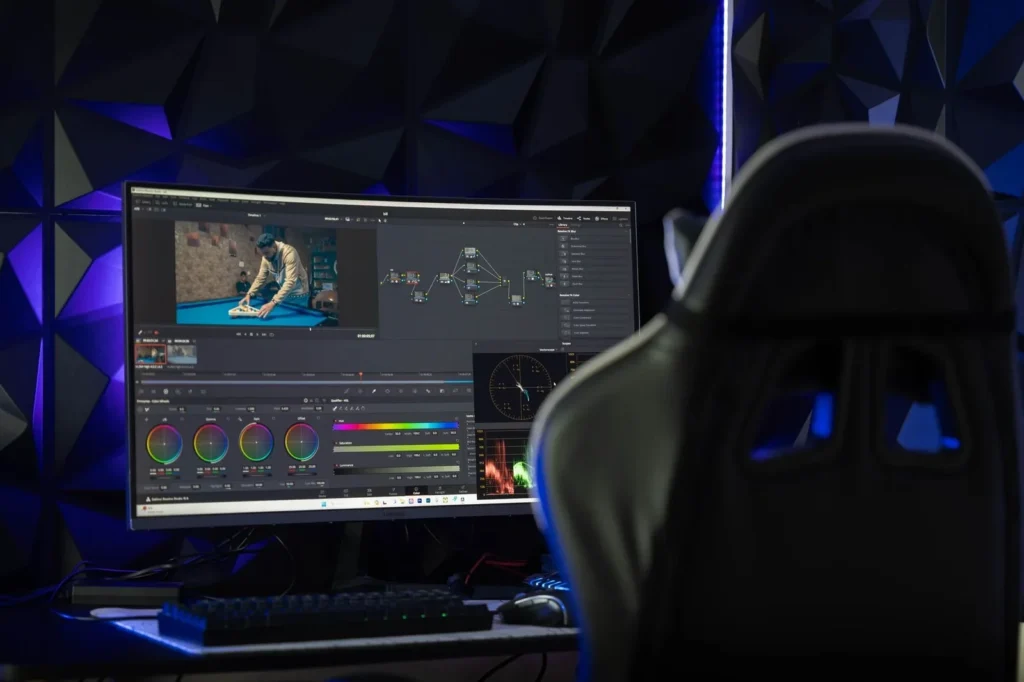
MP4 is designed for opaque video, and that is exactly what a full-screen starting soon scene is. Current guidance points out that modern video compression produces much smaller files than an equivalent GIF, and that hardware decoding can reduce processor use where your GPU supports it. The same guidance ranks a local video file as low to medium load, below a Browser Source.
The weak spot is the countdown. A pre-rendered MP4 can only show a countdown that was baked in when you exported it. If you start eight minutes late, the video still says two minutes remain. The fix is either a loop with no numbers at all, or a countdown layered on top from a Browser Source. The countdown section below covers both.
A clean loop, where the last frame blends into the first, matters more than any codec setting. Build the animation so its start and end share the same pose. Keep it between 10 and 30 seconds so the repeat is not obvious, and keep motion gentle so your encoder can hold quality at the platform’s bitrate cap.
Audio deserves a plan. If the file carries music, you control it inside OBS like any other source, and OBS Studio 33.0 added hotkeys for source audio monitoring, which helps when you want to hear the track on your headphones without sending it to viewers. If the file is silent, route music through a separate audio source. That way you can fade it out the second the scene changes.
Render settings
| Setting | Suggested starting point | Why |
|---|---|---|
| Resolution | 1920×1080, matching your OBS canvas | Avoids scaling work in OBS |
| Frame rate | 30 fps, or 60 fps if your stream runs at 60 | Matches the output so motion stays even |
| Loop length | 10 to 30 seconds | Hides the repeat from a waiting viewer |
| Container and codec | MP4 with H.264 | Widest playback support, hardware decoding common |
| Audio | AAC, or none | Leave it out if you add music as a separate source |
| OBS option | Loop on, restart playback when the source becomes active | Starts the animation fresh each time the scene appears |
Those values are a sensible starting point, not an official spec. Your own canvas size and stream frame rate decide the final numbers. If you would rather start from a ready-made loop than build one, a roundup of free Twitch overlay sources shows which packs ship video loops and which ship stills.
From the Vipid archive: the original intro themes list resolution, length and frame rate for each design, which makes them a handy reference when you pick a loop length.
Looped WebM: when transparency earns the extra testing
WebM matters for one reason: alpha. If you want an animated element, such as a lower banner or a floating logo, to sit over live gameplay or a webcam without a solid box around it, WebM with an alpha channel is the practical route. MP4 generally does not offer the same transparent overlay workflow.
For a plain starting soon screen, you rarely need that. The screen fills the canvas and hides everything under it, so transparency adds risk and no benefit. If your design is opaque, export MP4 and skip the question.
Current guidance on WebM is cautious. It treats compatibility as configuration dependent, since the codec inside the file, the OBS build and the operating system all play a part. One guide recommends a looped WebM Media Source with alpha only after testing the particular codec and OBS build you run. That fits what OBS itself says. The official page confirms Media Source support, but it does not promise that every encoding of every container will play.
The test is short. Export a five-second sample with your alpha settings, load it into a scratch scene over a bright colour, and check the edges. Then restart OBS and check again, because playback issues sometimes appear only after a restart. If edges show a halo or the file stutters, fall back to MP4 and build the overlay as a Browser Source instead.
Our own WebM versus MP4 comparison goes deeper on containers and codecs for anyone who wants the editing side of that choice.
Browser Source and OBS Studio 33: what changed under the hood
What you get on the free plan: Browser Source is part of OBS Studio, so it costs $0, and the HTML, CSS and JavaScript behind it are yours to write or borrow. It is the tool for a live countdown, dynamic text, alerts, a now-playing line or any content that must update without swapping a media file.
OBS Studio 33.0 arrived in late October 2026 and changed the browser engine more than anything else in the release. The official release notes describe a massive update to the framework behind browser sources and docks, jumping from the July 2024 release to September 2026. The same notes say existing third-party plugins keep loading from the legacy locations until OBS Studio 34.0, and that Ubuntu 24.04 support was removed in favour of an official Ubuntu 26.04 package. The official download page lists macOS 13 or newer and 64-bit Windows 10 or 11.
For a starting soon screen, the practical lesson is to retest. Any waiting screen built as a Browser Source runs through that embedded browser, so a version change can alter how a page renders. A version tracker lists OBS Studio 33.0.2 from November 20, 2026 and flags a known startup crash on some older processors, while the main download page shows 33.0. Check Help, About in your install and read the notes for your exact build before a big stream.
Community reports point the same way. According to OBS forum threads from late October and November 2026, a few macOS users saw black capture output after 33.0 and 33.0.1. Those are reports from forum pages, so read them as a signal to test, not as a verdict on OBS.
Browser Sources also power things beyond the waiting screen. If you already run a chat box as a browser source, adding a second one for the countdown follows the same pattern, though each extra browser source adds load. According to its release notes, OBS 32.1 (April 2026) improved security for Browser Sources that load local files, so a local countdown page deserves a quick check if you upgraded from an older build.
Countdown accuracy: baked-in numbers versus a live clock
The countdown is where the formats stop being interchangeable. A GIF, MP4 or WebM can show only the numbers drawn into it. A Browser Source can calculate remaining time from the system clock. No current official source documents a built-in OBS countdown that syncs to an event, so every option is a local choice you make.
Baked-in countdowns
A baked-in countdown works if your start time is firm and you press go at the right moment. Render a five-minute video that ends on your intro, start it five minutes before air, and the numbers match. It breaks the moment anything slips. A prerecorded file cannot know the real start time unless you sync it by hand.
The safer variant is a loop with no numbers. Show a title, an animation and a line that says the stream begins shortly. It never lies, and it never needs rebuilding.
Live countdowns in a Browser Source
A Browser Source can read the clock, subtract it from a target time and redraw each second. Streamers who keep a schedule can set the target once per stream. The page below is a minimal example. Save it as a local file, point a Browser Source at it, and edit the target date.
<!DOCTYPE html>
<html>
<body style="margin:0;background:transparent;color:#fff;font:700 96px sans-serif;text-align:center">
<div id="t"></div>
<script>
const target = new Date('2026-11-22T20:00:00-05:00');
setInterval(() => {
  const s = Math.max(0, Math.floor((target - new Date()) / 1000));
  const m = String(Math.floor(s / 60)).padStart(2, '0');
  const r = String(s % 60).padStart(2, '0');
  document.getElementById('t').textContent = s ? m + ':' + r : 'Live now';
}, 250);
</script>
</body>
</html>
Test the page, the clock source and the refresh behaviour before going live. Third-party tools exist too. An OBS forum listing describes Smart Countdowns as an event-intro tool that uses a custom browser dock and a Browser Source. It is not an official OBS product, so check its notes against your OBS version.
The hybrid: MP4 background, Browser Source numbers. The lowest-risk setup that still shows a live timer layers two sources. The bottom layer is the looped MP4 with no numbers. The top layer is a small transparent Browser Source that draws only the countdown. The heavy visuals stay in cheap video decoding, and the browser handles a few digits. That split keeps the Browser Source small, which keeps its load low.
CPU, GPU and file size: what the evidence shows
Here is the honest state of the data. No official OBS source and no independent lab has published a verified benchmark that compares GIF, MP4, WebM and Browser Source for a starting soon screen. The sources that exist agree on direction and differ on detail. Anyone quoting a precise percentage is guessing.
| Source | Date | What it says |
|---|---|---|
| OBS Studio 33.0 release notes and download page | Checked November 21, 2026 | Confirms Media Source and Browser Source support and a major browser framework update, with no format performance ranking |
| OBS download guide at obs-studio.download | November 12, 2026 | Ranks PNG as very low load, local WebM or MP4 as low to medium, Browser Source as medium to high, and advises hardware decoding |
| Free overlays guide at shimga.app | November 20, 2026 | Treats Browser Source as the choice for a live countdown, dynamic text and HTML or CSS animation |
| Version tracker at obs-versions.com | November 20, 2026 | Lists 33.0.2 and a known startup crash on some older processors, with no format benchmark |
| Twitch Rotterdam 2026 announcement | Not listed | Sets output ceilings for the finished stream and is silent on source formats |
Read across those sources and the pattern is steady. A still PNG sits at the very low end of load. A decoded video file sits low to medium. A Browser Source sits medium to high, because it runs a web engine, even when the page looks simple. A GIF lands awkwardly: small on screen but inefficient for what it stores, so it often costs more than its pixel count suggests.
File size follows compression. Current guidance says MP4 and WebM are normally much smaller than an equivalent GIF. The exact gap depends on duration, dimensions, frame rate, bitrate and codec, so no single ratio applies to every loop. If you want a number for your own loop, export both versions and compare them in your file manager. That measurement takes two minutes and beats any table.
Measure the load yourself as well. In OBS, open the Stats dock, show your starting soon scene for a few minutes, and watch CPU use, dropped frames and rendering lag. Then swap the source type and repeat. Run the test on the same machine, with the same game closed, so the only variable is the source. If the scene sits idle for long stretches before a stream, the difference is small. If you stream from a laptop with limited headroom, it can matter.
Cost and licence: what each route costs to run
The software side costs nothing. OBS Studio is free and open source, with no paid plan, and Media Source, Image Source and Browser Source all come with it. The cost sits in the asset. You can make it, take it from a free pack or buy it, and each path raises a different licence question.
| Route | OBS software cost | Asset cost | Licence check |
|---|---|---|---|
| GIF you make yourself | $0 | Your time | You own it if the parts are yours |
| GIF from a free pack | $0 | $0 | Read the pack terms for monetised streams |
| MP4 you export from an editor | $0 | $0 with a free editor | Check the editor’s free export terms and any stock music |
| MP4 or WebM from a template maker | $0 | Free tier or paid plan, varies by maker | Confirm commercial use and watermark rules on the maker’s page |
| Browser Source page you code | $0 | Your time | Check the licence of any script or font you copy |
| Browser Source from a free tool | $0 | $0 to start | Third-party tool, not an OBS product, so read its terms |
The table avoids vendor prices because they change often, and the maker’s own pricing page is the only source to trust. What stays constant is the shape of the question. A free tier may add a watermark, cap export resolution or limit length, and a paid plan usually lifts those limits. Our look at the free plans of Streamlabs, StreamElements and OWN3D alerts shows how those caps usually work for streamers.
Music is the licence trap people forget. A looped MP4 with a track baked in is a file you may reupload inside a VOD, and a platform may mute it if the track is not cleared. For a monetised channel, use music you own or have cleared for streaming, or leave the audio out of the file and run it from a separate OBS source that you can mute on VODs.
For paid routes, count three things before you pay: whether the export carries a watermark, whether the licence allows monetised streams, and whether the file arrives as an MP4 or WebM you can load directly. A template that only exports a link to a hosted page is a Browser Source in disguise, and it inherits that source’s load.
Five worked setups
These are illustrative scenarios built from the specs above, not case studies of named channels. Each one picks a route and says why.
1. The weekend gamer on a mid-range PC. Streams at 1080p and 30 fps, goes live around the same time each evening, and does not run scheduled events. The pick is a looped MP4 with no numbers, 20 seconds long, with a line saying the stream begins shortly. It plays at low load, and it never shows a wrong time.
2. The scheduled show host. Airs a talk show every Thursday at a fixed hour with guests who need a countdown to cue them. The pick is a hybrid: a looped MP4 background plus a small Browser Source countdown set to the show’s start time. Guests see the real remaining time, and the heavy animation stays cheap.
3. The new streamer using only free tools. Has a free editor and no budget. Exports a 15-second MP4 loop, uses OBS’s Media Source, and skips plugins entirely. A free pack GIF sits in one corner as a small flourish. Total cost: $0, with one source doing the heavy work.
4. The laptop streamer. Runs a game at the edge of the machine’s headroom. Uses a static PNG for the starting soon scene while the game loads in the background, and switches to the game scene at start. A still image sits at the very low end of load, and it frees resources for the game’s launch.
5. The multi-platform streamer. Sends one OBS output to Twitch and Kick through a restream setup. Kick’s documentation lists H.264, CBR and an 8,000 kbps ceiling, so the streamer keeps the waiting loop calm to protect picture quality at the lower shared bitrate. The pick is a looped MP4 again, because the source type does not change what each platform receives. For one more look at how finished intro loops are built, the sample intros page shows examples.
Notice the pattern. Four of five land on MP4, one lands on a hybrid and none land on GIF alone. That is not an accident. The cases where GIF wins are small, and the cases where a Browser Source wins need a live clock.
Which route fits which streamer
Use these recommendations as a quick filter. Match your situation to the line that fits best, and fall back to MP4 if two lines seem to fit.
- You stream at no fixed time: looped MP4 with no countdown. Nothing on screen can go stale.
- You run a scheduled show: MP4 background plus a Browser Source countdown. Set the target time each week, and test it during setup.
- You want transparent overlays on live video: WebM with alpha, after a sample test on your OBS build. Keep an MP4 fallback ready.
- You have a weak PC or a laptop: a still image or a short MP4 loop. Skip Browser Source for the waiting screen unless you need a clock.
- You want audio under the screen: MP4 with audio, or a separate audio source. A GIF cannot carry sound.
- You build widgets and alerts anyway: a Browser Source is natural, since you already run the browser engine. Keep the page light.
- You stream to several platforms: format does not matter to the platforms, so pick on your hardware. Watch bitrate headroom on the strictest destination.
One more rule of thumb: the more a screen needs to change between streams, the more a Browser Source earns its load. The less it changes, the more a plain video file wins. A screen you update twice a year should be a video. A screen you update every show should be a page.
Migration guide: moving from a GIF to MP4 or a Browser Source
Most streamers start on GIF and outgrow it. The move takes about half an hour for MP4 and a bit longer for a Browser Source. Do it on a quiet day, not 10 minutes before a stream.
GIF to looped MP4.
- Open your GIF in a free video editor, or convert it with a command line tool. A single command does it, shown below.
- Export at 1920×1080, matching your canvas, using H.264 and the frame rate of your stream.
- If the loop is short, repeat it inside the editor a few times, and crossfade the join so the restart is invisible.
- In OBS, add a Media Source, point it at the MP4 and tick Loop.
- Remove the old Image Source, then run a five-minute test and watch the Stats dock.
ffmpeg -i start.gif -movflags +faststart -pix_fmt yuv420p -vf "scale=trunc(iw/2)*2:trunc(ih/2)*2" -c:v libx264 -crf 18 start.mp4That command uses FFmpeg to convert the GIF into an H.264 MP4 with even dimensions, a pixel format that most players accept and a quality setting you can raise or lower. It is a starting point. If the picture looks soft, lower the quality value a little, and if the file is large, raise it.
MP4 to Browser Source countdown.
- Keep your MP4 background as the bottom layer, with any baked-in numbers removed.
- Save the countdown page from the earlier example as a local HTML file.
- Add a Browser Source above the video, set its width and height to your canvas, and point it at the file.
- Edit the target date, refresh the source, and confirm the digits update each second.
- After any OBS upgrade, repeat the test, since the 33.0 browser framework update is the kind of change that can alter rendering.
The same layered file also serves your BRB screen. Swap the text layer, keep the loop, and you have two scenes from one asset. Keep a backup copy of the old GIF scene in OBS for a week, so you can switch back if something misbehaves on stream day.
Pros, cons and the verdict
Animated GIF. Pros: costs nothing, loads with one drag and works in any scene. Cons: limited colour support, poor compression, no audio and a visible loop jump in many free files.
Looped MP4. Pros: much smaller than a GIF, low to medium load, hardware decoding where available and audio support. Cons: a baked-in countdown goes stale, no practical transparency and a visible join if the loop is badly cut.
Looped WebM. Pros: can carry alpha for overlays and is small. Cons: playback depends on codec and OBS build, so it needs a test and an MP4 fallback.
Browser Source. Pros: live countdowns, dynamic text, widgets and remote updates. Cons: medium to high load according to current guidance, more setup, and a dependence on OBS’s embedded browser, which changed in a big way with 33.0.
The verdict. Make a looped MP4 your default starting soon screen on Twitch, YouTube Live and Kick. Add a small Browser Source countdown only if your show has a firm start time. Use WebM for overlays after testing, and keep GIF for small touches. This ranking rests on current guidance and OBS’s own documentation, and it carries one caveat: no verified head-to-head benchmark exists, so confirm it with the Stats dock on your own machine.
One last point on timing. OBS 33 is new, a 33.0.2 build is reported, and plugin authors are still shipping fixes. Before a big launch stream, run your waiting scene for ten minutes on the exact build you plan to use. This short pre-stream check covers most failures:
- Play the loop for two full cycles and watch the join.
- Check that audio levels sit below your voice in the mixer.
- Confirm the countdown digits change every second and hit zero on time.
- Watch CPU use and dropped frames in the Stats dock for five minutes.
- Switch to the game scene and back to make sure the loop restarts cleanly.
- Record a short local clip and play it back to see what viewers see.
A starting soon screen is the first thing a viewer sees, and a quick rehearsal costs less than a broken first minute.
Questions creators ask
Does Twitch care whether my starting soon screen is a GIF or an MP4?
No. OBS renders your scene and sends one encoded video stream, so the platform never sees the source file. Twitch’s published limits, such as 7.5 Mbps for 1080p, apply to the finished broadcast.
What is the best starting soon screen format for OBS?
A looped MP4 in a Media Source for most people. It is small, plays at low to medium load and keeps the asset on your disk. Use a Browser Source only if you need a live countdown or changing text.
Can I use a stream starting soon GIF full screen?
You can, and OBS will play it. Current guidance calls GIF the weakest choice for a polished full-screen scene because of colour limits, poor compression and no audio. Convert it to MP4 if it looks rough.
Can a video file show a countdown that matches my real start time?
Only if you start it at exactly the right moment. A pre-rendered file shows fixed numbers. A Browser Source reads the clock and stays accurate if you start early or late.
Is a Browser Source heavy on my PC?
Guidance ranks it medium to high, because it runs an embedded web engine. No official benchmark gives an exact figure, so watch CPU use and dropped frames in the OBS Stats dock on your own setup.
Did OBS Studio 33 break browser-source overlays?
The release notes describe a large update to the browser framework, and some plugins needed updates. They do not say overlays broke for everyone. Retest your scene after upgrading, and keep the previous installer handy.
Does Kick need a different file than Twitch?
No. Kick’s documented limits cover the encoded stream, including H.264, CBR and an 8,000 kbps ceiling per its help pages. Your waiting screen can be identical on both.
Should I add music to the starting soon file?
Only if you own the track or have cleared it for streaming. A separate audio source gives you a switch to mute it on VODs, which a baked-in track does not.
More from the Vipid blog
- Windows 11 Screen Recording [2026]: 3 Free Tools, $0
- Twitch Overlay Size [2026]: 3 Canvases, 3 Formats
- OBS vs ShadowPlay vs Medal [2026]: 3 Free Recorders
- OBS vs Streamlabs [2026]: $0 vs $27/mo for Ultra
- OBS Recording Settings [2026]: 4 Encoders, 1 Safe Pick
- Your Video a channel-style intro theme
- Intro themes stream and channel intros
- Sample videos finished Vipid intros
- Vipid intro maker make a custom intro in the browser
Theo Vance
Theo Vance is the Intros & Templates Editor at Vipid, where he covers intro and outro makers, template libraries for CapCut, Canva and the major editors, slideshow and video-card tools, and stream starting screens. He compares makers on what matters before you hit render: watermark, export resolution, length limits, licence and price, and dates every check. He also looks after the Vipid theme archive, the 2011–2016 intros the site was built on.