Starting Soon Screen: Canva, Placeit, OWN3D or Plain OBS?
What a Starting Soon Screen Has to Do, and the Short Answer · Starting Soon Screen Options Side by Side · Canva for a Starting Soon Screen: The Free Design Route · Placeit for a Starting Soon Screen: Ready-Made Video Loops · OWN3D Pro: Alerts, Scene Links and Premium Designs · Streamlabs for a Starting Soon Screen: Desktop and Ultra · StreamElements: Free Widgets, Now Part of Razer · OBS Studio 33: Build the Starting Soon Screen Yourself · Starting Soon Screen Pricing Compared · What the Data Says: Audience Numbers and Missing Benchmarks · Five Worked Setups and Who Should Pick What · Migration Guide: Moving a Starting Soon Screen Between Tools · Pros and Cons of Each Starting Soon Screen Route · Verdict: Which Starting Soon Screen Route to Use · Questions Creators Ask
A starting soon screen costs $0 if you build it in OBS Studio and up to $89.69 a year if you rent video templates from Placeit. The gap between those two prices buys less than most streamers expect. This comparison checks six routes: Canva, Placeit, OWN3D Pro, Streamlabs, StreamElements and a plain OBS scene. Every price and limit below comes from vendor pages, release notes and published docs as of November 20, 2026.
Twitch and YouTube both accept whatever scene OBS sends, so the screen itself does not care which platform you stream to. The real choice is how you make the artwork and where the live parts come from: the countdown, the chat box, the alerts. Some of these tools make the picture. Others only supply the live widgets that sit on top of it.
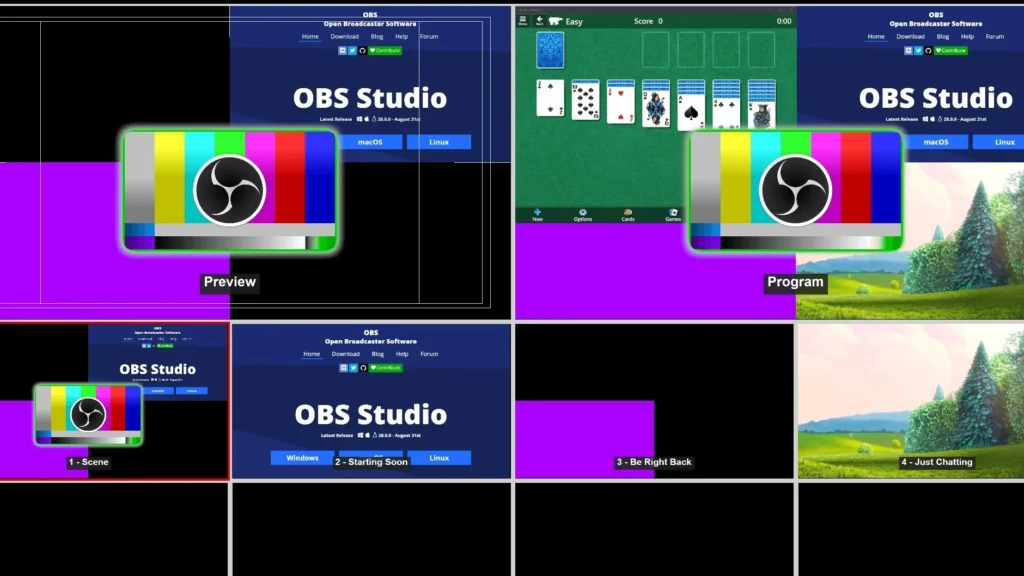
If you already know your route and want the click path, the 11-step OBS walkthrough for a starting soon screen covers the build. This article is about picking the route first, so you do not pay for a tool that solves the wrong half of the problem.
What a Starting Soon Screen Has to Do, and the Short Answer
The short answer: Canva Free for the artwork, an OBS scene for the assembly, and free alerts from StreamElements or OWN3D Pro for the live bits. That stack costs $0. Placeit is the pick if you want finished animated loops and are happy to pay for a month or a year. Streamlabs makes sense only if you already stream from Streamlabs Desktop.
A stream starting soon screen does four jobs. It tells viewers the stream is about to begin. It holds the channel open while chat fills up. It covers your setup time, so nobody watches you adjust a microphone. And it carries the basics a newcomer needs: your name, your schedule, your socials.
Those jobs split into four layers, and each tool in this comparison covers a different mix of them:
- Background art. A still image or a short looping video. Canva and Placeit live here.
- Live text. A countdown or a title that changes. This usually comes from OBS itself, a script or a browser-source timer.
- Live widgets. Chat boxes, recent followers, alerts. StreamElements, OWN3D Pro and Streamlabs live here.
- Audio. A music bed or silence. No design tool in this list supplies it, so it stays your job in OBS.
Most people overpay because they buy the first layer from a subscription when a free tool covers it, or they skip the third layer and end up with a pretty image that never changes. A screen that shows a countdown and live chat looks finished. A screen that is a single PNG looks parked.
One more point before the tools. A starting soon scene is the one scene viewers see every single stream, usually for the first few minutes, before they decide whether to stay. It earns its keep through clarity, not decoration. If a visitor can read your stream title, your start time and your schedule in two seconds, the screen did its job. Everything else, including animation, is polish.
Starting Soon Screen Options Side by Side
The table below puts the six routes next to each other on eleven attributes. Where the vendor pages I checked did not state a value, the cell says to check the preview or the terms rather than guessing.
| Attribute | Canva | Placeit | OWN3D Pro | Streamlabs | StreamElements | OBS scene |
|---|---|---|---|---|---|---|
| Cost to start | Free plan available | No free plan | Free alerts after registration | Desktop app free | Alerts and widgets free | Free, open source |
| Paid price published | Pro and Business, 50% off first 3 months for new subscribers | $14.95/month or $89.69/year | Premium designs via Stream Pass, price not confirmed | Ultra at $27/month | No pricing page confirmed | None |
| Main output | Designs exported as image or video | Video and design templates built in the browser | Alerts, scene links, premium designs | Streaming app plus widgets | Browser-source overlays and widgets | The scene itself |
| Animated loops | Yes, through video export | Yes, video templates | Check each pack preview | Check each theme preview | Widget-based motion | Yes, any Media Source file |
| How it reaches OBS | Download, then Image or Media Source | Download, then Media Source | Browser Source link | Built into Desktop | Browser Source URL or SE.Live plugin | Native |
| Canvas guidance | 1920×1080 suggested | Match the template preview | 1920×1080 for Scene Builder link, 800×600 for a single alert link | Follow your stream canvas | Follow your stream canvas | Set base canvas to 1920×1080 |
| Live countdown or chat | No, static art | No, static video | Alerts and widgets | Widgets inside Desktop | Chat, alerts, tipping | Text, scripts, browser sources |
| Works with | Any software, file based | Any software, file based | OBS Studio, Streamlabs, XSplit | Streamlabs Desktop on Windows and macOS | OBS and other browser-source software | Windows, macOS 13.0 or newer, Linux |
| Platforms named | Any, file based | Any, file based | Twitch, YouTube, Kick | Any, per app | Any, per widget | Any destination OBS sends to |
| Account needed | Canva account | Placeit subscription to download | Free OWN3D registration | Streamlabs account | StreamElements account | None |
| Watch-outs | Pro-only elements in free designs | Downloads need an active plan | Premium prices not shown in the pages checked | Ultra bundles tools you may never open | Site notice says it is now part of Razer, so check the updated terms | You build everything yourself |
Read the table by layer. Canva and Placeit sell the first layer, the artwork. OWN3D Pro, Streamlabs and StreamElements sell the third layer, the live widgets, and add artwork as a side offer. OBS sells nothing and does all the assembly. That explains why a sensible setup usually mixes two or three columns instead of picking one.
The canvas row deserves a second look. OWN3D’s own setup guide recommends 1920×1080 when you use a Scene Builder link and 800×600 when you paste the single browser-source link from one alert set. Mixing those up is the most common reason a widget lands in the wrong corner or looks stretched. Whatever route you pick, set the OBS canvas first and size every asset to it.
Canva for a Starting Soon Screen: The Free Design Route
Canva is where most first screens start, because the free plan covers the editor and a large template pool. Search results for the keyword surface a dedicated Twitch screen template page on canva.com, so you do not begin from a blank canvas. What you get on the free plan: the editor, free templates, and image or video downloads. Check each template for Pro-only elements before you commit to it.
The workflow is simple. Pick a 16:9 template, replace the text with your channel name and schedule, then download the result. For a still screen, you get a PNG or JPG and load it in OBS through an Image Source. For motion, you export a short video and load it through a Media Source with looping switched on. Canva handles the design, and OBS handles everything that moves live.
Canva moved fast on AI this autumn. According to the Canva newsroom, the company introduced Canva Research as an in-house AI lab on October 21, 2026. It then unveiled Canva Craft, its first image-generation model, on October 22, and Canva Brush on October 29, which powers supported AI edits for Pro subscribers. Canva says Craft can create text in 55 languages, which matters if your channel title is not in English. For a starting soon screen, the practical use is generating a background in your colours instead of hunting through stock art.
Not everyone wants that. Reporting from November 19 says Canva added settings that let Free and Pro users switch off most generative AI features and reduce AI-made content in library results. If you prefer hand-picked stock over generated art, that switch exists now.
Price-wise, Canva’s own page shows a 50% discount on Pro or Business monthly plans for the first three months, for new subscriptions only and with terms attached. You rarely need a paid plan for this job. The one case is a branded kit: paid plans bring brand tools and Pro-only assets, which helps if the same colours and fonts must repeat across a screen, an end card and thumbnails.
The limit is plain. Canva gives you a picture or a clip, never a live element. No countdown ticks down inside a Canva export. If a viewer opens your stream at minute two of a five-minute wait, a looped file cannot tell them how long is left. You fix that in OBS with a text source or a browser-source timer sitting on top of the exported art.
Placeit for a Starting Soon Screen: Ready-Made Video Loops
Placeit is the pay-to-download route. It is a browser-based template service tied to Envato, and its own pricing page says $14.95 a month or $89.69 a year gets you access to all of its mockups, design templates, videos and logos. The yearly price works out to $7.47 a month, roughly half the monthly rate. There is a template page for stream starting soon videos, which is where this comparison cares about it.
The appeal is speed. You pick an animated template, type your channel name, choose colours, and download a finished video. You skip the part where you design motion yourself. For a streamer who wants a moving background and a matching logo sting in one afternoon, that shortcut is worth money.
The sums are easy. Placeit lists the monthly plan at $14.95 and the yearly plan at $89.69, which it describes as a $7.47/mo equivalent. After a handful of months, yearly wins, and over a full year it is clearly cheaper. If you only need one screen, one month at $14.95 is the cheaper trip, as long as you download everything you will want before the plan lapses.
What you get on the free plan: none that I could confirm. Placeit’s pricing is subscription based, with $14.95 a month or $89.69 a year on its own pages. Read the licence terms for your plan before you use a template on a monetised channel, since the terms decide what you may do with the download after the subscription ends.
Like Canva, Placeit produces files, not live scenes. The video loops in OBS, your countdown sits above it, and your chat widget sits above that. If you only need a short animated sting before the countdown and do not want a subscription, these Vipid sample intros show what short animated openers look like, which helps you judge how much motion your first seconds really need.
OWN3D Pro: Alerts, Scene Links and Premium Designs
OWN3D Pro leans on the live layer. Its documentation says it provides stream alerts for Twitch, YouTube and Kick and works with OBS Studio, Streamlabs, XSplit and other software that accepts browser sources. Alerts are free after registration, while premium designs sit behind the Stream Pass. OWN3D also lists a Widget Pass and individual purchases, but the pages I could read did not show prices for any of them.
That missing price matters for planning. Site banners advertise sales and promo codes, and cart-level discounts change often, so a number copied from a blog post goes stale in weeks. Check the shop at checkout and treat any price you read elsewhere as a hint. The article on Twitch alerts from Streamlabs, StreamElements and OWN3D covers the alert side of the same three makers in more detail.
For a starting soon screen, OWN3D Pro’s Scene Builder link is the interesting part. Its setup guide says to use a resolution of 1920×1080 when you add a Scene Builder link as a browser source, and to keep 800×600 when you use the single browser-source link from one alert set. In practice, one link can hold a whole matching set of scene pieces, so the starting soon scene, the alerts and the panels share a look without you matching fonts by hand.
What you get on the free plan: free alerts and the registration. Whether a free starting soon screen is included in that set is not stated on the pages I read, and the official material I checked documents alerts rather than pre-stream scenes. Open the Scene Builder with a free account and look at the preview before paying for anything.
OWN3D’s own pages describe OWN3D Pro as active, and nothing I found suggested a rename, a sale of the company or a shutdown. Its current status is only partly verified, so treat that as a status check, not a recommendation. Browser-source links also mean your overlay depends on the vendor’s servers. If the link fails, the widget goes blank, so keep a plain fallback scene ready.
Streamlabs for a Starting Soon Screen: Desktop and Ultra
Streamlabs is a streaming app first and a design shop second. A Streamlabs article updated on November 19, 2026 lists Windows and macOS downloads and describes Streamlabs Desktop as live-streaming and recording software. If you already run Desktop, the overlays and widgets are one tab away, and you skip the OBS plus browser-source juggling.
The paid layer is Streamlabs Ultra. The Streamlabs Cross Clip pricing page advertises Ultra at $27 a month, with a stated value of $53, and Streamlabs says Console comes with a seven-day free trial and is included with Ultra. One third-party report puts Ultra at $189 a year, which would equal $15.75 a month, but I could not confirm that on a vendor page, so treat it as unverified. Annual, regional and promotional prices can differ from the headline.
Do the arithmetic before you subscribe. Twelve months of Ultra at $27 comes to $324, against $89.69 for a year of Placeit. Ultra bundles streaming tools, editing apps and clipping, so the bill is fair only if you use several of them. For a starting soon screen alone, it is the most expensive route in this comparison by a wide margin.
What you get on the free plan: the Desktop app and the basic overlay, theme and widget tools, according to third-party coverage of the free tier. Streamlabs also announced a redesigned top navigation bar for Desktop, including the ability to pin favourite apps, which makes the theme and widget pages quicker to reach.
The trade-off is lock-in. A scene built inside Streamlabs Desktop does not move to OBS Studio with a click, and moving the other way means rebuilding too. If you like the all-in-one approach, that is fine. If you suspect you may change software in a year, keep your artwork as plain PNG and MP4 files so only the scene assembly needs redoing.
StreamElements: Free Widgets, Now Part of Razer
StreamElements describes itself as 100% free for customizable alerts and widgets for live streamers. That line sits on its own homepage, and it is the main reason StreamElements shows up in every free-setup guide. It is not a dedicated starting soon screen editor. Its documentation presents overlays, alerts, tipping, a chatbot, loyalty tools and an OBS plugin called SE.Live, which makes it a live overlay ecosystem, not a rival to Canva or Placeit for artwork.
One recent change matters. StreamElements now carries a site notice that it is part of Razer, along with updated Terms of Use. Nothing there says the free tier is ending. It does mean the terms you agreed to earlier may not be the terms in force now, so if you rely on StreamElements for a monetised channel, read the current ones once.
For the pre-stream scene, StreamElements contributes what a still image cannot. A chat box in the corner, a recent-follower line, a tip goal. Add one as a browser source above your Canva or Placeit background and the screen stops looking like a poster. You can also add its widgets to OBS through the SE.Live plugin or a plain browser-source URL.
A side effect worth knowing about comes from the loyalty system. StreamElements’ documentation says partner channels award points and watchtime at intervals between 1 and 10 minutes, and non-partner channels at intervals between 5 and 10 minutes. A starting soon screen is still a live broadcast, so a five-minute wait on a live channel can give early arrivals a point or two. That is a small reward, but it turns a dead wait into something viewers can see on their balance.
What you get on the free plan: alerts and widgets at no cost, per StreamElements’ homepage. The vendor pages I could read did not show a pricing page or paid tier names, so I will not invent any. StreamElements also published a WebSockets update on November 3, 2026 that standardises chat messages across platforms. It is aimed at developers rather than at your starting soon screen, but it is a sign the service is still moving.
OBS Studio 33: Build the Starting Soon Screen Yourself
OBS Studio is the one tool here that every route ends in. It is a free, open-source streaming and recording application, with no paid tier and no starting soon template shop. The OBS site lists the newest release as OBS Studio 33.0. Forum posts and release trackers put 33.0 in late October 2026 and a 33.0.1 patch on October 29, so check the download page for whichever number is current when you read this. The official download requires macOS 13.0 or newer on Mac.
OBS gives you three ways to put artwork on a scene. An Image Source shows a PNG or JPG. A Media Source plays a video file, and you tick Loop so it repeats. A Browser Source loads a web address, which is how StreamElements, OWN3D and Streamlabs widgets arrive. Twitch and YouTube are chosen when you press Start Streaming, so the same scene works on either.
Pre-release notes on the OBS forum describe 33.0 as updating the CEF browser framework, redesigning how plugins load, improving source snapping and adding experimental Arm64 NVENC support. The CEF change touches every browser-source widget on your screen, so after updating, open your starting soon scene once and confirm each widget still draws. Forum users also reported black-screen problems with macOS screen capture after the update. That affects game and window capture, not an Image or Media Source, but test it before you go live.
One plugin changes what you can record. The Source Record plugin, listed on the OBS Forums, reportedly added OBS 33 compatibility and support for alpha-channel FFmpeg recording in a recent update. That is handy if you want to record your own animated overlay with transparency and reuse it in an editor later.
Render settings
The values below are my suggestions for the files you feed into OBS, not vendor limits. The 1920×1080 figure matches OWN3D’s own recommendation for Scene Builder links.
| Setting | Still screen | Animated loop | Why |
|---|---|---|---|
| Resolution | 1920×1080 | 1920×1080 | Matches the OBS canvas, no scaling blur |
| Aspect ratio | 16:9 | 16:9 | Fills the frame on Twitch and YouTube |
| Frame rate | Not applicable | Same as your stream | Avoids judder on the loop seam |
| Length | Not applicable | A short clip that loops cleanly | Short files load fast and hide the seam |
| Export format | PNG | MP4 | Both load in Image and Media Source |
| OBS source | Image Source | Media Source with Loop on | The two native file sources |
From the Vipid archive: if you want a short animated opener to play before the main scene, the Vipid intro themes list their resolution, length and frame rate, which tells you whether a clip will loop cleanly on your canvas.
Starting Soon Screen Pricing Compared
Prices are the least stable part of this category. The table lists only what each vendor’s own page showed on November 20, 2026, and says so where a price was not confirmed.
| Route | Free tier | Paid price published | What the money buys |
|---|---|---|---|
| Canva | Free plan available | Pro and Business, 50% off first 3 months for new subscribers | Pro-only assets and brand tools |
| Placeit | None | $14.95/month or $89.69/year ($7.47/month equivalent) | All mockups, design templates, videos and logos |
| OWN3D Pro | Alerts free after registration | Stream Pass and Widget Pass, prices not confirmed | Premium designs |
| Streamlabs | Desktop app and basic tools | Ultra at $27/month | Premium creator apps in one subscription |
| StreamElements | Alerts and widgets, 100% free | No pricing page confirmed | Nothing required for this job |
| OBS Studio | Everything | None | Not applicable |
Stack the routes into three realistic budgets. The $0 stack is Canva Free for art, an OBS scene for assembly and StreamElements for live widgets. The Placeit stack swaps the art for a year of Placeit at $89.69 and keeps the rest. The third stack is Streamlabs Ultra, reported at $27/month, which brings far more than a pre-stream screen and only pays off if you use it.
The honest conclusion is that money does not buy a better starting soon screen as much as it buys time. A paid template shortens the work from an evening to twenty minutes. If your evenings are cheap and your cash is tight, the free stack looks identical on air.
What the Data Says: Audience Numbers and Missing Benchmarks
No lab publishes benchmarks for starting soon screens. Nobody times how fast Canva renders a loop or measures CPU load for a Placeit video against an OWN3D browser source, and I will not invent such numbers. What exists is audience data, which tells you where your screen will be watched, plus vendor release notes, which tell you what changed in the tools.
On audience, most streamers now publish to more than one platform. That argues for building one screen that works everywhere you go live, which is exactly what an OBS scene does.
On scale, Twitch is a crowded field with a great many active channels. With that many channels competing, a screen that loads cleanly and states your start time is a low bar worth clearing, and it costs nothing.
On behaviour, Streamlabs published an October 8 analysis of its September streaming data. According to the listing, it stresses cross-platform audience reach and workflows that span several platforms. Read that as a hint, not proof. It matches the platform-neutral approach in this article, where one scene serves Twitch and YouTube.
On tooling, the evidence comes from changelogs instead of benchmarks:
- OBS Studio 33.0 shipped in late October 2026 with a browser framework update that affects every browser-source widget.
- StreamElements remains an active streaming platform, and its Loyalty System lets viewers redeem points through the Stream Store.
- Canva introduced Craft, its image-generation model, and Brush, a vision-language model for design that powers supported Canva AI design edits for Pro subscribers.
The takeaway: judge each route on documented limits and on how much of the four-layer job it covers, because no independent speed or quality test exists to settle it.
Five Worked Setups and Who Should Pick What
These are example setups built from the documented features above, not accounts of real channels. Each shows which columns of the specs table a streamer might combine.
- The first-week streamer on a laptop. Canva Free supplies a 1920×1080 PNG with the channel name and a start time. OBS shows it through an Image Source. Cost: $0. A still image is also the lightest option for an older machine, since nothing decodes in the background.
- The creator with a looping brand clip. A Placeit video template becomes the background through a Media Source with Loop on. A text source on top shows the countdown. Cost: $14.95 for one month if all downloads happen in that month.
- The Twitch and YouTube dual streamer. One OBS scene, one Canva background, one set of OWN3D Pro Scene Builder pieces at 1920×1080. Twitch or YouTube is chosen at Start Streaming, and the same screen serves both. OWN3D lists Twitch, YouTube and Kick support.
- The chat-first community channel. A static background plus a StreamElements chat widget as a browser source, so early arrivals chat during the wait. Loyalty points may tick up while the screen runs, since the channel is live.
- The Streamlabs Desktop loyalist. Stays inside Desktop, uses its built-in overlays and themes, and pays $27 a month for Ultra only if the other bundled apps get used. Otherwise the free tier does the job.
The next table turns those setups into recommendations by situation.
| Your situation | Pick | Reason |
|---|---|---|
| You want to spend $0 today | Canva Free plus OBS plus StreamElements | All three have free tiers, per their own pages |
| You want an animated loop with no design work | Placeit, one month | Finished video templates, $14.95 to try |
| You want matching alerts and screens | OWN3D Pro | Scene Builder links share one look |
| You already stream from Streamlabs Desktop | Streamlabs built-in tools | No browser-source setup needed |
| You stream on Twitch and YouTube | One OBS scene | Destination is chosen when you start |
| You have an older PC | A still image | No video decoding and no browser engine |
| You want your chat visible during the wait | StreamElements chat widget | Live widget over any background |
If one of these setups needs a deeper dive, the stream intros and overlays archive groups the related guides in one place.
Migration Guide: Moving a Starting Soon Screen Between Tools
Switching tools costs less than people fear if you keep the artwork as plain files. Here is the order that avoids a broken first stream after a change.
- Export the art as files. Download the current screen as PNG for stills or MP4 for loops, and store both in a folder you control, not only inside a vendor account.
- Note every widget link. Copy each browser-source URL from StreamElements, OWN3D or Streamlabs into a text file. These are the parts that will not travel as files.
- Set the canvas first. In OBS, set the base canvas to 1920×1080 before adding anything. OWN3D’s guide ties its Scene Builder link to that size.
- Rebuild the scene in the new tool. Add the background as an Image Source or a looping Media Source. Then add each widget as a Browser Source with its saved URL.
- Re-add the countdown. Text, script or browser-source timer. This is the layer most often forgotten in a move.
- Check widget rendering after any OBS update. OBS 33.0 changed the browser framework, so open the scene once and confirm every widget draws.
- Run a private test stream. Send the scene to an unlisted or private broadcast and watch it on a second device.
- Keep the old scene as a fallback. Do not delete it until two real streams have passed without a problem.
The riskiest move is leaving Streamlabs Desktop for OBS or the reverse, since the scene itself does not transfer. The least risky is swapping a background, because only one source changes. If a vendor shuts a widget down, as Streamlabs reportedly did with two widgets in April 2026, the saved URL list tells you exactly which sources to replace.
Pros and Cons of Each Starting Soon Screen Route
| Route | Pros | Cons |
|---|---|---|
| Canva | Free plan, easy editor, template pool, no software to install | No live elements, Pro-only assets in some templates |
| Placeit | Finished animated loops, one subscription covers logos and mockups | No free plan, downloads depend on an active subscription |
| OWN3D Pro | Free alerts, matching sets, documented 1920×1080 and 800×600 sizes | Premium prices not shown in the pages checked, depends on vendor servers |
| Streamlabs | All-in-one app on Windows and macOS, free tier | Ultra at $27/month is the costliest route, scenes do not move to OBS |
| StreamElements | Free widgets, SE.Live plugin, loyalty points | Not an artwork editor, terms updated after joining Razer |
| OBS only | Free, no watermark, no account, full control | You supply the art and the countdown yourself |
Weigh the cons by what you are willing to maintain. Browser-source widgets bring online dependence, and file-based art brings none. Subscriptions bring a calendar reminder. Free tools bring time. Pick the cost you mind least.
Verdict: Which Starting Soon Screen Route to Use
For most streamers, the winner is the $0 stack: a Canva Free background, an OBS scene and free StreamElements or OWN3D Pro widgets. It covers all four layers, works on Twitch and YouTube, and avoids a subscription. The data behind that call is simple. The three tools have free tiers on their own pages, and the paid routes sell time savings, not a different result on screen.
Choose Placeit when you want an animated loop today and will pay $14.95 for one month to get it, or $89.69 for a year if you also need logos and mockups. Choose OWN3D Pro when matching alerts and scenes from one source matter more than saving a few dollars. Choose Streamlabs Ultra only if you actually use several of its bundled apps, because twelve months at $27 costs $324, more than three and a half times a year of Placeit.
Two cautions close the case. Prices and terms in this category move, and StreamElements’ August 1 terms update and the reported Streamlabs widget sunsets show it. And no benchmark settles this, so confirm free-plan limits on the vendor’s own page on the day you sign up. Build the screen as plain files plus a short list of widget links, and you can swap any one part later without starting over.
Questions Creators Ask
What size should a starting soon screen be?
Use 1920×1080 at 16:9 so it matches a standard OBS canvas. OWN3D’s setup guide recommends 1920×1080 for Scene Builder links and 800×600 for a single alert browser-source link.
Can I make a starting soon screen for free?
Yes. OBS Studio is free and open source, Canva has a free plan, and StreamElements describes its alerts and widgets as 100% free. Check Canva templates for Pro-only elements before you use them.
Does the same screen work on Twitch and YouTube?
Yes. OBS sends the live scene to whichever platform you pick when you start streaming, so one starting soon scene serves both.
How much does Placeit cost for a starting soon video?
Placeit’s pricing page lists $14.95 a month or $89.69 a year, which is $7.47 a month on the yearly plan. Placeit has no free plan, so budget for at least one month.
Is Streamlabs Ultra worth it for a starting soon screen alone?
Rarely. Streamlabs advertises Ultra at $27 a month, or $324 over twelve months, and it bundles many tools. For one pre-stream scene, the free tier or an OBS scene costs far less.
Do I need a countdown on the screen?
It helps, because viewers who arrive late still see how long is left. Canva and Placeit exports cannot count down, so add the countdown in OBS with a text source, a script or a browser-source timer.
Will an OBS update break my starting soon screen?
It can affect browser-source widgets. OBS Studio 33.0 updated the browser framework, so open the scene after updating and confirm each widget draws. Image and Media Sources are far less likely to be affected.
Is StreamElements still independent?
No. StreamElements describes its customizable alerts and widgets for live streamers as 100% free.
More from the Vipid blog
- Free Twitch Overlays [2026]: 5 Sources, $0 vs $27/mo
- Twitch Chat Overlay Obs [2026]
- Be Right Back Screen [2026]: 12 Steps in 30 Min
- OBS vs ShadowPlay vs Medal [2026]: 3 Free Recorders
- OBS Recording Settings [2026]: 4 Encoders, 1 Safe Pick
- Your Video a channel-style intro theme
- Intro themes stream and channel intros
- Sample videos finished Vipid intros
- Vipid intro maker make a custom intro in the browser
Theo Vance
Theo Vance is the Intros & Templates Editor at Vipid, where he covers intro and outro makers, template libraries for CapCut, Canva and the major editors, slideshow and video-card tools, and stream starting screens. He compares makers on what matters before you hit render: watermark, export resolution, length limits, licence and price, and dates every check. He also looks after the Vipid theme archive, the 2011–2016 intros the site was built on.