Is Clipchamp Free? Limits vs CapCut, Kdenlive and Shotcut

What the Clipchamp free plan includes · What Clipchamp keeps behind Microsoft 365 · Clipchamp and the four alternatives at a glance · Where CapCut’s free tier stops · Kdenlive, Shotcut and OpenShot: free without a tier · Pricing table: what each route costs · What the published sources actually measure · What Microsoft itself says about the free plan · Recent Clipchamp changes worth knowing · Account, privacy and where your files live · Learning curve and daily workflow · Render settings · Six real-world examples · Use-case recommendations · How to check any editor’s free limits yourself · Migration guide: leaving Clipchamp’s free plan · Pros and cons · Verdict: when Clipchamp’s free plan is enough · Common questions
Yes, Clipchamp is free. Microsoft’s own support page says the personal version includes a free plan, and that plan exports finished videos at up to 1080p with no watermark. The catch sits one step above that: 4K export, premium stock media, premium filters and the brand kit all need a Microsoft 365 subscription.
That makes Clipchamp a good fit for plain 1080p YouTube uploads and a poor fit if you need 4K without paying. This article checks the Clipchamp free plan against CapCut and three open-source editors (Kdenlive, Shotcut and OpenShot), using each vendor’s own pricing pages, help pages and release notes as of November 22, 2026. Where a number is missing from an official page, the article says so instead of guessing.
If you only need a short list of editors that export without a logo, our free video editor no watermark roundup covers more tools. This piece goes narrower and deeper: one question (what does free really mean?) asked of five editors.
What the Clipchamp free plan includes
Clipchamp’s pricing page describes the free plan as a free online video editor for everyone. You sign in with a personal Microsoft account, open the editor in a browser or in the Windows app, and start cutting. The page says no payment or download is required for the browser version.
The same page treats exports as unlimited on the free plan. You can work on and export as many videos as you like, with no watermark and a ceiling of 1080p (full HD). Clipchamp does not meter minutes or projects on the free plan, which matters if you publish weekly.
The pricing page’s feature grid lists what the free tier covers:
- AI video and audio editing tools, including AI subtitles, AI voiceovers and silence removal
- Trim, crop, resize and rotate tools
- A screen, camera and voice recorder
- Animated text and titles
- Audio-only export
- Content backup on OneDrive
- Free stock assets (videos, images, stickers, GIFs, music and sound effects)
- Free filters and effects, plus color correction
For a creator who films a talking-head video, trims it, adds captions and exports for YouTube, that is the whole job. The free plan covers it. The recorder is worth a mention because it removes a second app from the workflow. You can capture a screen tutorial or a webcam take inside the editor and drop it straight on the timeline.
Two details trip people up. First, Clipchamp requires a Microsoft account for the personal version, so there is no guest mode. Second, free stock and premium stock are separate libraries. If a clip carries a premium marker in the library, it will not come out on the free plan, and you may only find out when you try to render. Check the marker before you build a timeline around a stock clip.
What Clipchamp keeps behind Microsoft 365
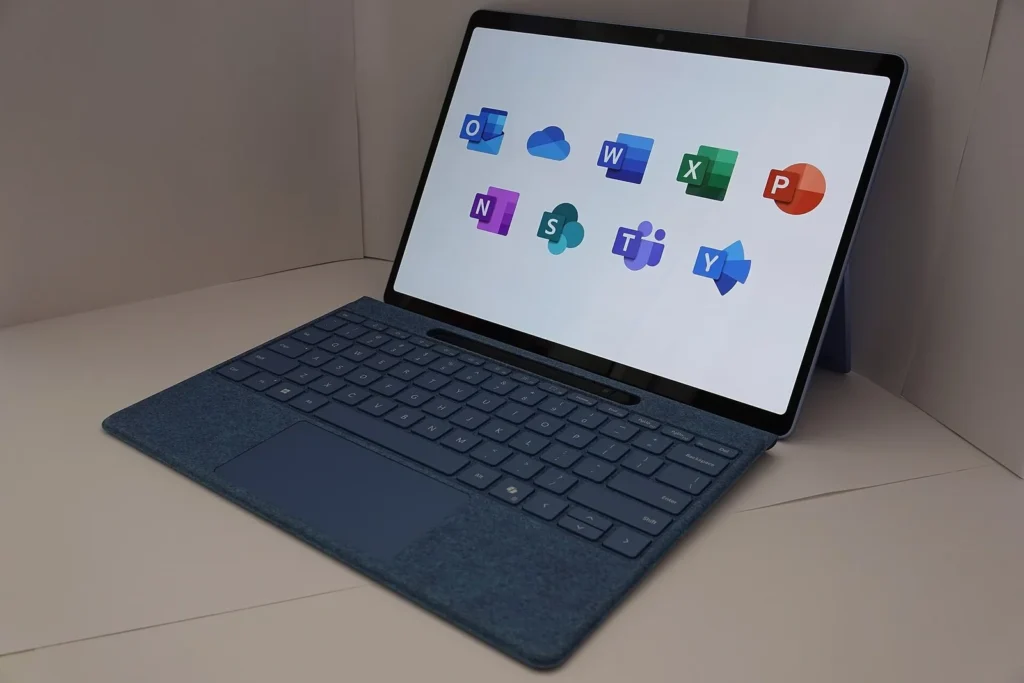
Clipchamp’s pricing page now frames the paid side as Microsoft 365 rather than a stand-alone plan. Premium features come with Microsoft 365 Personal and Family. The page names four things the free plan lacks:
- 4K UHD export (the free plan stops at 1080p)
- Premium stock assets
- Premium filters and effects
- The brand kit tool for logos, colors and fonts (listed as a single brand on the paid side)
Everything else on the feature grid, including AI editing tools, the recorders, animated text, watermark-free exports and OneDrive backup, is marked Included in both columns. That is a short list of differences. If you do not shoot in 4K and do not need a brand kit, you lose very little by staying on the free plan.
Work and school accounts differ
Microsoft’s support page splits Clipchamp into two products. The personal version has a free plan. The work or school version needs an assigned license, and Clipchamp Standard comes with selected Microsoft 365 and Office 365 business subscriptions and Microsoft 365 education subscriptions. Your admin can switch access off. Clipchamp’s pricing FAQ adds that access to all premium features and AI video creation comes with a Copilot license.
So if you search for “is Clipchamp free” from a company laptop and the editor will not open, the free plan is probably not the issue. Your organization’s license or admin setting is. Ask the admin before you assume the tool is broken.
What a subscription costs
Microsoft’s support page tells readers to compare current Microsoft 365 Personal, Family and Premium prices on its own plans page, and to check whether an existing subscription already includes the Clipchamp features they need. One US pricing report from November 2026 listed Personal at US$9.99 a month or US$99.99 a year, and Family at US$12.99 a month or US$129.99 a year. That is a single report, so confirm the figures on Microsoft’s page before you buy. The useful point is structural: you pay for the Microsoft 365 bundle, and Clipchamp’s premium tier comes with it.
Clipchamp and the four alternatives at a glance
The table below puts the five editors side by side. Every cell comes from the vendor’s pricing page, help page or release notes, checked November 22, 2026. A cell reads “Not documented” where the vendor does not publish the answer in the pages checked.
| Spec | Clipchamp | CapCut | Kdenlive | Shotcut | OpenShot |
|---|---|---|---|---|---|
| Entry price | Free plan | Free tier | Free (no price) | Free download | Free |
| Paid tier exists | Yes, via Microsoft 365 | Yes (Standard and Pro) | No | No | No |
| Export cap on the free route | 1080p | Varies by region, plan and build | No price-based cap | No price-based cap | No price-based cap |
| 4K export | Paid only | Pro where available | No paid gate | No paid gate | No paid gate |
| Watermark on free export | None | Depends on assets and templates | None | None | None |
| Sign-in | Microsoft account | Varies by feature | Not required to install | Not required to install | Not required to install |
| Where it runs | Browser and Windows app | Mobile, desktop, web, tablet | Windows, macOS, Linux | Cross-platform desktop | Windows, macOS, Linux |
| Newest version found | No public version number | Not documented | 26.08.3 | 26.9 | 4.1 |
| Built-in recording | Screen, camera, voice | Not documented | Not documented | Not documented | Screen, webcam, mic, system audio (4.0) |
| Captions and AI | AI subtitles, voiceovers, silence removal | AI tools, credit-based | Speech to text | Audio Mixing Assistant, Auto Duck | No AI headline feature |
| Licence | Proprietary (Microsoft) | Proprietary (ByteDance) | Open source | Open source | Open source (GPL v3 or later) |
| Brand kit | Paid only | Not documented | Not applicable | Not applicable | Not applicable |
| Cloud backup | OneDrive on both plans | Cloud storage on Pro | Local files | Local files | Local files |
Two rows deserve a note. The “no price-based cap” entries for the three open-source editors mean the vendors publish no paid tier that limits resolution or export count. Your real ceiling is your hardware, your source footage and the codecs your build supports. And “Local files” for cloud backup means the project stays on your disk, so you own the backup job.
Where CapCut’s free tier stops
CapCut is where “free” gets slippery. The official pricing page lists the free plan as free templates to start fast plus basic editing tools. Everything else depends on your region, device, plan and the app build you run. CapCut’s own help center, updated October 31, 2026, says Pro pricing varies by region, device and promotions and tells users to read the upgrade screen for the applicable price. A second help page updated November 1 says the final price depends on location, platform and taxes.
The help page dated March 18, 2026 covers watermarks. Watermark-free export depends on the features you use and the app version. Templates can add an ending logo clip. Premium assets used from the free tier can leave a watermark, and Pro unlocks those assets without that path. In plain terms, you can export clean video from CapCut free, but one premium sticker or template can change the result. Clipchamp’s rule is simpler: pick a free asset and the export is clean.
CapCut Pro and the March 2026 change
CapCut‘s help page on its pricing change, dated March 25, 2026, describes the upgraded Pro plan as raising AI points from 550 to 1,200 and cloud storage from 100 GB to 1 TB. It also says previous subscription pricing stopped being available to new subscribers after the new membership structure arrived. CapCut now sells Standard and Pro memberships, with monthly and annual billing. One November 2026 US pricing report put Pro at US$19.99 a month or US$179.99 a year, but CapCut itself will not commit to one global number, so treat that as a reference and check the checkout screen.
AI credits are a separate meter. CapCut’s materials describe credits for advanced AI functions as pay-per-use and distinct from the Pro subscription, and say credits cannot buy Pro. If your plan is CapCut for captions and cuts, this barely matters. If your plan includes AI video generation, read the credit rules first. We compare how CapCut and a pro-grade free editor handle a full YouTube workflow in CapCut vs DaVinci Resolve for YouTube.
Recent CapCut changes
CapCut’s own site says it serves more than 700 million users a month across 170-plus markets. On October 27, 2026, its CapCut World announcement reportedly covered four AI editing updates across desktop, web, mobile and tablet. In the last week, CapCut version 20.2.0 reportedly reached iPhone and iPad with bug fixes and improved trimming. None of that changes the free-tier picture. The tier remains free to start, with limits that move by account and region.
Kdenlive, Shotcut and OpenShot: free without a tier
The three open-source editors answer the “is it free” question differently. There is no free tier because there is no paid tier. You download the app, and every feature the project ships is available. That changes what you compare. Price stops mattering and the questions become stability, workflow and hardware.
Kdenlive 26.08.3
Kdenlive’s release page dated November 7, 2026 lists 26.08.3 as the final maintenance release of the 26.08 series. It improved recovery from corrupted projects, autosave behavior, crash and freeze stability, and undo and redo performance. It also added Qt 6.12 compatibility, fixed a startup crash on recent macOS updates and fixed a low disk space warning for renders longer than 24 minutes.
The 26.08 cycle had a stability focus, and maintenance updates followed through the autumn. Kdenlive’s speech-to-text manual page describes a Whisper-based workflow and warns that the translation step that follows can use 100% of RAM, CPU and disk access while it runs. It also says the 9 GB translation model downloads once, which takes about 12 minutes at 100 MB/s.
Shotcut 26.9
Shotcut 26.9, titled Auto Duck and Adjustment Clip, added Auto Duck (automatic audio ducking), mixer-like track headers with volume controls and meters, an Adjustment Clip generator and a refreshed rounded-corner interface. The 26.9.27 notes also say Shotcut upgraded to FFmpeg 9.0 and fixed unsafe fallback from HTTPS to HTTP downloads. Earlier entries on the same list include 26.6 (High Dynamic Range).
Shotcut numbers its releases by year and month. According to the official site, new versions generally appear every two months and you can keep several installed side by side. For a weekly publisher that is useful: you can hold on a build that works for your project and upgrade between episodes. The company behind it, Meltytech, lists its copyright from 2011 through 2026.
OpenShot 4.1
OpenShot’s release post of October 25, 2026 introduces 4.1 as “Type, Create, Automate”. The release adds direct text editing on the video, automatic optimization for demanding 4K-plus footage, smarter exports and a command-line interface for automated video creation. It builds on the recording and color tools introduced in 4.0. OpenShot 4.0.1 followed with a better Razor tool and Linux Snap support. The site describes the editor as free software under GPL version 3 or later, created in 2008.
The automatic optimization step is the line to remember if your computer is older. OpenShot says heavy 4K-plus clips get prepared for smoother editing without you building proxy files by hand. The post does not publish a speed figure, so the claim stays a feature description, not a benchmark.
Pricing table: what each route costs
Here is every route the five vendors list, with the price field as each vendor publishes it. Where a vendor refuses to name one global price, the cell says so.

| Editor and route | Price | Export ceiling | What unlocks |
|---|---|---|---|
| Clipchamp Free | $0 | 1080p | Unlimited watermark-free exports, AI subtitles, recorders |
| Clipchamp Premium (Microsoft 365 Personal or Family) | See Microsoft’s plans page | 4K UHD | Premium stock, premium filters, brand kit |
| Clipchamp for work (Standard) | Included with selected business and education licenses | Set by the license | Admin-controlled access |
| CapCut Free | $0 | Varies by region and build | Basic editing, free templates |
| CapCut Standard and Pro | Varies by region, device and promotion | 4K where available | Premium assets, AI points, 1 TB cloud storage (Pro) |
| Kdenlive | $0 (open source) | No price-based cap | Everything the project ships |
| Shotcut | $0 (open source) | No price-based cap | Everything the project ships |
| OpenShot | $0 (open source) | No price-based cap | Everything the project ships |
The pricing logic splits cleanly. Clipchamp charges for resolution and assets, CapCut charges for assets and AI, and the open-source editors charge nothing. If your only paid-feature need is 4K export, the choice is Microsoft 365 (which also buys Office apps and storage) against three free editors that carry no export fee.
What the published sources actually measure
No independent head-to-head render benchmark for these five editors turned up in the vendor pages and release notes behind this article, and inventing one would mislead you. What the sources do publish are specific, checkable facts. The table lists each one with where it comes from, so you can see how much weight a source can bear.
| Source | Number or fact it publishes | What it tells you |
|---|---|---|
| Clipchamp pricing page | 1080p cap, no watermark, unlimited exports on the free plan | Free-plan ceiling is resolution, not volume |
| Microsoft Support (Clipchamp products) | Personal version has a free plan, 1080p at no cost | Microsoft confirms the same limit on a second page |
| CapCut help (March 25, 2026) | AI points 550 to 1,200, cloud storage 100 GB to 1 TB on Pro | Pro value changed this year, so older reviews are stale |
| CapCut help (October 31, 2026) | Price varies by region, device and promotion | No single US price you can quote |
| Kdenlive 26.08.3 notes | Qt 6.12 compatibility, macOS startup-crash fix, warning fix for renders over 24 minutes | Long renders and new macOS builds were real pain points |
| Shotcut 26.9.27 notes | FFmpeg 9.0 upgrade, HTTPS fallback fix | Media engine and security were both touched |
| OpenShot 4.1 post | Automatic optimization for 4K-plus footage, command-line interface | Heavy footage handling is a stated priority |
Read the table for what it is. Four of the seven rows come from release notes, which describe what developers fixed, not how fast the app runs on your laptop. Three come from price and help pages. Anyone who quotes you a frames-per-second race between these editors without naming the machine and the footage is guessing. If speed matters to you, render your own five-minute project in each app and time it.
What Microsoft itself says about the free plan
Microsoft’s support documentation states it plainly. In the words of its Clipchamp product-cost page, “The personal version of Clipchamp includes a free plan.” The same page adds that you can export finished videos at up to 1080p at no cost, and that qualifying Microsoft 365 subscriptions provide additional features.
Clipchamp’s pricing page repeats the 1080p, no-watermark position, and a November 2026 comparison of the current pages reached the same reading. Any claim that the free plan exports only at 480p is out of date. If a forum thread or an older review says Clipchamp watermarks free exports, check its date. A Microsoft community answer from April 2026, written by a volunteer moderator, put it the same way as the vendor: core editing is free, while 4K export, brand kits and premium stock assets need Microsoft 365 Personal or Family.
Clipchamp joined Microsoft in 2021, according to the company’s own page, and now sits inside Microsoft 365. Official pages still call the product Clipchamp. It does not publish a conventional public version number, which is why the specs table has no version for it. Updates arrive as features. Its pricing page lists an AI video upscaler in the Windows app and unlimited MP3-only exports.
Recent Clipchamp changes worth knowing
Three recent items affect a creator deciding today. First, the Windows app’s AI upscaler is documented for making low-resolution footage look sharper. Clipchamp’s category page, reportedly updated November 21, describes it as running without cloud tokens. That helps with archive footage, but it does not lift the 1080p export cap on the free plan.
Second, Clipchamp’s free plan already includes AI video and audio editing tools, so you can use them at no cost.
Third, Copilot video creation reportedly entered public preview in Clipchamp’s Video Hub through Microsoft 365 Frontier on November 17. It lets users create and refine videos from documents and prompts, and exports reportedly carry an AI watermark. That is a preview, not a general release, and it applies to a Microsoft 365 setup, not to the standard free editor. Do not confuse the AI watermark on previews with the watermark-free exports of the normal free plan.
Account, privacy and where your files live
Where a project lives decides how you back it up and how fast you can walk away from it. Clipchamp ties the personal version to a Microsoft account and lists OneDrive content backup on both the free and paid columns. That is convenient, since a closed browser tab does not lose your work. It also means your media and projects sit in your Microsoft account, and the tool follows that account’s rules.

CapCut ties more features to an account than the open-source editors do, and Pro adds cloud storage (1 TB after the March 2026 change). CapCut’s own help pages and pricing pages are the place to read what that account stores, because the details differ by region.
Kdenlive, Shotcut and OpenShot keep projects as files on your disk. That gives you full control and full responsibility. A dead drive takes the project with it unless you copy it somewhere else. A simple habit covers this: keep the source media and the project file in one folder per video, and copy that folder to a second drive after each editing session. It costs a minute and it saves a lot of rebuilding.
One practical point on safety. Download open-source editors from the project’s own site, not from a search ad or a file-hosting mirror. Shotcut’s 26.9 notes mention a fix for unsafe fallback from HTTPS to HTTP downloads, and Kdenlive’s April 2026 release carried a security fix with further project-file checks planned for 26.08, according to reports from the project. Both are reminders that editors open files from other people and need updating like any other software.
Learning curve and daily workflow
Price is only half the choice. The other half is how quickly you can finish a video. Browser and phone editors win on speed to first export. You open the tool, drop clips on a timeline and use templates, text presets and one-click captions. Clipchamp and CapCut both work this way, which is why most first-time editors start there.
Desktop editors ask more of you on day one. Kdenlive, Shotcut and OpenShot all use a conventional timeline with separate panels for media, effects and properties. You learn where filters live, how tracks stack and how the export dialog works. The payoff arrives on the fifth or tenth video, when you stop fighting limits. Shotcut’s two-month cadence and side-by-side installs, and Kdenlive’s stability-first 26.08 cycle, suit people who edit for years and want tools that stay put.
If you do not know where you fall, run a one-hour test. Take one real clip, cut it, add a title, add captions, add music and export at 1080p. Time each step in two editors. The editor where you spend the least time hunting for a button is usually the right pick, whatever the feature table says.
Render settings
For a standard YouTube upload, every editor in this article can hit the same target. The table lists a safe starting export and the highest resolution each route offers without payment.
| Editor | Starting export for YouTube | Frame rate | Container | Top free resolution |
|---|---|---|---|---|
| Clipchamp Free | 1920×1080 | Match the source clip | MP4 | 1080p |
| CapCut Free | 1920×1080 | Match the source clip | MP4 | Check the export screen |
| Kdenlive | 1920×1080 | Match the source clip | MP4 | Limited by hardware and codec |
| Shotcut | 1920×1080 | Match the source clip | MP4 | Limited by hardware and codec |
| OpenShot | 1920×1080 | Match the source clip | MP4 | Limited by hardware and codec |
Match the frame rate to the footage you shot. A 30 fps phone clip exported at 60 fps adds file size and no smoothness. If your project opens with a branded animation, check the intro file’s own spec first. The Vipid intro themes on the themes page list resolution, length and frame rate, so you can set the timeline to match before you import.
Six real-world examples
These are scenarios built from the documented limits above, not reviews of anyone’s channel. Each one asks the same question: which editor wastes the least of your time?
Example 1: the weekly commentary channel on a Windows laptop
A creator records a webcam take, trims dead air, adds AI captions and uploads a 1080p video every Friday. Clipchamp’s free plan covers every step: the recorder, silence removal, AI subtitles and watermark-free 1080p export. The only cost is a Microsoft account. Nothing here justifies paying.
Example 2: the drone and travel channel shooting 4K
Footage arrives in 4K and the creator wants 4K on YouTube. Clipchamp’s free plan caps at 1080p, so the choices are Microsoft 365 or a free open-source editor. Shotcut and Kdenlive both list no paid gate on resolution. OpenShot 4.1 adds automatic optimization for heavy 4K-plus clips, which helps on a slower machine. This is the clearest case for leaving Clipchamp’s free tier.
Example 3: the Twitch streamer cutting VOD highlights
Long recordings call for an editor that does not choke on a 24-minute-plus render or a large project. Kdenlive’s 26.08.3 notes mention fixing the low disk space warning for renders longer than 24 minutes, and Shotcut’s Auto Duck can lower game audio under a voice track without manual keyframes. Either suits a highlights workflow better than a browser editor that depends on your connection.
Example 4: the small brand with a logo and colors to keep consistent
Clipchamp’s brand kit (logos, colors and fonts) sits on the paid side. A small shop that wants one set of brand assets pinned in the editor gets that from Microsoft 365, which it may already pay for. If the shop is not in the Microsoft ecosystem, saving a title template in Shotcut or Kdenlive reaches the same result at no fee, with more setup effort on your side.
Example 5: the short-form creator posting to TikTok and Reels daily
Speed and templates matter more than resolution here. CapCut is built for that pace, with free templates and a phone-first workflow. Check the watermark behavior before you post: CapCut’s help page says templates can add an ending logo clip and premium assets can leave a watermark. Either plan around free assets only or budget for Pro.
Example 6: the student with an older PC and no budget
An older machine rewards editors that run locally and offer proxy or optimization features. OpenShot’s 4.1 optimization for 4K-plus footage and Kdenlive’s focus on stability in the 26.08 cycle both point that way. Clipchamp’s browser version depends on your browser and connection, and CapCut’s desktop app follows its own build requirements. Start with Kdenlive or OpenShot and test with a one-minute clip.
Use-case recommendations
Match the editor to the job, not the other way round. The list below gives a first pick for seven common jobs.
- First video, 1080p, no budget: Clipchamp Free. The interface is the gentlest of the five and the free limits are written down in plain terms.
- Auto captions on every upload: Clipchamp Free for AI subtitles, or Kdenlive if you want a local Whisper-based workflow and can spare the RAM.
- 4K without a subscription: Shotcut or Kdenlive, with OpenShot as the lighter option on older hardware.
- Daily short-form posts: CapCut, with free assets only unless you pay for Pro.
- Screen tutorials: Clipchamp’s built-in recorder, or OpenShot 4.0 and later, which records screen, webcam, mic and system audio.
- Audio-heavy edits such as podcasts with video: Shotcut, for the Audio Mixing Assistant, Auto Duck and track meters.
- Corporate or school laptop: Clipchamp for work, if your admin has assigned the license. Otherwise ask before installing anything.
If none of these fit, the editing software category has comparisons across paid and free editors.
How to check any editor’s free limits yourself
Free tiers change. CapCut changed its Pro plan in March 2026, Clipchamp moved its premium side under Microsoft 365, and open-source projects ship every few weeks. A short checklist keeps you from trusting a stale review, including this one.
- Open the vendor’s pricing page and find the feature grid. Look for export resolution, watermark and stock-asset lines in the free column.
- Read the help center page on watermarks. CapCut’s dated March 18, 2026 and spells out the template and premium-asset rules.
- Check the date on every page. A price or limit without a date is a guess.
- Run a test export. Build a ten-second timeline with one title, one stock clip and one music track. Export it and watch the last second for a logo clip.
- Look for the newest release note. For the open-source editors, the release post names the version and what changed.
- Write down your own limit. If your plan needs 4K, a brand kit or 60-minute exports, tick those boxes before you commit to a tool.
That test export catches the most common surprise: a premium asset sitting quietly in a timeline. It takes five minutes and saves you from re-rendering a long video the night before it is due.
Migration guide: leaving Clipchamp’s free plan
None of the vendor pages describe a project interchange format that moves a Clipchamp timeline into another editor. Plan to rebuild your timeline, not to import it. That is a smaller job than it sounds if you prepare first.
- Export every active project as MP4 at 1080p. This is your safety copy and a reference to compare against while you rebuild.
- Download your source media. Clipchamp stores uploaded assets in your account and backs up content to OneDrive. Copy the original camera files to a local folder named for the project.
- Write down your text styles. Note font, size and color for titles and captions. Open-source editors will not read Clipchamp’s presets.
- List your audio. Free stock music from Clipchamp’s library may have its own terms. Re-check the licence before you reuse a track in another editor.
- Install the new editor and test with one clip. Import a one-minute section, add a title, a caption and a music bed, then export. Compare the file with your reference export.
- Rebuild one project at a time. Start with the shortest. Save a title template once you have a look you like, and reuse it.
- Keep Clipchamp for quick jobs. Nothing forces you to leave. Many creators use a browser editor for fast cuts and a desktop editor for 4K work.
Going the other way, from an open-source editor to Clipchamp, works through exported video files. Export your finished sections at 1080p, upload them as clips and add titles and captions inside Clipchamp. You lose the original timeline structure and gain a simpler interface.
Pros and cons
Clipchamp Free
- Pro: watermark-free 1080p exports with no volume limit
- Pro: AI subtitles, voiceovers, silence removal and recorders included
- Pro: OneDrive backup on the free plan
- Con: no 4K, no premium stock, no brand kit
- Con: requires a Microsoft account
- Con: no public version number, so you cannot pin a build
CapCut
- Pro: fast templates and a workflow built for short-form video
- Pro: runs on mobile, desktop, web and tablet
- Con: free-tier limits vary by region, plan and build
- Con: premium assets and templates can add a logo or watermark
- Con: price and AI credits move often, so older reviews go stale quickly
Kdenlive, Shotcut and OpenShot
- Pro: no paid tier, no price-based export cap, no subscription
- Pro: active releases in the last three months (Kdenlive 26.08.3, Shotcut 26.9, OpenShot 4.1)
- Pro: you control the build and the backup
- Con: steeper learning curve than a browser editor
- Con: no cloud backup or stock library bundled
- Con: Kdenlive’s translation step can use all your RAM, CPU and disk while it runs
Verdict: when Clipchamp’s free plan is enough
Pick Clipchamp’s free plan if your target is 1080p, you want captions and a recorder in one place, and you do not mind a Microsoft account. It matches every claim Microsoft makes for it, and the line between free and paid is short enough to memorize: 4K, premium stock, premium effects and the brand kit.
Pick an open-source editor if you need 4K without a subscription, want a build you can pin, or work on an older machine. Kdenlive suits long projects and speech-to-text, Shotcut suits audio-heavy edits and frequent updates, and OpenShot suits a gentler start with built-in recording. Pick CapCut if short-form speed outranks everything and you accept that limits shift by account.
The data points to one rule. If the word 4K does not appear in your plan, test Clipchamp first. If it does, skip straight to Shotcut or Kdenlive and keep your money. Check the vendor pages again before you commit, because CapCut’s pricing and Clipchamp’s feature list both changed within the last year.
Common questions
Is Clipchamp free to use?
Yes. The personal version has a free plan with unlimited exports at up to 1080p and no watermark. You need a Microsoft account to sign in. 4K export, premium stock, premium filters and the brand kit need a Microsoft 365 subscription.
Does Clipchamp add a watermark on free exports?
Not on the standard free plan, according to Clipchamp’s pricing page. A reported public preview of Copilot video creation does add an AI watermark, but it is a separate preview feature in Microsoft 365 Frontier, not the normal editor.
Can Clipchamp export in 4K for free?
No. The free plan stops at 1080p. 4K UHD export comes with Microsoft 365 Personal or Family. For 4K export with no paid gate, use an open-source editor such as Shotcut, Kdenlive or OpenShot.
Is Clipchamp better than CapCut?
It depends on the job. Clipchamp has the clearer free-plan rules: unlimited watermark-free exports at 1080p. CapCut has faster templates and short-form tools, but its free-tier limits vary by region, plan and app build, and premium assets can leave a watermark.
Do I need Microsoft 365 for Clipchamp?
Not for the free plan. You need a Microsoft account only. Microsoft 365 Personal or Family adds the premium features. Work and school users need an assigned license, and admins control access.
Which free video editor is best for an older PC?
Start with OpenShot or Kdenlive. OpenShot 4.1 automatically optimizes demanding 4K-plus footage for editing, and Kdenlive’s 26.08 releases focused on stability. Test a one-minute clip on your own machine before you commit to a project.
Are Kdenlive, Shotcut and OpenShot really free?
Yes. All three are open source with no subscription, and the vendor pages list no paid tier. OpenShot’s site describes its software as free under the GNU General Public License, version 3 or later.
Can I move a Clipchamp project into another editor?
The vendor pages describe no project interchange format. Export a 1080p MP4 as a reference, copy your original media and rebuild the timeline in the new editor.
More from the Vipid blog
- Canva Slideshow Maker vs CapCut [2026]: 4 Tools Compared
- Free Text Animator [2026]: 6 Tools, 1080p Limits
- CapCut Templates vs Canva vs Adobe [2026]: 4 Licence Layers
- Best Video Editing Software Free in 2026: 6 Ranked
- Photo Slideshow Maker [2026]: 3 Routes, 5 Tools Compared
- Vipid intro themes resolution, length and frame rate per theme
- Promo themes product and channel promos
- Sample videos finished Vipid intros
- Vipid intro maker make a custom intro in the browser
Jonah Reyes
Jonah Reyes is the Editing & Export Editor at Vipid. He covers editing software, export settings and codecs, and the video specs of YouTube, Shorts, TikTok and Reels, plus OBS and screen recording. He builds Vipid’s spec tables from the platforms’ own documentation and re-checks them every 60 to 90 days, so the numbers in a guide match what the upload dialog actually accepts.