Which Banner Creator for Twitch Is Worth Using?
What Is a Twitch Banner, and What Size Does It Need? · How We Ranked the Banner Creators for Twitch · #1 Canva: The Default Pick for Most Streamers · #2 Adobe Express: Clearest Paid Price, Fresh November Release · #3 Snappa: Prompt-First and Priced in Credits · #4 VistaCreate: Relaunched in October, Still Proving Itself · #5 Kapwing: The Pick for Animated and Offline Screens · #6 Placeit: One Price, Thin Evidence · Banner Creator for Twitch Compared: Six Makers Side by Side · How to Create a Twitch Banner in Any of These Tools · Free Twitch Banners: What $0 Actually Gets You · Cool Twitch Banners: Layout Ideas That Survive the Crop · Streamer-Brand Tools We Left Off the Ranking · Verdict: The Best Banner Creator for Twitch at Three Budgets · Questions creators ask
A banner creator for Twitch has one job: turn your brand into a 1200 × 480 pixel header that still looks right after Twitch crops it. Twitch’s help centre recommends that size for the profile banner, and every maker in this guide can build to it. What separates them is price, free-tier limits and how current their own pages look in late November 2026.
We ranked six makers, best to last: Canva, Adobe Express, Snappa, VistaCreate, Kapwing and Placeit. Paid prices start at US$9.99 a month for Adobe Express Premium, while Snappa Pro is US$15 a month and Placeit lists US$14.95 a month or US$89.69 a year on its pricing page. Canva and Adobe Express both shipped changes in the past week, and Canva has a 50% intro offer for new monthly subscribers that is scheduled to end on December 4.
Making a YouTube header as well? Our YouTube banner ranking covers safe areas for that platform, so this guide sticks to Twitch.
What Is a Twitch Banner, and What Size Does It Need?
So what is a Twitch banner in practice? It is the wide image across the top of your channel page. Twitch’s help centre calls it the profile banner and recommends 1200 × 480 pixels. Twitch scales the artwork to 480 pixels high, so how much width a viewer sees depends on the size of their browser window. That one detail drives most design choices in this guide.
People use “banner” for three different images, and the confusion costs time. The profile banner sits on your channel page. The offline banner (Twitch calls it the video player banner) fills the player when you are not live. Panels are the small images under the stream, and Twitch’s help centre says they should be no larger than 320 pixels wide by 300 pixels high and under 2.9 MB. Twitch resizes anything bigger automatically.
Twitch publishes no fixed pixel size for the offline banner. Creator guides settle on a 16:9 canvas at 1920 × 1080 because the player is 16:9, and that is the safest default. The same guides report a 10 MB working ceiling for banner files, but Twitch’s own help page states no file limit for the profile banner, so treat 10 MB as a habit rather than a rule.
Render settings
| Asset | Canvas size | Limits and notes |
|---|---|---|
| Profile banner | 1200 × 480 px | Twitch scales it to 480 px high, so width shown varies by browser |
| Offline (video player) banner | 1920 × 1080 px, 16:9 | Twitch publishes no fixed size, this is the working standard |
| Panel image | Up to 320 × 300 px | Under 2.9 MB, larger images get resized |
| Banner file size | No official limit stated | Guides cite 10 MB as a safe ceiling |
Why does this matter when you pick a maker? Because a preset that says “Twitch banner” is only useful if it opens at 1200 × 480. Three of the six tools below showed up in Google’s top results for this keyword with dedicated Twitch pages, and the other three leave you to type a custom size. Check the canvas before you design a single element.
How We Ranked the Banner Creators for Twitch
Five criteria decide the order, and each has a weight. Twitch fit counts most because a generic design tool with no Twitch entry point forces you to look up sizes and safe areas yourself. Free-tier value comes next, since most streamers start at $0 and many never pay.
| Criterion | Weight | What we looked at |
|---|---|---|
| Twitch fit | 30% | A dedicated Twitch banner page, templates, size presets, reuse for offline screens and panels |
| Free-tier value | 25% | What $0 buys: credit caps, export limits, features locked to paid plans |
| Price clarity | 20% | Published monthly and yearly prices, credit packs, promos and add-ons |
| Animation and reuse | 10% | Whether the tool also makes looped offline screens or motion assets |
| Evidence and freshness | Not listed | Dated vendor pages, release notes and pricing pages from the last three months |
The evidence came from each vendor’s pricing page, help centre, newsroom and release notes, read on November 24, 2026, and cross-read against recency-filtered research. A figure that only one source backed appears with “reportedly” or the source’s name. A figure no vendor page confirmed appears as “not confirmed” in the table, because a blank is more honest than a guess.
We did not invent scores. The order reflects the weights above applied to what the vendor pages show. Two limits shaped the result. First, the research could not confirm watermark rules on most free plans, so the guide tells you to check the export screen. Second, Placeit had the thinnest set of dated facts, which pulls it to the bottom even though its template library suits Twitch work.
Every pick is the current product from its maker, and none has a newer successor on sale. Snappa’s plan names reportedly changed this month, so the guide uses the new Free and Pro names throughout.
#1 Canva: The Default Pick for Most Streamers
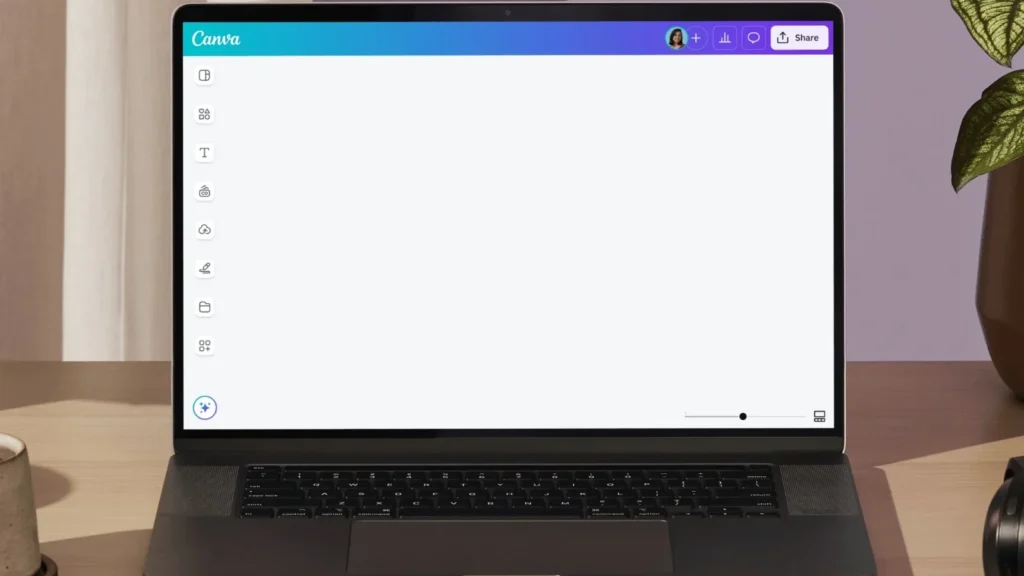
Canva takes first place because it leaves no gap. It has a free plan, a dedicated Twitch banner page that ranked first in Google’s US results for this keyword on November 24, and the busiest run of verified news among the six. Canva’s plan documentation names Canva Free, Canva Pro, Canva Business, Canva Enterprise and Canva Campus as the current plans. Solo streamers care about the first two.
Price: our research could not pin down one list price for Canva Pro, so read Canva’s pricing page before you commit. What it did confirm is a promotion: 50% off Canva Pro or Business for the first three months, for new subscriptions on monthly plans, with the offer ending December 4, 2026. AI Pass, an optional add-on for heavy AI users, costs US$100 per person per month, and you can skip it for banner work.
What you get on the free plan: Canva Free is a confirmed current plan, and Canva says its core tools are free for individuals. AI Studio features need a premium account. We found no vendor page that states the watermark rule or the export formats for free downloads, so check the download screen when you create a Twitch banner here.
Canva’s newest user-facing change matters to a subset of streamers. On November 19, 2026, it added switches that turn off generative-AI features and reduce AI-generated content in its library. Both work on Canva Free and Canva Pro at no extra cost. If your community cares about hand-made art, that switch keeps AI suggestions out of your workflow.
The AI side keeps moving. Canva describes Brush as a vision-language model for design edits, and it powers supported AI editing for Canva Pro subscribers, with wider availability planned. Canva also reportedly announced Craft, its first in-house image-generation model, in October. Canva says its research team built both, and the Canva Research newsroom page lists the team’s posts.
One risk deserves a sentence. Canva announced a company reorganisation on November 3, and reports say it folds Product, Growth and Platform into one Product Org. The product kept shipping after that, with AI controls on November 19 and a developer integration reportedly reaching general availability on November 23, so we treat the restructuring as background rather than a warning sign.
For a Twitch workflow, set the page to 1200 × 480 for the profile banner, duplicate it to 1920 × 1080 for the offline screen, and make a 320 × 300 version for each panel. Keep the same colours and fonts across all three so your channel page looks like one design.
Verdict: Canva sits first because it offers the clearest path from $0 to a finished banner, with a Twitch entry page and the freshest verified features. Nothing ranks above it, so it loses nothing to a higher pick, but it trails Adobe Express on price clarity because we could not confirm a Pro list price. Buy Pro if you want one tool for the banner, the offline screen and every panel, and take the 50% offer before December 4 if you are a new subscriber.
#2 Adobe Express: Clearest Paid Price, Fresh November Release
Adobe Express takes second place on the strength of a plain price and a strong November. Its official plan set is Free, Premium, Teams and Enterprise, and the Premium tier costs US$9.99 a month, billed monthly with no annual commitment. That is the lowest confirmed paid price in this guide.
Price: US$9.99 a month for Premium. Adobe’s pricing page says its feature comparisons reflect public information as of May 2026, so read the live page before you pay. Adobe also states that Express comes at no extra cost inside Creative Cloud Pro, Acrobat Express, Acrobat Studio and Adobe Firefly Pro plans, which matters if you already pay for one of those.
What you get on the free plan: Adobe Express Free includes the AI Assistant beta, which Adobe opened to Free users without a waitlist in its November 20 web release notes. We found no confirmed watermark rule for free exports, so check before you publish.
The November 20 web release added a conversational AI Assistant that lets you describe a design, refine it through chat and edit the resulting elements. It also added PSD and IDML export, brand guidance for logo, colour, look and voice, and automated brand checks. For a streamer, PSD export is the interesting one. You can rough out a banner in Express and finish layers in Photoshop if you own it.
Adobe also announced Express inside AI chat apps, including Claude, with an embedded editor for refining the result. Adobe says Teams, Enterprise and Education support for the AI Assistant is still to come, which affects agencies more than individual creators. The enterprise side of Express appears in Adobe’s release notes too, and the Experience Manager 2026.10.0 notes describe expanded Express asset support, a sign the product is wired into Adobe’s business stack.
Google’s US results for this keyword included Adobe’s dedicated Twitch banner page, titled as a free online Twitch banner maker. A third-party roundup reports that the page offers Twitch templates at the right size. That is a single-source claim, so confirm the 1200 × 480 canvas when it opens.
Verdict: Adobe Express ranks second because it pairs the cheapest confirmed paid tier with a free tier that includes AI help. It loses to Canva on one count we can measure: Canva has more verified features and a Twitch page that led the search results, while Adobe’s Twitch template count is not on our sheet. Choose Express if you want a simple monthly price under US$10, if you already pay for Creative Cloud, or if you want PSD export for later polishing.
#3 Snappa: Prompt-First and Priced in Credits
Snappa climbs to third because its pricing is the easiest to read, even though the model changed this month. Its official help centre lists two plans, Free and Pro, with a credit system. A pricing tracker reports that the older Starter and Team plans disappeared and that Starter became Free, so treat any pre-November Snappa review as out of date.
Price: Pro costs US$15 a month with 250 credits, or US$120 a year with 3,000 credits supplied at the start of the year. Snappa says the annual plan saves US$60 against twelve monthly payments. According to the help centre, credit packs for Pro customers sell 125 credits for US$10, 350 for US$25 and 1,250 for US$75.
What you get on the free plan: Snappa’s own page says “The free plan includes 10 credits a month and every feature.” That means Free and Pro share the same tools and differ in credit count, which makes the free tier unusually honest. A banner designed from a prompt uses credits, though, so ten credits go quickly if you iterate.
How credits work matters more here than anywhere else in the ranking. Snappa’s help centre says each image made uses one credit and that plan credits reset at renewal without rolling over. Purchased credits reportedly roll over while you stay on Pro. A 10-credit month covers a profile banner, an offline screen and a few retries, but not an afternoon of experiments.
Snappa now calls itself AI graphic design software and advertises creating the next graphic from a prompt. A third-party report says it relaunched as an AI-first editor in November, and the vendor’s own billing pages show the new Free and Pro structure. The company behind it is Nosco Media Inc., doing business as Snappa, so you will see that name on invoices.
We could not confirm a Snappa Twitch template count from vendor pages, and it did not appear as a dedicated Twitch page in the top Google results we checked. You can still make a 1200 × 480 canvas, and the prompt workflow suits streamers who would rather describe a banner than assemble one.
Verdict: Snappa ranks third because a clear credit price beats a vague template promise, yet it loses to Adobe Express on cost, since US$15 a month sits well above Adobe’s US$9.99 and the credit cap bites sooner. It also lacks the Twitch landing page that Canva and Adobe have. Buy Snappa if you want AI-generated banners from a text prompt and you will make only a few images each month.
#4 VistaCreate: Relaunched in October, Still Proving Itself
VistaCreate lands fourth. Its newest news is a big one: on October 27, 2026, it announced “the new VistaCreate,” an AI-guided design platform aimed at small businesses, with one-step workflows and a 14-day Pro trial. The announcement page reportedly saw an update as recently as November 19.
Price: according to VistaCreate’s help centre, Pro costs US$13 a month when billed monthly, or US$10 a month when billed annually, which works out as US$120 upfront. We rate that as a single-source figure, so confirm it on the live plans page. The 14-day trial is the one pricing fact we can state flatly.
What you get on the free plan: the help centre describes a free Starter plan with customisable templates and essential editing tools. It also says the AI Image Generator, Object Remover, Background Remover and Resize tools need Pro. The Resize lock is the one that hurts a Twitch workflow, because you want to turn one banner into an offline screen and a set of panels.
The same help centre says Pro supports up to 10 team members, unlimited Brand Kits and unlimited storage, with 200,000-plus templates. Those numbers matter to agencies. A solo streamer can ignore most of them and focus on whether the free tier exports a clean file.
The product is active, and the official site still calls it VistaCreate. The October relaunch changed its positioning toward guided creation, but the vendor’s pages do not state a numbered release, a named AI model or a Twitch-specific workflow. VistaCreate also never appeared as a dedicated Twitch page in the top results we checked, so you start from a general social template or a custom size.
Verdict: VistaCreate ranks fourth because it has a real free tier and a sensible trial, but the relaunch is four weeks old and the vendor shows no Twitch entry point. It loses to Snappa on pricing clarity, because VistaCreate’s figures rest on a single source while Snappa’s come straight from its billing pages. Pick it if you want a 14-day Pro trial to test the AI tools, and plan to type 1200 × 480 yourself.
#5 Kapwing: The Pick for Animated and Offline Screens
Kapwing is a browser video editor rather than a pure banner maker, and that explains the fifth spot. It earns a place because the offline banner is the one Twitch asset that can move, and Kapwing is the strongest tool here for a looped video.
Price: the Kapwing pricing page reportedly lists Free at US$0, Pro at US$16 a month with 1,000 credits, and Business at US$50 a month with 4,000 credits. Pro reportedly removes the watermark and allows 4K exports. Kapwing says it does not currently offer a free trial of paid plans. All of that is single-source, so check the live page.
What you get on the free plan: Kapwing’s August 2026 release notes confirm that free users can export videos up to 4 minutes long, up from 1 minute before, and that free users got 50 AI credits to test the product. Kapwing’s own page also says signed-out users on the free plan cannot upload files larger than 2 GB. A watermark-free export reportedly needs Pro.
The August notes added three models to Kai, Kapwing’s AI assistant: Seedance 2.5, Minimax H3 and Grok. Seedance 2.5 makes videos up to 30 seconds long and accepts reference images, and Minimax H3 became Kai’s default video model because of its cost-to-quality balance. Kapwing also added Autonomous Mode to Kai. One of Kapwing’s own example prompts asks Kai for a 5-second coffee-shop shot made with Seedance 2.5 for an intro, which shows the kind of short loop a streamer could reuse.
A 4-minute free export is more than any offline screen needs. A looped 10-second clip is plenty, and OBS or your stream settings handle the rest. Pick the loop’s file type to suit how your streaming software plays it back, and test it in a scene before you go live.
The weak side is the static banner. We found no Twitch template page for Kapwing and no confirmed 1200 × 480 preset, so you will build the profile banner on a custom canvas. A tool built around video timelines can feel heavy for a single still image.
From the Vipid archive: the original animated themes at ivipid.com/themes list resolution, length and frame rate for each design, which helps if you want a stinger to match your offline screen.
Verdict: Kapwing sits fifth because it is the best of the six for motion and the weakest for a plain profile banner. It loses to VistaCreate on static design speed, since VistaCreate has templates and Kapwing asks for a blank canvas. Buy it, or use its free tier, if your plan includes a looped offline screen or a short animated stinger.
#6 Placeit: One Price, Thin Evidence
Placeit closes the ranking, and the reason is evidence, not quality. Its official pricing page lists a single paid subscription at US$14.95 a month or US$89.69 a year, which gives access to mockups, design templates, videos and logos. Placeit’s page calls the annual plan its best deal. The page title also reads “Free Templates & Unlimited Downloads,” although we could not confirm what a free account exports.
Price: US$14.95 a month or US$89.69 a year, per Placeit’s pricing page, with an asterisk on both figures. The yearly price undercuts Snappa Pro’s US$120 and the monthly price lands close to Snappa’s US$15. Check the asterisk terms before you pay.
What you get on the free plan: we could not confirm a free-tier export rule, a watermark policy or a download limit from Placeit’s pages. Treat the free templates as a preview until the download screen proves otherwise.
Placeit has a dedicated Twitch banner page that appeared second in Google’s US results for this keyword, which gives it real Twitch fit. Its pricing page lists mockups, design templates, videos and logos in the same subscription, so one payment covers more than banners.
Why last, then? Our research found no dated product announcement, release note or status change from Placeit in the last three months. Our research concluded that its current standing could not be responsibly ranked from the available evidence. A tool with a good template library can still lose points when the vendor leaves nothing recent to check.
Verdict: Placeit ranks sixth because it has the thinnest set of confirmed, dated facts, not because its templates are weak. It loses to Kapwing on free-tier clarity, since Kapwing’s August notes confirm free export limits and Placeit’s pages confirm none. Buy it if you want a big template library for Twitch graphics, pay yearly, and accept that you are relying on its template catalogue rather than on recent product news.
Banner Creator for Twitch Compared: Six Makers Side by Side
The table below puts every pick in one view. Cells that say “Not confirmed” mean the vendor pages and our research did not state the fact, so the cell stays honest instead of filling in a guess. Prices are US dollars, checked on November 24, 2026.
| Row | Canva | Adobe Express | Snappa | VistaCreate | Kapwing | Placeit |
|---|---|---|---|---|---|---|
| Rank | #1 | #2 | #3 | #4 | #5 | #6 |
| Best for | One tool for banner, offline screen and panels | Cheapest paid plan and PSD export | Prompt-made banners, a few per month | Trying AI tools on a 14-day trial | Animated offline screens | Template library for Twitch graphics |
| Plans named on vendor pages | Free, Pro, Business, Enterprise, Campus | Free, Premium, Teams, Enterprise | Free, Pro | Pro with 14-day trial | Free plus paid tiers | One paid subscription |
| Paid price, monthly | Not confirmed | US$9.99 | US$15 | Not confirmed | Not confirmed | US$14.95 |
| Paid price, yearly | Not confirmed | Not confirmed | US$120 | Not confirmed | Not confirmed | US$89.69 |
| Free-tier detail confirmed | Free plan exists | AI Assistant beta open to Free users | 10 credits a month, every feature | Not confirmed | 4-minute exports, 50 AI credits | Not confirmed |
| AI features named | Canva AI, Brush (Pro), Craft | AI Assistant (beta) | Prompt-based image creation | AI-guided creation after relaunch | Kai with Seedance 2.5, Minimax H3, Grok | None confirmed |
| Newest dated change | Nov 19, 2026 (AI controls) | Nov 20, 2026 (web release) | Nov 2026 (credit-based Free and Pro) | Oct 27, 2026 (relaunch) | Aug 2026 (new Kai models, 4-minute free exports) | None dated |
| Dedicated Twitch banner page in Google US results | Yes, top result | Yes | No | No | No | Yes |
| Watermark rule on free exports | Check at export | Check at export | Check at export | Check at export | Check at export | Check at export |
| Operator named on official pages | Canva | Adobe | Nosco Media Inc. (d/b/a Snappa) | Not confirmed | Kapwing (San Francisco) | Placeit |
| Limited-time offer | 50% off first 3 months, ends Dec 4 | None confirmed | None confirmed | 14-day Pro trial | Not confirmed | None confirmed |
Three patterns stand out. Only Adobe Express and Placeit undercut Snappa’s US$15 on the monthly prices we could confirm. Free tiers split into two types: capped by credits (Snappa, Kapwing) and capped by features (Canva, VistaCreate). And the Twitch pages in search results line up with the top three template-first tools, which is why Twitch fit carries the biggest weight.
How to Create a Twitch Banner in Any of These Tools
If you plan to create a Twitch banner this week, the steps barely change between makers. What changes is where each tool hides the custom-size field and how it counts exports. Follow these steps in whichever pick you chose, and leave time for a test export.
Set up the canvas
Open a new design and enter 1200 × 480 pixels if the tool does not offer a Twitch preset. If it does offer one, check the dimensions it shows before you build, because a preset labelled for Twitch only helps if it opens at 1200 × 480. Then save the file as your master and work from copies.
Build the layout
- Place your channel name or logo in the middle third of the canvas. Twitch scales the banner to 480 pixels high, and narrow windows show less width.
- Add a background that stays calm at the edges. Gradients and soft textures survive cropping better than hard-edged shapes.
- Keep text to one line, in a large size, with high contrast against the background. Small taglines turn into mush on a phone.
- Add a face or character on one side only if the other side can lose a few pixels without breaking the design.
- Pick two colours and one font. The offline screen and panels will reuse them.
Export and upload
- Export at the exact canvas size. Do not let the tool resample to a larger size, since Twitch will scale it anyway.
- Check the file before upload for a watermark corner or a stray template element.
- Upload it in your channel settings in the Creator Dashboard, then view your page in at least three browser widths to see how it crops.
- If the crop cuts your text, go back to the master file and move the elements toward the centre.
- Duplicate the master to 1920 × 1080 for the offline banner and to 320 × 300 for each panel.
That last duplicate step is where free-tier locks show up, since VistaCreate’s help centre says its Resize tool needs Pro. Run the duplicate through the export screen before you commit to a maker.
Free Twitch Banners: What $0 Actually Gets You
Free Twitch banners come in two flavours: a free plan inside a paid-first tool, and a free template you edit yourself. Both can produce a clean 1200 × 480 image, but they differ in what blocks you at the export screen. Most free Twitch banners that look unfinished fail at that last step, not in the design.
Here is what each free plan gives on the evidence we could confirm.
- Canva Free: a confirmed current plan with a Twitch entry page. Core tools are free for individuals, per Canva, and AI Studio features need a premium account. Watermark rule not confirmed.
- Adobe Express Free: includes the AI Assistant beta for Free users, no waitlist. Watermark rule not confirmed.
- Snappa Free: US$0 with every feature and 10 credits a month. According to Snappa’s help centre, plan credits reset at renewal and do not roll over.
- VistaCreate Starter: free, with customisable templates, according to its help centre. Resize and AI tools need Pro.
- Kapwing Free: 4-minute exports and 50 AI credits from the August 2026 notes. Watermark-free exports reportedly need Pro.
- Placeit: no free-tier export rule confirmed.
The honest ranking of free value, based on those lines, goes Snappa for clarity, Adobe Express for features, Canva for breadth and Kapwing for video. Snappa wins on clarity because it tells you the cap in one sentence. Canva wins on breadth because its free tier is the most widely used and its Twitch page leads the results.
Watch for three traps. First, a free template may sit behind a paid badge, so a banner that looks finished in the editor can fail at export. Second, AI credits drain on retries, not on finished banners, so ten credits last ten generations at most. Third, a free account may export at lower quality or carry a corner mark. The only fix is to test a throwaway design through the export screen before you spend an hour on your real one.
If you want zero risk, a free template with your own text, on a canvas you size yourself, costs nothing and exports reliably in almost any editor. The makers above save time, they do not unlock the ability.
Cool Twitch Banners: Layout Ideas That Survive the Crop
Cool Twitch banners usually share three traits: a clear focal point, one strong colour, and nothing important near the left and right edges. Twitch’s scaling to 480 pixels high means narrow windows trim the sides, so edge detail is the first thing to go.
Three layouts that work
- Centre stack. Logo or name in the middle, a simple pattern behind it. It survives every crop and suits channels with a strong brand mark.
- Character right, text left. A mascot sits on one side and the channel name on the other. It shows personality, but you must test the narrow view because the mascot can clip.
- Schedule strip. A thin bar along the bottom lists stream days. Keep the text large, because small type fails on small screens.
What to avoid
- Social icons in the far corners. They crop first.
- Busy photos behind text. Add a solid overlay if you need a photo.
- Many colours. Two, plus a neutral, read as intentional.
Plenty of cool Twitch banners are just a strong name, a clean background and generous margins. Animation belongs on the offline screen, not on the profile banner, since Twitch’s help page does not list animated formats for the banner itself. A looped clip made in Kapwing or any other editor fits the offline slot better. For other stream graphics that pair with your banner, the stream intros and overlays hub collects our guides on starting soon screens, overlays and alerts.
When a template looks great in a preview, ask whether it still reads at a quarter of its size. Many Twitch viewers see your banner in a small window beside chat, so a design that needs full width to make sense will fail.
Streamer-Brand Tools We Left Off the Ranking
Several names come up whenever streamers talk about graphics, and four of them stayed out of the ranking on purpose. The research could not confirm enough current, dated facts about their banner features to rank them against the six above.
OWN3D remains active and, according to our research, offers OWN3D Pro plus free alerts, overlays, templates and tools for Twitch, YouTube and Kick. One report says OWN3D Pro Alerts are free after registration. It leans toward stream packages rather than a one-off banner editor, so it fits a streamer who wants a matching bundle.
Streamlabs also remains active, with Streamlabs Desktop, free creator tools and Streamlabs Ultra. A report puts Ultra at US$27 a month or US$189 a year. The often-quoted US$15.75 figure is the yearly price spread across twelve months, not what a monthly subscriber pays. Streamlabs suits people who already run its stream software.
StreamElements reportedly offers core overlay and alert tools at US$0 with no required paid plan, as of November 20. Fotor Pro was reported at US$8.99 a month or US$39.99 a year on November 11, which is a single-source figure. Neither had enough dated evidence on banner features to take a place in the ranking.
The takeaway: these tools shine for overlays and alerts, and a banner is a side feature at best. If you want the full set of stream graphics under one brand, compare them in our Twitch alerts guide first. Then use one of the six makers above for the banner itself.
Verdict: The Best Banner Creator for Twitch at Three Budgets
The overall winner is Canva. It starts free, has a Twitch banner entry page, has kept shipping product changes this month, and has an intro offer that is scheduled to end on December 4. The other five win in narrower cases, and the best choice depends on what you can spend and what you need to make.
Best at $0: Canva. Canva Free is a confirmed plan, and its Twitch page leads search results. Adobe Express Free is a close second if you want AI help, because its AI Assistant beta needs no waitlist. Snappa Free gives you ten credits a month with every feature, which suffices for one banner and a few retries.
Best under US$10 a month: Adobe Express Premium. At US$9.99 a month it is the only paid plan we priced for these six makers that falls under US$10. It adds PSD export and brand checks from the November 20 release, and it comes at no extra cost if you already pay for Creative Cloud Pro, Acrobat Express, Acrobat Studio or Adobe Firefly Pro.
Best for animated offline screens: Kapwing. Free users export up to 4 minutes and get 50 AI credits, and the August models make short clips up to 30 seconds. Use it for the offline loop and build the static profile banner in Canva or Adobe Express. For a logo sting to match the loop, the animated logo intro theme in the Vipid archive is one example of a finished design.
For yearly buyers who want a big template catalogue, Placeit’s US$89.69 a year is the lowest yearly figure we confirmed, though it has the thinnest evidence. Snappa at US$120 a year suits prompt-first creators. VistaCreate’s 14-day Pro trial costs nothing and tells you quickly whether its AI tools fit.
For free Twitch banners and paid plans alike, run an export test before you pay. Make a throwaway 1200 × 480 design, push it through the export screen, and look at the file for a watermark. That short check beats any ranking, including this one.
Questions creators ask
What is a Twitch banner?
A Twitch banner is the wide header image at the top of your channel page. Twitch calls it the profile banner and recommends 1200 × 480 pixels. People also use the word for the offline banner shown in the video player when you are not live, and for the panel images under your stream.
What size should I make a Twitch banner?
Twitch’s help centre recommends 1200 × 480 pixels for the profile banner and scales it to 480 pixels high. The offline banner has no published size, and creators use 1920 × 1080. Panels should be no larger than 320 × 300 pixels and under 2.9 MB.
Which banner creator for Twitch is best for free?
Canva is our first pick because Canva Free is a confirmed plan and its Twitch page led Google’s US results. Adobe Express Free and Snappa Free are strong alternatives. Snappa gives 10 credits a month, and Adobe opened its AI Assistant beta to Free users with no waitlist.
Do free Twitch banners carry a watermark?
Our research could not confirm a free-tier watermark rule for most of these tools, so the answer varies and you should test it. Export a throwaway design first, then check the corners of the file.
Can I use an AI generator to create a Twitch banner?
Yes, in several of these tools. Snappa builds graphics from prompts and charges credits for them. Adobe Express has an AI Assistant in beta. Canva lets Free and Pro users switch generative-AI features off if they would rather not use them.
Is the Canva 50% offer still running?
Canva’s own page says new subscribers on Canva Pro or Business monthly plans get 50% off the first three months. The offer ends December 4, 2026, and it does not apply to everyone, so read the terms on the page before you rely on it.
How do I make cool Twitch banners?
Start with one focal point in the centre, two colours and one large line of text. Then preview the upload at several browser widths, because Twitch scales the image to 480 pixels high and trims the sides on narrow windows. Cool Twitch banners are usually the ones that survive that crop.
Should my offline banner match my profile banner?
It should share colours, fonts and logo, but it needs its own layout. The offline banner is 16:9 and fills the player, so it has more room for text than the wide profile banner. A short looped clip can work there if your tool exports one.
Can I animate a Twitch banner?
Twitch’s help page does not list animated file types for the profile banner, so design it as a still image. Put motion on the offline screen instead, where a looped video fits the player.
More from the Vipid blog
- Canva Video Templates [2026]: 4 Tools, $0 to 4K Export
- Best Slideshow Maker 2026: 6 Ranked by Free Limits
- Christmas Advert Video Makers, Ranked for Small Brands
- Free Twitch Overlays [2026]: 5 Sources, $0 vs $27/mo
- Starting Soon Screen: Canva, Placeit, OWN3D or Plain OBS?
- Your Video a channel-style intro theme
- Intro themes stream and channel intros
- Sample videos finished Vipid intros
- Vipid intro maker make a custom intro in the browser
Theo Vance
Theo Vance is the Intros & Templates Editor at Vipid, where he covers intro and outro makers, template libraries for CapCut, Canva and the major editors, slideshow and video-card tools, and stream starting screens. He compares makers on what matters before you hit render: watermark, export resolution, length limits, licence and price, and dates every check. He also looks after the Vipid theme archive, the 2011–2016 intros the site was built on.