How to Make Subtitles for a Video, Free and Step by Step
What a Subtitle Is: Timed Text, Not Part of the Picture · How Subtitles Work: Cues, Timecodes and Two Delivery Routes · SRT vs VTT: Which Subtitle File Should You Make? · Frame by Frame: Make Subtitles by Hand With a Text Editor · Free Subtitle Generators and AI Caption Tools: What the Vendors Show · Frame by Frame: Auto-Generate Subtitles With an AI Caption Generator · Fix the Timing and Wording Before You Export · Style Subtitles So They Read: Position, Contrast and Safe Areas · Burn In or Ship a Sidecar File: Choosing the Export · Worked Example: Subtitling a Three-Minute Video · Common Misconceptions About Making Subtitles · When Subtitles Matter and When They Do Not · Before You Render: Subtitle FAQ
To make subtitles for a video, you need a timed transcript and a way to attach it. Type the lines and their in and out times into an SRT or VTT file, or let an AI caption generator draft them, then fix the timing and either upload the file next to the video or burn the text into the picture. A three-minute clip is a short job once you know the steps, and several free tools cover it.
Two file formats do the work. SRT is the plain, universal one. WebVTT, the web format defined in the W3C WebVTT specification, adds positioning and styling, though its current publication is still a Candidate Recommendation Draft rather than a final Recommendation.
This guide covers subtitles in the everyday sense: on-screen text for the speech viewers hear. If you need the legal and accessibility split between the two terms, our breakdown of subtitles vs closed captions covers it. Everything below comes from the vendors’ own pages and the W3C spec as they stood on November 20, 2026.
What a Subtitle Is: Timed Text, Not Part of the Picture
A subtitle is a short block of text tied to a start time and an end time. Each block is called a cue. Your video player reads the cue list, watches the playhead, and draws each line on screen while the playhead sits between the cue’s in point and out point.
That structure explains almost every practical choice you will make. If the cues live in a separate file, the player draws them and the viewer can switch them off. If you burn the cues into the video, your editor draws them as ordinary pixels, and nobody can switch them off, resize them or fix a typo without a new render.
People use the words subtitle and caption loosely. In casual use, subtitles carry the dialogue, often translated, while captions also describe sound such as music or a door slam. Search results mix the two, and so do tool names, which is why a free captions generator and a subtitle maker usually do the same job. The format work in this guide applies to both.
Three things go into every subtitle you make. The first is the words, which come from a script or from speech-to-text. The second is the timing, meaning when each line appears and disappears. The third is the delivery, either a sidecar file or burned-in text. Free tools help with the first, partly with the second, and leave the third to you.
How Subtitles Work: Cues, Timecodes and Two Delivery Routes
Every subtitle workflow runs the same five stages. You get the words, split them into cues, time each cue, check the result against the picture, and export. Tools differ in which stages they automate. An AI caption generator handles the first three, and a text editor handles none of them for you.
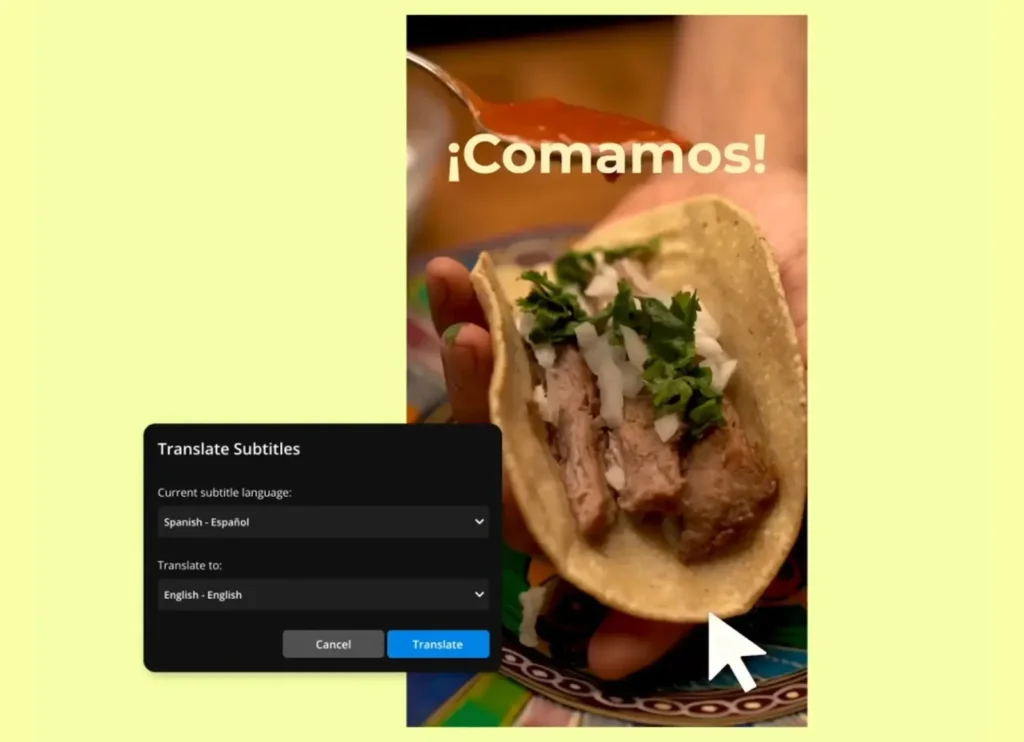
Timing is where most beginners lose an afternoon. A cue needs an in (the frame where text appears), a hold (how long a viewer gets to read it), and an out (the frame where it disappears). Treat the hold like any title card. If the text is gone before a viewer finishes reading, the cue failed, however accurate the words are.
At 30 frames per second, one frame lasts about 33 milliseconds. A 200 millisecond gap between two cues is therefore six frames, which is enough for the eye to register a change without a visible flicker. You do not need to count frames when you type timecodes by hand, but the numbers show how fine the grid is.
The delivery route comes last, and it decides what the viewer can do. A sidecar file travels beside the video, so the same MP4 can carry English, Spanish and German tracks. Burned-in text ships inside one rendered video, so each language needs its own render. Social platforms that autoplay on mute often favour burned-in text, while long-form platforms tend to accept a file.
SRT vs VTT: Which Subtitle File Should You Make?
Make an SRT when a platform or editor asks for a subtitle file and nothing more. Make a WebVTT file when the captions go straight into an HTML5 video player on a web page. That split matches the current guidance in the sources checked for this article, and both formats are plain text you can open in any editor.
SRT: the plain file everyone reads
SRT stands for SubRip Subtitle. It stores numbered cues, a timecode line in the form hours:minutes:seconds,milliseconds (with a comma before the milliseconds), the text, and a blank line between cues. It carries no recognised styling or positioning, so the player decides how the text looks. That limit is also its strength. Nearly every editor, uploader and player accepts it.
1
00:00:01,200 --> 00:00:04,300
Welcome back to the channel.
Today we build a subtitle file by hand.

2
00:00:04,500 --> 00:00:07,800
You only need a text editor
and a video player.
WebVTT: the web format with positioning
A valid WebVTT file begins with the word WEBVTT, uses a period before the milliseconds (for example 00:00:04.083), and treats cue numbers as optional. It also supports cue positioning, alignment, size, styling and NOTE blocks, though how much of that a given player honours varies. Browsers read it through the HTML track element, which is why web developers prefer it. Save both formats as plain UTF-8 text.
WEBVTT

NOTE Intro line, raised to clear the lower third

00:00:01.200 --> 00:00:04.300 line:80% align:center
Welcome back to the channel.

00:00:04.500 --> 00:00:07.800
You only need a text editor
and a video player.
Summary: which route fits which job
| Route | Viewer can toggle it | Styling control | Fix a typo without re-rendering | Best for |
|---|---|---|---|---|
| SRT sidecar file | Yes | None in the file, player decides | Yes | YouTube-style uploads, broad compatibility |
| WebVTT sidecar file | Yes | Positioning and limited styling, varies by player | Yes | Websites with an HTML5 player |
| Burned-in (open) subtitles | No | Full, it is part of the picture | No | Muted social feeds, branded looks |
| Editor text layers | No | Full, per layer | Yes, inside the project | Animated word-by-word styles |
| Platform auto-captions | Usually yes | Limited to the platform’s options | Edit inside the platform | Quick drafts, short posts |
If your target is a vertical feed, the platform often draws its own caption layer, and the rules shift. Our walkthrough on how to add captions to a TikTok video covers that case separately, so this guide stays on files and burn-in.
Frame by Frame: Make Subtitles by Hand With a Text Editor
The manual route costs nothing and teaches you what every generator does behind the screen. It also suits short clips, such as a 30-second intro, where setting up an AI tool takes longer than typing. You need a plain-text editor and a media player that loads external subtitle files.
- Write the script. Put the spoken words in a document, one sentence per line. If you scripted the video, copy the script. If you did not, play the clip at reduced speed and type what you hear.
- Split into cues. Break long sentences at natural pauses. Aim for two lines at most, and set a character limit for yourself, such as 38 characters per line. That number is a working choice, not a standard.
- Number the cues. Start at 1 and count up. Leave a blank line between cues. SRT needs this, and WebVTT lets you skip it.
- Time the in points. Scrub to the first spoken syllable of each cue and write that time down. Land the in point a few frames before the sound if you want the text to feel natural.
- Time the out points. End each cue shortly after the last word. Leave a gap of a few frames before the next cue starts, so the text visibly changes.
- Save as UTF-8. Name the file after the video, for example intro-final.srt, and keep the extension as .srt or .vtt. A wrong extension or encoding is the usual reason accented characters turn into symbols.
- Load it in a player. Open the video and the file together and watch the whole clip once. Fix any cue that drifts, then watch the first and last 10 seconds again.
A free subtitle editor can speed up steps 3 to 5. Subtitle Edit is one of the tools the research flags as able to create and export .srt files, and most video editors do the same. These tools show a waveform, so you set in and out points by sight instead of typing numbers.
One more check saves a rework later. If you plan to trim or re-cut the video after subtitling, finish the cut first. Every ripple delete shifts the picture, and a cue file timed to the old cut will drift by the length of whatever you removed.
Free Subtitle Generators and AI Caption Tools: What the Vendors Show
An AI caption generator transcribes the speech, splits it into cues and assigns the timecodes for you. You still review the output. The table below lists only figures confirmed on the vendors’ own pages on November 20, 2026, so treat it as a snapshot and check the plan page before you commit a project to a free tier.
| Tool | Plan | What the vendor page shows |
|---|---|---|
| Descript | Free | 1 media hour per month |
| Descript | Hobbyist | From $16 per person per month billed annually, 10 media hours, 400 AI credits, 1080p watermark-free export |
| Descript | Business | $50 per month billed annually or $65 billed monthly, 40 media hours |
| VEED | Free | Subtitle generator free to start, export at 720p with limits such as watermarking |
| VEED | Creator | From $20 per month, needed for longer videos and subtitle file downloads |
| Kapwing | Free | Exports carry a watermark |
| Kapwing | Pro | 1,000 AI credits per month, SRT and VTT upload and download |
| Kapwing | Business | 4,000 AI credits per month |
Descript sells itself as a text-based video editor, and its pages advertise one-click captions. Its Free plan includes one media hour per month, which at three minutes per video is 20 clips. Reportedly, the Free plan also exports at 720p with a watermark, which matters if you plan to burn the subtitles in rather than download a file. On November 5 and 6, the company reportedly announced updates to Animate Text, Layouts, Search and Skills.
VEED’s subtitle page calls its generator free to start and says paid plans handle longer videos and subtitle file downloads, with the Creator plan beginning at $20 per month. Reportedly, the tool can output burned-in subtitles or downloadable SRT, VTT and TXT files. The page title promises 99.9 percent accuracy, which is a vendor claim, so read your own transcript before you trust it.
Kapwing’s Pro subscription FAQ lists auto-subtitling of up to 300 minutes per month and SRT and VTT upload and download for Pro users. The page dates from December 2025, the same month Kapwing moved to a unified AI credits system, so confirm the current allowance inside your account. One November test reportedly logged auto-captions at 1 credit per minute, and Kapwing says its AI translates subtitles into more than 60 languages.
Descript’s own roundup of transcription software points to human-verified services for jobs where accuracy has to be near-perfect. That is a fair rule of thumb for legal, medical or broadcast work. For a YouTube tutorial, an AI draft plus your own proofread is normal. Editors such as Premiere Pro, DaVinci Resolve, CapCut and Clipchamp also generate captions, and our comparison of auto captions in five editors covers their limits.
Frame by Frame: Auto-Generate Subtitles With an AI Caption Generator
The steps below apply to any browser-based generator, whether you pick Descript, VEED, Kapwing or an editor’s built-in tool. Menu names differ. The order does not.
- Prepare the audio. Export or upload the cut you intend to publish, with the music mixed low under the voice. Clean speech gives the transcription engine its best chance.
- Upload and pick the language. Choose the spoken language, not the language you want to read. Translation comes later as a separate step.
- Run auto-subtitle. Wait for the draft. For a short clip, this takes less time than it takes to get coffee.
- Fix names and jargon. Read the transcript for brand names, product names, people and numbers. Speech-to-text guesses at these more than any other words.
- Check the cue breaks. Look for lines that split a phrase in the wrong place, such as an article at the end of one cue and its noun at the start of the next.
- Style the text. Pick a font, a size and a contrast treatment, and decide the screen position. The styling section below covers the choices.
- Export. Download an SRT or VTT if you want a sidecar, or export the video with the subtitles burned in. Do both when you can, so you keep a clean master.
If you generate clips with an AI video tool instead of filming, the clip arrives without usable text, so this same workflow applies after the render. Our roundup of the free AI video generators shows what each tier gives you, and none of that removes the need for a subtitle pass in an editor.
Fix the Timing and Wording Before You Export
Review is the stage that separates readable subtitles from messy ones. An AI draft is usually close, but close still fails in predictable places. Run through the list below once on the finished transcript, then watch the video with sound off, because that is how many viewers will meet it.
- Names and brands. Search the transcript for every proper noun and fix the spelling once. Most tools let you replace a word across all cues.
- Numbers. Check prices, dates and measurements against your script. A misheard figure is the error viewers remember.
- Overlaps. Make sure no two cues share a moment on screen. Overlapping cues stack text, and some players drop one.
- Short cues. A cue that flashes for a handful of frames cannot be read. Merge it with its neighbour.
- Long cues. A cue that sits on screen well after the speaker stops feels like a mistake. Trim the out point.
- Cut points. Where the picture jumps, try to start a new cue on the cut. Text that crosses a hard cut distracts the eye.
- Speaker changes. When two people talk in turn, put each speaker on a separate cue or mark the switch with a dash at the start of the line.
Developers who script bulk jobs can parse and rewrite caption files with libraries. The Python library webvtt-py, for example, reportedly shipped version 0.8.0 with duration-calculation corrections. Most creators never need that. A text editor and a find-and-replace pass fix most of the problems above.
Style Subtitles So They Read: Position, Contrast and Safe Areas
Style only applies fully when you burn in or use editor text layers, since a plain SRT leaves the look to the player. When you do control it, keep the rules simple. Use a clean sans-serif font, give the text an outline, a shadow or a semi-opaque box so it survives bright backgrounds, and keep every line inside your editor’s safe-margin overlay.
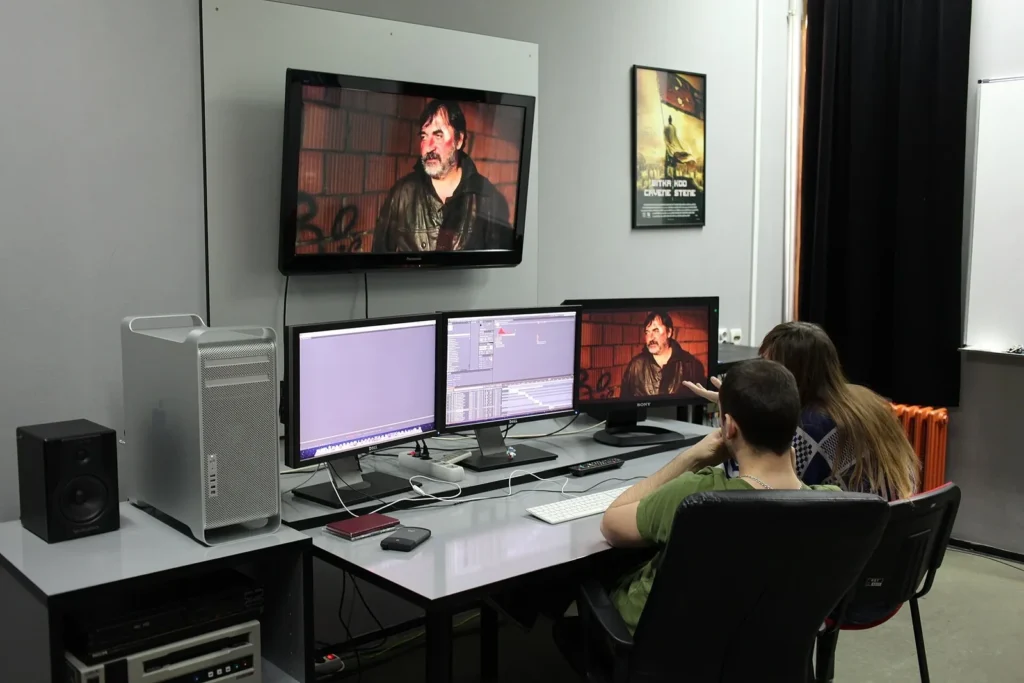
Subtitles share the lower part of the frame with lower thirds, which name a speaker or a topic. When a lower third is on screen, raise the subtitle block so the two never collide, as the NOTE in the WebVTT sample above does with a line setting. Our hub for lower thirds and titles covers how to time those name plates around dialogue.
Big title text is a different tool again. A title sequence sells the opening seconds of a video and carries a few words, while subtitles carry every spoken word and must stay quiet in style. If you want a dramatic opening title before the subtitled content starts, a theme like the smoke title sequence from Vipid is built for that job. Keep the two looks apart so they do not compete.
Animated word-by-word captions are a style choice, not a requirement. Kapwing reports it added 12 subtitle presets and four subtitle animations, and it reportedly lets users convert subtitles into ordinary editable text layers. In vertical video, platform buttons and descriptions cover part of the lower frame, and Kapwing reportedly has its assistant pick subtitle placement from the visual content and platform safe zones. Whichever tool you use, check the position on a phone before you export.
Burn In or Ship a Sidecar File: Choosing the Export
Ship a sidecar file when the platform accepts one and viewers benefit from a toggle. Burn in when the video plays muted in a feed, when the platform ignores uploaded files, or when the subtitle style is part of your brand. When in doubt, keep both: a clean master with a sidecar, and a burned-in copy for social.
Burned-in text has two costs. You cannot edit it without rendering again, and a re-render re-encodes the whole video, which can lower quality if you start from an already compressed file. Always burn in from your editor project or a high-quality master, never from a finished upload. A sidecar file avoids both costs because the video stays untouched.
Render settings
| Setting | Value to use | Why |
|---|---|---|
| Resolution | Same as the source, for example 1920×1080 | Resizing during burn-in softens the text |
| Frame rate | Same as the source, for example 30 fps | A mismatch makes cues drift against the picture |
| Container and codec | MP4 with H.264 for burned-in copies | Plays almost everywhere |
| Sidecar format | SRT for general upload, VTT for web players | Matches what each target accepts |
| Text encoding | UTF-8 | Keeps accents and non-Latin scripts intact |
| Cue coverage | First spoken word to last | Cues outside the runtime are ignored or break import |
Name your files so you can tell them apart six months later. A pattern such as channel-episode-12-en.srt and channel-episode-12-en-burned.mp4 makes it clear which file is the clean master and which is the social copy. When you add a second language, change only the language code.
Worked Example: Subtitling a Three-Minute Video
Take a 180-second tutorial narrated at about 150 words per minute. These are assumptions for the example, not tool specs. The narration comes to roughly 450 words. If you cut it into cues of about 8 words each, you get 56 cues, since 450 divided by 8 is 56.25.
Each cue gets an average slot of 3.2 seconds, because 180 divided by 56 is 3.2. At 150 words per minute, the narrator needs about 3.2 seconds to say 8 words, so a hold just under the slot plus a 0.3 second gap fits the speech. At 30 fps, that gap is nine frames. If a line runs longer than the narrator speaks, trim the out point, and if the narrator rushes, split the cue.
Size the file next. A cue in SRT is tiny: the number, the timecode line, a short line of text and the blank line. So 56 cues make a very small file, and you can only estimate its exact size. The point stands anyway: a sidecar subtitle file weighs almost nothing next to the video itself.
Now count the free-tier cost. On Descript’s Free plan, with 1 media hour (60 minutes) per month, a 3-minute clip uses 5 percent of the allowance, so about 20 clips fit. On the Hobbyist plan with 10 media hours (600 minutes), about 200 clips fit. The Kapwing test that reportedly logged 1 credit per minute implies 3 credits for this clip, though other AI features draw from the same pool.
Finally, count the editing effort. After the AI draft, expect to fix a handful of names and numbers, not 56 cues. If you correct 5 cues, the burned-in route needs one render and one watch-through. The sidecar route needs a text fix and no render at all, which is why testing a sidecar first is the cheaper habit.
Common Misconceptions About Making Subtitles
SRT supports fonts and colours. It does not carry recognised styling or positioning. Players apply their own look, and a style you set in one app can vanish in another. If appearance matters, burn the text in or use WebVTT and test it in your target player.
Burned-in subtitles are always the safer choice. They look identical everywhere, which helps, but viewers cannot turn them off or enlarge them, and a typo costs a re-render. For accessibility and multiple languages, a sidecar file serves viewers better.
AI captions need no review. Vendors advertise high accuracy, and VEED’s own page title promises 99.9 percent. Even at that rate, one error in a thousand words is about one wrong word in a 450-word clip, and it is usually a name or a figure. Read the transcript once.
Free means unlimited. The free tiers above cap minutes, resolution or downloads, and some add watermarks. Descript’s Free plan gives one media hour per month. VEED holds subtitle file downloads for paid plans. Kapwing’s Free exports carry a watermark. Plan around the cap before you start a long project.
WebVTT is a finished standard. The latest W3C publication is a Candidate Recommendation Draft, which is meant to become a Recommendation but is not one yet. In practice, browsers support it widely, so the label matters mostly to developers who track standards.
Subtitles and lower thirds are the same layer. A lower third names a person or topic and appears for a few seconds. Subtitles transcribe speech continuously. They share screen space, so plan their positions together.
When Subtitles Matter and When They Do Not
Subtitles matter most when sound is unreliable or the language is not the viewer’s own. Muted feeds, noisy places, deaf and hard-of-hearing viewers, and foreign-language audiences all depend on them. Tutorials with specific terms, product names or commands also benefit, since viewers can read the exact spelling.
They matter less for a looping background clip, a music-only visualiser, or a silent product turntable. A 5-second logo sting has no speech to transcribe, so adding text only clutters it. A video with on-screen text already carrying the message needs captions only if it also has narration.
Effort should match stakes. A quick vlog can run on a platform’s auto-generated captions with a skim for errors. A paid course, a corporate video or anything published for compliance deserves a proofread transcript, and possibly a human-verified service. Spend the time where a wrong word costs you something.
One last test settles most cases. Play your video with the sound off for ten seconds. If a viewer would lose the thread, make subtitles. If the picture tells the whole story, skip them and spend the hour on something else, such as a stronger thumbnail or a cleaner audio mix.
Before You Render: Subtitle FAQ
What is the easiest free way to make subtitles for a video?
Use a free generator tier such as Descript, VEED or Kapwing, upload the clip, run auto-subtitle and proofread the result. Check each plan’s limits first. As of November 20, 2026, Descript’s Free plan covers one media hour per month, while VEED and Kapwing reserve file downloads or watermark-free exports for paid plans.
Should I make an SRT or a VTT file?
Pick SRT for uploads and broad compatibility. Pick WebVTT for HTML5 players on a website, or when you need cue positioning. If a platform accepts both and you do not need positioning, SRT is the simpler choice.
Can I make subtitles without any software?
Yes. A plain text editor is enough. Write numbered cues with timecodes and text, save the file as UTF-8 with an .srt extension, and load it in a media player. It is slow for long videos but works for short clips.
How accurate are AI caption generators?
Vendors publish figures, such as VEED’s 99.9 percent claim, but accuracy depends on audio quality, accents and jargon. Treat the draft as a starting point and check names, numbers and cue breaks yourself.
Do burned-in subtitles reduce video quality?
Burning in requires a render, and rendering from an already compressed file adds another generation of compression. Burn in from your project or a high-quality master and match the source resolution and frame rate. A sidecar file leaves the video untouched.
How do I translate my subtitles?
Generate the subtitles in the spoken language first, fix the transcript, then translate. Kapwing says its AI translates subtitles into more than 60 languages. Have a fluent speaker review the result for anything public, since machine translation stumbles on idioms.
Why are my subtitles out of sync?
The usual causes are a cut made after the subtitles were timed, a frame-rate mismatch between the file and the video, or a constant offset. Re-time the file against the final cut. Most subtitle editors can shift every cue by a fixed number of milliseconds.
How long should each subtitle stay on screen?
Long enough to read at the speaker’s pace. In the worked example above, 8 words at 150 words per minute take about 3.2 seconds. No spec on this page sets a fixed minimum, so test with someone who has not heard the audio.
- Logo Design upload a logo, get an animated logo intro
- Epic Smoky Titles your text in a smoke title sequence
- Star Text animated title theme
- All Vipid themes specs for every theme
Ines Calder
Ines Calder is the Titles & Motion Editor at Vipid, covering lower thirds, title sequences, kinetic typography and logo animation across After Effects, Premiere Pro, DaVinci Resolve and Final Cut Pro. She writes her guides in frames and safe areas so they hold up on a phone as well as a TV, and every template she lists carries its editor version, plugin needs and licence.