Text Animation Maker Free [2026]: 3 Platforms, 6 Tools
Free Text Animation Makers Side by Side · Free Limits That Decide the Choice · Browser Tools: Clipchamp, Kapwing and Canva · Desktop Tools: DaVinci Resolve 21 and Filmora · Mobile Tools: CapCut and Filmora on a Phone · Pricing in November 2026 · AI Features: What They Change for Text Animation · Render Settings for Animated Text · Six Real-World Examples · What the Experts and Industry Data Say · Use-Case Recommendations · Pros and Cons by Platform · Migration Guide: Moving a Title Between Tools, Frame by Frame · Verdict: Which Free Text Animation Maker Wins · Before You Render
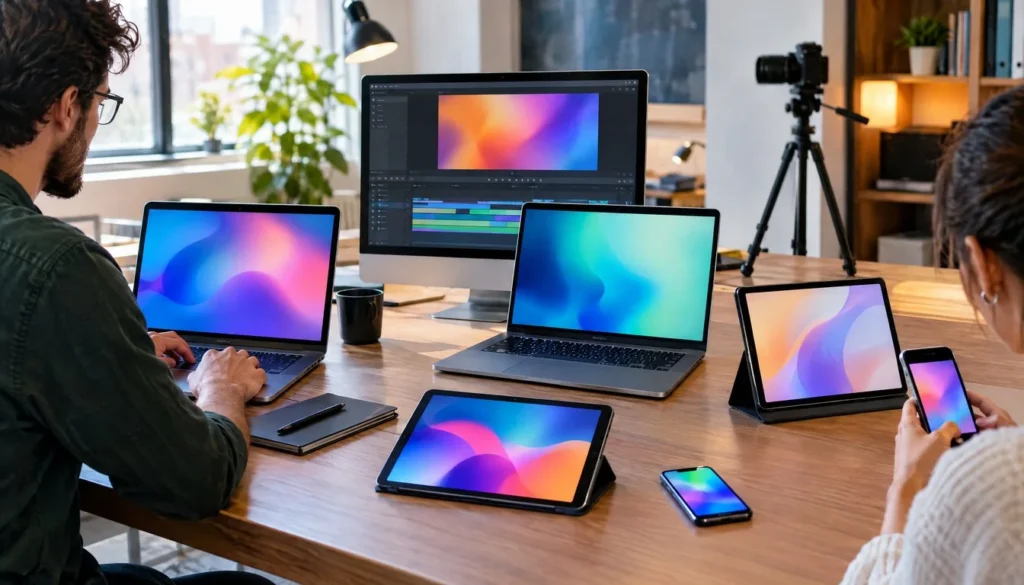
Free text animation makers fall into three camps, and the camp you pick sets your export ceiling more than any preset pack does. Microsoft’s Clipchamp support pages put the editor’s export cap at 1080p HD, and the free tier still includes animated titles with no watermark. DaVinci Resolve’s free edition goes higher, to Ultra HD, but you have to install it on a desktop. Kapwing runs entirely in the browser and caps free exports at 4 minutes.
Phones add a third route. CapCut ships a web editor, desktop apps and iOS, Android and tablet versions, while Filmora’s free mobile build exports at up to 720p with a watermark. Canva sits in the browser and treats motion as one more design layer. Every one of these tools can animate type for free, but they stop you at different points: resolution, minutes, watermark, or the moment you need a second device.
This comparison sorts six tools by platform and checks what each vendor publishes about its free tier on November 16, 2026. If you want the tool-by-tool cap table first, our earlier roundup of six generators and their four-minute caps covers that ground. Here the question is different: which platform should your free text animation maker live on, and what does it cost you to move later?
Free Text Animation Makers Side by Side
The short answer: Clipchamp gives the cleanest free 1080p export in a browser, DaVinci Resolve gives the highest free ceiling on a desktop, and CapCut gives the widest device coverage. Kapwing, Canva and Filmora each win a narrower job. The table below holds only what the vendors’ own pages and release notes state, and where a limit is not published as one figure, the cell says to check the export screen.
| Spec | Clipchamp | Kapwing | Canva | CapCut | DaVinci Resolve 21 | Filmora |
|---|---|---|---|---|---|---|
| Platform | Browser, Windows app | Browser | Browser first | Web, desktop, iOS, Android, tablet | Desktop (macOS, Windows, Linux) | Desktop and mobile |
| Maker | Microsoft (since 2021) | Kapwing | Canva | CapCut | Blackmagic Design | Wondershare |
| Free tier price | $0 | Free to start | Free plan on pricing page | $0 | $0 | $0 |
| Watermark on free export | None | Check export dialog | Check export dialog | Check export dialog | None among documented limits | Yes, on desktop and mobile |
| Free export resolution | Up to 1080p HD | Check export dialog | Check export dialog | No single published figure | Up to Ultra HD | Mobile up to 720p |
| Free export length | No cap in sources | 4 minutes | No cap in sources | No cap in sources | No cap in sources | No cap in sources |
| Text animation route | Animated text and titles | Browser timeline text layers | Animations in the design editor | Captions, effects, templates, timeline | Text+ and Fusion | Titles and effects in the editor |
| Paid route | Microsoft 365 Personal or Family | Pro, Business, Enterprise | Pro, Business, Enterprise | Pro, Ultra, Teams | DaVinci Resolve Studio | Paid desktop plans, perpetual license |
| Paid export ceiling | 4K UHD | Check pricing page | Check pricing page | Varies by plan and region | Studio feature list | Mobile paid up to 4K |
| AI assist named by vendor | AI video and audio tools on Free | Kai, Kapwing AI, Kapwing MCP | Canva AI | EditPilot, Generative and Interactive Edit | Studio tier | Credits on paid tiers |
| Install needed | No (Windows app optional) | No | No | Optional | Yes | Yes |
| Phone app | Not in sources reviewed | Not in sources reviewed | Not in sources reviewed | iOS and Android | No | Yes |
Read the table by row, not by column. The watermark and resolution rows eliminate tools fastest, because a clean 1080p file is what most YouTube titles, stream overlays and short social clips actually need. The length row only bites when you build long lyric or quote videos. The platform row decides the rest, since a tool that lives on the wrong device never gets opened.
Each platform also changes how you work, apart from any cap. A browser editor autosaves to the vendor’s cloud and follows you between machines, but it depends on your connection and on upload time for every source file. A desktop editor keeps projects on your drive, works offline and leans on your GPU. A phone editor wins on speed from shoot to post and loses on precision, because dragging a keyframe with a thumb is a blunt instrument.
Free Limits That Decide the Choice
No vendor publishes a render-speed benchmark for text animation, so speed claims would be guesswork. What the vendors do publish are hard caps, and those are the numbers that change a project. The table collects them with the page each one comes from, drawing on Microsoft, Blackmagic Design, Kapwing, CapCut and Filmora.
| Published limit | Value | Source |
|---|---|---|
| Clipchamp free export resolution | 1080p HD, watermark-free | Microsoft Clipchamp support and pricing pages |
| Clipchamp Premium export | 4K UHD | Clipchamp pricing page |
| DaVinci Resolve free output | Ultra HD maximum | Blackmagic Design release notes |
| DaVinci Resolve free GPU use | One processing GPU on Windows and Linux | Blackmagic Design release notes |
| Kapwing free export length | Up to 4 minutes | Kapwing’s own page |
| Kapwing upload size per file | 250 MB on Free, 6 GB on eligible paid plans | Kapwing’s own page |
| Filmora free mobile export | Up to 720p with watermark | Filmora-hosted comparison |
| Filmora free desktop export | Watermarked | Filmora-hosted comparison |
| CapCut cloud storage on its upgraded Pro plan | Expanded from 100 GB to 1 TB | CapCut’s own page |
Start with resolution. Blackmagic’s release notes say the free edition handles media of any resolution but limits mastering and output to Ultra HD, and it uses only one processing GPU on Windows and Linux. For a title card or lower third that is a ceiling you will never hit. Clipchamp’s 1080p cap is the tighter one, and it matters only if you deliver 4K masters.
Then check length. Kapwing’s own page says free exports run up to 4 minutes, and a Kapwing release note reportedly raised that from 1 minute in August 2026. A 3-minute lyric video fits. A 6-minute explainer with animated chapter titles does not. The other five tools publish no equivalent free cap in the sources reviewed, which is not the same as saying none exists. Check the export screen before you build something long.
Last, file size. Kapwing’s 250 MB per-file upload cap on Free matters if your background footage is a long 4K clip, and the 6 GB limit on eligible paid plans shows where the vendor expects serious projects to live. Desktop tools skip this problem because the footage never leaves your drive. If you animate text over heavy footage, render the title on its own and composite it later, which keeps every upload small.
Browser Tools: Clipchamp, Kapwing and Canva
Browser editors win on setup time. You open a tab, drop in a clip, type a title and export. The trade is that you work inside someone else’s preset system, and your cap is whatever the vendor sets that month. Kapwing’s own release notes show how fast that moves: the free export length changed within one quarter.
Clipchamp: the cleanest free 1080p
Clipchamp has belonged to Microsoft since 2021 and still ships under the Microsoft Clipchamp name. Its free plan includes animated text and titles, trimming, cropping, resizing, rotation, screen, camera and voice recording, audio-only export, content backup, free stock media and AI video and audio tools. Exports are watermark-free and capped at 1080p HD.
Premium adds 4K UHD export, premium stock media, premium filters and effects, and one brand kit. Microsoft folded Premium into Microsoft 365 Personal and Family, so there is no standalone Clipchamp Premium price to quote. For a free text animation maker on Windows, this is the lowest-friction route. The limit is the preset library: you pick from title styles rather than building per-letter motion from scratch. Our look at presets versus keyframes explains where that line falls and when presets stop being enough.
Kapwing: browser-only with an AI layer
Kapwing is free to start, and its AI features draw on credits. Its 4-minute export cap and 250 MB upload limit on the Free plan are published on its own page. Paid plans are Pro, Business and Enterprise. According to Kapwing’s Pro versus Business plan FAQ, dated December 2025, Pro starts at $16 per member per month on annual billing or $24 monthly, and Business at $50 or $64.
Canva: motion as a design layer
Canva’s pricing page lists Free, Pro, Business and Enterprise plans. A November 11 price roundup reported Canva Pro at $144 a year, so confirm that on Canva’s own page before you budget. Canva reportedly leans toward editable design more than dedicated video editing, and its recent AI news bears that out. Canva Brush, a vision-language model for design, became available to Canva Pro subscribers for supported design edits, with wider access described as coming later.
Canva suits you when the animated text sits inside a branded design: a quote card, a title slide, a social post. It suits you less when you need frame-level control over how letters enter and leave. The free tier is generous for static layouts, but a motion export that touches premium stock can ask for a paid plan.
Desktop Tools: DaVinci Resolve 21 and Filmora
Desktop editors give you more control and fewer caps, and they cost you an install, a capable GPU and a steeper learning curve. They also keep your project files on your own drive, which matters when a client asks for a revision six months later. A browser tool can change its free plan overnight. A copy of Resolve on your drive keeps working exactly as installed.
DaVinci Resolve 21: Text+ and Fusion
Blackmagic’s product page lists DaVinci Resolve 21 as the current major version, with two editions: the free DaVinci Resolve and the paid DaVinci Resolve Studio. A November 11 roundup reported Studio at a $295 list price. The free edition supports media at any resolution, outputs up to Ultra HD and runs on one GPU on Windows and Linux.
Text animation in Resolve runs through Text+ and Fusion, which means per-character control, keyframes on every property and reusable templates. Release notes for 21.2, the newest build in the research, mention a fix involving Text+ extend controls for the CLS box and a fix for Fusion and OGraf templates. Release notes for Studio 21.1.2 reportedly added OGraf playback and responsive templates, plus Lottie and OGraf graphics on Linux. If you build a lot of reusable titles, that template work is the reason to learn Resolve.
Filmora: desktop first, watermark on free
Filmora’s free desktop version costs $0 and puts a watermark on exports. A Filmora-hosted comparison lists paid desktop access from $49.99 per year, plus a $79.99 perpetual license, with 1,000 or 2,000 AI credits a month on paid desktop tiers. Treat that as a Wondershare-published comparison rather than a checked pricing page.
Version numbers are muddy. One Filmora-hosted article calls Filmora 15 the current desktop release, while another page describes Filmora 16 as current, and no official release notice settled it in the research. Check the About box in your install instead of trusting either label. Filmora suits creators who want preset titles in a classic timeline and are ready to pay about $50 a year to drop the watermark.
Mobile Tools: CapCut and Filmora on a Phone
Phone editing wins when you shoot, write the title and post from the same device. CapCut covers that best. It offers a web editor, desktop apps, iOS, Android and tablet versions, with a free tier at $0 that includes basic editing and free templates. CapCut says it serves more than 700 million users every month across 170-plus markets, which explains why so many text templates exist for it.
Filmora’s mobile app is the other phone option. Its free version exports at up to 720p with a watermark, and paid mobile access starts at $9.99 per month with output up to 4K, plus 200 to 400 AI credits a month. A Filmora-hosted article says the mobile app now carries the plain Filmora name. That 720p ceiling is fine for a vertical clip viewed on a phone, but weak for anything that lands on a TV or a 1080p YouTube channel.
Clipchamp’s official materials describe a browser editor and a Windows app, not a phone app. Resolve is desktop software. So the phone camp is really two tools, and the choice between them is a price and ceiling question. When you animate type on a phone, keep the text away from the screen edges, since platform buttons and captions cover those zones. If you want to see how kinetic type connects to the rest of motion work, the kinetic typography archive collects our guides.
Pricing in November 2026
Every tool here starts at $0, so the real pricing question is what the first paid step costs and what it unlocks. The table lists the first paid step as reported in November 2026. Prices marked reported come from roundups and should be confirmed on the vendor’s own page, because several vendors vary price by region.
| Tool | Free tier | First paid step (reported) | What it unlocks |
|---|---|---|---|
| Clipchamp | $0, 1080p, no watermark | Included in Microsoft 365 Personal or Family | 4K UHD, premium stock, one brand kit |
| Kapwing | Free to start, 4-minute exports | Pro with 1,000 monthly credits | More credits, larger uploads |
| Canva | Free plan | Pro at $144 a year | Premium assets, Canva AI edits |
| CapCut | $0, basic editing and templates | Pro, Ultra or Teams, price varies by region | Premium features, more AI points |
| DaVinci Resolve | $0, up to Ultra HD | Studio at $295 list | Studio feature set |
| Filmora desktop | $0, watermark | From $49.99 a year or $79.99 perpetual | No watermark, AI credits |
| Filmora mobile | $0, 720p, watermark | From $9.99 a month | Output up to 4K |
The cheapest long-run option is still the free edition of Resolve, provided your machine can run it. For subscriptions, CapCut’s price varies by region and billing cycle, and a PC-only Black Friday promotion reportedly offered a first month for $3.99 or less. Do not budget around a promotion that expires in a week.
AI Features: What They Change for Text Animation
Kapwing’s AI work is the most developed on the browser side. According to Kapwing’s own articles, Kai handles video generation and multi-asset edits, and Seedance 2.5 generations cost 278 to 411 credits for example 10 to 15 second clips, with the warning that estimates may change. One 10-second Seedance 2.5 shot cost 233 credits, and a Pro plan with 1,000 monthly credits would cover about four such clips. Generation credits do not affect plain text animation, but they show how fast a free allowance disappears once you mix generated footage into a title.
CapCut points AI at prompt-based editing, Canva points it at design edits, and Resolve keeps its AI tools mainly in Studio. For letter-level motion, keyframes and easing curves still do the work. A prompt can place a title and pick a font, but you will still adjust the hold time and the exit by hand. Judge any AI claim by whether it ships a clean export on the free tier, not by the demo reel.
A practical filter: if an AI feature spends credits, count how many titles those credits cover before you rely on it. A free plan with 50 AI credits, as Kapwing reportedly gives free users, covers less than one 10-second Seedance 2.5 shot at the 233-credit price above. That is a trial, not a workflow.
Render Settings for Animated Text
Whatever tool you pick, set the export before you animate. A title built at the wrong canvas size forces a rebuild, and a wrong frame rate makes motion stutter against the footage underneath. The values below are working defaults for common jobs, not vendor limits.
| Job | Resolution | Frame rate | Length | Export format |
|---|---|---|---|---|
| YouTube title or lower third | 1920 x 1080 (1080p) | Match the footage | 3 to 8 seconds | MP4 (H.264) |
| Vertical social clip | 1080 x 1920 | Match the footage | 5 to 15 seconds | MP4 (H.264) |
| Stream starting-soon loop | 1920 x 1080 (1080p) | Match the stream | 10 to 30 seconds, looped | MP4 or WebM |
| Overlay on other footage | 1920 x 1080 (1080p) | Match the timeline | 2 to 6 seconds | A format with an alpha channel, if the tool lists one |
| Archive master | Native canvas, up to Ultra HD on free Resolve | Match the project | Full length | Highest-quality export the tool offers |
Think in frames, not seconds. A title needs time to arrive, time to hold so the viewer can read it, and a shorter exit. Short titles usually spend about a third of their length arriving, a third holding and a third leaving. Those proportions are a rule of thumb, so shift them when the line is long.
Match the frame rate to your footage. A 24 fps timeline with a 60 fps title looks wrong when the title slides, because the two clocks drift. Keep text inside the safe area as well, with a margin from every edge so players, crops and platform interface elements never clip a letter. A title that reads fine in the editor can lose its last word on a phone.
From the Vipid archive: the intro themes page lists each theme’s resolution, length and frame rate, which is a handy reference when you are choosing sensible defaults.
Six Real-World Examples
These scenarios are built from the published limits above, not from named clients. Each one shows how a cap changes the decision.
- The Windows YouTuber. A creator on a Windows 11 laptop needs a clean 1080p title for a weekly show. Clipchamp’s free tier fits: animated text, no watermark, 1080p. The only upgrade trigger is a 4K master, which needs Microsoft 365. If the channel never leaves 1080p, the free tier is the whole answer.
- The podcaster on a Chromebook. A 3-minute clip with animated quotes fits inside Kapwing’s 4-minute free export. A 6-minute version does not, so the podcaster either trims the cut or pays for Pro, which starts at $16 per member per month on annual billing. Splitting the episode into two clips is the free workaround.
- The streamer building a starting-soon loop. A 20-second loop needs a stable frame rate and a clean 1080p export. DaVinci Resolve’s free edition handles that, up to Ultra HD, and the streamer keeps editable Text+ templates for the next stream. The learning curve is the cost, not money.
- The phone-first creator. Someone who films, captions and posts from a phone uses CapCut on iOS or Android, because its free tier covers basic editing and templates. Filmora’s mobile free version would add a watermark and a 720p ceiling, so it ranks second for this job.
- The brand designer. A designer making a quote card with a short motion intro works in Canva, where the animation sits inside the layout. Premium stock in the layout can push the export toward Pro, which a November 11 roundup reported at $144 a year. Swapping to free assets keeps the project at $0.
- The editor with a 4K deliverable. A client demands a 4K title pack. Clipchamp’s free tier stops at 1080p HD and Filmora’s free versions carry a watermark. Resolve’s free output reaches Ultra HD, so it is the only free option here that meets the brief without a payment.
The pattern is consistent. Match the cap that bites hardest to the tool that does not impose it. Resolution caps point to Resolve, length caps point away from Kapwing’s free tier, watermark worries point to Clipchamp, and phone-only workflows point to CapCut.
What the Experts and Industry Data Say
The browser-versus-desktop split is blurrier than it used to be. In an older SD Times piece, David Intersimone, then vice president of developer relations and chief evangelist at Embarcadero Technologies, said: “The lines and distinctions between Web and desktop are definitely vague.” In the same discussion of web, desktop and mobile software he put it more bluntly: “An application is an application. Period. End of story.”
The source file does not give the piece’s date, so read the quotes as a general point rather than a statement about any one tool. It still holds up. Clipchamp runs as a browser editor and a Windows app. CapCut runs on web, desktop, phones and tablets. The choice is less about the platform’s label than about its published caps.
Two vendor statements add current context. CapCut says on its own site that it serves more than 700 million users every month across 170-plus markets and 30 languages, so the odds that a template exists for your style are high. Microsoft acquired Clipchamp in 2021, and the company page describes it as now integrated into the Microsoft 365 suite. Both statements describe reach and ownership, not export quality, so they do not replace the limits table.
Use-Case Recommendations
- Weekly YouTube titles on Windows: Clipchamp. Free, watermark-free, 1080p, and no install needed beyond the optional app. Build one title, save it, and reuse the style each week.
- Reusable title and lower-third templates: DaVinci Resolve. Text+ and Fusion give per-character control, and the 21.2 notes mention fixes for Text+ and Fusion and OGraf templates.
- Phone-only posting: CapCut. It covers iOS, Android and tablets with a $0 free tier and a large template catalog.
- Branded quote cards and slides: Canva. Motion lives inside the design, though you must watch for premium assets.
- Short browser-only edits under 4 minutes: Kapwing. Pair it with the Pro plan if you go longer or need larger uploads.
- Classic timeline editing with a one-time fee: Filmora. The $79.99 perpetual license beats two years of the $49.99 annual plan.
For stream and intro work, a ready-made title sequence can be cheaper than building one in an editor. A smoke title sequence is one example of a themed title look. That is a different route from the free editors above, so weigh the time you save against the control you give up.
Pros and Cons by Platform
| Tool | Pros | Cons |
|---|---|---|
| Clipchamp | Watermark-free free tier, 1080p, animated titles, Microsoft-owned | No 4K without Premium, no phone app in sources, preset-driven |
| Kapwing | Browser-only, no install, 4-minute free exports, MCP and Kai tools | Free credits are small, 250 MB upload cap, Free watermark unconfirmed |
| Canva | Familiar design editor, free plan, Canva AI for Pro | Motion is secondary, premium assets can trigger a paid plan |
| CapCut | Web, desktop, iOS, Android, tablet, $0 free tier, big template catalog | No fixed worldwide price, free export details vary, plans changed in 2026 |
| DaVinci Resolve | Free edition to Ultra HD, Text+ and Fusion, template support | Install and GPU needed, steep learning curve, one GPU on Windows and Linux |
| Filmora | Simple timeline, $79.99 perpetual, desktop and mobile | Watermark on free versions, version labels unclear in sources |
The cons column matters more than the pros here, because every pro is a feature the vendor markets while every con is a wall you hit mid-project. Resolve’s con is time. Clipchamp’s is a ceiling. Kapwing’s is a cap on minutes and credits. CapCut’s is uncertainty about plan details. Filmora’s is the watermark.
Migration Guide: Moving a Title Between Tools, Frame by Frame
No two of these tools share a native project format for animated text, so a move means rebuilding the title from a spec, not importing it. Spend ten minutes writing the spec first and the rebuild goes quickly.
Frame by frame
- Export a clean master. Render the existing title at the highest quality the source tool allows, so you always have a reference clip.
- Write down the timing. Note frames for the in, the hold and the out. Count them against the master clip rather than guessing.
- Record the type. Note the font name, size, weight, tracking and color values. A missing font is the most common reason a rebuilt title looks wrong.
- Record the motion. Note direction, easing type and per-letter or per-word offsets. Presets rarely transfer, so describe the movement, not the preset name.
- Set the canvas first. Create the new project at the target resolution and frame rate before adding text.
- Rebuild and compare. Place your reference clip on the timeline above the rebuild, toggle it, and step frame by frame until the motion matches.
- Check the export limits. Run a short test export and look for a watermark, a resolution drop or a length cap before you build the full piece.
TITLE SPEC SHEET
Text:        ________________
Font:        ________  weight ____  size ____
Color:       ______  outline ______
Canvas:      ____ x ____  at ____ fps
Timing:      in ____ f / hold ____ f / out ____ f
Motion:      direction ____  easing ____  offset per letter ____ f
Export:      format ____  resolution ____
Moving up, from Clipchamp or Kapwing to Resolve, you gain control and lose speed. Moving down, from Resolve to a browser tool, you gain speed and lose per-character timing. Moving sideways between CapCut and Filmora mobile, check the watermark and resolution first, since those are the limits that differ.
Two things go wrong most often. Fonts differ between tools, so a title that used a licensed typeface may fall back to a default and shift the line breaks. And easing differs, so the same keyframe values can feel snappier or softer. Compare against the master clip, not against your memory of it, and fix the easing last.
Verdict: Which Free Text Animation Maker Wins
For most creators the answer is Clipchamp if you use Windows and DaVinci Resolve if you want the highest free ceiling. The data behind that is simple. Clipchamp is the only tool with a published promise of watermark-free export at 1080p HD on a free tier. Resolve’s free edition outputs up to Ultra HD, which is the highest free ceiling in the table.
CapCut wins on device coverage, with iOS, Android, tablet, desktop and web versions at a $0 free tier. Kapwing wins for short browser jobs, with a 4-minute free cap that fits most social and stream titles. Canva wins when the text is part of a layout. Filmora is the weakest free option on the numbers, because its free versions carry a watermark, but its $79.99 perpetual license is a fair deal for creators who dislike subscriptions.
The scoreboard in one line each: Resolve has the highest free resolution, Clipchamp the cleanest free export, CapCut the widest platform reach, Kapwing the only published free minute cap, and Filmora the only perpetual license under $100. Pick the limit you cannot live with, find the tool that does not set it, and test one short export before you commit to a full project.
Before You Render
What is the best free text animation maker? For a clean 1080p export on Windows, Clipchamp’s free tier. For the highest free output, DaVinci Resolve 21, which exports up to Ultra HD. For phones, CapCut.
Does Clipchamp’s free plan add a watermark? No. The free plan includes animated text and titles, watermark-free exports and a 1080p HD ceiling. 4K UHD requires Premium, which Microsoft includes in Microsoft 365 Personal and Family.
How long can I export on Kapwing’s free plan? Kapwing’s own page says up to 4 minutes. A release note reportedly raised the cap from 1 minute in August 2026. Free uploads max out at 250 MB per file.
Is DaVinci Resolve really free for text animation? Yes. The free edition outputs up to Ultra HD and uses one GPU on Windows and Linux. Studio adds the paid feature set and is reported at a $295 list price.
Can I make animated text on my phone for free? Yes. CapCut offers iOS and Android apps with a $0 free tier, and Filmora’s mobile free version exports at up to 720p with a watermark.
Does Canva export animated text without a watermark on the free plan? The research found no published promise either way. Check the export dialog before you finish, since premium assets in the design can change the result.
Will a title I build in one tool open in another? No. These tools do not share a native format for animated text, so you rebuild from a spec sheet of timing, type and motion values. Keep a clean master export as a reference.
Which tool has the lowest long-run cost? The free edition of DaVinci Resolve costs $0 as long as you accept the Ultra HD ceiling and the single GPU limit. Filmora’s $79.99 perpetual license is the cheapest one-time paid option listed here.
More from the Vipid blog
- Free Text Animator [2026]: 6 Tools, 1080p Limits
- Canva Slideshow Maker vs CapCut [2026]: 4 Tools Compared
- Canva Video Templates [2026]: 4 Tools, $0 to 4K Export
- Auto Captions in 5 Editors [2026]: $0 vs $22.99/mo
- Logo Design upload a logo, get an animated logo intro
- Epic Smoky Titles your text in a smoke title sequence
- Star Text animated title theme
- All Vipid themes specs for every theme
Ines Calder
Ines Calder is the Titles & Motion Editor at Vipid, covering lower thirds, title sequences, kinetic typography and logo animation across After Effects, Premiere Pro, DaVinci Resolve and Final Cut Pro. She writes her guides in frames and safe areas so they hold up on a phone as well as a TV, and every template she lists carries its editor version, plugin needs and licence.