Remove Background From an Animated GIF: Tools Ranked
What a GIF Background Remover Can and Cannot Keep · How We Ranked the Tools · Comparison Table: Seven GIF Background Removers Side by Side · #1 Ezgif Remove Background: Best Free Pick for Flat Backgrounds · #2 Canva GIF Background Remover: Best AI Cutout Inside a Design Tool · #3 Adobe Express GIF Background Remover: One Click on Premium · #4 Kapwing Remove Background: Best When the GIF Is Part of a Video Edit · #5 CapCut GIF Background Remover: Fast Template, Thin Documentation · #6 Photoshop 28: Best Edge Control, Worst Time Cost · #7 FFmpeg: Free, Scriptable, Color Key Only · Step by Step: Remove the Background From a GIF in Ezgif · Fixing Halos, Flicker and Broken Loops · Export Format: GIF, APNG, WebP or WebM With Alpha · Industry Data on Visual Content and GIF Skills · Verdict and Best Pick for Three Budgets · Common questions
Ezgif is the best free way to remove the background from an animated GIF when the backdrop is a flat color. Canva, Adobe Express, Kapwing and CapCut do better when the backdrop is a room, a street or a crowd. Photoshop and FFmpeg finish the list for people who want full control and accept the extra work. We checked each vendor’s own pages on November 27, 2026 and ranked seven tools by what those pages document.
Money matters less here than method. Ezgif costs $0. Adobe Express Premium costs $9.99 per month. Kapwing lists Free at $0 with 10 credits and Pro at $16 per member per month billed annually, with monthly billing priced higher on Kapwing’s plan FAQ. CapCut Pro costs $19.99 per month or $179.99 per year. Canva’s figure is harder to pin down because the plan prices we found disagree by billing basis, so read the number at checkout.
If you landed here by typing remove background animated gif into a search bar, the path is short. Pick a tool, upload the file, remove the backdrop, then export in a format that keeps the transparency. That last step trips up more people than the removal itself. GIF stores transparency as on or off, with no soft edges, and our comparison of animated logo makers, AI tools and designers shows why a logo sting often deserves a fresh export instead of a cutout.
What a GIF Background Remover Can and Cannot Keep
Every tool in this ranking solves the same problem in one of two ways. Color-key tools delete every pixel that matches a chosen color, within a tolerance. AI tools detect the subject and build a mask for each frame. Color keying is fast, free and predictable on a plain backdrop. AI masking copes with moving people, hair and cluttered scenes, but it usually sits behind an account and often behind a paid plan.
The output format limits both methods. A GIF frame can hold up to 256 palette colors, and each pixel is either fully opaque or fully transparent. There is no half-transparent pixel, so soft hair and drop shadows turn into jagged edges or a pale halo. APNG and animated WebP support full 8-bit alpha and millions of colors. WebM with VP9 can carry alpha too, which suits web overlays. Standard H.264 MP4 cannot carry transparency, so an MP4 export only works when you replace the background with a new image or color.
Expect three kinds of failure. The first is a halo, a thin ring of the old background color around the subject. The second is flicker, where the mask changes shape from frame to frame. The third is a broken loop, where the first and last frames no longer match after editing. Each tool below handles these differently, and the verdicts say which one you should expect to fight.
One more constraint shapes the ranking. A GIF has no audio and no variable color depth, so file size grows fast. A long, wide GIF with a busy background can run past an upload cap before you even start. Ezgif states a 200 MB upload limit, and our check found no confirmed upload limit for the other tools. That gap is a reason to keep source files short and to trim before you cut out.
How We Ranked the Tools
We weighed six criteria and gave each a share of the score. Documentation counts for the most because a tool that never mentions animated GIFs gives you no guarantee that the loop and timing survive. Weights reflect what a creator needs on a normal day, such as a stream emote, a sticker, a reaction clip or a lower-third graphic.
| Criterion | Weight | What we looked for |
|---|---|---|
| Documented GIF support | 25% | A vendor page that names animated GIFs and says the animation survives |
| Cutout quality on real footage | 20% | AI subject masks versus color keying, plus how the vendor handles edges |
| Transparent export options | 20% | GIF, APNG, WebP or WebM with alpha, and whether the page names them |
| Free access and limits | 15% | What you get at $0 and what a paid plan unlocks |
| Price when you pay | 10% | Plan prices confirmed on the vendor page and in recent research |
| Workflow fit | 10% | Browser, app or command line, and how many steps stand between upload and download |
Two rules kept the list honest. First, every price and limit in the tables comes from lines confirmed on a fetched vendor page and in recent research. Where the sources disagreed, we gave the lower-risk reading or wrote not confirmed. Second, we did not render a single GIF ourselves. The verdicts describe what each vendor’s pages and release notes show, not a lab result. If a vendor page says one click, we pass that on as a claim.
Single-purpose cutout sites and browser apps were left out. We could not confirm current plans, limits or owners for them, and a ranking built on guesses helps nobody. Every pick here is the newest version of its product line as of the check date. Photoshop is on the 28.x line, and Adobe lists 27.x as the prior supported version.
Comparison Table: Seven GIF Background Removers Side by Side
The table covers every pick. Rows marked Not confirmed mean our research and the vendor pages gave no reliable figure on November 27, 2026, so we left the cell empty of guesses.
| Row | #1 Ezgif | #2 Canva | #3 Adobe Express | #4 Kapwing | #5 CapCut | #6 Photoshop | #7 FFmpeg |
|---|---|---|---|---|---|---|---|
| Product line | Ezgif Remove Background | Canva GIF Background Remover | Adobe Express GIF Background Remover | Kapwing Remove Background | CapCut GIF Background Remover | Photoshop 28.x (27.x is prior) | FFmpeg, current stable build |
| Removal method | Color key, flood fill, chroma key, luminance | AI subject detection per frame | AI, one click | AI, Remove Background button | AI, one click | Selection tools plus AI edge enhancement | colorkey or chromakey filter |
| Vendor GIF-specific page | Yes | Yes | Yes | Video tool page only | Yes | No | No |
| Photo or room backgrounds | Weak | Strong | Strong | Strong | Strong | Strong, manual | Weak |
| Edge controls documented | Fuzz, soft alpha, erode, feather, despill | None | None | None | None | Full masks and refine tools | Similarity and blend values |
| Entry price | $0 | Paid plan needed | Premium $9.99/mo | Free $0, 10 credits | Pro $19.99/mo | Not confirmed | $0 |
| Paid plan figures | None needed | Not confirmed | $9.99/mo (Premium) | Pro $16/mo annual, Business $50/mo annual | Pro $19.99/mo or $179.99/yr | Not confirmed | None |
| Upload limit | 200 MB | Not confirmed | Not confirmed | Not confirmed | Not confirmed | Not applicable | Disk space only |
| Transparent output | GIF, APNG, WebP, AVIF | Transparent GIF | GIF | MP4, MOV, WebM | Not confirmed | GIF, PNG, video | GIF, APNG, WebP, WebM |
| Runs in | Browser | Browser and apps | Browser and apps | Browser | Browser, desktop, mobile | Desktop, web, mobile | Command line |
| Best for | Flat backgrounds, free | AI cutouts inside designs | One-click cutout plus edits | GIFs inside video edits | Quick social clips | Hand-finished edges | Batch jobs and scripts |
| Biggest limit | Color based, not AI | Needs a paid plan | Premium for the GIF tool | Credits and free tier cap | Few documented controls | Slow, frame by frame | No interface |
Read the table in two passes. First, filter by backdrop: a flat color points to Ezgif or FFmpeg, anything busier points to rows three to five. Then filter by cost and by output format. If you need soft edges, skip any tool whose only documented output is GIF.
#1 Ezgif Remove Background: Best Free Pick for Flat Backgrounds
Ezgif ranks first because it is the only tool here that publishes its method, gives you controls to fix a bad result and costs nothing. Its remove-background tool accepts GIF, APNG, WebP, AVIF and several still formats, and the page lists a 200 MB maximum file size. Ezgif describes itself as free and has no paid API, and the operator is SIA Open Idea in Riga, Latvia, according to its terms.
The tool offers four removal modes. Global color key deletes a color everywhere in the frame. Contiguous mode floods in from the edges, which keeps same-colored areas inside the subject, such as white teeth on a white backdrop. Chroma key works in YCbCr space and suits green and blue screens. Luminance mode turns brightness into transparency, which fits line art on white paper or glowing effects on black.
Edge controls are the real reason to choose it. You get a color tolerance slider, a soft alpha ramp for PNG, WebP, APNG and AVIF output, edge erosion to strip halos, feathering, and despill for green and blue reflections. A preview backdrop switch lets you check the result on checkerboard, dark, light or magenta before you save. Ezgif’s page also offers a local processing checkbox that keeps files in your browser, and its tool pages say uploads are deleted after one hour.
Ezgif reportedly caps server-side animations at 2,000 frames, so a long, high-frame-rate clip may need a trim first. Uploads are also limited to 200 MB on the server-side tools.
Verdict. Ezgif takes the top spot on price, control and honesty about method. It loses to the AI tools below on moving subjects with messy backgrounds, because a color key cannot tell a gray wall from a gray jacket. Buy nothing if your GIF sits on white, black or a green screen. Pick a different row when the backdrop is a photo.
#2 Canva GIF Background Remover: Best AI Cutout Inside a Design Tool
Canva takes second place because its vendor page makes the clearest promise about animation. Canva’s GIF page says the tool detects the subject and erases the background frame by frame, keeps the loop, and leaves the timing and speed untouched. It also says there are no color pickers, fuzz sliders or hex codes to fiddle with. You can download the transparent GIF or keep editing it in a Canva design.
The catch is access. Canva’s help page says Background Remover is included with paid plans, and it applies to photos and videos. Canva’s plan pricing is tricky to quote. The reports we found give different Pro figures depending on whether billing is monthly or annual, so we will not print one number. Read the figure on Canva’s own pricing page before you subscribe.
Canva also sits in a busy product cycle. Canva introduced Canva Brush on October 29, 2026, a vision-language model for design that now powers some edits for Pro users. It also launched AI controls on November 19, 2026 that let Free and Pro users hide generative features, and reports say Background Remover and Magic Grab stay available. Those changes concern design edits and the AI label, not GIF cutouts, so treat them as context and not as a reason to buy.
Where Canva shines is what comes after the cutout. You can drop the transparent GIF onto a slide, a social post or a Story video, add text and stack it with other media. The weakness is control. With no documented sliders, a stubborn halo means you re-export or switch tools, and the GIF itself still carries only binary transparency.
Verdict. Canva sits at #2 because it gives AI masking on real footage with the least effort. It loses to Ezgif, the pick above, on cost and on edge controls. Buy it if you already pay for Canva Pro or Business and need the cutout to land in a design. Skip it if the cutout is the whole job and you have a flat backdrop.
#3 Adobe Express GIF Background Remover: One Click on Premium
Adobe Express ranks third because its GIF tool is documented and cheap, yet it sits behind Premium. Adobe’s own GIF Background Remover page says a Premium plan lets you remove the background in one click, then swap in a new color, photo or design. The page also says the tool keeps the animation’s resolution. Adobe’s pricing page lists Premium at $9.99 per month, billed monthly with no annual commitment, and the Free plan at $0.
Adobe’s page settles the support question and the plan question together. The Free plan includes the PNG background remover for stills, while the GIF tool belongs to Premium. That split matters if you only need one transparent sticker and expected the free tier to cover it.
Recent changes make Express a moving target. Adobe reportedly shipped a November 2026 web release, and it announced an AI Assistant beta for Free and Premium desktop users at Adobe MAX. Adobe also announced Express creation tools inside Microsoft Photos on Windows, though that rollout is an announcement and not a general release. None of those items changes how the GIF tool works.
The workflow is three steps: upload a GIF, remove the background, download it or keep editing. After the cutout, you can add text, effects and graphics, and the built-in Content Scheduler can publish to social channels. Those extras suit marketers. A streamer who only needs a transparent emote pays for features they will not touch.
Adobe Express is also included at no extra cost in Creative Cloud Pro, Acrobat Studio and Firefly Pro plans, according to Adobe, so some readers already hold access without knowing it. Check your plan before you add a subscription.
Verdict. Adobe Express sits one place below Canva because it loses to Canva on method detail. Canva spells out per-frame processing and loop handling, while Adobe says only that the tool is one click and keeps resolution. Adobe wins on a confirmed low entry price. Buy it if $9.99 per month fits and you want a fast cutout plus a light editor. Skip it if you need to tune edges.
#4 Kapwing Remove Background: Best When the GIF Is Part of a Video Edit
Kapwing ranks fourth because it treats background removal as a video feature. Its Remove Background tool page promises AI isolation of moving subjects without a green screen, manual masking or rotoscoping. You upload the footage to Kapwing Studio, click Remove Background, add a new image, video or solid color behind the subject and export as MP4, MOV or WebM. The page never names GIF, so loading a GIF is a reasonable test but not a documented path.
Prices are confirmed on the vendor’s pricing page. Free is $0 with 10 credits and 5 GB of cloud storage. Pro is $16 per member per month billed annually, with 1,000 credits per month. Business is $50 per member per month billed annually, with 4,000 credits. Kapwing’s plan FAQ shows that monthly billing costs more per seat than annual billing, so check the FAQ before you commit.
Kapwing’s pricing page says Free exports carry a small watermark and that watermark-free export needs Pro or higher. Kapwing also says it has no separate free trial for paid plans, because the Free plan serves that role.
The product has changed fast. Its Kai agent now plans and runs edits such as clipping, captions, dubbing and generation, and Kapwing reportedly offers an MCP integration so outside AI agents can edit projects. The model directory lists Seedance 2.5, Kling 4.0 and other generators, which matters if you want to create the GIF source with AI before you cut it out.
Verdict. Kapwing lands at #4 because the cutout targets video and the page never names GIF, and the Free plan adds a watermark. It loses to Adobe Express, the pick above, on GIF-specific documentation and on entry price. Buy it if the GIF is one layer in a larger edit with captions, music or generated clips. Skip it if you only need a transparent sticker.
#5 CapCut GIF Background Remover: Fast Template, Thin Documentation
CapCut earns fifth place because it offers a GIF-specific page but says little about how it works. CapCut’s template page promises to remove the background from any animated GIF online, create a transparent GIF in one click, and do it automatically. It also promises clean edges from a professional video editor. It does not publish export formats, upload limits or a comparison of quality across backdrops.
CapCut Pro costs $19.99 per month or $179.99 per year, according to CapCut’s pricing page, and the vendor describes the Pro tier on its own CapCut Pro page. CapCut says its prices vary by region, device, platform and promotions, so the checkout amount is the one that counts. Teams pricing shows different per-seat figures depending on the configuration, which proves the point. Do not budget from a screenshot.
What CapCut does well is breadth. The same account covers a desktop editor, mobile apps and web tools, plus a large library of templates. On the AI side, CapCut’s own pages promote Seedance 2.5, Seedance 2.0 Mini, Seedream 5.0 Pro and a GPT Image 2 integration, and a ChatGPT plugin is now live. If you build short clips, you can generate, cut out and publish without leaving the ecosystem.
The risk is mismatch. A GIF is a tiny, looping, 256-color object, while CapCut is built around video timelines. Our check found no confirmed version number, release date or GIF-specific limit. We also found no statement about whether the free tool preserves transparency on download.
Verdict. CapCut ranks #5 because it loses to Kapwing, the pick above, on documented method and on how clearly its plans map to credits. It wins on reach, since many creators already have the app on a phone. Buy Pro only if you edit short videos weekly and want the GIF cutout as a side benefit. Test the free tool first and check the exported file in a transparent-aware viewer before paying.
#6 Photoshop 28: Best Edge Control, Worst Time Cost
Photoshop ranks sixth for effort, not for quality. It offers the finest control of any tool here, but a GIF opens as a stack of frames, and you mask each one. A current guide in our research points to Photoshop’s frame timeline as the way to process animated GIF frames. That is a workable but slow route, closer to rotoscoping than to a one-click filter.
Adobe’s supported-version page names 28.x as the current line and 27.x as the prior supported version. Only 28.x gets bug fixes. Adobe’s What’s New page lists AI-powered edge enhancement that creates cleaner edges and removes background color from them, which targets the halo problem directly.
Photoshop also holds new generative tools. Relight adds up to three interactive lights through a relight layer, and Adobe’s list includes Generative Restyle, Generative Upscale and a GPT Image 2 model inside the app. None of these tools animates a mask for you. They help on a single frame, and a GIF has dozens.
Price is where our check ran thin. Our check did not confirm a standalone Photoshop price. Adobe’s comparison page reportedly lists Creative Cloud Pro, the renamed All Apps plan, at regular pricing on an annual contract billed monthly. Treat that as reported by one source and read Adobe’s current page for the exact figure before you buy. Students and teachers get a first-year discount, according to Adobe’s offer banner.
Export is straightforward. After masking, use Save for Web (Legacy), choose GIF, tick Transparency, and set a matte color that matches the new background to hide the halo. For better edges, export an image sequence or a video and convert it to APNG or WebP elsewhere.
Verdict. Photoshop sits at #6 because it loses the speed contest to CapCut, the pick above, and to every other tool higher up. It wins on final quality when a hero GIF deserves hand-finished edges. Buy it only if you already pay for Creative Cloud, or if the GIF is a paid deliverable worth the hours.
#7 FFmpeg: Free, Scriptable, Color Key Only
FFmpeg ranks last for a simple reason. It has no interface, and it removes backgrounds only by color. For the right job, it is also the fastest tool here, and it costs $0. A single command can process a folder of GIFs overnight, which no browser tool matches.
The key filters are colorkey and chromakey. Colorkey works on RGB values and takes a color, a similarity value and a blend value. Chromakey works in YUV space and handles green or blue screens better. Both produce an alpha channel, and you then choose an output format that can store it. Ezgif’s own terms point heavy users toward local tools such as FFmpeg, ImageMagick and Gifsicle, since it offers no paid public API.
Commands that work
ffmpeg -i input.gif -vf "colorkey=0xFFFFFF:0.15:0.05" -plays 0 output.apngFor a GIF that still has binary transparency, split the stream, build a palette that reserves a transparent entry, then apply it with an alpha threshold.
ffmpeg -i input.gif -vf "colorkey=0xFFFFFF:0.15:0.05,split[a][b];[a]palettegen=reserve_transparent=1[p];[b][p]paletteuse=alpha_threshold=128" -loop 0 output.gifFor a web overlay, write VP9 WebM with alpha. VP9 needs even dimensions, and the auto-alt-ref flag must be off for alpha to survive.
ffmpeg -i input.gif -vf "colorkey=0xFFFFFF:0.15:0.05,scale=trunc(iw/2)*2:trunc(ih/2)*2,format=yuva420p" -c:v libvpx-vp9 -pix_fmt yuva420p -b:v 0 -crf 30 -auto-alt-ref 0 output.webmTuning the key
Raise similarity until the background clears, then raise blend for softer edges. If the subject starts to vanish, lower similarity and clean the halo with a slight erode in another tool. These steps repeat on every file, so FFmpeg suits identical backdrops, such as a batch of GIFs exported from the same animation program.
Verdict. FFmpeg takes #7 because it loses to Photoshop, the pick above, on masking tools for anything but a flat backdrop, and it has no preview or interface. It wins on batch work and on output choice, including APNG, WebP and WebM with alpha. Pick it if you can read a command line and have a folder of GIFs on flat backgrounds.
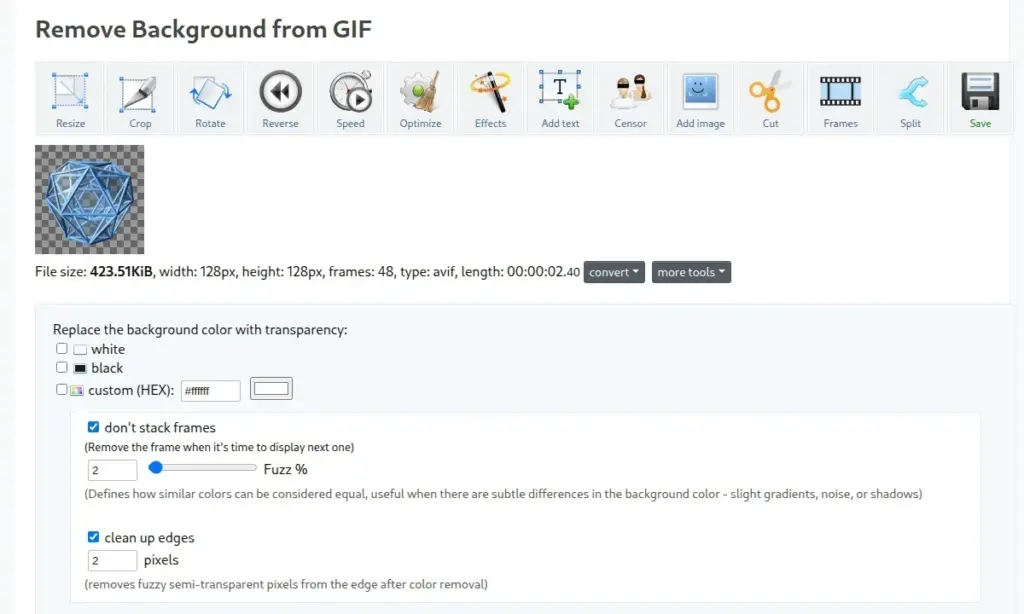
Step by Step: Remove the Background From a GIF in Ezgif
This is the route most readers need, so here is the full sequence. It takes about as long as the upload. The steps follow the layout of Ezgif’s own tool page as we read it on November 27, 2026.
- Open Ezgif’s Remove Background tool and upload your GIF, or paste a direct image URL. Keep the file under the 200 MB limit.
- Pick a method. Use Global Color Key for a plain backdrop that never appears inside the subject, Contiguous for a backdrop touching the frame edge, Chroma Key for green or blue screens and Luminance for line art or glowing effects.
- Choose the background color. Use a preset swatch for white, black, green screen, blue screen or magenta, click the preview with the eyedropper, or turn on auto-detect for the corner color.
- Set color tolerance, which Ezgif calls fuzz. Start low, then raise it until compression speckles and shadows disappear.
- Add edge refinement. Use erode to shave a pixel or two off a halo, feather to soften jagged borders and despill if a green or blue screen tints the subject.
- Check the live preview on the checkerboard, then on the dark and light backdrops. Halos show up on one of them.
- Choose the output format, then save. Pick GIF for chat apps, or APNG or WebP when you want soft edges.
Two options deserve a note. The Don’t stack frames setting clears the previous frame before drawing the next, which fixes GIFs that smear or leave trails after the cutout. The optional fill setting replaces the removed area with a solid color, which gives you a flat MP4-ready result when the destination does not accept transparency.
If the preview shows holes in the subject, switch from Global to Contiguous mode. Global mode removes every matching pixel, so a white eye or a white logo on a white backdrop disappears with the background. Contiguous mode starts at the edges and stops at the subject outline. When a gradient or shadow sits behind the subject, move to Chroma Key or raise tolerance a few points at a time.
Local processing is the other switch to know. When enabled, files stay in your browser and nothing uploads, though some features may be limited. Use it for private footage. Leave it off if the preview misbehaves, as Ezgif itself suggests.
Fixing Halos, Flicker and Broken Loops
Most failed cutouts trace back to one of three faults, and each has a quick check. Work through them in order, because fixing the halo first often makes the other two disappear.
Halo around the subject
A halo is old background color blended into the edge pixels. In a color-key tool, raise tolerance a little and erode the edges by one pixel. In an AI tool, you cannot erode, so export at the largest size, then place the file on a backdrop close to the original color. For GIF output, set the matte color to the backdrop you will use, because the one-bit edge will pick up that color.
Flicker between frames
Flicker means the mask differs from frame to frame. AI tools that treat each frame alone can wobble on hair, fur and motion blur. Canva’s page claims its per-frame method avoids flicker, ghosting and broken loops, but that is a vendor claim, so scrub through the result once at full speed. If the edge wobbles, trim the clip to the cleanest section, or switch to a color-key method on a shot with a controlled backdrop.
A loop that no longer matches
Cutting frames or changing speed can leave the first and last frames out of step. After the cutout, check the loop for a visible jump. Retime or drop one duplicate frame so the motion lands where it started. Most browser tools keep timing untouched, but you should verify rather than assume.
One more tip applies across tools. Keep an untouched copy of the original GIF. GIF is a lossy, palettized format, and each re-export rebuilds the palette and degrades gradients. Always start the next attempt from the source, never from the previous result.
Export Format: GIF, APNG, WebP or WebM With Alpha
Once the background is gone, the format decides whether the result looks clean. A GIF works everywhere, but its binary transparency leaves a ragged edge on soft subjects. APNG and animated WebP keep 8-bit alpha, and most modern browsers play them. WebM with VP9 alpha works for overlays and web pages, though support is less universal than GIF. The takeaway: choose GIF for chat apps and old email clients, and APNG or WebP for sites you control. Our export and codecs hub covers the container and codec questions around these choices.
Chat platforms and social apps often convert uploads, so test one file before you process fifty. Many convert GIF to MP4 on upload, which drops transparency entirely. If the destination does that, replace the background with a solid color in the tool and export the flattened version instead.
Render settings
| Goal | Resolution | Frame rate | Length | Export format |
|---|---|---|---|---|
| Chat emote or sticker | Match source, scale down last | Keep source rate | Short loop | GIF or animated WebP |
| Stream overlay | Match canvas | Keep source rate | Loop | APNG or WebM with alpha |
| Slide or document | Match placement | Keep source rate | Short loop | GIF |
| Social post with new backdrop | Match platform | Keep source rate | As needed | MP4 after replacing background |
Keep the source resolution and frame rate while you cut out, and resize at the end, because resizing before the mask softens the edges the tool is trying to detect. Trim dead frames first, since fewer frames mean fewer places for a mask to flicker.
From the Vipid archive. If your GIF started as a logo sting, the logo design theme lists resolution, length and frame rate for an animated logo intro up front.
Industry Data on Visual Content and GIF Skills
Three published figures show why creators keep hunting for faster ways to clean up GIFs. All three come from Canva’s own research reports, so read them as vendor data, and note their years. They are older than this guide’s tools, but they describe the demand behind the products above.
Canva’s 2024 Visual Economy Report states: “82% of surveyed business leaders reported using AI-powered tools to produce visual content in the past year.” Find it in the 2024 report. AI masking sits in that bucket, which is why Canva, Adobe Express and Kapwing lead with it.
The 2023 research also states: “92% of surveyed business leaders prioritized the ability to quickly create visual content and keep it on brand when evaluating visual communication platforms.” Canva’s newsroom publishes it. Speed and brand fit are the exact traits that separate the AI picks from the color-key picks.
Treat these numbers as demand signals and nothing more. They say nothing about quality, and none of them measures GIF cutouts. For quality, compare the tools on your own file, using a checkerboard preview or a dark background to expose halos.
Verdict and Best Pick for Three Budgets
Our ranking order is Ezgif, Canva, Adobe Express, Kapwing, CapCut, Photoshop and FFmpeg. The order rewards documented behavior, free access and control, and it penalizes thin documentation and slow workflows. A different weighting could shuffle ranks three to five, but Ezgif and FFmpeg would stay at the extremes for most readers.
Best at $0: Ezgif. Use the contiguous or chroma key mode for a flat backdrop, set the fuzz low, add a small erode to clear the halo and preview on a dark backdrop. Export APNG or WebP if soft edges matter and GIF if compatibility matters.
Best at about $10 per month: Adobe Express Premium. At $9.99 per month with no annual commitment, it costs less than Kapwing Pro at $16 on annual billing or CapCut Pro at $19.99. Choose it when the backdrop is a photo and you want a cutout plus text and templates. Cancel after the project if you do not need it again.
Best for pros and batches: Photoshop or FFmpeg. Photoshop is the choice when a single GIF has to look perfect. FFmpeg is the choice when you have hundreds of files on the same flat backdrop, and a script beats a mouse.
One last check applies to every pick. Open the result on a dark page, a light page and a checkerboard before you ship it. A halo that hides on white will show on a stream overlay, and a flickering mask will show on every loop. Fix those two issues and the format question mostly takes care of itself.
Common questions
Can I remove the background from an animated GIF for free?
Yes. Ezgif’s tool is free and handles GIF, APNG and WebP files up to its 200 MB limit. It works best on flat backgrounds. Kapwing’s Free plan also costs $0 and includes 10 credits, though credits run out fast on video work.
Why does my transparent GIF have a white halo?
GIF only supports on or off transparency, so edge pixels that blended with the old background stay opaque. Erode the edges by a pixel or two, set a matte color that matches the new backdrop, or export APNG or animated WebP instead.
Which format keeps soft edges and transparency?
APNG and animated WebP keep 8-bit alpha. WebM with VP9 can carry alpha for web overlays. Standard H.264 MP4 cannot hold transparency, so use it only after you replace the background.
Does Adobe Express remove GIF backgrounds on the free plan?
Adobe’s GIF Background Remover page ties the one-click tool to a Premium plan, priced at $9.99 per month. The Free plan includes the PNG background remover for still images. Check the current plan page before you rely on either claim.
Is Canva’s background remover free?
Canva’s help page says Background Remover is included with paid plans. Canva Free exists, but the remover is not part of it according to that page. Confirm the plan on Canva’s pricing page, since billing basis changes the displayed price.
Can I use FFmpeg to remove a background from a GIF?
Yes, with the colorkey or chromakey filter. It deletes a chosen color within a tolerance and outputs an alpha channel, which you can save as APNG, animated WebP, WebM with VP9 alpha or a GIF with a transparent palette entry. It does not detect subjects by shape.
What is the best way to remove background animated gif files with people in them?
Use an AI tool. Canva, Adobe Express, Kapwing and CapCut all promote subject detection, while Ezgif and FFmpeg only key out a color. For close edges around hair, cut out in an AI tool, then export APNG or WebP instead of GIF.
More from the Vipid blog
- GIF Into MP4: Convert It With FFmpeg or in Your Browser
- Canva Video Templates [2026]: 4 Tools, $0 to 4K Export
- Vipid intro themes resolution, length and frame rate per theme
- Promo themes product and channel promos
- Sample videos finished Vipid intros
- Vipid intro maker make a custom intro in the browser
Jonah Reyes
Jonah Reyes is the Editing & Export Editor at Vipid. He covers editing software, export settings and codecs, and the video specs of YouTube, Shorts, TikTok and Reels, plus OBS and screen recording. He builds Vipid’s spec tables from the platforms’ own documentation and re-checks them every 60 to 90 days, so the numbers in a guide match what the upload dialog actually accepts.