Convert iPhone Video to MP4 Without Losing Quality
Remux vs Re-Encode: The One Decision That Matters · What an iPhone MOV Actually Contains · Convert iPhone Video to MP4 With an FFmpeg Remux · How to Prove the Remux Changed Nothing · When the Remux Fails or the MP4 Will Not Play · HandBrake MOV to MP4: The Quality-Controlled Re-Encode · ProRes MOV to MP4: Why It Is Never Lossless · Tools Compared: FFmpeg, HandBrake, Final Cut Pro, Resolve, VLC and QuickTime · What the Documentation Says About Quality · Six Real-World Scenarios · Which Route Fits Which Use Case · Migration Guide: Moving a MOV Library to MP4 · Pros and Cons of Each Approach · Verdict: Remux First, Re-Encode Only to Fix a Real Problem · Common questions
You can convert iPhone video to MP4 without losing quality only if you never touch the picture data. A remux copies the encoded video into a new MP4 container, and the FFmpeg documentation says that with stream copy there is no quality loss. Every other route decodes the frames and compresses them again. That is a re-encode, and it always changes the pixels, even when you cannot see it.
So the choice comes down to three paths. Remux an iPhone HEVC clip when the app you send it to accepts HEVC inside MP4. Re-encode to H.264 when the destination is an older TV, a browser, a locked-down office laptop or an aging editor. Keep ProRes in MOV, because turning ProRes into H.264 or HEVC can never be lossless. FFmpeg 9.1, code-named Gauss, is the newest stable FFmpeg release, and HandBrake 1.11.2 is the current HandBrake build, so both tools below are current as of this writing.
This comparison puts the lossless remux, the quality-controlled H.264 re-encode and the ProRes conversion side by side, then maps them to the tools creators actually use. If you want the wider list of conversion methods first, Vipid already covers five ways to convert MOV to MP4. This piece goes narrower. It asks what happens to your iPhone footage in each case, and how you can prove it.
Remux vs Re-Encode: The One Decision That Matters
MOV and MP4 are containers. They hold a video stream, an audio stream and some metadata, and they do not decide how good the picture looks. The codec inside decides that. An iPhone usually writes HEVC video and AAC audio into a MOV wrapper. Moving those same streams into an MP4 wrapper is a remux. Compressing the video into a new H.264 or HEVC stream is a transcode.
The table below sets four realistic outcomes against twelve attributes. It draws on the FFmpeg documentation, Apple’s iPhone 18 Pro specifications and Apple’s ProRes support page, all checked on November 22, 2026. Entries stay qualitative where no vendor publishes a figure, because inventing a number would be worse than leaving a cell descriptive.
| Attribute | Remux (stream copy) | HEVC to H.264 MP4 | HEVC to HEVC MP4 | ProRes to H.264 MP4 |
|---|---|---|---|---|
| What changes | Container only | Container and video data | Container and video data | Container, codec and video data |
| Video bitstream | Untouched | New H.264 stream | New HEVC stream | New H.264 stream |
| Generation loss | None | Yes | Yes | Yes |
| Speed | Close to a disk copy | Slow, CPU or hardware encoder bound | Slow, CPU or hardware encoder bound | Slow, decode plus encode |
| File size vs source | About the same | Usually larger at comparable quality | Similar, depends on settings | Much smaller |
| Older device playback | Same as the source codec | Widest support | Same limits as HEVC | Widest support |
| HDR and Dolby Vision | Can survive, verify with ffprobe | Lost unless you tone map | Can survive if 10-bit is kept | Lost unless you tone map |
| Audio | Copied, or AAC re-encode | Usually AAC | Usually AAC | Usually AAC |
| Extra data tracks | Dropped by selective mapping | Dropped | Dropped | Dropped |
| Metadata (date, location) | Partly kept, tool dependent | Tool dependent | Tool dependent | Tool dependent |
| Editing feel | Same as source | Easier on older editors | Same as HEVC source | Lighter on disk, harder to scrub than ProRes |
| Fails when | MP4 rejects a stream | Source cannot be decoded | Encoder missing or tag wrong | Source profile unsupported |
Read the table as a rule, not a preference. If the target app plays the existing codec, remux. If it does not, you have no lossless option and the job becomes picking the least damaging re-encode. The rest of this article follows that order, starting with what an iPhone file really holds.
What an iPhone MOV Actually Contains
Apple’s current lineup carries the iPhone 18 Pro and iPhone 18 Pro Max, which reached stores worldwide on September 18, 2026 after pre-orders opened on September 12. Apple’s iPhone 18 Pro specifications list HEVC among the recording and playback formats, and playback support on the spec page also covers H.264, AV1 and ProRes. The same page reportedly lists ProRes and ProRes RAW recording too, with ProRes up to 4K at 120 fps when you record to an external drive.
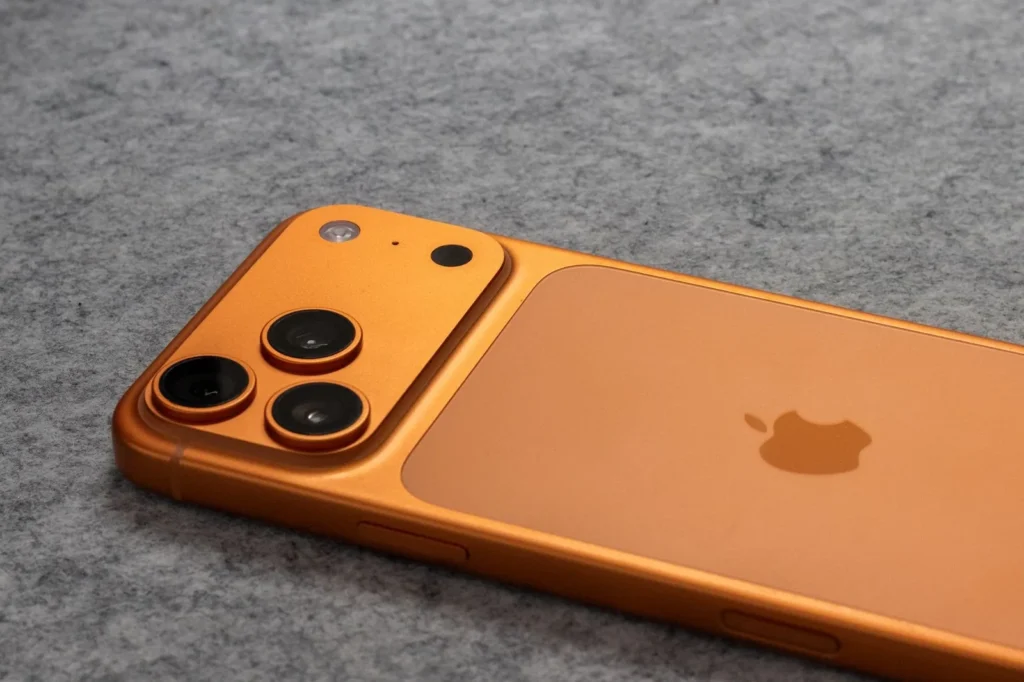
That mix matters because a file called IMG_0001.MOV can hold very different things. A default clip is HEVC video with AAC audio. A clip shot in the Most Compatible setting holds H.264 instead. A ProRes clip holds intraframe ProRes video and uncompressed audio. A Dolby Vision clip holds HEVC with HDR metadata. The extension tells you none of this, so the first step in any conversion is to look inside.
Apple’s Camera settings expose two names for the common cases. High Efficiency selects HEVC, and Most Compatible selects H.264 when ProRes is turned off, according to a Camera Times explainer from October 2026. If you shoot for a client who never installs codec extensions, switching the camera to Most Compatible removes the conversion step entirely. You trade smaller files for a wider audience.
Beyond the picture and sound, iPhone MOV files often carry extra tracks. Typical examples are a timecode track and timed-metadata streams that describe camera motion. MP4 muxers frequently refuse these, which is why a blunt remux command sometimes fails with a message about an unknown codec tag. You fix it by naming the streams you want instead of copying everything. The FFmpeg section below shows how.
The container question itself is covered in Vipid’s MP4 vs MOV breakdown. For this article, the practical point is narrower. Before you convert anything, find out which codec is inside. The ffprobe command in the verification section does that in one line.
Skip the conversion: fix it at the source
The cheapest conversion is the one you never run. Two iPhone settings can remove the problem before it starts. The Camera format choice decides whether new clips are HEVC or H.264. The Photos transfer option decides whether files copied to a Mac or PC keep their original format or get converted to a compatible one. The exact menu wording shifts between iOS versions, so check your own device.
There is a catch. Switching the camera to H.264 changes what you record from that day on. It does nothing for the clips already on the phone, and it forfeits the efficiency of HEVC. For a shoot you know will go to a Windows-only client, it is a smart default. For an archive you plan to keep for years, record in HEVC and convert later with a remux.
Convert iPhone Video to MP4 With an FFmpeg Remux
FFmpeg is the right tool for a true remux because it exposes stream copy directly. It is open-source software with no official paid plans. Release coverage dates the 9.1 release, code-named Gauss, to November 20, 2026, and the project’s own news list shows the earlier 8.1 release, code-named Hoare, on March 16, 2026. Any recent build handles the commands below.
The safest command for an iPhone clip maps the first video stream and the first audio stream, copies both and adds the HEVC tag that Apple players expect:
ffmpeg -i input.mov -map 0:v:0 -map 0:a:0 -c copy -tag:v hvc1 -movflags +faststart output.mp4Each part earns its place. The two map options select only the picture and the sound, which skips the data tracks that trip up MP4. The copy option switches off all encoding. The hvc1 tag labels the HEVC stream in the way QuickTime, Safari and iOS read it. The faststart flag moves the index to the front of the file so a web player starts before the download ends.
The shorter command and its catch
You will see a shorter version in many guides:
ffmpeg -i input.mov -map 0 -c copy output.mp4It works on simple clips. It fails or produces odd files when the source holds a data stream the MP4 muxer cannot store. When the longer command succeeds and the shorter one errors out, you have found an extra track. Use the selective version as your default and keep the short one for files you have already inspected.
Render settings for a remux
| Setting | Value | Why |
|---|---|---|
| Resolution | Same as source | Stream copy cannot resize |
| Frame rate | Same as source | No re-timing happens |
| Length | Same as source | Trimming with -ss and -to cuts on keyframes only |
| Video | Copy | Keeps the HEVC bitstream untouched |
| Audio | Copy | Keeps AAC as recorded |
| Container | MP4 with faststart | Web and mobile start playback sooner |
| Tag | hvc1 | Needed for Apple players when the source is HEVC |
One more point on trimming. Cutting inside a stream-copy job can only start on a keyframe, so the first frames may be missing or frozen. If you need a frame-accurate cut, you must re-encode at least that portion. Remux is for changing the wrapper, not for editing.
Speed is the quiet bonus. With nothing to decode or compress, the job is bound by how fast your drive reads and writes, so a long clip finishes in the time a re-encode would spend on its first few seconds. That also means a laptop stays cool and a batch of hundreds of clips becomes a coffee break instead of an overnight render.
How to Prove the Remux Changed Nothing
Claiming a conversion is lossless and showing it are different things. Two short checks give you evidence. The first confirms what is inside each file. The second compares the video data itself.
ffprobe -v error -show_entries stream=index,codec_type,codec_name,codec_tag_string,profile,pix_fmt -of compact input.mov
ffprobe -v error -show_entries stream=index,codec_type,codec_name,codec_tag_string,profile,pix_fmt -of compact output.mp4
Run it on both files and compare the lines. The video codec name, profile and pixel format should match exactly. The codec tag string should read hvc1 on the MP4 for an HEVC clip. If you see an extra stream in the MOV that is missing in the MP4, that is the data track you chose to leave behind.
For the second check, hash the video packets of each file:
ffmpeg -v error -i input.mov -map 0:v:0 -c copy -f streamhash -hash md5 -
ffmpeg -v error -i output.mp4 -map 0:v:0 -c copy -f streamhash -hash md5 -
Matching hashes mean the compressed video packets are identical, so the picture is identical after decoding. This hash covers packet data only. It does not prove that timestamps, color tags or metadata survived, which is why the ffprobe comparison comes first.
Do not try this on a re-encoded file. A transcode produces new packets by design, so the hashes will always differ, and a visual check or a metric such as SSIM or PSNR is the only comparison left. Those metrics score similarity. They never show zero loss. Treat any converter that promises a lossless H.264 result from HEVC footage with suspicion until it passes the same test.
When the Remux Fails or the MP4 Will Not Play
A successful FFmpeg run does not guarantee a playable file. Dolby Vision signaling, audio formats and subtitle tracks are all places where an MP4 can look fine and still misbehave on a target player. The failure modes below cover most of what creators report.
| Symptom | Likely cause | Fix |
|---|---|---|
| FFmpeg errors on a stream during the copy | Data or timecode track the MP4 muxer rejects | Map only 0:v:0 and 0:a:0 |
| MP4 plays on Windows but not in QuickTime or Safari | Missing hvc1 tag on HEVC | Add -tag:v hvc1 and remux again |
| Video plays with no sound | Audio codec not accepted in MP4 | Copy video, re-encode audio to AAC |
| Black frames or a freeze at the start | Trim cut off the keyframe | Remux without trimming, then cut in an editor |
| Colors look flat or washed out | HDR clip played without HDR support | Tone map to SDR or play on an HDR display |
| Web player stalls before starting | Index at the end of the file | Add -movflags +faststart |
| Older TV or office PC shows nothing | HEVC decoder not installed | Re-encode to H.264 |
The Dolby Vision row deserves a second look. FFmpeg’s development changelog reportedly lists a bitstream filter for splitting multilayer Dolby Vision HEVC, and project activity from late October and early November 2026 points to ongoing work on raw HEVC and Dolby Vision metadata. Treat HDR iPhone clips as the case most likely to need a second pass. After any remux, run ffprobe and play the result on the device that matters.
The cure when one stream causes the trouble is selective. Copy what works and re-encode only the incompatible stream. A video that copies cleanly, paired with an audio track converted to AAC, keeps the picture lossless and still produces a valid MP4. That hybrid is underused and worth knowing.
Codec standards also set limits you cannot talk your way around. HEVC is specified as H.265 by the ITU, and the H.265 recommendation defines the bitstream, not the container. Which players can read it inside MP4 depends on each player’s own implementation. That is why compatibility problems belong to the destination, not the file.
HandBrake MOV to MP4: The Quality-Controlled Re-Encode
HandBrake describes itself as an open-source video transcoder, and 1.11.2 is the version its site currently advertises. For a converter, a settled release line like that is a good sign.
For HandBrake MOV to MP4 jobs, one fact shapes everything. HandBrake decodes your video and encodes it again. It does not copy the video stream into a new wrapper. That makes it the right tool when you must re-encode and the wrong tool when you hoped for a lossless container swap. Use FFmpeg for the second case.
When a re-encode is the correct answer, HandBrake gives you a graphical way to do it well. Choose the MP4 container, set the video encoder to H.264, pick a constant quality target instead of a bitrate, keep the source frame rate and set the audio to AAC. A constant quality target spends bits where the picture needs them and avoids the starved-bitrate look that makes re-encodes smear.
FFmpeg equivalent for H.264 delivery
ffmpeg -i input.mov -map 0:v:0 -map 0:a:0 -c:v libx264 -preset slow -crf 18 -pix_fmt yuv420p -c:a aac -b:a 192k -movflags +faststart output.mp4The CRF 18 and preset slow pair is a widely used starting point for near-transparent H.264, not a vendor-published figure. Raise CRF to shrink the file and lower it to protect fine detail. Test on a short, busy clip first. Foliage, confetti and screen text expose weak settings quickly.
HDR clips need one more step. The command above does not tone map, so an HDR iPhone clip will come out flat in SDR H.264. A common recipe adds a filter chain that converts to linear light, maps the colors to BT.709 and tone maps before the encode:
ffmpeg -i input.mov -map 0:v:0 -map 0:a:0 -vf "zscale=t=linear:npl=100,format=gbrpf32le,zscale=p=bt709,tonemap=tonemap=hable:desat=0,zscale=t=bt709:m=bt709:r=tv,format=yuv420p" -c:v libx264 -preset slow -crf 18 -c:a aac -b:a 192k -movflags +faststart output.mp4That chain needs an FFmpeg build with the zscale filter, and the look is a matter of taste. Compare the result with the original on a normal monitor before you batch anything. If the grade looks wrong, keep the HDR HEVC as your main file and treat the SDR copy as a fallback.
Render settings for an H.264 delivery file
| Setting | Starting value | Note |
|---|---|---|
| Resolution | Match source, or 1920×1080 for a lighter file | Downscaling is a second loss on top of the re-encode |
| Frame rate | Same as source | Do not convert 30 fps to 24 fps for fun |
| Codec | H.264, High profile, yuv420p | Widest hardware support |
| Quality | CRF 18 (FFmpeg) or an equivalent constant quality (HandBrake) | Editor’s starting point |
| Audio | AAC, 192 kbps stereo | Fine for speech and music beds |
| Container | MP4 with faststart | Required for quick web start |
Resolution, length and frame rate also matter when your clip becomes an intro or sting. Vipid’s intro themes list those three figures for each design, which makes a handy reference when you are matching an export to a template.
Expect the output file to grow when you go from HEVC to H.264 at the same visual quality. That is the cost of compatibility, and it is why you should not re-encode a file that already plays where it needs to. If size is the real problem, a second HEVC encode at a higher CRF value shrinks the file, but it adds another generation of loss on top of footage that is already compressed.
ProRes MOV to MP4: Why It Is Never Lossless
ProRes exists to be edited. Apple’s Final Cut Pro documentation on Apple ProRes lists the family as ProRes 4444 XQ, ProRes 4444, ProRes 422 HQ, ProRes 422, ProRes 422 LT and ProRes 422 Proxy. Each step down the list trades data rate for size, and Proxy is meant for offline editing. The codec uses intraframe compression, so every frame stands alone and scrubbing stays smooth.
H.264 and HEVC work differently. They compress across groups of frames, which makes delivery files far smaller and long-GOP footage harder on an editor. Moving from the first family to the second is a codec change, so a re-encode is unavoidable and the result cannot match the original bit for bit. ProRes to H.264 usually produces a much smaller file. HEVC to H.264 generally produces a larger one.
A few tools will write ProRes into an MP4 wrapper, so a remux is technically possible in some workflows. It is rarely wise. MOV remains the customary and more interoperable home for ProRes, and many players and editors do not expect it inside MP4. A file that opens in one app and fails in another is worse than a clean MOV.
The workflow that works is simple. Keep the ProRes MOV as your master and render an H.264 or HEVC MP4 as the delivery copy. The master protects you when a client asks for a recut or a new aspect ratio. The delivery copy is what you upload, email or embed.
On the Mac side, current hardware handles the heavy lifting. Apple introduced the MacBook Pro with M5 Pro and M5 Max chips and describes M5 Pro support for multiple streams of 8K ProRes. Final Cut Pro 12.4 and Compressor 5.4 are the current releases, and Final Cut Camera gained iPhone 18 Pro variable aperture plus Cinematic effects for ProRes and Apple Log footage. If you shoot ProRes on an iPhone, you are already inside Apple’s tooling for the master.
When you do transcode ProRes down, use a quality-based setting rather than a low fixed bitrate. A starved bitrate on a high-quality master wastes the quality you paid to capture. Also check color. ProRes footage shot in Apple Log needs a conversion LUT or color management before an SDR H.264 export, or it will look gray.
Tools Compared: FFmpeg, HandBrake, Final Cut Pro, Resolve, VLC and QuickTime
Pick the tool by the job. A lossless wrapper swap needs a tool with stream copy. A delivery file needs a good encoder. A one-off needs the app you already own. The table sorts the common choices by what they can do for a MOV that is headed to MP4.
| Tool | Current version (checked November 22, 2026) | True remux | Re-encode to H.264 MP4 | Interface | Best use |
|---|---|---|---|---|---|
| FFmpeg | 9.1 (Gauss), released November 20, 2026 | Yes, with stream copy | Yes | Command line | Lossless wrapper swap, batch jobs |
| HandBrake | 1.11.2 | No, video is always re-encoded | Yes | Graphical, plus presets | Compatibility copies with quality control |
| Final Cut Pro | 12.4 (September 29, 2026) | Not a remux tool | Yes, through its share and export options | Graphical editor | Delivery from an edit |
| Compressor | 5.4 (September 29, 2026) | Not a remux tool | Yes | Graphical batch encoder | Batch exports on a Mac |
| DaVinci Resolve | Current release | Not a remux tool | Yes, from the Deliver page | Graphical editor | Delivery from an edit |
| VLC | Current release | Not its design goal | Yes, through convert and save | Graphical player | Quick one-off on a machine that has it |
| QuickTime Player | Bundled with macOS | No | Limited export options | Graphical player | Playing and trimming, not format control |
| Online converters | Varies | Rarely, check the settings | Yes | Browser | Small, non-sensitive files only |
Online converters deserve a caution. Many upload your file to a server, apply their own encoder settings and cap the size or length on free tiers. For personal footage or client work under contract, a local tool avoids both the privacy question and the unexplained recompression.
Editors such as Final Cut Pro and DaVinci Resolve belong in the table for one reason. If you are already cutting the footage, exporting an H.264 MP4 from the timeline is a re-encode you were going to run anyway. Converting first and importing second adds a pointless extra generation. Import the original, edit, then export once.
Pricing and licensing
| Tool | Price | Source and date |
|---|---|---|
| FFmpeg | $0, no official paid plans | FFmpeg project pages, November 22, 2026 |
| HandBrake | Open source | handbrake.fr, November 22, 2026 |
| Final Cut Pro | $299.99 one-time (US) | Apple, listing dated November 19, 2026 |
| Compressor | $49.99 one-time (US) | Apple, listing dated November 19, 2026 |
| Apple Creator Studio | $12.99 per month or $129 per year (US, new subscribers) | Apple newsroom, October 27, 2026 |
| DaVinci Resolve | Free edition plus a paid Studio edition, see the vendor | Blackmagic Design |
| VLC | Free | VideoLAN |
| QuickTime Player | Included with macOS | Apple |
The cheapest correct answer is also the most capable one here. A creator who converts iPhone clips twice a month spends $0 and gets a bit-exact remux from FFmpeg, then reaches for HandBrake only when compatibility forces a re-encode. Paid Apple tools make sense when you already edit in them, not as converters.
What the Documentation Says About Quality
Three sources anchor the claims in this article. The FFmpeg documentation defines stream copy and transcoding. Apple’s iPhone 18 Pro specifications and Final Cut Pro documentation define what the phone records and what ProRes is. The ITU recommendation defines HEVC itself. No vendor publishes a MOV-to-MP4 speed benchmark, so this article gives no speed numbers. The documentation does give clear statements about quality, and they read best in the maintainers’ own words.
On what a remux costs you, the FFmpeg documentation says: “Since there is no decoding or encoding, it is very fast and there is no quality loss.” That sentence explains both the speed and the fidelity of the stream-copy route.
On the opposite case, the same FFmpeg documentation defines it plainly: “Transcoding is the process of decoding a stream and then encoding it again.” It adds that the encoding process is typically lossy, and in its words it “degrades stream quality to make the output smaller.”
The documentation then gives its recommendation: “Since encoding tends to be computationally expensive and in most cases degrades the stream quality (i.e. it is lossy), you should only transcode when you need to and perform streamcopy otherwise.” That is the rule behind this whole comparison, stated by the people who write the tool.
Apple’s side of the evidence adds the constraint. Apple’s published pages confirm HEVC, H.264 and ProRes as current iPhone formats, but the retrieved pages do not state that every HEVC or ProRes MOV can be remuxed losslessly into MP4. That gap is why verification, not assumption, belongs in your workflow. Apple documents what the camera writes. It does not promise that every downstream MP4 player accepts it.
FFmpeg’s 9.1 release coverage mentions an improved AAC encoder, which matters for the audio half of a re-encode because MP4 audio is almost always AAC. Coverage of the release also describes new formats, hardware-acceleration changes and removed legacy options. Treat these as release-note highlights from trade press and the project changelog, not as measured quality gains.
Six Real-World Scenarios
The cases below show how the specs translate into decisions. They describe how each workflow behaves according to the documentation, not a lab run.
1. A YouTuber editing on an older Windows PC
The creator shoots on an iPhone 18 Pro in the default High Efficiency setting. The editor on a five-year-old desktop stutters on HEVC. A remux will not help, because the editor’s trouble is decoding HEVC, not the wrapper. The right answer is a re-encode to H.264 for editing, or proxy files, while the original HEVC stays on disk as the master.
2. A streamer clipping a highlight for social posts
The clip is 45 seconds of iPhone footage headed to a platform that will re-encode it anyway. Upload the highest-quality file you have. A remux to MP4 with faststart is enough, and an extra re-encode before upload only adds a loss the platform will compound.
3. A studio receiving ProRes from a client
The client hands over ProRes MOV files recorded with an external drive. The studio keeps them untouched as masters and renders an H.264 MP4 review copy at a lower size. The review copy goes to the client’s phone. The master never leaves the archive.
4. A podcaster archiving a year of iPhone video
Hundreds of HEVC clips need to sit in a neutral format. A batch remux with the hvc1 tag keeps quality identical and takes little time per file. A spot check with the hash command on a handful of files gives confidence across the batch.
5. A small business emailing a product demo
Recipients use mixed Windows laptops, some locked down. HEVC may not play. The safe path is an H.264 MP4 with AAC audio, a modest resolution and faststart. Compatibility beats purity when the audience is unknown.
6. A creator posting an HDR clip to the web
The iPhone clip carries HDR. Remuxed into MP4 it stays HDR, but a viewer on a standard display may see washed-out color. The creator either keeps HEVC with HDR for capable displays or tone maps to an SDR H.264 copy. Making both versions costs little and avoids a bad first impression.
Which Route Fits Which Use Case
Match the route to the destination, not to a habit. The list below gives a first pick for the six situations creators hit most.
- Uploading to YouTube or another platform that re-encodes: remux to MP4 with faststart and upload the best file you have.
- Sending to a client on unknown hardware: re-encode to H.264 MP4 with AAC audio.
- Archiving iPhone footage: remux with hvc1 and keep the MOV originals until a hash check passes.
- Editing in an older NLE: make an H.264 or proxy copy and keep the original as master.
- Handling ProRes: keep MOV as the master and render an MP4 delivery copy.
- Playing on an older TV or media box: re-encode to H.264 at 1920×1080 with a constant-quality setting.
If you build your own intros and stings, the same logic applies. Render a high-quality master, then export a delivery MP4. A design such as Vipid’s animated logo intro theme shows the kind of short branded clip where a clean H.264 MP4 is the usual delivery format.
Migration Guide: Moving a MOV Library to MP4
A library move goes wrong when people convert first and inspect later. Follow this order and you can undo any step.
- Inventory the codecs. Run ffprobe across the folder and list the video codec, profile and pixel format of every file. Group them into HEVC, H.264 and ProRes.
- Decide per group. HEVC and H.264 files go to the remux queue if the destination plays them. ProRes files stay as MOV masters. Anything headed to a legacy device goes to a re-encode queue.
- Test on three files. Pick a short clip, a long clip and an HDR clip. Convert each and play the results on the real target devices.
- Run the remux batch. Use the script below, which never overwrites existing files.
- Verify. Compare ffprobe output and the packet hashes on a sample. Open a few files in the app you actually use.
- Re-encode the stragglers. Files that failed the remux or the playback test get the H.264 recipe from the HandBrake section.
- Keep the originals. Hold the MOV files until you have lived with the MP4 versions for a few weeks. Storage is cheaper than reshooting.
- Update embeds and links. If a site or project references the old filenames, repoint them and check the web player starts quickly.
mkdir -p mp4
for f in *.[Mm][Oo][Vv]
do
  ffmpeg -n -i "$f" -map 0:v:0 -map 0:a:0 -c copy -tag:v hvc1 -movflags +faststart "mp4/${f%.*}.mp4"
done
This script assumes HEVC video. For H.264 sources, drop the hvc1 tag, because it only applies to HEVC. A file that fails will print an error and the loop moves on, so scan the output for failures when it ends. The uppercase and lowercase pattern catches the capital MOV extension that iPhones write.
Mind your metadata. Remuxing keeps the creation date in most cases, but location and camera details can drop depending on the muxer. If those fields matter for your archive, export them to a sidecar file with a metadata tool before you retire the originals. Do that check on your three test files, not after the whole library is converted.
For wider background on codecs, containers and delivery settings, Vipid’s export and codecs section collects the related guides in one place.
Pros and Cons of Each Approach
Remux with FFmpeg
- Pros: no quality loss, very fast, small risk of surprises, free, works in batches.
- Cons: command-line only, cannot fix codec compatibility, can fail on extra data tracks, HDR metadata needs a check.
Re-encode with HandBrake or FFmpeg to H.264
- Pros: plays almost everywhere, lets you resize and trim precisely, HandBrake offers a friendly interface and presets.
- Cons: always lossy, slower, files often grow compared with iPhone HEVC, HDR needs tone mapping.
Re-encode to HEVC MP4
- Pros: keeps the smaller-file advantage, can retain 10-bit and HDR.
- Cons: still lossy, same compatibility limits as the source, adds generation loss on top of an already compressed HEVC file.
ProRes to MP4
- Pros: turns very large masters into shareable files.
- Cons: cannot be lossless, loses intraframe editing comfort, risks color shifts if Apple Log is not managed.
Verdict: Remux First, Re-Encode Only to Fix a Real Problem
For HEVC or H.264 iPhone clips headed somewhere that already plays them, the FFmpeg remux wins on every axis that matters. It keeps the original video data, finishes quickly and costs $0. The command to use is the selective-map version with the hvc1 tag and faststart.
For clips headed to unknown or older hardware, accept the loss and re-encode to H.264 MP4 with a constant-quality setting. HandBrake 1.11.2 is the friendliest way to do that, and FFmpeg 9.1 does the same job on the command line. Always keep the original.
For ProRes, there is no lossless MOV to MP4 conversion. Keep the MOV, make an MP4 copy and label it as a delivery file. That rule is not a style choice. It follows from how the codecs work, and Apple’s own documentation, which presents ProRes as an editing-oriented family, supports it.
| Your situation | Route | Tool | Lossless? |
|---|---|---|---|
| HEVC iPhone clip, destination plays HEVC | Remux with hvc1 tag | FFmpeg 9.1 | Yes |
| H.264 iPhone clip (Most Compatible) | Remux, no hvc1 tag | FFmpeg 9.1 | Yes |
| HEVC clip, destination is older hardware | Re-encode to H.264 MP4 | HandBrake 1.11.2 or FFmpeg | No |
| HDR clip, destination is an SDR display | Tone map, then re-encode | FFmpeg with zscale | No |
| ProRes master | Keep MOV, make an MP4 copy | FFmpeg, HandBrake or Compressor | No |
| Clip you are about to edit | Import the original, export once | Your editor | No, one generation |
The takeaway: decide by destination, check with ffprobe, and treat any claim of a lossless conversion as unproven until the hashes match.
Common questions
Can I convert iPhone video to MP4 without losing quality?
Yes, but only by remuxing. If the MOV holds HEVC or H.264 video and AAC audio, FFmpeg can copy those streams into an MP4 container with no re-encoding. Any conversion that changes the codec, such as HEVC to H.264, is a re-encode and cannot be lossless.
Is converting MOV to MP4 the same as changing the file extension?
No. Renaming the extension leaves the container structure as MOV, and many apps will refuse the file or play it unpredictably. A real conversion rewrites the container, even when it copies the video data untouched.
Does HandBrake convert MOV to MP4 without losing quality?
Not strictly. HandBrake re-encodes the video, so the output is a new compressed stream. A high constant-quality setting can look very close to the original, but it is not a bit-exact copy. For a true lossless container swap, use FFmpeg stream copy.
Why does my remuxed MP4 not play in QuickTime?
The most common cause is a missing hvc1 tag on an HEVC stream. Run the remux again with -tag:v hvc1. If the clip carries Dolby Vision, also check it with ffprobe and test on the playback device.
Should I convert ProRes MOV to MP4?
Only for delivery. ProRes to H.264 or HEVC is a re-encode and always loses quality compared with the master. Keep the ProRes MOV as your archive and create the MP4 as a separate shareable copy.
Will an MP4 be smaller than the iPhone MOV?
A remuxed MP4 is about the same size as the source. An H.264 re-encode of HEVC footage usually comes out larger at comparable quality. A re-encode of ProRes comes out much smaller.
What is the newest FFmpeg version for MOV to MP4 jobs?
FFmpeg 9.1, code-named Gauss, released on November 20, 2026. The stream-copy method in this article works the same way in earlier releases, and it is the documented approach for changing a container without re-encoding.
Is it safe to use an online converter for iPhone videos?
It depends on the footage. Online tools upload your file to a server and apply their own encoder settings, and free tiers often cap size or length. For private or client footage, a local tool such as FFmpeg or HandBrake keeps the file on your machine.
- Vipid intro themes resolution, length and frame rate per theme
- Promo themes product and channel promos
- Sample videos finished Vipid intros
- Vipid intro maker make a custom intro in the browser
Jonah Reyes
Jonah Reyes is the Editing & Export Editor at Vipid. He covers editing software, export settings and codecs, and the video specs of YouTube, Shorts, TikTok and Reels, plus OBS and screen recording. He builds Vipid’s spec tables from the platforms’ own documentation and re-checks them every 60 to 90 days, so the numbers in a guide match what the upload dialog actually accepts.