Canva Image to Video AI vs Kling 4.0 and Veo 3.1
Short answer: when Canva image to video AI is enough · What Canva’s Image to Video actually does · The three dedicated generators in November 2026 · Image to video AI specs compared: Canva vs Kling, Veo and Seedance · Pricing: what one animated photo costs · Benchmarks and what they tell you about photo animation · Motion control: prompts, keyframes and references · Faces, logos and product photos: where each option struggles · Audio, length and aspect ratio for Shorts, Reels and YouTube · Five real-world examples of what each route produces · Use-case recommendations · Migration guide: moving a photo animation between Canva and a generator · Pros and cons of each option · Verdict: Canva for accents, dedicated models for the hero shot · Questions creators ask
Canva’s Image to Video turns one photo into a silent, fixed 5-second clip, and that limit shapes almost everything else in this comparison. Canva’s Help Center says the feature animates an existing image with subtle motion, keeps your original aspect ratio and adds no audio. Kling 4.0, Veo 3.1 and Seedance 2.5 sell something different: longer takes, keyframes, reference inputs and sound.
Canva Research has said that the company has its own image-to-video model, built first on open-weight models and then improved with proprietary data, according to the Canva Research newsroom page. Canva has not named that model on any page checked for this article. None of those pages says Kling, Veo or Seedance runs underneath. So you are weighing a design-editor feature against three dedicated generators, not four equal peers.
This guide compares what each option shows on its maker’s own pages as of November 22, 2026: clip length, resolution, audio, controls, price and the failure modes the vendors admit. If you only want the free-tier angle, the earlier piece on free image to video AI with Kling 4.0 and Veo 3.1 covers it. Here the question is narrower. Is Canva image to video AI enough for your clip, or does the job need a dedicated generator?
Short answer: when Canva image to video AI is enough
Use Canva when you want 5 seconds of subtle, silent motion inside a design you will finish in Canva anyway. Move to Kling 4.0, Veo 3.1 or Seedance 2.5 when you need a longer take, sound, keyframe control, 4K output or a face that moves convincingly.
That split comes straight from Canva’s own limits. The Help Center lists fixed 5-second clips, no audio in the generated video, weak support for animated faces, no transparent backgrounds and no premium stock media as inputs. Each of those is a place where a dedicated generator has a documented answer. For a ranked view of the whole field, see the site’s best image to video AI ranking.
Pick Canva if three things are true:
- The clip is a 5-second accent, such as a product photo that drifts or a poster that breathes.
- You will add music, text and brand elements in the same editor.
- You already have a Canva account and a monthly AI allowance left.
Pick a dedicated generator if any one of these is true:
- You need more than 5 seconds from one image.
- You want the model to hit an end frame, not just drift from the start frame.
- You need native audio, lip-sync or 4K delivery.
- The photo contains a person whose face has to move naturally.
Most creators end up using both. Canva handles the cheap, fast, on-brand accent. A paid generator handles the one hero shot per video that justifies a few retries. The rest of this article puts numbers on that split, and flags every place where the evidence is thin.
What Canva’s Image to Video actually does
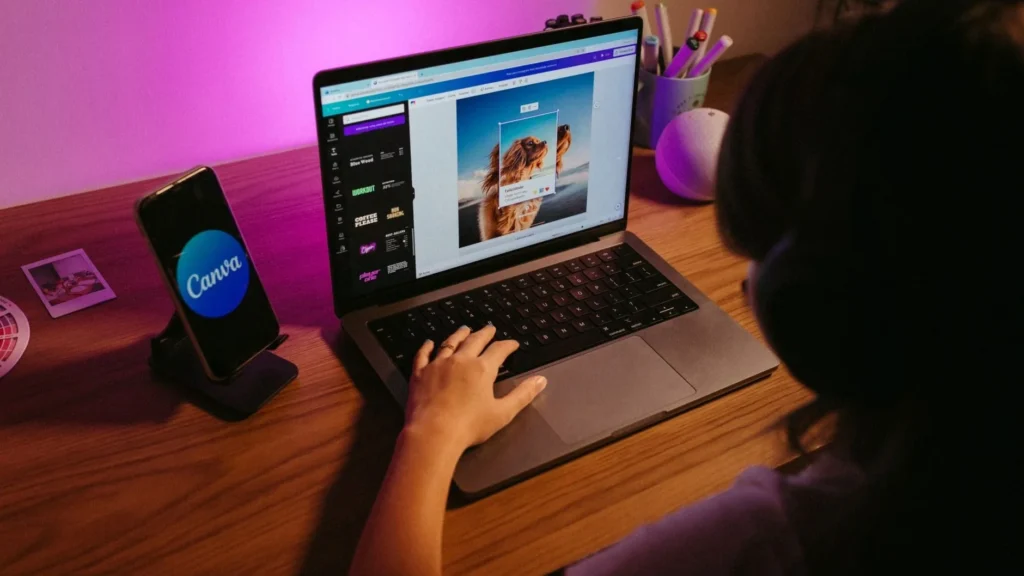
Canva’s Help Center describes Image to Video as a way to bring static images to life with subtle, AI-generated motion. You open a design, select an image, choose Edit, open Tools and pick Image to Video. The help article shows the same flow on desktop and mobile. Then you choose between two modes. Smart applies default motion automatically. Custom lets you describe the motion in words.
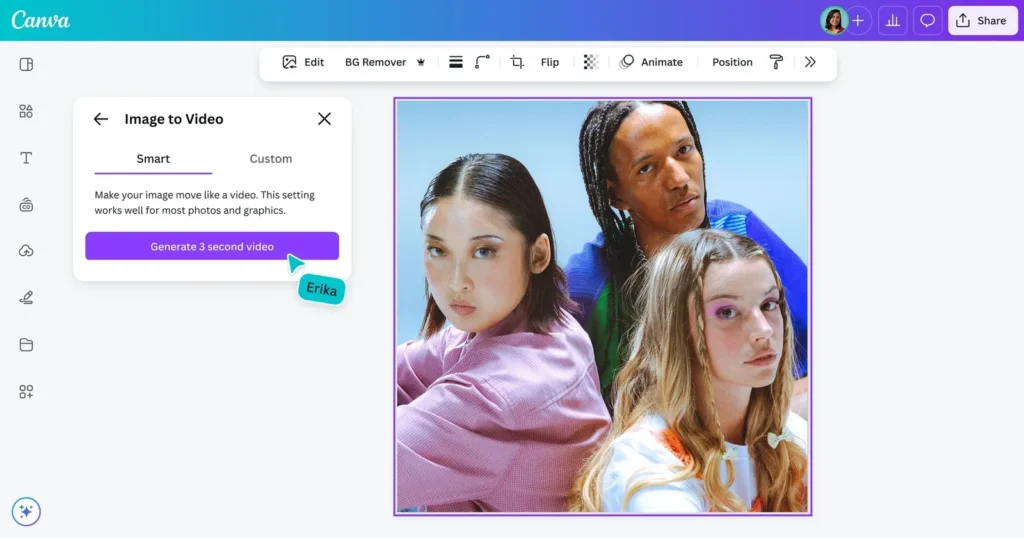
The button then reads Generate 5 second video. The clip drops into your editor timeline, and you can hit Generate again for a different result. Canva also says the feature is separate from Magic Media, which makes videos from text prompts. Image to Video only animates an image you already have.
The input rules matter more than the interface. Your final video keeps the original layout and aspect ratio, so Canva does not crop a 4:5 photo into 16:9 for you. It also asks you to avoid transparent backgrounds and says images with them are not supported.
Limits that Canva states in its own help article:
- Clips are 5 seconds, and some generations may currently come out as 3-second clips instead.
- Premium media such as stock photos is not supported as an input.
- Face animation is not fully supported, so facial motion may not render as expected.
- Generated videos carry no audio. You add music or effects from Canva’s audio library or upload your own.
- The feature is not available in China.
- It is off by default for Canva Education student accounts, and school administrators can switch it on.
On cost, Canva says the Free plan can use Image to Video as long as you have monthly AI allowance left. Once you hit the cap, access resets the next month or you upgrade. Canva also calls it a premium feature that counts toward your AI usage. The pages checked do not publish a per-clip price or the size of the allowance, so any number you read elsewhere is unconfirmed here.
The product context helps explain the shape of the feature. Canva introduced Canva AI 2.0 on April 16, 2026, and it announced its Craft image model on October 22 and its Brush design-editing model on October 29. Those launches point to a company building its own stack inside a design editor. A short, safe, low-cost clip fits that strategy far better than a 30-second cinematic take.
One more point for anyone avoiding accounts. Canva needs a login, so it is not a fit if you want to animate a photo without signing up. The site’s guide to animating a photo with AI without signing up covers the routes that skip registration.
The three dedicated generators in November 2026
Three model lines matter for a photo-to-video comparison right now. Each maker’s current flagship is the one to judge, and older versions only count as predecessors.
Kling 4.0. Kling’s own site presents Kling 4.0 as its flagship video model, with native 4K, 10-bit HDR, videos up to 30 seconds, multiple keyframes and an omni reference feature. Kling 4.0 Flash sits beside it as the lower-cost, faster variant. Kling’s developer pricing page lists Kling 4.0 and Kling 4.0 Flash as current API models. Kling 3.0 and 3.0 Omni reportedly remain in the lineup but no longer lead it.
Veo 3.1. Google DeepMind’s Veo page lists Veo 3.1 as the current flagship family, and the family now includes Veo 3.1 Fast and Veo 3.1 Lite. Veo 3.1 Lite, announced March 31, 2026, supports text-to-video and image-to-video in 16:9 and 9:16 at 720p and 1080p, with 4-, 6- or 8-second clips. According to Google’s announcement, it costs less than half of Veo 3.1 Fast. On January 13, 2026, Google added Ingredients to Video, native vertical output and 1080p and 4K upscaling in selected products.
Seedance 2.5. ByteDance Seed lists Seedance 2.5 on its site with a post titled One-take Creation, Flexible Referencing. Third-party comparisons from November report clips from 4 to 30 seconds at up to 1080p. ByteDance’s own pages do not show a consumer plan or price sheet, so most access runs through developer platforms. Runway’s developer site, for example, lists Seedance 2.0 as an API model. Reports of per-second rates there disagree with each other, so this article prints no Runway number for it. One report also mentions a Seedance 2.5 Flash variant from November 12, and that stays an unconfirmed rumor.
Google also runs a separate model that creators confuse with Veo. Gemini Omni Flash is its own video model, not a renamed Veo, and Google covers it on its developer blog. One report lists Gemini Omni 1.2 Flash at $0.07 per second for 720p after a 30 percent cut from the 1.1 version, but that is a single-source figure, so treat it as a lead and not a price. The site’s Seedance 2.5 vs Kling 4.0 vs Gemini Omni comparison goes deeper on clip length.
No official page checked announces a successor to any of these three. Claims about a future Seedance 3 or other next-generation models stay unverified, so nothing here treats them as available.
Image to video AI specs compared: Canva vs Kling, Veo and Seedance
The table below uses only figures shown on the makers’ own pages or reported in at least two sources. Where a spec is missing from the pages checked, the cell says so instead of guessing.
| Spec | Canva Image to Video | Kling 4.0 | Veo 3.1 family | Seedance 2.5 |
|---|---|---|---|---|
| Where you use it | Canva editor, inside a design | Kling web workspace and API | Google surfaces such as Flow and Vids, plus developer platforms | Mostly third-party developer platforms |
| Clip length | 5 seconds fixed (some 3 seconds) | Up to 30 seconds | 4, 6 or 8 seconds | 4 to 30 seconds (reported) |
| Top resolution | Not stated on the help page | Native 4K with 10-bit HDR | 720p and 1080p on Lite, up to 4K reported | Up to 1080p (reported) |
| Aspect ratio | Keeps your image, up to 5:1 | Not confirmed on checked pages | 16:9 and 9:16 | Not confirmed on checked pages |
| Audio | None generated | Synchronized audio and lip-sync | Text-to-audio and video in one pass | Not confirmed on checked pages |
| Motion control | Smart or Custom text prompt | Multiple keyframes, omni reference | First and Last Frame, Ingredients to Video | Flexible referencing, one-take creation |
| Face animation | Not fully supported | Improved lip-sync claimed | Not confirmed on checked pages | Not confirmed on checked pages |
| Transparent PNG input | Not supported | Not confirmed on checked pages | Not confirmed on checked pages | Not confirmed on checked pages |
| Stock photo input | Premium stock not supported | Your own files | Your own files | Your own files |
| Cheaper sibling | None listed | Kling 4.0 Flash | Veo 3.1 Fast and Lite | Flash variant is a rumor |
| Commercial terms | Check Canva plan terms | Paid plans carry commercial-use terms per Kling’s guide | Check the Google product’s terms | Check the platform you use |
| Region limits | Not available in China | Plan and region rollouts vary | Availability varies by market | Varies by platform |
Three rows decide most purchases. Clip length separates Canva’s 5 seconds from Kling’s 30. Audio separates Canva’s silent output from Kling and Veo. Motion control separates a text-only prompt from keyframes and references. If none of those three matter for your clip, the other rows barely do.
Also read the empty cells as information. When a vendor’s page does not state aspect ratios or face handling, plan to test a throwaway image before you commit a credit pack to a project. A spec that a maker does not publish is a spec you cannot hold it to.
Pricing: what one animated photo costs
Canva prices the feature as plan time plus a monthly AI allowance. The dedicated generators price per second on the API and per credit on consumer plans. Those are different units, so the honest comparison is cost per finished clip, not sticker price.
On Canva’s side, the Free plan can use Image to Video until the monthly AI allowance runs out. Canva’s own pages currently run a 50 percent discount on the first 3 months of a monthly Canva Pro or Business plan for new subscriptions, and the offer ends December 4, 2026. Canva Free, Pro, Business and Enterprise are the current plan names. The pages checked do not state a per-clip price for Image to Video.
The per-second rates below are reported figures from third-party price trackers checked in November 2026, not official price sheets. The multiplication is simple arithmetic on those rates.
| Option | Reported rate | One clip | Three attempts |
|---|---|---|---|
| Canva Image to Video | No per-clip price published | 5 seconds, counts toward AI allowance | 3 allowance uses |
| Kling 4.0 Flash (API) | About $0.09 per second | Not listed | Not listed |
| Kling 4.0 (API, 720p) | About $0.16 per second | About $0.80 for 5 seconds | About $2.40 |
| Seedance 2.5 (BytePlus, 720p) | About $0.2311 per second | Not listed | Not listed |
| Veo 3.1, no audio | About $0.20 per second | About $1.20 for 6 seconds | About $3.60 |
| Veo 3.1, with audio | About $0.40 per second | About $2.40 for 6 seconds | About $7.20 |
Two caveats keep the table honest. Veo makes 4-, 6- or 8-second clips, so a 6-second clip is the closest like-for-like row. And Kling adds a surcharge for HDR of 0.3 credits per second at 1080p or 0.5 credits per second at 4K, so a 4K HDR clip costs more than the 720p row suggests.
Consumer plans change the math. Kling’s membership page, as read on November 21, reportedly showed promotional first-three-month prices with higher renewal prices, and monthly credit allowances that grow with each tier. Treat that as a snapshot, since Kling’s promo end dates differ between pages. The deeper breakdown sits in the site’s Kling AI pricing comparison against Veo and Runway.
Google’s side has its own free route. Google says Google AI Ultra and Workspace AI Ultra accounts can generate up to 1,000 Veo videos a month, and Google Vids offers a free monthly allowance. According to Google’s April 2 announcement, personal accounts get 10 Veo generations a month in Vids. Availability varies by market, so check your account before you plan around it.
The takeaway on price: Canva wins when your allowance is already paid for, and the dedicated models win when you count cost per usable clip. A silent 5-second Canva clip that you need to rerun four times to get clean edges may still cost less than a single Veo run with audio. A 30-second take you cannot get from Canva at all has no Canva price to compare.
Benchmarks and what they tell you about photo animation
No independent lab has published a quality score for Canva’s Image to Video in the sources checked. That gap matters, because Canva has not named its model, so nobody can benchmark it by name. What exists is a mix of vendor tests, efficiency claims and price studies.
| Source | What it measured | Run by | Use for photo animation |
|---|---|---|---|
| Google DeepMind Veo page, VBench I2V | 355 image and text pairs rated by people, last updated October 2025 | Veo 3.1 preferred for prompt intent and visual quality, vendor-run | |
| Google DeepMind Veo page, MovieGenBench | 1,003 prompts from a Meta dataset, last updated October 2025 | Veo 3.1 best overall preference, mostly text-to-video | |
| Canva Research overview | A 70 percent rise in video generations per GPU hour | Canva | Efficiency, not quality, and no model name |
| Canva Brush announcement | 69 percent faster, 46 percent less cost per design-edit task | Canva | Design editing, not video, so ignore for this decision |
| Turbogen cost study on dev.to, November 20 | What 100 AI video clips cost across platforms | Third party | Seedance 2.5 reported at $0.2311 per second at 720p on BytePlus |
| Honeyvid model finder, October 27, and Seedance vs Veo, November 13 | Price per clip across 16 models | Third party | Kling 4.0 about $0.16 per second at 720p, Flash about $0.09, Veo $0.20 and $0.40 |
Read the Veo rows with care. Google ran those preference tests itself, and the page dates them October 2025, which predates the November 2026 competition by a year. They show that Google’s raters preferred Veo’s image-to-video outputs, but they say nothing about Kling 4.0 or Seedance 2.5 under the same protocol.
The Canva numbers are efficiency claims. A 70 percent gain in video generations per GPU hour means Canva can serve more clips for the same hardware, which may be why a free allowance exists. It does not tell you whether a Canva clip looks better than a Kling clip. Canva’s official source did not give a model name, version number or head-to-head comparison.
The practical conclusion is blunt. Run your own five-image bake-off with the photos you actually publish, and judge clips on motion that looks natural, edges that stay stable and faces that do not melt. A vendor chart cannot do that for your footage. Keep the same five photos and the same prompt for every tool, so the only variable is the model.
Motion control: prompts, keyframes and references
Canva gives you two controls. Smart lets the model choose the motion, and Custom lets you describe it in a sentence. The help article’s own example is a prompt like make the image dance. You cannot set an end frame, add a second image or feed a reference clip.
Kling 4.0 goes much further. Kling announced multiple keyframes, an omni reference feature and improved motion with the 4.0 release. Confirm the exact limits and supported formats in Kling’s docs before you build a workflow around them.
Veo 3.1 offers First and Last Frame, Scene Extension, Object Insertion and Ingredients to Video, which Google says is aimed at keeping a look consistent across image-derived scenes. For a creator, First and Last Frame is the feature that turns a photo pair into a transition. You supply the start photo and the end photo, and the model invents the movement between them.
Seedance 2.5 markets one-take creation and flexible referencing. The sources checked give no detail on frame control beyond that title, so describe it as reference-driven and verify before promising a client an exact end frame.
A prompt structure that works across all four, because it states what moves and what stays still, looks like this:
Subject: the person or product in the photo, by position (left, centre, background)
Motion: one slow camera move (push in, drift left) and one subject action (blink, wave, steam rising)
Locked: the logo, the text on the box, the horizon line stay perfectly still
Length: 5 seconds
Avoid: warping edges, extra fingers, changing the product shape
Short prompts with one camera move and one subject action fail less often than long ones. Every extra moving part is another place for the model to invent something you did not ask for.
Faces, logos and product photos: where each option struggles
Faces are the clearest weak spot on Canva’s side, because the company says so in writing. Face animation is not fully supported, and facial motion may not render as expected. For a tribute video or a family montage, expect gentle camera moves and background motion, not a smile.
Kling’s pages highlight improved lip-sync and synchronized audio in 4.0. Veo’s pages claim realistic physics and better audio sync. Neither claim promises faithful animation of a real person’s face from a single photo, and you should treat likeness as a rights question first. Get consent from the person pictured, or from the family, before you animate a face and post it.
Logos are a different failure mode. A generative model treats a logo as part of the image, so letters can shimmer, bend or reshape between frames. Canva’s own advice to avoid transparent backgrounds points the same way, since a cut-out logo on a transparent layer is unsupported. If the brand mark has to stay pixel-exact, build the sting from the vector file instead. Vipid’s animated logo intro theme is built for that job, and a template has a fixed length with no rerolls.
Product photos sit in between. They suit Canva well when the motion is subtle: a light sweep, a slow zoom, steam over a mug. They fail when the product has printed text or small parts, because any generator can smear fine detail. Give the model a clean, high-resolution photo with a plain background, and keep the prompt to one camera move.
Scenery shots and illustrations are the easy cases. Clouds, water, foliage and light shifts hold together because the model has plenty of plausible motion to borrow. Canva’s pages list photographs, illustrations, diagrams and 3D shapes as inputs, and that matches where the feature does best.
Audio, length and aspect ratio for Shorts, Reels and YouTube
Canva’s clip is silent and matches your source’s shape. That makes it a good b-roll accent and a poor stand-alone Short. A vertical Short or Reel needs sound, and you will add it from Canva’s audio library or your own file. Plan the audio before you animate, so the motion beats line up with a track.
Kling 4.0 and Veo 3.1 can produce sound with the video. Kling lists synchronized audio and lip-sync, and Veo lists text-to-audio and video generation with audio it says is better synchronized. Veo also gives native 9:16 output, which saves a crop. If your channel posts vertical clips daily, native vertical matters more than 4K.
Length is the other practical gate. A 5-second clip fits a lower third, a cutaway or an end-card accent. A 30-second Kling clip can carry a whole title sequence. Veo’s 4-, 6- or 8-second range sits in between, which suits Shorts hooks and chapter openers.
Render settings
Set the timeline to match the delivery target before you drop a generated clip in. The table gives a safe starting point for each job.
| Delivery | Timeline size | Clip length from the tool | Export |
|---|---|---|---|
| YouTube b-roll accent | 16:9, 1080p | 5 seconds (Canva) or 4 to 8 seconds (Veo) | MP4 at your project frame rate |
| Short, Reel or TikTok | 9:16, 1080p | 5 to 8 seconds, with audio added | MP4 at your project frame rate |
| Channel intro sting | 16:9, 1080p | 5 to 10 seconds | MP4 or a template export |
| Hero shot or title sequence | 16:9, 4K if the source supports it | Up to 30 seconds (Kling) | MP4 at your project frame rate |
| Tribute or slideshow photo | Keep the source ratio | 5 seconds per photo | MP4, then cut to music |
Always match the frame rate of the project you are editing and leave the clip untouched. Upscaling a 720p AI clip to 4K in the timeline adds pixels but no detail, so pick the generator’s resolution first and the delivery size second.
Five real-world examples of what each route produces
The examples below come from the makers’ own showcase pages, and they show the ceiling of each route. None of them is a 5-second Canva accent, which is the point: they mark where a dedicated generator earns its price. More routes sit in the site’s image to video category.
1. An award-winning ad on Kling. Kling’s site showcases an April Fools’ Day ad for the resale platform The RealReal, created by director Sebastian Strasser and his studio Lipstick. Kling says it won one Silver and one Bronze at the 2026 Cannes Lions International Festival of Creativity.
2. A small studio’s ad reel. Argentine studio Purga Films made an ad to promote its AI advertising services entirely with Kling. Kling says it won Bronze in the Classic Film category at the same festival.
3. A viral short. A short film made entirely with Kling went viral during the 2026 Qingming Festival, and Kling says it drew over 100 million views across platforms.
4. A music video at scale. Kling, Chaocreate Wu Zhiqi and Warner Music China built the virtual idol Wu Aihua and her debut music video with visuals generated by Kling. Kling reports over 11.2 million views worldwide.
5. A feature-length experiment. AI studio Fountain 0 and Kling co-produced a feature directed by Ash Koosha. Kling says all 135 minutes of the visuals came from Kling.
6. Veo inside other products. Google’s Veo page names Promise Studios, which uses Veo 3.1 in its MUSE platform for storyboarding and previsualization. It also names Volley, which powers its RPG Wit’s End with Veo 3.1, and OpusClip, which uses Veo 3.1 in its Agent Opus to make promo videos for small businesses.
Those are vendor-chosen showcases, so read them as proof of range and not proof of average results. The useful reading for a YouTuber is smaller. One photo can plausibly become a clean 5-second accent in Canva, a cinematic 8-second Veo shot or a 30-second Kling take. The right pick depends on what the sequence around it needs.
Use-case recommendations
Match the tool to the job, not the leaderboard. Here are seven common creator jobs and the route the specs favor.
A quick Instagram or Facebook post from one photo. Use Canva. The clip is 5 seconds, you add music in the same editor, and you stay inside a template. No credit pack needed if your Free-plan allowance covers it.
A vertical Short with sound. Use Veo 3.1 or Kling 4.0. Veo gives native 9:16 and audio, and Kling gives synchronized audio and lip-sync. Canva’s silent output means you build the audio bed yourself.
A 30-second title or hero shot. Use Kling 4.0. Up to 30 seconds, multiple keyframes and 4K output exist nowhere else in this comparison on the makers’ own pages. Seedance 2.5 reports a similar length range, but its public pricing runs through third parties.
A tribute or birthday montage. Use Canva for gentle motion on scenery and objects, and avoid expecting animated faces. If you need a moving face, use a dedicated generator and get consent first.
A low-budget batch of b-roll. Use Kling 4.0 Flash or Veo 3.1 Lite. Both exist as cheaper siblings of their flagships. The reported Flash rate of about $0.09 a second makes a 5-second clip roughly 45 cents.
A channel intro or logo sting. Skip generative image to video for the logo itself. Build the sting from the vector file and use AI only for background plates. A template intro stays pixel-exact in every frame.
A school project. Check the account first. Canva Education student accounts have Image to Video off by default, and an administrator has to switch it on.
From the Vipid archive: the original intro themes list resolution, length and frame rate for each theme, which is the kind of fixed spec an AI clip never guarantees.
Migration guide: moving a photo animation between Canva and a generator
Most creators start in Canva and graduate one shot at a time. The move is mostly about keeping the source image clean and carrying your prompt across. These steps keep the work portable.
From Canva to Kling, Veo or Seedance
Start by exporting the still at its original resolution, not a compressed social preview. Strip text and brand overlays first, since the generator will try to animate them. Save the Custom-mode prompt you used in Canva, then rewrite it using the Subject, Motion, Locked structure from the prompt block earlier.
Next, choose the clip length the new tool actually offers. Canva fixed you at 5 seconds, so a 5-second plan is safe. Veo offers 4, 6 or 8 seconds, and Kling lets you stretch clips to 30 seconds. You also need to decide whether you need a keyframe pair, and if so, prepare the end photo at the same size and aspect ratio as the start.
Then run one cheap draft before you spend on the final. A Flash or Lite model at 720p shows you whether the motion works for about the price of one reported 5-second Flash clip. Free tiers rarely stretch to a full batch of drafts, as the guide to unlimited image to video AI explains. Re-render the winner on the flagship and add HDR or 4K only if the project needs it, since HDR adds credits per second.
From a generator back into Canva
Export the clip as MP4 and upload it as your own media. Trim to the beat, and keep the Canva canvas at the clip’s aspect ratio so nothing gets cropped. Add your music, titles and brand elements in Canva, where they stay editable.
Check the account and rights before you publish
Confirm the plan’s commercial terms for the tool you used. Kling’s official guide says paid plans carry commercial-use terms, and Canva and Google each publish their own. Also check the rights in the source photo itself: the photographer, the person pictured and any brand or music in frame. A permissive AI tool does not clean up a photo you had no right to use.
If your Canva workspace has the generative AI switch turned off, which Canva added for Free and Pro users on November 19, the feature may disappear from your toolbar. The announcements read for this article do not name Image to Video, so check the toggle if the button goes missing.
Pros and cons of each option
Canva Image to Video
- Pro: lives inside the editor you already use, with Smart and Custom modes.
- Pro: usable on the Free plan within the monthly AI allowance.
- Pro: keeps your image’s aspect ratio and drops straight into a design.
- Con: fixed 5-second clips, and some come out at 3 seconds.
- Con: no audio, no keyframes, weak face animation.
- Con: no named model, no published per-clip price, no independent benchmark.
Kling 4.0 and 4.0 Flash
- Pro: up to 30 seconds, native 4K, 10-bit HDR and multiple keyframes.
- Pro: a cheaper Flash sibling for drafts, at a reported $0.09 a second.
- Con: HDR and 4K add credits per second.
- Con: plan prices and promo end dates differ between pages.
Veo 3.1 family
- Pro: native audio, native 9:16 and First and Last Frame control.
- Pro: Lite and Fast tiers for cheaper runs, and a free Vids allowance.
- Con: short clips of 4, 6 or 8 seconds.
- Con: reported rates double when you add audio.
Seedance 2.5
- Pro: reported 4 to 30 second range and reference-driven control.
- Con: no consumer plan or price sheet on ByteDance’s own pages, so you buy through third parties.
- Con: several details, such as the Flash variant, remain unconfirmed.
Verdict: Canva for accents, dedicated models for the hero shot
For most creators, Canva image to video AI is the right first stop and the wrong last stop. It wins on convenience: no extra login if you already use Canva, a Free-plan route and a drop-in timeline. It loses on every measurable spec in the table, with 5 seconds against Kling’s 30, no audio against Kling’s and Veo’s, and no keyframes against both.
The data points to a split workflow. Do the cheap accents in Canva. For the one shot per video that carries the story, pay for a dedicated model. Kling 4.0 is the pick when length, keyframes or 4K matter. Veo 3.1 is the pick when sound and native vertical output matter. Seedance 2.5 deserves a test if you already buy through a platform that lists it, but its pricing and controls rest on third-party reports.
On money, the reported rates make a draft cheap and a final affordable. A Kling 4.0 Flash draft runs about $0.09 per second and a Kling 4.0 final about $0.16 per second at 720p, before HDR or 4K. Even three retries on Veo with audio, at roughly $0.40 per second on reported rates, rarely cost more than one stock clip.
The caveat is the evidence. Canva has published no benchmark and no model name, and Google’s tests date from October 2025. Run your own five-photo test before you commit.
Questions creators ask
Is Canva’s image to video AI free?
Canva says Free-plan users can use Image to Video as long as they have monthly AI allowance left. Once you reach the monthly limit, access resets the next month, or you can upgrade for more AI access. Canva has not published the size of the allowance on the pages checked.
How long is a Canva image to video clip?
Canva fixes generated clips at 5 seconds. Its help article warns that some generations may currently produce 3-second clips. You can combine several clips in the editor to build a longer sequence.
Does Canva image to video add sound?
No. Generated videos carry no audio. You add music or sound effects from Canva’s audio library or upload your own track after the clip lands in your design.
Which model does Canva use for image to video?
Canva Research has said that its image-to-video model started from open-weight models and was improved with proprietary data. Canva has not named the model, and the pages checked do not confirm Kling, Veo or Seedance as an engine inside Canva.
Is Kling 4.0 better than Veo 3.1 for animating a photo?
They suit different jobs. Kling 4.0 offers up to 30 seconds, native 4K and multiple keyframes. Veo 3.1 offers 4-, 6- or 8-second clips, native audio, native 9:16 and First and Last Frame control. No head-to-head benchmark under one protocol appears in the sources checked.
Can I animate a photo of a person?
Canva says face animation is not fully supported and facial motion may not render as expected. Dedicated generators advertise lip-sync and audio, but get the consent of the person pictured before you animate and publish a real face.
What is the cheapest way to test image to video AI?
Start with Canva’s Free-plan allowance for a 5-second test. For a dedicated model, a cheaper sibling such as Kling 4.0 Flash, reported at about $0.09 a second, costs roughly 45 cents for a 5-second draft. Google also reports a free monthly Veo allowance in Google Vids, with availability that varies by market.
More from the Vipid blog
- Sora Alternatives [2026]: 4 Models, 30s Clips
- AI Video Generator for YouTube: B-Roll, Shorts or Intros?
- Animated Logo [2026]: 3 Routes, 1080p From $0.20/sec
- Talking Photo AI [2026]: 6 Tools, HeyGen $0 to $29
- Best AI Video Generators 2026: 8 Ranked by Output
- Vipid intro maker template-based intros, no prompt needed
- Logo Design animated logo intro from your logo file
- Promo product promo theme
- Sample videos finished Vipid intros
Lena Marsh
Lena Marsh is the AI Video Editor at Vipid, covering AI video generators and the platform and software news that changes how creators render, upload and stream. She judges every model by its output — clip length, resolution, frame rate, watermark and cost — rather than by announcements, and runs Vipid’s news radar across the official YouTube, Apple, Adobe, Blackmagic, OBS, OpenAI and Google sources.