How to See Your YouTube Recap, Then Build Your Own Video
What YouTube Recap is, and what it is not · How to see your YouTube Recap on a phone or computer · YouTube Music Recap and the music link · When will the 2026 Recap arrive? · Prerequisites and the three routes you can take · Step 1 to 4: plan your recap before you open an editor · Steps 5 to 7: the template routes, CapCut and YouTube Create · Steps 8 to 11: Route C, the scripted recap project · Steps 12 to 14: render, check and publish · Common pitfalls · Troubleshooting · Advanced tips · Questions creators ask
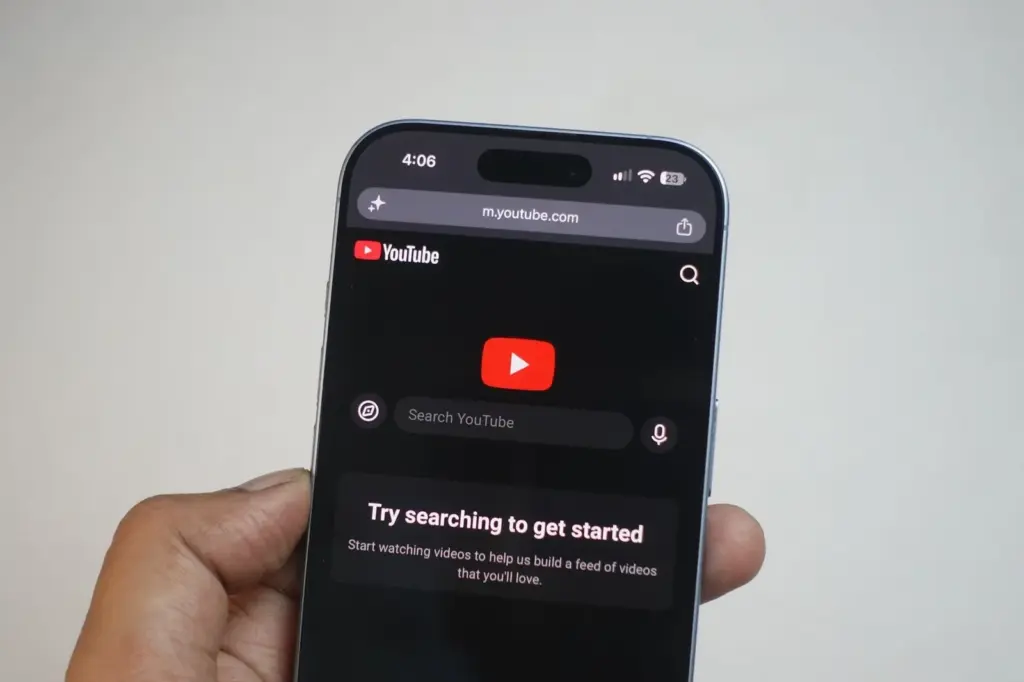
To see your YouTube Recap, open the YouTube app, sign in, tap the You tab and look for the Recap banner. On a computer, go to youtube.com/recap while signed in. The latest confirmed edition is YouTube Recap 2025, which launched in early December 2025. As of November 26, 2026, YouTube has not announced a 2026 edition or given a date for one.
That gap is the useful part. If you want a year-end video this December and nothing official has landed, you can build your own Recap-style edit from your clips, photos and numbers. CapCut’s template directory already lists year-end layouts, including a 2026 Recap 67 Clips template. This guide covers both halves: where the real Recap lives, and how to make a vertical year-in-review video three different ways, ending with a free scripted project you can run on any laptop.
Everything below is split so you can stop where you need to. The first four sections answer the “where is it” question. The rest is a hands-on build with fourteen numbered steps, working code, a troubleshooting table and a set of advanced tips. If you want to browse other layouts first, the video templates category collects the template guides we have published.
What YouTube Recap is, and what it is not
YouTube Recap is a personal summary of what you watched. YouTube introduced its first broad version in early December 2025, and sources disagree by a day on the exact date (December 2 or December 3). It is reachable from a Recap banner, from the You tab, or from youtube.com/recap on desktop. According to current research on YouTube’s Help pages, it covers long-form videos and Shorts and builds itself from your watch history.
It is not a video you edit, and it is not a template. YouTube’s own pages we checked this week show no built-in Recap template and no official workflow that turns your Recap into an export. That matters because a lot of search results blur the line. Pages titled 2026 Recap are visible right now, but they are third-party templates and have no connection to an official YouTube release.
The audience is huge, which explains the search volume. Pew Research Center reported that “As of 2024, 85% of U.S. adults say they have ever used YouTube.” When that many people hold a watch history, a yearly summary becomes a shareable event, and creators want their own version with their own footage.
| Item | What it is | Status on November 26, 2026 |
|---|---|---|
| YouTube Recap 2025 | Personal viewing summary, opened from the banner, the You tab or youtube.com/recap | Latest confirmed edition, launched December 3, 2025 per the fetched sources |
| YouTube Recap 2026 | Not announced | No official announcement or date identified |
| YouTube Music Recap | Deeper audio summary, linked for people with at least 10 hours of music listening | Linked from the main Recap in December 2025 |
| Unofficial gaming and third-party recap pages | Year-in-review products from other companies | Not YouTube Recap, do not confuse them |
| Price | Presented as a YouTube feature, not a separate product | No separate price listed |
How to see your YouTube Recap on a phone or computer
On your phone
The phone app is the main door. Follow these steps on iPhone or Android. They match the access path described in the current research, but the exact label can shift between app updates, so treat the wording as a guide.

- Update the YouTube app from the App Store or Google Play. YouTube’s own Help pages give conflicting minimum versions for Recap, so chase “latest” instead of a number.
- Open the app and confirm you are signed in to the Google account you actually watch with.
- Tap the You tab in the bottom bar.
- Look for a Recap banner. Reports describe it as reading “Your YouTube Recap is here!”
- Tap the banner and swipe through the cards.
- If a final card links to music, tap it to open the YouTube Music side of Recap.
Most failed searches die at step 2. People own two or three Google accounts, and a Recap only exists for the account whose history it summarises. Switch accounts from your profile picture before you decide it is missing.
One more practical point: one report this month says Recaps are deleted for everyone after the year ends. That claim comes from secondary coverage, so treat it as a warning rather than a policy. Either way, screen-record yours while it is open. We do that in Step 1 of the build below.
On a computer, and when the banner is missing
On desktop, type youtube.com/recap into the address bar while signed in. The current research confirms that route for the 2025 edition. If the page loads without a Recap, check the account picker in the top right before anything else.
Several things can hide the banner. A gradual rollout can reach accounts at different times. A thin watch history can leave you ineligible, and the Help page surfaced in research reportedly asks for enough eligible history. Watching while signed out leaves nothing to summarise. Pausing watch history can also leave a Recap with little to summarise.
A quick checklist before you give up
- Signed in to the right Google account, on both app and browser.
- Watch history turned on in your Google account settings.
- App updated, browser tab refreshed, cache cleared if the page looks stale.
- Tried youtube.com/recap on a computer in addition to the phone app.
- Checked again tomorrow, because rollouts are staged.
If every box is ticked and nothing shows, the likeliest answer in late November is the simplest one. The 2025 edition may have aged out, and the 2026 edition does not exist yet.
YouTube Music Recap and the music link
YouTube Music Recap is the audio-focused sibling. In December 2025, people with at least 10 hours of music listening received a link inside the main Recap to a deeper audio summary in the YouTube Music app. Under that threshold, you simply do not get the link.
Open the YouTube Music app and look for the Recap entry near your profile. The menu label has moved around across updates, so a fixed tap path would go stale. If you listen mostly through YouTube Music, start there instead of hunting through the main app.
Artists have a separate product. Research shows a 2025 Artist Recap with its own data window and an availability end in early 2026, and it should not be described as the standard viewer Recap. If you upload music, check that one separately, because the numbers inside it measure plays of your catalogue rather than your own listening.
When will the 2026 Recap arrive?
Nobody outside YouTube knows. The official pages checked today carry no 2026 launch announcement, no eligibility update and no date. The only dated Recap announcement on record is the December 2025 one.
Forecasts of an early-December 2026 release exist, and they are guesses built on last year’s timing. That is a pattern, not a promise. Plan around it by building your own recap now. If YouTube’s version appears, you will already have a polished edit to post next to it.
Recent YouTube news points elsewhere. The September 23, 2026 Made On YouTube event focused on viewer, creator and AI features, and YouTube Create picked up Keyframes in early November. Those are tools you can use for a self-made recap today, which is where the rest of this guide goes.
Prerequisites and the three routes you can take
You do not need to buy anything to follow this guide. You need footage, a few numbers and one of three tools. Pick the route that fits your patience.
| Route | Best for | Skill needed | Control over timing | Setup effort |
|---|---|---|---|---|
| CapCut recap template | Fast phone or desktop edit | Low | Fixed by the template | Fast |
| YouTube Create | Editing and posting inside YouTube’s own app | Low | Manual, with Keyframes for animation | Fast |
| Scripted FFmpeg project | Repeatable yearly edit and batch consistency | Medium | Full, set in a config file | Slower, then reusable |
| Premiere Pro or DaVinci Resolve | Custom motion graphics and colour | Medium to high | Full | Slower |
| Canva video template | Browser-based, brand-styled slides | Low | Template-bound | Fast |
What you need installed
- A current YouTube app (App Store or Google Play) to capture your Recap.
- For Route A, the CapCut app or desktop editor. Check the About screen for your build. No official source confirms a current CapCut app version, so treat any version number reported by a single source with caution.
- For Route B, the YouTube Create app. Research describes it as a free mobile editor, but no official pricing page confirmed that, so check the store listing.
- For Route C, any current build of FFmpeg and Python 3. Run
ffmpeg -versionandpython3 --versionto confirm both respond. The script uses only the Python standard library. - A font file you can legally use, plus music you may post.
No FFmpeg or Python minimum version is quoted here because none appears in the verified facts. Any recent release handles the filters used below: drawtext, fade, scale, pad, loudnorm and the concat demuxer. If a filter is missing on your machine, that is a build problem, covered in troubleshooting.
Step 1 to 4: plan your recap before you open an editor
Step 1. Save your real Recap as a reference
Open your Recap using the steps above and run your phone’s screen recorder while you swipe through the cards. This gives you a reference for the structure and a private archive of your numbers. Keep it as research. YouTube’s branding, interface and music are not yours to reuse in a public edit, so your final video should use original assets.
If you have no Recap to record (it is missing or expired), skip to Step 2 and use your own channel analytics, upload list and camera roll instead. Your numbers will be just as good.
Step 2. Write down four numbers
Recap-style videos work because of numbers. Choose four that matter to your audience and keep them short. Good picks for a channel: videos uploaded, hours streamed, your best-performing upload, and the month you grew fastest. For a personal recap: places visited, trips, favourite song, and one number only you would care about.
Write each as a value and a label, such as 48 and “videos uploaded”. Short values fit a title card at large type. Long phrases do not.
Step 3. Sort footage into month folders
Make one folder per month and drop in your three best clips. Prefer clips with motion in the first second, because each shot will be short. If a month has nothing worth keeping, leave it out. A recap with eight strong months beats twelve padded ones.
Kapwing has published Wrapped-style template ideas that show how creators turn raw stats into shareable cards, which is a handy reference when you are stuck on structure.
Step 4. Pick the shape and the length
Pick vertical 9:16 for Shorts, Reels and TikTok, and 16:9 if the video will live on your channel page. The official CapCut 2026 recap template we verified is 9:16 and asks for 32 clips, so vertical is the safe default. Aim for 20 to 45 seconds, because a short cut gets viewers to your closing card.
Math it out before you edit. Eight months with one 3-second clip each, a 1.5-second month card each, a title, two stat cards and a closing card come to about 46 seconds. Two clips per month pushes that to about 70, so trim a month or cut each clip to 2 seconds. The script in Route C reports its estimated length every time you run it, so you can adjust before rendering.
Design the cards: type, colour and safe areas
A recap card has one job, which is to make a number readable in under two seconds. Use one typeface, two sizes and two colours. The project script draws white text on a dark navy background, with a larger size for cards and a smaller one for captions, and that restraint is deliberate. Busy gradients fight the text.
Respect the safe area. On a 1080 by 1920 canvas, apps cover the bottom edge with buttons, usernames and captions. The script places captions at one sixth of the frame height above the bottom, which clears most interface chrome. If you change the position, test on a phone, not a desktop preview.
Give each card a fade of about 0.4 seconds in and out. It is long enough to soften a hard cut and short enough that a 2.5-second card still holds its text for over a second and a half. If you animate cards by hand in an editor, keep the same timing so the whole piece feels like one family.
Use the same order of information every time: the big value first, the label second. Viewers learn the pattern by the second card, and the third lands faster. Break the pattern once, on your standout moment, and it will feel like a payoff instead of an accident.
Music and licensing
Pick the track before you finalise the cut. Music sets the pace, and a beat that fits your clip length saves you from re-trimming. Use audio you own, audio licensed for social video, or a track from the platform’s own library if you are posting inside that platform.
Do not rip the soundtrack from YouTube’s Recap or from someone else’s recap. It is branded, and a claim can mute or block your upload. Templates deserve the same caution. A template’s built-in track may be licensed only for use inside the editor that supplied it, so replace it before you export for any other service.
If you plan to post on several platforms, keep two audio versions: one with a licensed track and one silent. Upload the silent one wherever you will add a platform’s own music after the fact. For a spoken voiceover, record it dry and add the music underneath later, keeping speech clearly louder than the track.
Steps 5 to 7: the template routes, CapCut and YouTube Create
Step 5. Route A, find a CapCut recap template that matches your clip count
Search CapCut’s template directory for “2026 recap” or “year recap”. Official listings updated around November 23 to 25, 2026 reportedly range from about 29 to 73 clips, in both vertical and 16:9 formats. The 2026 recap template we verified needs 32 clips at 9:16. The clip counter is the most important filter, because a 32-slot template with 18 clips forces filler.
Whether a given template needs a paid plan or a paid effect depends on the template, so open it before you plan around it. The pricing page retrieved this week lists a Free plan at US$0 and Pro at US$19.99 per month or US$179.99 per year, with a note that final prices vary by region, platform and taxes. Confirm the price in your own app before you rely on it.
Step 6. Fill the slots and replace the text
Open the template, select your photos and clips in the order you want them, and let the editor drop them into the slots. Then change every text layer. Templates ship with placeholder names and years, and a leftover “2026” in the wrong place is the most common embarrassment.
Swap the music last. The template’s track may carry restrictions outside the app, so choose audio you can post under your own account. Then export at the highest resolution your plan allows and keep the aspect ratio at 9:16.
Step 7. Route B, YouTube Create and Keyframes
YouTube Create is YouTube’s own editor, and it is the nearest official tool for building a recap-style video from personal footage. It is not a Recap generator, and nothing in the official material we checked links Recap directly to Create. What it does offer is Keyframes, which animate the position, scale, rotation and opacity of text, stickers, GIFs, images and video layers. YouTube announced Keyframes in early November 2026, according to its creator roundup.
Use Keyframes for your number cards. Animate the value from 0 percent opacity to 100 and scale it from 90 to 100 percent over half a second. That gives you the pop that Recap cards have, with your own colours.
YouTube also announced an Edit with AI tool in November 2025 that can pick moments from a camera roll and draft a Short, available in the YouTube app and YouTube Create. In September 2026 it described a Gemini-powered conversational editing assistant for Create and Shorts. Both come from single-source summaries, so check the in-app menu for what your account shows today.
Route B suits you if you post straight from your phone and do not need frame-exact control. If you want identical results every year, move on to Route C.
Steps 8 to 11: Route C, the scripted recap project
Route C is a small Python script that drives FFmpeg. You describe the recap in a JSON file, and the script renders title cards, stat cards, month cards and clip shots, joins them and lays music underneath. It costs nothing, runs offline and gives you the same layout every December. You edit one file, not a timeline.
Step 8. Create the project folder
recap-project/
  build_recap.py
  recap.json
  clips/
    jan/stream.mp4
    jan/setup.mp4
    feb/mic.mp4
  music/
    track.wav
  work/            (created by the script)
Keep clip paths relative to the folder you run the script from. The work folder holds every intermediate file, so you can delete it after a render.
Step 9. Make test clips so you can try the script first
Before you point the script at real footage, generate synthetic clips with FFmpeg’s built-in test source. This proves your install works and takes seconds.
mkdir -p clips/jan clips/feb music
ffmpeg -f lavfi -i testsrc2=size=1920x1080:rate=30:duration=6 -pix_fmt yuv420p clips/jan/stream.mp4
ffmpeg -f lavfi -i testsrc2=size=1920x1080:rate=30:duration=6 -pix_fmt yuv420p clips/jan/setup.mp4
ffmpeg -f lavfi -i testsrc2=size=1080x1920:rate=30:duration=6 -pix_fmt yuv420p clips/feb/mic.mp4
ffmpeg -f lavfi -i "sine=frequency=220:duration=10" music/track.wav
Note the mix on purpose: two landscape clips and one vertical. The script has to scale the first two into a vertical frame, and this test shows whether it does.
Step 10. Write the config file
The config holds everything that changes year to year: the title, your four numbers, the months, the captions, the music and the font. Set font to a real font file on your machine. The path below is a Linux example. On Windows use something like C:/Windows/Fonts/arialbd.ttf with forward slashes.
{
  "title": "My 2026 in Review",
  "font": "/usr/share/fonts/truetype/dejavu/DejaVuSans-Bold.ttf",
  "music": "music/track.mp3",
  "closing": "Thanks for watching\nSee you next year",
  "stats": [
    {"value": "48", "label": "videos uploaded"},
    {"value": "212 h", "label": "watched on YouTube"}
  ],
  "months": [
    {"name": "January", "caption": "First stream of the year",
     "clips": ["clips/jan/stream.mp4", {"file": "clips/jan/setup.mp4", "start": 2}]},
    {"name": "February", "caption": "New mic day", "clips": ["clips/feb/mic.mp4"]}
  ]
}
A clip entry can be a plain path or an object with a start value in seconds, which skips the dull opening of a long clip. Captions sit on a translucent box at the bottom so they stay readable over bright footage.
Step 11. Add the script
Save the following as build_recap.py. It has four jobs: build title cards with a fade, normalise each clip to 1080 by 1920 at 30 frames per second, join everything with the concat demuxer, then mux the music with fades and loudness normalisation.
#!/usr/bin/env python3
import argparse
import json
import subprocess
import sys
from pathlib import Path

BG = "0x101820"


def run(cmd, dry):
    print(" ".join(f'"{c}"' if " " in c else c for c in cmd))
    if not dry:
        subprocess.run(cmd, check=True)


def fpath(p):
    return str(p).replace("\\", "/").replace(":", r"\:")


def drawtext(cfg, textfile, size, y, extra=""):
    return (
        f"drawtext=fontfile='{fpath(cfg['font'])}':textfile='{fpath(textfile)}'"
        f":fontcolor=white:fontsize={size}:line_spacing=24"
        f":x=(w-text_w)/2:y={y}{extra}"
    )


def title_card(cfg, work, name, text, dur, dry):
    w, h = cfg["size"]
    txt = work / f"{name}.txt"
    txt.write_text(text, encoding="utf-8")
    fade = f"fade=t=in:st=0:d=0.4,fade=t=out:st={dur - 0.4}:d=0.4"
    vf = drawtext(cfg, txt, 96, "(h-text_h)/2") + "," + fade
    out = work / f"{name}.mp4"
    run(["ffmpeg", "-y", "-hide_banner", "-loglevel", "error",
         "-f", "lavfi", "-i", f"color=c={BG}:s={w}x{h}:r={cfg['fps']}:d={dur}",
         "-vf", vf, "-c:v", "libx264", "-crf", "18", "-pix_fmt", "yuv420p",
         "-r", str(cfg["fps"]), str(out)], dry)
    return out, dur


def clip_card(cfg, work, name, clip, caption, dry):
    w, h = cfg["size"]
    src = clip["file"] if isinstance(clip, dict) else clip
    start = clip.get("start", 0) if isinstance(clip, dict) else 0
    sec = cfg["clip_seconds"]
    if not dry and not Path(src).exists():
        sys.exit(f"Missing clip: {src}")
    txt = work / f"{name}.txt"
    txt.write_text(caption, encoding="utf-8")
    vf = (f"scale={w}:{h}:force_original_aspect_ratio=decrease,"
          f"pad={w}:{h}:(ow-iw)/2:(oh-ih)/2:color={BG},setsar=1,fps={cfg['fps']},"
          + drawtext(cfg, txt, 58, "h-h/6",
                     ":box=1:[email protected]:boxborderw=24"))
    out = work / f"{name}.mp4"
    run(["ffmpeg", "-y", "-hide_banner", "-loglevel", "error",
         "-ss", str(start), "-t", str(sec), "-i", str(src),
         "-vf", vf, "-an", "-c:v", "libx264", "-crf", "18",
         "-preset", "medium", "-pix_fmt", "yuv420p", str(out)], dry)
    return out, sec


def probe(path, fallback, dry):
    if dry:
        return fallback
    res = subprocess.run(
        ["ffprobe", "-v", "error", "-show_entries", "format=duration",
         "-of", "csv=p=0", str(path)], capture_output=True, text=True, check=True)
    return float(res.stdout.strip())


def main():
    ap = argparse.ArgumentParser(description="Build a vertical year-in-review video")
    ap.add_argument("config")
    ap.add_argument("-o", "--out", default="recap.mp4")
    ap.add_argument("--dry-run", action="store_true", help="print commands only")
    args = ap.parse_args()

    cfg = json.loads(Path(args.config).read_text(encoding="utf-8"))
    cfg.setdefault("fps", 30)
    cfg.setdefault("size", [1080, 1920])
    cfg.setdefault("clip_seconds", 3)
    work = Path("work")
    work.mkdir(exist_ok=True)

    parts, est = [], 0.0

    def add(item):
        nonlocal est
        parts.append(item[0])
        est += item[1]

    add(title_card(cfg, work, "00-title", cfg["title"], 2.5, args.dry_run))
    for s, stat in enumerate(cfg.get("stats", []), 1):
        text = f"{stat['value']}\n{stat['label']}"
        add(title_card(cfg, work, f"01-stat{s}", text, 2.5, args.dry_run))
    for m, month in enumerate(cfg["months"], 1):
        add(title_card(cfg, work, f"{m + 1:02d}-month", month["name"], 1.5, args.dry_run))
        for c, clip in enumerate(month["clips"], 1):
            add(clip_card(cfg, work, f"{m + 1:02d}-clip{c}", clip, month["caption"], args.dry_run))
    add(title_card(cfg, work, "99-end", cfg["closing"], 3.0, args.dry_run))

    listing = work / "list.txt"
    listing.write_text("".join(f"file '{p.name}'\n" for p in parts), encoding="utf-8")
    joined = work / "joined.mp4"
    run(["ffmpeg", "-y", "-hide_banner", "-loglevel", "error", "-f", "concat",
         "-safe", "0", "-i", str(listing), "-c", "copy", str(joined)], args.dry_run)

    total = probe(joined, est, args.dry_run)
    af = (f"afade=t=in:st=0:d=1,afade=t=out:st={max(total - 2, 0):.2f}:d=2,"
          "loudnorm=I=-16:TP=-1.5:LRA=11")
    run(["ffmpeg", "-y", "-hide_banner", "-loglevel", "error", "-i", str(joined),
         "-stream_loop", "-1", "-i", cfg["music"], "-t", f"{total:.2f}",
         "-filter_complex", f"[1:a]{af}[a]", "-map", "0:v", "-map", "[a]",
         "-c:v", "copy", "-c:a", "aac", "-b:a", "192k",
         "-movflags", "+faststart", args.out], args.dry_run)
    print(f"Estimated length: {total:.1f}s -> {args.out}")


if __name__ == "__main__":
    main()
Two details save you pain. Text goes through textfile rather than inline, because apostrophes and colons in a caption break FFmpeg’s filter parser. And every segment is encoded with the same codec, pixel format and frame rate, which is what lets the final join use -c copy without re-encoding.
Steps 12 to 14: render, check and publish
Step 12. Dry-run first, then render
The --dry-run flag prints every FFmpeg command without running it. Read the output once. Wrong paths and typos show up in seconds instead of after a long render.
python3 build_recap.py recap.json --dry-run
python3 build_recap.py recap.json -o my-2026-recap.mp4
The dry-run ends with a line like the one below. The estimate adds up the title cards, month cards and clip seconds, so it is a good length check.
ffmpeg -y -hide_banner -loglevel error -i work/joined.mp4 -stream_loop -1 -i music/track.wav -t 22.50 -filter_complex [1:a]afade=t=in:st=0:d=1,afade=t=out:st=20.50:d=2,loudnorm=I=-16:TP=-1.5:LRA=11[a] -map 0:v -map [a] -c:v copy -c:a aac -b:a 192k -movflags +faststart my-2026-recap.mp4
Estimated length: 22.5s -> my-2026-recap.mp4
With the sample config, that is 2.5 seconds of title, two 2.5-second stat cards, two 1.5-second month cards, three 3-second clips and a 3-second closing card. Add them up and compare the result with the length your tool reports. If the two differ, a clip entry or card is missing.
Step 13. Check the file with ffprobe
ffprobe -v error -show_entries stream=codec_name,width,height,r_frame_rate:format=duration -of default=nw=1 my-2026-recap.mp4A healthy file reports H.264 video at 1080 by 1920 and 30/1, an AAC audio stream, and a duration that matches the estimate to within a fraction of a second. Output follows this shape, with your own numbers:
codec_name=h264
width=1080
height=1920
r_frame_rate=30/1
codec_name=aac
duration=22.500000
Play it on your phone before you post. Phones show the safe areas that desktop previews hide, and you will catch a caption sitting under the app’s interface buttons.
Step 14. Upload and title it
Upload the MP4 as a Short, a Reel or a regular video, depending on your channel. Name it something a searcher would type, like “My 2026 YouTube year in review”, and avoid implying it is an official YouTube Recap. Add a one-line description with the four numbers, and pin a comment asking viewers to share theirs.
When to post
You have two reasonable windows. Post before YouTube’s own Recap lands, if it lands at all, and your edit gets the early attention of people who want a year-end video. Post after, and you can reply to the official Recap with your version, which suits a channel with a regular audience.
Do not wait on an announcement that may never come. The 2025 edition appeared in early December, and a similar timing for 2026 is a forecast rather than a fact. A recap built in the last week of November can ship the moment you decide it is ready, and it still works if the official one appears a week later.
Whatever day you pick, publish at your channel’s usual hour and keep the thumbnail simple. A single number in large type, like the 48 from your first card, makes a clean thumbnail without extra design work.
Render settings
| Setting | Value used in the project | Why |
|---|---|---|
| Resolution | 1080 x 1920 | Vertical 9:16, matches the verified CapCut recap template shape |
| Frame rate | 30 fps | Same for every segment so the join needs no re-encode |
| Video codec | H.264, CRF 18, yuv420p | Plays everywhere, near-lossless at this length |
| Audio codec | AAC, 192 kbps | Standard for MP4 uploads |
| Loudness | loudnorm to -16 LUFS | Keeps music level with other social clips |
| Container | MP4 with faststart | Moves metadata to the front for quicker upload processing |
| Clip length | 3 seconds per clip | Keeps a 20 to 45 second recap tight |
These are the project’s own choices rather than platform requirements. For a 16:9 version, set "size": [1920, 1080] in the config and raise the caption font size to taste. If you want to see how a ready-made intro or title is specified for resolution, length and frame rate, the intro themes page lists those figures for each theme.
Common pitfalls
- Posting it as the official Recap. Calling your edit “YouTube Recap 2026” invites confusion and possible takedowns, since no official 2026 edition exists. Call it your year in review.
- Reusing YouTube’s graphics or music. Your screen recording is reference material. Build the public version from your own assets and licensed audio.
- Too many months. Twelve months with three clips each is 36 shots. Long recaps lose viewers before the closing card, so cut weak months.
- Mixed frame rates. A 24 fps clip next to a 60 fps clip stutters. The script forces 30 fps on every clip, so keep that setting rather than editing around it.
- Tiny text. Phone viewers see a 6-inch screen. Keep stat values at 90 pixels or larger and captions at 56 or above on a 1080 wide canvas.
- Forgetting the placeholder text in templates. Search every text layer for last year’s name, date and handle before export.
- Wrong account. If your Recap looks empty, the cause is usually the account picker, not YouTube.
Troubleshooting
| Symptom | Likely cause | Fix |
|---|---|---|
| No Recap banner in the app | Wrong account, gradual rollout, thin history, or no 2026 edition yet | Switch accounts, update the app, try youtube.com/recap, then check again in a day |
| youtube.com/recap loads a normal page | Signed out or the edition has expired | Sign in, refresh, and confirm the account in the top right |
| No Music Recap link | Under 10 hours of music listening | Check inside the YouTube Music app instead |
ffmpeg: command not found | FFmpeg is not installed or not on PATH | Install a current build and reopen the terminal |
| No such filter: ‘drawtext’ | Your FFmpeg build lacks libfreetype | Install a full build that includes drawtext support |
| Cannot find a valid font | The font path is wrong | Point it at a real .ttf file, with forward slashes on Windows |
| Garbled or missing caption | Special characters inside a filter string | The script uses textfile, so keep captions in the JSON and save the file as UTF-8 |
| Concat output freezes or glitches at a join | Segments encoded with different settings | Re-run every segment through the same script, or swap -c copy for -c:v libx264 -crf 18 in the join |
| “Missing clip” message | Relative path wrong | Run the script from the project folder and check spelling and case |
| Music cuts off early or loops oddly | Track shorter than the video, or fade placed wrong | The script loops the track and fades out two seconds before the end, so use a longer track for a cleaner finish |
| Black bars around a landscape clip | The clip is 16:9 inside a 9:16 frame | Crop or zoom the source first, or accept the bars as a design choice |
Advanced tips
Make it repeatable. Keep your config, font and music in a folder named by year. Next December you copy the folder, change four numbers and re-run. That is the real payoff of Route C over a one-off template.
Cut to the beat. Set clip_seconds to match your track. At 120 beats per minute a beat lasts half a second, so 2 or 3 seconds per shot lines up with the music without effort. Pick the tempo before you pick the clips.
End on a sting. A short animated logo closing card makes the video feel finished. You can render one with an animated logo intro theme and append the file as the last item in the join list.
Fill empty months with AI b-roll, carefully. CapCut’s Dreamina page names Seedance 2.5 Flash as its newest Seedance video model with a November 17, 2026 date, and describes 4 to 30 second clips from 480p or 720p previews. That is one reported source, so check the model list in your own app. Label any generated shot as such, and never pass it off as real footage from that month.
Make a 16:9 cut from the same config. Copy recap.json to recap-wide.json, change size to [1920, 1080] and render again with a different output name. One folder gives you a Short and a channel-page version.
Add sound design. The script strips clip audio with -an to keep the music clean. If you want a few seconds of live sound, pull them separately in an editor and mix them under the track. Keep any spoken audio at least 6 dB above the music.
Keep a backup of your numbers. Since a Recap may disappear after the year ends, store a screenshot of every card alongside your config. You will want them next year when you compare.
Route D: take the same structure into Premiere Pro or DaVinci Resolve
If you already live in a full editor, you do not need the script. Copy the structure instead. Build one sequence at 1080 by 1920 and 30 frames per second, drop in your title card, then add a marker for each month and place clips on the video track in order. Put the stat cards on a second track so you can move them without touching the footage.
Save your card design as a reusable preset. In Premiere Pro that means an essential graphics template, and in DaVinci Resolve it means a Fusion title saved to the Power Bin. Either way you change the text and keep the look. Colour is the real advantage here: an adjustment layer or a single colour node over the whole sequence makes clips from different months match.
Export with the same targets as the table above: H.264, 1080 by 1920, 30 fps, AAC audio. Then compare the file against your script output on a phone screen. The two should look like cousins, and if they do not, check which frame rate your clips were shot at.
The complete project at a glance
Put the pieces together and you have a working year-in-review builder: one config file, one script, one command. The flow runs in six moves. Gather clips by month, write four numbers, edit recap.json, run the dry-run, render, then check with ffprobe.
# one-time setup
mkdir recap-project && cd recap-project
# add build_recap.py and recap.json, then your clips and music

# every year
python3 build_recap.py recap.json --dry-run
python3 build_recap.py recap.json -o year-in-review.mp4
ffprobe -v error -show_entries format=duration -of default=nw=1 year-in-review.mp4
If you would rather not touch a terminal, Routes A and B give you most of the same result with taps. Use the script when you value consistency, the template when you value speed. Whichever you pick, the structure stays the same: opening title, four numbers, month highlights, one standout clip and a closing line.
Questions creators ask
How do I see my YouTube Recap?
Sign in on the YouTube app, tap the You tab and open the Recap banner. On a computer, visit youtube.com/recap while signed in. Both are the routes documented for the 2025 edition, the latest one confirmed. Whether it still opens for you depends on your account and on how long YouTube keeps it.
Is there a YouTube Recap for 2026?
Not yet confirmed. As of November 26, 2026, YouTube has not announced a 2026 edition or given a date. Forecasts of early December are guesses based on the 2025 launch.
Why can’t I see my YouTube Recap?
The usual causes are the wrong Google account, an outdated app, a gradual rollout or too little watch history. It may also have expired, since one report says Recaps are deleted after the year ends.
How do I see my YouTube Music Recap?
Look for the music link at the end of your main Recap, or check the YouTube Music app directly. In 2025 the link went to people with at least 10 hours of music listening.
Can I download my YouTube Recap as a video?
Nothing in the official material we checked confirms a video export for a 2026 edition. YouTube published a help post on December 3, 2025 titled “How to find, share and save your YouTube Recap”, so start there. A screen recording works for personal reference.
What is the best template for a year recap video?
Pick the one whose clip count matches your footage. CapCut’s 2026 recap listings span about 29 to 73 clips, and the one we verified takes 32 clips at 9:16. If none fits, the scripted project above has no clip limit.
What size should a recap video be?
Use 1080 by 1920 for Shorts, Reels and TikTok, and 1920 by 1080 for a channel upload. Keep important text away from the bottom edge, where app buttons cover it.
Is YouTube Recap free?
YouTube presents it as a feature of the service, with no separate price listed in the sources we checked. Premium and Music subscription plans are separate products.
More from the Vipid blog
- YouTube End Screen Template [2026]: 12 Steps, 25 Min
- How to Add Links to Your YouTube Channel in Studio
- How To Create A Sound On Tiktok
- How to Slow Down an Instagram Video Before You Post It
- HeyGen AI Avatars: Build a Video and Budget the Credits
- Vipid intro maker make a custom intro in the browser
- Vipid intro themes every theme with resolution, length and frame rate
- Intro themes the intro category
- Sample videos finished Vipid intros
Theo Vance
Theo Vance is the Intros & Templates Editor at Vipid, where he covers intro and outro makers, template libraries for CapCut, Canva and the major editors, slideshow and video-card tools, and stream starting screens. He compares makers on what matters before you hit render: watermark, export resolution, length limits, licence and price, and dates every check. He also looks after the Vipid theme archive, the 2011–2016 intros the site was built on.